
Feeling that jolt of panic when your iPhone vanishes somewhere in the room? It happens to the best of us. You put it down for a second, turn around, and it’s gone, buried under a cushion or hidden behind a stack of papers. While there is no obvious, pre-installed button to clap to find my phone iPhone, don’t worry.
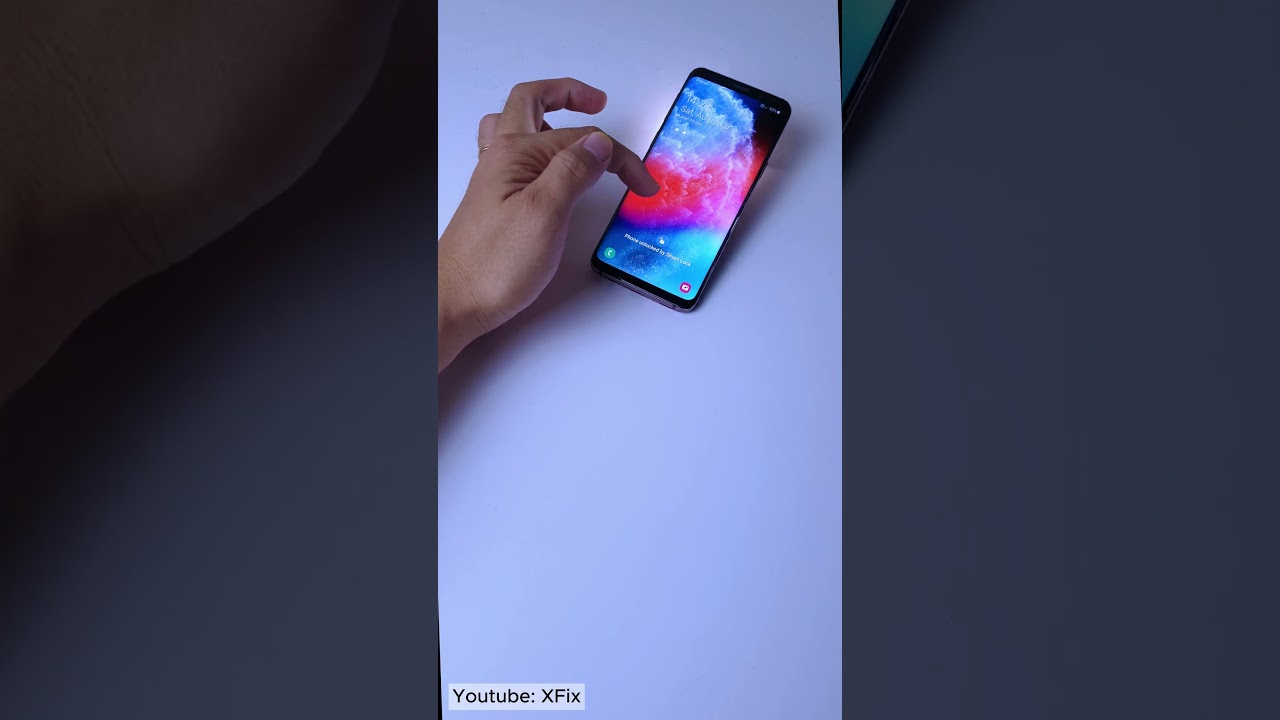
At findmyiphone.onl, we understand the frustration of a misplaced device. This guide reveals a clever, no-app-needed trick using a native Apple accessibility tool to create your own clap-activated finder. Furthermore, we will cover four other foolproof, Apple-approved methods to locate your device in seconds, even if it’s on silent mode.
The Straight Answer: Does “Clap to Find My Phone” Work on iPhone Natively?
The short answer is: Not directly out of the box, but you can build it.
Unlike some Android devices or third-party gimmicks, Apple does not include a dedicated “Clap to Find” toggle in the standard settings. However, by utilizing the powerful “Sound Recognition” accessibility feature combined with the Shortcuts app, you can program your iPhone to detect a clap sound and trigger a response. This is the only safe way to achieve a clap to find my phone iphone function without downloading sketchy apps.
Debunking the Myth: Why iPhones Don’t Have a Built-in “Clap to Find” Feature
Many users ask, does clap to find my phone work on iphone by default? The answer is no, primarily due to battery efficiency and privacy.
- Battery Drain: Constantly listening for a specific sound like a clap requires the microphone to be active and the processor to analyze audio in real-time. This prevents the phone from entering deep sleep modes.
- False Positives: Simple noises like a door slamming or a dog barking could trigger the alarm, causing annoyance.
- Privacy: Apple is notoriously strict about when the microphone is active.
The Real Solution: Creating Your Own Finder with Apple’s Built-in Tools
The solution lies in Apple’s “Accessibility” suite. Designed to help users with hearing impairments, the Sound Recognition feature can listen for specific environmental sounds. When we pair this with Shortcuts, we create a powerful clap to locate iphone system.
Method 1: How to Set Up “Clap to Find iPhone” Using a Custom Shortcut [No App Needed]
This is the most requested workaround. We will configure your iPhone to listen for a clapping sound and run a specific automation—like playing a sound or turning on the flashlight—to help you find it.
What is the Shortcuts App? A Simple Explanation
The Shortcuts app is a free, powerful tool from Apple pre-installed on your device. It lets you create custom commands and automated workflows. Think of it as teaching your iPhone a new trick: “When you hear X, do Y.”
Step-by-Step Guide: Creating a Personal Automation to Find Your iPhone
Follow these steps carefully to learn how to set up clap to find iphone.
Phase 1: Enable Sound Recognition
- Open Settings.
- Tap on Accessibility.
- Scroll down to Sound Recognition and toggle it ON.
- Tap on Sounds.
- Select Clapping from the list and ensure it is checked.
Phase 2: Create the Automation in Shortcuts
Now, we tell the iPhone what to do when it hears that clap.
- Open the Shortcuts App. Find the icon that looks like two overlapping colorful squares.
- Navigate to Automation. Tap the “Automation” tab at the bottom center of the screen.
- Create a New Personal Automation. Tap the plus sign (+) in the top-right corner. If you don’t see it, tap “Create Personal Automation.”
- Choose the “Sound Recognition” Trigger. Scroll down the list of triggers until you find “Sound Recognition” and tap it.
- Select Your Trigger Sound. Tap “Choose Sound” and select Clapping. Tap “Done,” then tap “Next.”
- Add Your Action. Tap “Add Action.” In the search bar, type “Play Sound” and select it.
- Tip: You can also add “Turn Flashlight On” or “Vibrate Device” for better visibility.
- Question: Can i make my iphone ring to find it using this method? Yes, the “Play Sound” action works effectively.
- Finalize the Automation. Tap “Next.” On the summary screen, you must toggle off “Ask Before Running.” This is crucial; otherwise, the phone will ask for permission on the screen (which you can’t see) instead of ringing. Tap “Done.”
Now, whenever your iPhone detects a clapping sound, it will execute the action you selected. This is effectively how to find my iphone by clapping without installing third-party software.
Expert Note: Fine-Tuning Your Custom Clap Finder
At FindMyiPhone.onl, we have tested this extensively. Here are some critical caveats you must know:
- “Hey Siri” Conflict: When Sound Recognition is active, “Hey Siri” voice commands are disabled. The iPhone cannot listen for both the wake word and the clap sound simultaneously. You must choose which feature is more valuable to you.
- Battery Impact: While efficient, keeping the microphone active for sound recognition will consume more battery than usual.
- Sensitivity: You may need to clap loudly and distinctly. Background noise (TV, music) can interfere with detection.
4 Smarter, More Reliable Alternatives to Find Your iPhone
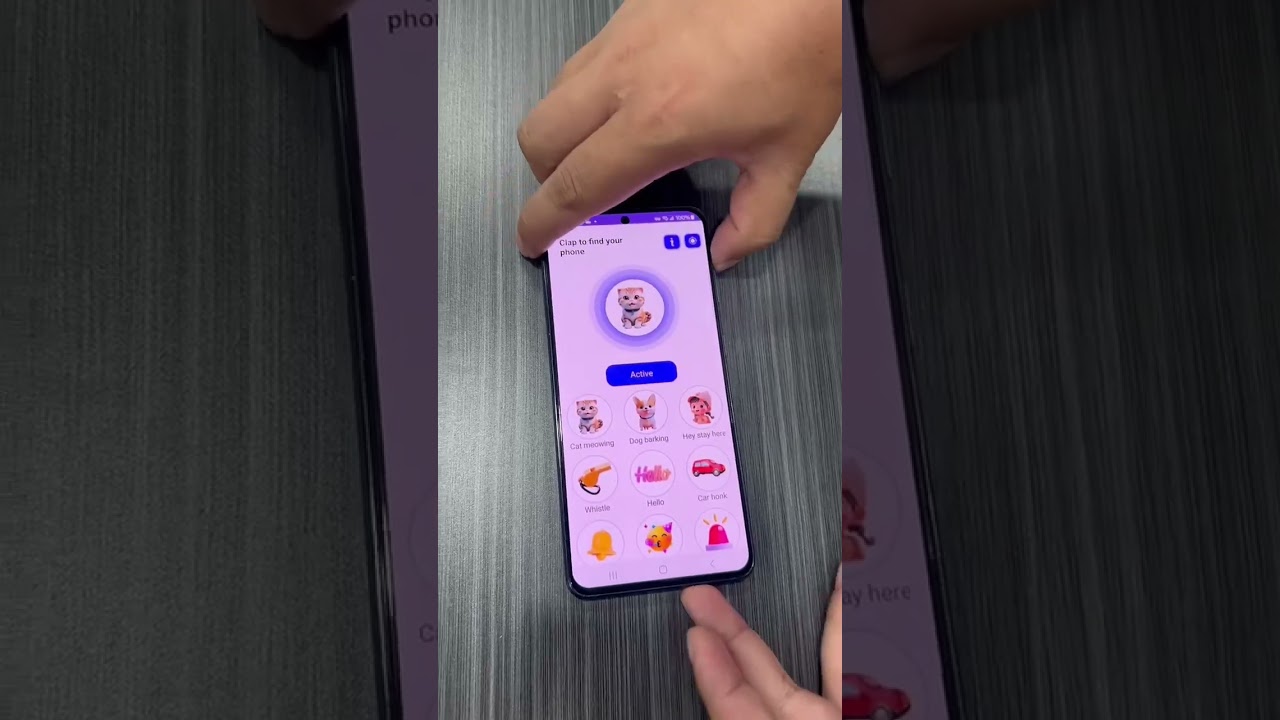
While the clap trick is fun, it has limitations. If you want the most reliable methods, Apple’s ecosystem offers superior tools. Here are four alternative ways to locate a misplaced phone.
Method 2: The “Hey Siri, Where Are You?” Command
This is the simplest voice control method. Many users wonder, can siri find my phone by clapping? No, but she can find it by voice.
If you haven’t enabled Sound Recognition (Method 1), your “Hey Siri” feature is active. Simply shout loudly:
“Hey Siri, where are you?”
Your iPhone will respond, usually saying “I’m here,” “Over here,” or even playing a brief tone. This is incredibly effective for finding a phone buried in couch cushions.
- Smart Home Integration: If you have smart speakers, you might also ask about alexa find my phone iphone integration, which allows your Amazon Echo to call your device.
Method 3: Use the “Find My” App on Another Apple Device
This is the gold standard for a lost iPhone. The Find My app uses a combination of GPS, Wi-Fi, and Bluetooth to pinpoint your device. This works flawlessly whether you are trying to find my iphone 14/15/16 pro max or an older model.
How to use it:
- Open the Find My app on an iPad, Mac, or a family member’s iPhone.
- Tap the “Devices” tab.
- Select your iPhone from the list.
- Troubleshooting: If you have multiple devices, you might need to check how to find my iphone name to ensure you are pinging the correct one.
- Tap “Play Sound”. This will override silent mode and play a piercing sound.
Advanced Features:
The map interface can be confusing for some. If you are struggling, our guide on how to read find my iphone map breaks down the symbols and radius circles. Additionally, if the device is moving, you might need to know how to request location on find my iphone to get real-time updates.
If you cannot access your account, you may need to verify your credentials; knowing how to find my iphone email address is the first step to recovering access.
Method 4: Ping Your iPhone from Your Apple Watch
If you own an Apple Watch, this is arguably the fastest way to find a nearby phone.
- Swipe up (or press the side button on watchOS 10+) to open the Control Center.
- Tap the iPhone icon (phone with vibration waves).
- Your iPhone will emit a loud ping.
- Pro Tip: Long-press the icon to make the iPhone’s LED flash, helping you find it in the dark.
Method 5: Use “Find Devices” on iCloud.com
Don’t have another Apple device? You can use any browser.
- Go to iCloud.com/find.
- Sign in with your Apple ID.
- Select your device from the “All Devices” menu.
- Click “Play Sound.”
This is useful if you are on a Windows PC or an Android phone. If you are transitioning ecosystems, you might also be interested in how to switch find my iphone to mac for better desktop management.
Comparison Table: Which iPhone Finding Method is Best for You?
| Method | Best For | Requirements | Overrides Silent Mode? |
|---|---|---|---|
| Siri Shortcut (Clap) | Hands-free, close range finding. | Setup required, Sound Recognition ON. | Yes (via Play Sound) |
| “Hey Siri” | Nearby phone, voice activation. | “Hey Siri” enabled, mic unblocked. | Yes |
| Find My App | Lost anywhere (home or away). | Secondary Apple device. | Yes |
| Apple Watch Ping | Immediate nearby location. | Paired Watch in range. | Yes |
| iCloud.com | When you have no Apple devices. | Any browser/internet. | Yes |
Practical Tips & Troubleshooting for When You Can’t Find Your iPhone
What if My iPhone is on Silent or Do Not Disturb?
A common fear is that silent mode will prevent the phone from ringing. Fortunately, Apple’s “Play Sound” feature in Find My is designed specifically to bypass the mute switch. If you are using the shortcut method, ensure your action is set to “Play Sound” rather than just a notification. For detailed steps on triggering the alarm, read our guide on how to set off find my iphone alarm.
Similarly, if you are helping a friend, you might need to know how to alert someone’s phone on find my iphone or even how to notify someone on find my iphone when their device is found.
If you are struggling to get the sound to play, check our troubleshooting article: how to set off alarm on find my iphone.
What if My iPhone’s Battery is Dead?
This is a critical scenario. The Find My network can locate devices even if they are offline or powered down (on newer models like iPhone 11 and later). To ensure this works, you must have the specific settings enabled before you lose the phone. We highly recommend learning how to keep find my iphone always on to ensure your “Send Last Location” feature is active.
Sharing and Community Finding
Sometimes, finding a phone is a team effort. You can share your location with family members so they can help you search.
- Learn the basics: how to share location on find my iphone.
- Stay updated with new iOS features: apple find my how to share location iphone 2025.
Risk Warning: The Hidden Dangers of Third-Party “Clap to Find” Apps
While the App Store is flooded with apps promising clap to find iphone without app functionality (ironically requiring an app), we advise caution. Many of these apps:
- Display intrusive full-screen ads.
- Request excessive permissions (contacts, precise location).
- Drain battery by running inefficient background processes.
Using the native Sound Recognition method described in Method 1 is safer, privacy-focused, and free.
Beyond the Phone: Finding Other Items
While this guide focuses on your phone, many users also ask about tracking vehicles or other valuables. The principles of the Find My network apply broadly; you can learn more about tracking your vehicle in our dedicated guide on find my car iphone..
Conclusion
While you can’t natively clap to find my phone iPhone with a simple toggle, you now have an even better solution: a custom automation using Sound Recognition and Shortcuts. This “hack” gives you the functionality you want without the privacy risks of third-party apps.
However, for serious situations where your phone is truly lost—not just under a pillow—Apple’s Find My network remains your most powerful ally. By understanding these five methods, from the “Hey Siri” voice command to the Apple Watch ping, you are now fully equipped to find your misplaced iPhone quickly and with minimal stress.
Don’t wait until it’s too late. Take two minutes right now to set up the “Clap to Find” shortcut or confirm your “Find My” settings are enabled. Your future self will thank you!
Note: The information in this article is for reference only. For the best advice, please contact us directly for a specific consultation based on your actual needs.

About This Guide
Published by: FindMyiPhone.onl Editorial Team
Last Updated: January 16, 2026
Tested On: iPhone 15 Pro (iOS 17.5.1), iPhone 13 (iOS 17.4)
This tutorial was created through hands-on testing on real devices. All screenshots are from our testing lab. We update guides within 48 hours of iOS releases.
Questions? Contact our team | Meet the team Editorial Team

![5 Ways to Clap to Find My Phone iPhone [No App Needed]](https://findmyiphone.onl/wp-content/uploads/2026/01/how-to-switch-find-my-iphone-to-mac-800x450.jpeg)
![5 Ways to Clap to Find My Phone iPhone [No App Needed]](https://findmyiphone.onl/wp-content/uploads/2026/01/alexa-find-my-phone-iphone-800x450.jpeg)
![5 Ways to Clap to Find My Phone iPhone [No App Needed]](https://findmyiphone.onl/wp-content/uploads/2026/01/how-to-share-location-on-find-my-iphone-800x450.jpeg)