
Panicking because you can’t decipher the Find My map? You’re not alone. When a device is missing, strange icons can add to the stress, making a bad situation feel worse. At findmyiphone.onl, we know that every second counts. This guide directly answers what do the symbols mean on find my iphone map, turning confusion into clarity.

We will explain all 9 key symbols—from the pulsing green dot to the mysterious grey person icon—so you can understand your device’s status instantly and take the right steps to find it fast. Whether you are dealing with a lost iPhone, tracking a family member, or just trying to understand the find my iphone symbols meaning., we have you covered.
At a Glance: Find My Map Symbols Quick Reference Table
Quickly identify the status of your device using this summary table.
Below is a breakdown of the most common icons you will encounter. This table helps you quickly answer find my iphone map symbols explained without reading the entire technical manual.
| Symbol Description | What It Looks Like | What It Means |
|---|---|---|
| Blue Dot | Solid blue circle | The current location of the device you are holding right now. |
| Green Device Icon | Green iPhone/iPad/Mac | The device is online, has power, and location is current. |
| Grey Device Icon | Grey iPhone/iPad/Mac | The device is offline (dead battery or no signal). Shows last known location. |
| Blue Halo/Circle | Light blue circle around dot | Indicates location accuracy (smaller = more precise). |
| Grey Person | Grey silhouette in circle | A friend/family member is not sharing location or is offline. |
| Question Mark | Grey question mark | Location unknown or split (common with AirPods). |
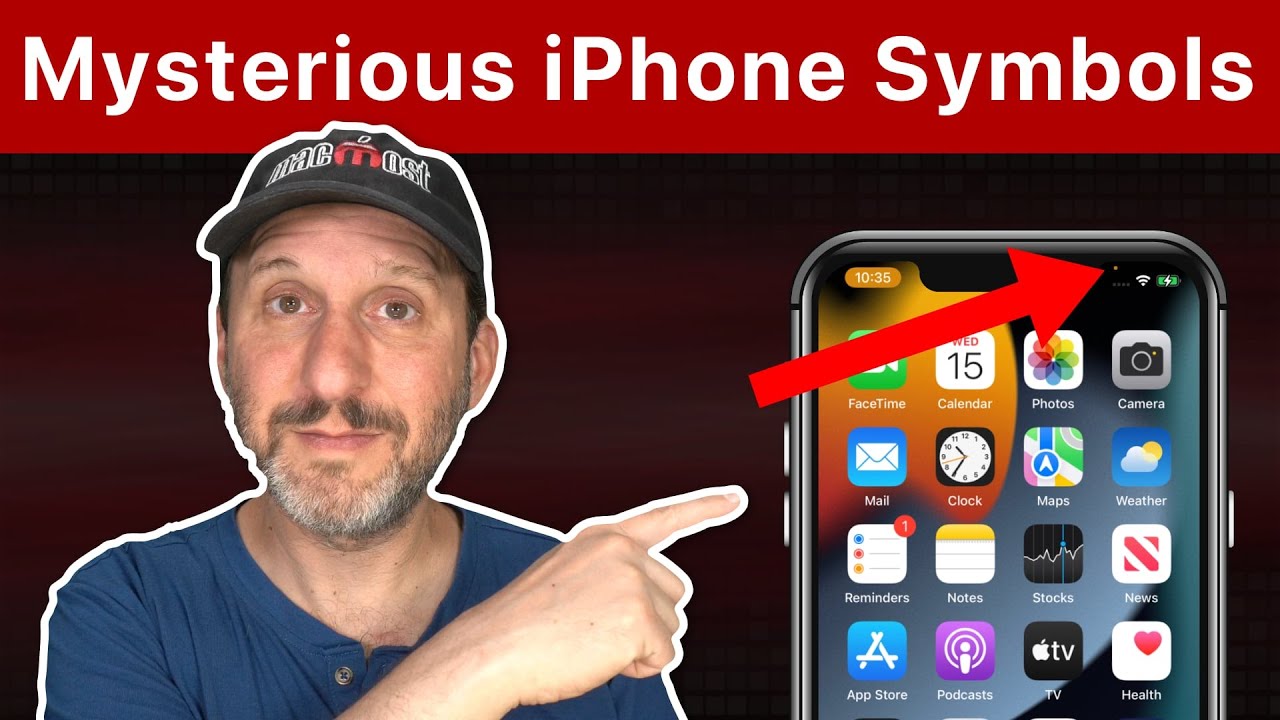
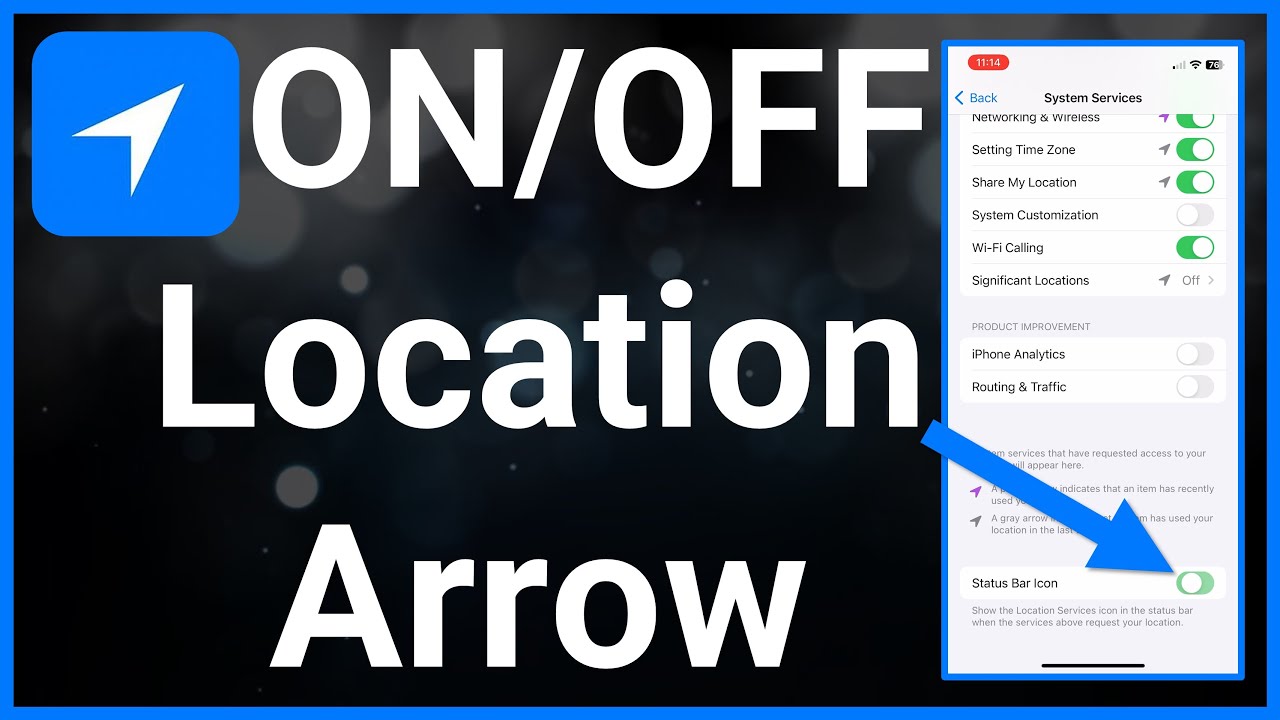
| Arrow Icon | Small arrow outline | Indicates “Location Services” is actively being used. |
| Car Symbol | Small car icon | Shows the location where your parked car was saved. |
| Battery Icon | Battery bar (Green/Red/Black) | Shows the approximate battery level of the tracked device. |
The Core Location Symbols: Where is Your Device Right Now?
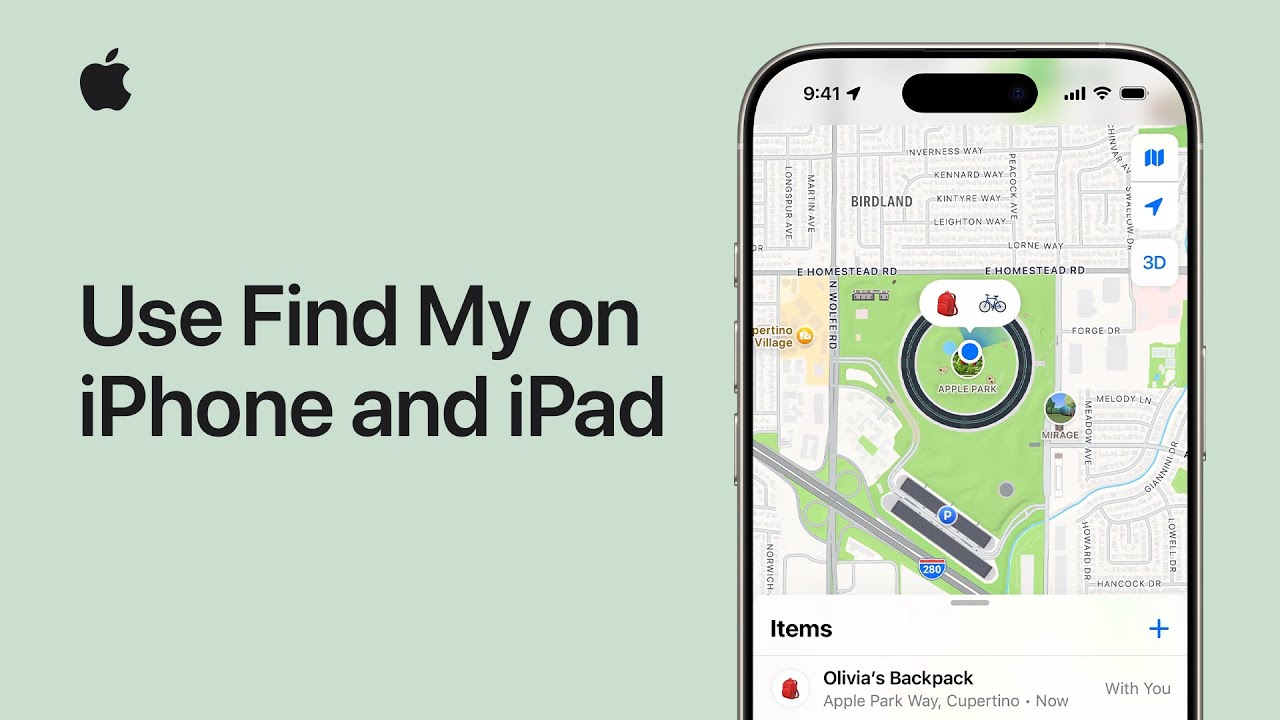
These are the fundamental indicators that tell you if your device is trackable and where it is located.
Understanding what do the icons mean on find my iphone starts with the basics: the dots and device graphics that populate the map.
The Blue Dot: Your Current Location
This dot represents you, not necessarily the device you are looking for.
The solid blue dot represents the location of the device you are currently using to view the Find My map. It is your anchor point. If you are holding your friend’s phone to find your own, the blue dot is their phone.
If you are confused about the accuracy, you might ask what does the blue circle mean on find my iphone? A pulsating blue halo around this dot indicates the precision of your current position. If the halo is wide, your signal is weak; if it’s tight around the dot, the GPS is precise.
The Device Icon (iPhone, AirPods, Apple Watch): Online vs. Offline
The color of the device icon is the most critical indicator of recoverability.
When searching for a lost item, you are primarily looking for specific find my iphone location symbols. The color tells you everything about the device status.
- Green or Blue Device Icon: This is the best-case scenario. It means the device is online and actively transmitting its location in real-time via cellular data or Wi-Fi. If you see this, the location on the map is current. Note that while the standard is green, sometimes you might see a blue variation depending on the specific apple find my iphone icon design in your iOS version.
- Grey Device Icon: This is the most common point of confusion and anxiety. A grey icon means the device is offline.
- Why is it grey? The battery is likely dead, the phone is powered off, or it has no internet connection.
- What does the location mean? It shows the last known location—the spot where the device last “pinged” Apple’s servers before going dark.
Many users also ask what does the black dot mean on find my iphone. In the context of the map, a “black dot” is often a misinterpretation of the dark grey offline icon or a cluster of devices in Dark Mode. If you see a dark/black icon, treat it as an offline device.
The Location Circle (Blue or Green Halo): How Accurate is the Location?
The size of the circle around your device tells you the margin of error.
You might see a pin on the map, but if there is a large translucent circle around it, you need to manage your expectations. This answers the query: what does the green circle mean on find my iphone?
- Small Circle: The location is precise. The device is likely using strong GPS signals. You can trust this pin is within a few meters of the device.
- Large Circle: The location is approximate. The device is likely indoors or relying on Wi-Fi triangulation/cell towers rather than GPS. The device could be anywhere within that shaded area.
People, Items, and Other Important Map Indicators
Beyond just your own devices, Find My helps track friends and accessories, which have their own unique symbols.
The map isn’t just for hardware; it’s for people and accessories, too. This leads to questions about what do the colors mean on find my iphone map when looking at the “People” or “Items” tabs.
The Grey Person Symbol: Understanding Location Sharing
This symbol frequently causes panic regarding family safety, but it often just means a connection issue.
If you are searching for find my iphone grey person symbol, here is the explanation. This symbol appears in the “People” tab, distinct from your “Devices” list. It represents a friend or family member who shares their location with you via Family Sharing or iMessage.
- What it means: If their photo or icon turns grey, their location is currently unavailable.
- Why: They may have turned off “Share My Location” in privacy settings, their device has died, or they have no service. It does not necessarily mean they have blocked you, but it does mean real-time tracking is paused.
The Question Mark Symbol: When a Device Can’t Be Pinpointed
Commonly seen with audio devices, this symbol means the system is confused.
The Find My iPhone question mark symbol typically appears for AirPods, Beats headphones, or AirTags.
- The Scenario: You open the app and see a grey grid or a question mark over the map.
- The Meaning: The app cannot connect to the device to verify its location. For AirPods, this often happens if the two earbuds are separated (one in the case, one out) or if the case is closed and out of range of any Apple device.
- The Solution: The map will display the last place they were connected to your iPhone.
To identify if your app is displaying correctly, you can compare your view with a standard apple find my app screenshot iphone found in our visual guides.
The Small Arrow Icon: The Device You’re Using
A subtle indicator of active tracking.
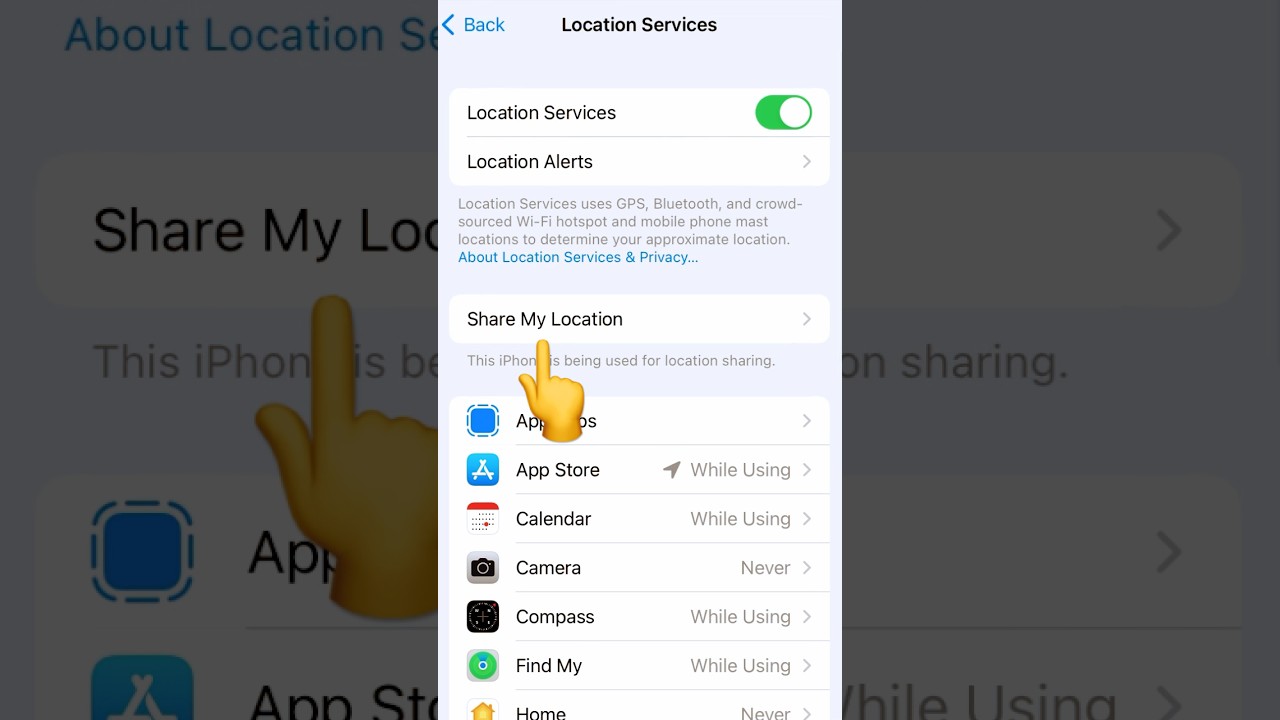
Sometimes you will see a small hollow or solid arrow icon next to a device name in the list or on the status bar. This confirms that Location Services are active. It helps you distinguish which device is currently utilizing the GPS hardware.
Occasionally, users confuse map pins with other Apple Maps icons. For instance, if you are wondering what does the yellow star mean on find my iphone, it is important to note that the yellow star is typically a “Favorite” location marker in Apple Maps, not a tracking status symbol in the Find My app.
Expert Tips for When You Can’t Find Your Device
At FindMyiPhone.onl, we have guided thousands of users through the panic of a lost phone. Here is what you need to do beyond reading the map.
Knowing what do the symbols mean on find my iphone map is step one. Step two is taking action based on that information.
Practical Tip: What to Do When Your Device Shows a Grey Icon
A grey icon (offline) does not mean hope is lost.
If you see the offline device symbol (grey icon), follow these steps immediately:
- Don’t Panic: The last known location is a powerful clue. Go there if it is safe.
- Enable “Notify When Found”: Tap the device in the list and toggle this switch. You will get an alert the second it reconnects to the internet.
- Activate Lost Mode: Do this even if the device is offline. The command will queue and execute the moment the device wakes up.
- Check the Visuals: Sometimes, a black and white find my icon iphone display can simply mean your app is in Dark Mode, but the status text (e.g., “15 minutes ago”) is what truly confirms if it is offline.
Expert Note: Using “Precise Finding” vs. The Map
For newer iPhones, the map is just the starting point.
If you have an iPhone 11 or newer, or are looking for an AirTag, map symbols are only half the story. You have access to Precise Location (Ultra Wideband).
- How it works: When you are within Bluetooth range, the “Directions” button changes to “Find.”
- The Interface: Instead of a map, you will see a green screen with a large arrow and distance readout (e.g., “4.5 ft to your right”). This is far more accurate than the blue or green circles on the map.
- Visual Reference: If you are unsure what this looks like, you can view a find my iphone app screenshot of the Precision Finding interface to recognize it.
Taking Action: How to Secure Your Lost Device with Find My
Once you have interpreted the symbols, use these features to protect your data.
Whether the dot is green or grey, security is paramount.
Step 1: Play a Sound
If the green dot indicates the device is nearby (e.g., in your house), tap Play Sound. The device will emit a loud, chirping noise that gradually gets louder, even if the physical silent switch is on.
Step 2: Enable Lost Mode
This is your primary defense for a lost iPhone or stolen iPhone.
- What it does: It locks the screen with a passcode and allows you to display a custom message (e.g., “Please call me at 555-0199”).
- Why it matters: It suspends Apple Pay and prevents anyone from accessing your data.
- Icon Change: When activated, you might see a lock icon appear on the device profile.
Step 3: Erase Device (The Last Resort)
Use this only if the device location shows it is in a location you cannot recover, or if you fear for your data’s safety.
- The Consequence: This wipes all data. You will no longer be able to track the device after erasing it.
- The Exception: On newer iOS versions, “Find My Network” may still allow basic tracking even after erasing, but do not rely on this.
- Visual Check: Ensure you are looking at the correct device. Some users customize their view, so if you have a black find my icon iphone setup, make sure you aren’t erasing a family member’s device by mistake.
Important Risk Warning: Never remove the device from your iCloud account (“Remove from Account”). Doing so turns off Activation Lock, allowing a thief to reset and use your phone as their own.
Conclusion
Understanding the symbols on the Find My map transforms it from a source of anxiety into a powerful tool. You can now instantly assess if your device is online, how accurate its location is, and why it might be offline.
By knowing what do the symbols mean on find my iphone map—specifically the difference between the what does the green dot mean on find my iphone (online) and the grey icon (offline)—you are better equipped to make calm, smart decisions.
At FindMyiPhone.onl, our mission is to help you protect your digital life. Whether you are deciphering a find my iphone app icon black and white or trying to locate a family member, we hope this guide has given you the confidence to navigate the app effectively.
Was this guide helpful? Share it with your family members so they are prepared, not panicked, if a device ever goes missing.
Note: The information in this article is for reference only. For the best advice, please contact us directly for a specific consultation based on your actual needs.

About This Guide
Published by: FindMyiPhone.onl Editorial Team
Last Updated: January 16, 2026
Tested On: iPhone 15 Pro (iOS 17.5.1), iPhone 13 (iOS 17.4)
This tutorial was created through hands-on testing on real devices. All screenshots are from our testing lab. We update guides within 48 hours of iOS releases.
Questions? Contact our team | Meet the team Editorial Team

![9 Find My iPhone Map Symbols Explained [What They Mean]](https://findmyiphone.onl/wp-content/uploads/2026/01/does-find-my-iphone-have-crash-detection-800x450.jpeg)
![9 Find My iPhone Map Symbols Explained [What They Mean]](https://findmyiphone.onl/wp-content/uploads/2026/01/does-find-my-iphone-drain-battery-800x450.jpeg)
![9 Find My iPhone Map Symbols Explained [What They Mean]](https://findmyiphone.onl/wp-content/uploads/2026/01/does-find-my-iphone-work-on-do-not-disturb-800x450.jpeg)