
Feeling that jolt of panic when you can’t find your iPhone? You’re not alone. The Find My map can look confusing with its various dots and pulsing circles, but it holds all the clues you need to recover your device. This guide will teach you how to read find my iphone map with confidence. In just 7 simple steps, we’ll turn that confusing screen into a clear path to your device, helping you understand every dot, circle, and color like a pro and make smart, quick decisions.
At findmyiphone, we understand that in these moments, clarity is everything. Whether you are tracking a lost device or checking on a family member, understanding the map’s visual language is the key to peace of mind.
First Things First: Decoding the Find My Map Symbols & Colors
What do the colors mean on Find My iPhone?
Answer: Green indicates an active, online device; gray indicates an offline or dead device; and blue represents the device you are currently using to view the map.
Before diving into the steps, you must understand the visual language of the app. Misinterpreting a color or icon is the most common reason users fail to recover their devices. The map uses a specific set of find my iphone map symbols to communicate the status of your device instantly.
What You See on the Map: A Visual Glossary
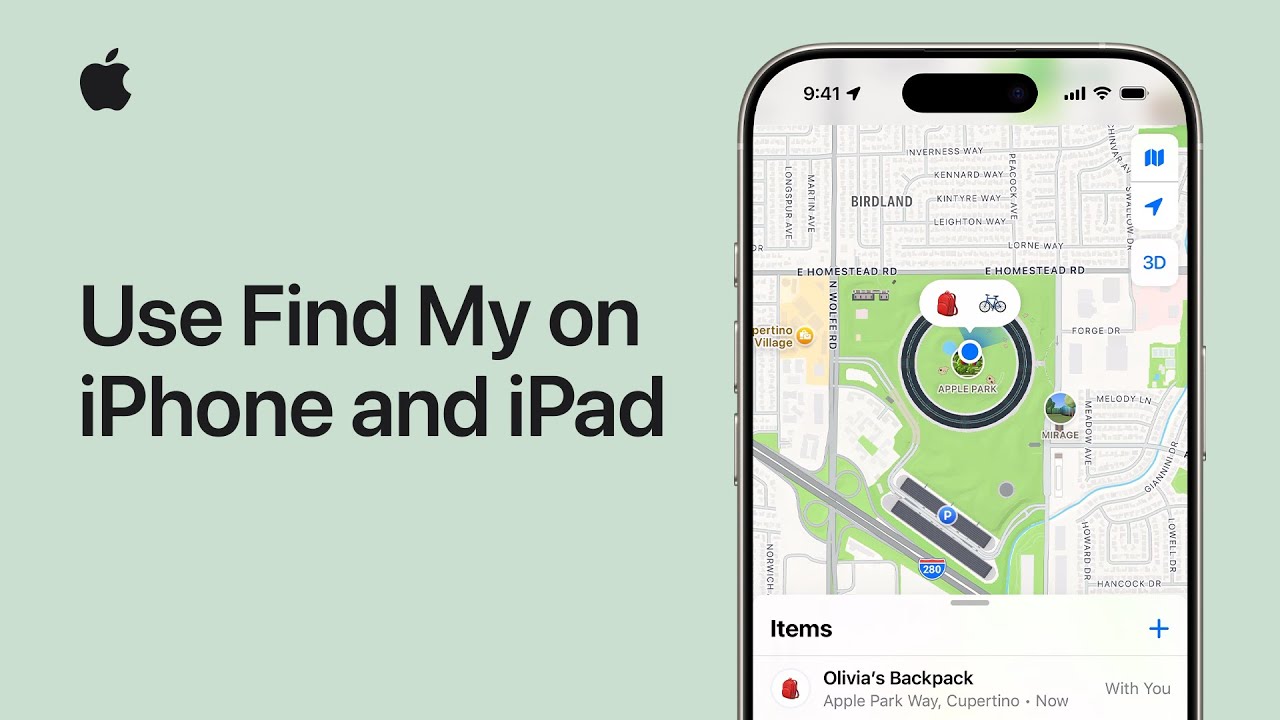
When you open the Find My app, you aren’t just looking at a map; you are looking at a real-time status report.
- The Blue Dot (Pulse): This is you. It shows the location of the device you are holding right now. If it has a cone of light (a shaded fan shape), it indicates the direction you are facing.
- The Green Dot: This is the “safe” signal. It means the tracked device is online, has a network connection (Wi-Fi or cellular data), and is broadcasting its location in real-time.
- The Gray Dot: This is the most confusing symbol for many. What does gray iphone mean on find my? It means the device is offline. The location shown is the last known location—where the phone was when it last communicated with Apple’s servers (before the battery died or it was turned off).
- The Person Icon: If you are using Family Sharing, you might see a photo or initials inside the circle instead of a generic device icon.
Table: Find My Map Quick Reference Guide
To help you understand how to understand find my iphone map quickly, refer to this table:
| Symbol / Color | Status | Meaning | Actionability |
|---|---|---|---|
| Green Dot | Online | Device is connected and location is current. | High: You can play sound or get directions. |
| Gray Dot | Offline | Device is off, dead, or has no signal. Shows last known spot. | Medium: Go to the location, but the device may have moved. |
| Blue Dot | Current User | This is your current location. | N/A: Used for navigation reference. |
| Blue Circle (around dot) | Accuracy Radius | The device is somewhere inside this shaded area. | Variable: Smaller circle = higher accuracy. |
| Black Screen Icon | Loading / Updating location | The app is refreshing location data | Wait a few seconds, then refresh |
Understanding the Location Circle: The Key to Accuracy
How accurate is the Find My iPhone map?
Answer: The accuracy varies based on signal strength; a small blue circle indicates high precision (within a few meters), while a large circle implies a general approximation (up to several miles).
This is a critical concept regarding find my iphone map accuracy. You will often see a pale blue circle surrounding the device’s dot. This is the accuracy circle.
- Small Circle: The GPS signal is strong. The device is likely within a few feet of the center dot.
- Large Circle: The signal is weak (often due to being indoors or underground). The device could be anywhere within that shaded blue area.
Expert Note: Never assume the device is exactly at the center pin if the blue circle is huge. In our experience at FindMyiPhone.onl, rushing to the center point of a large circle often leads to searching the wrong house or street.
The 7 Steps to Read Your Find My iPhone Map Like a Pro
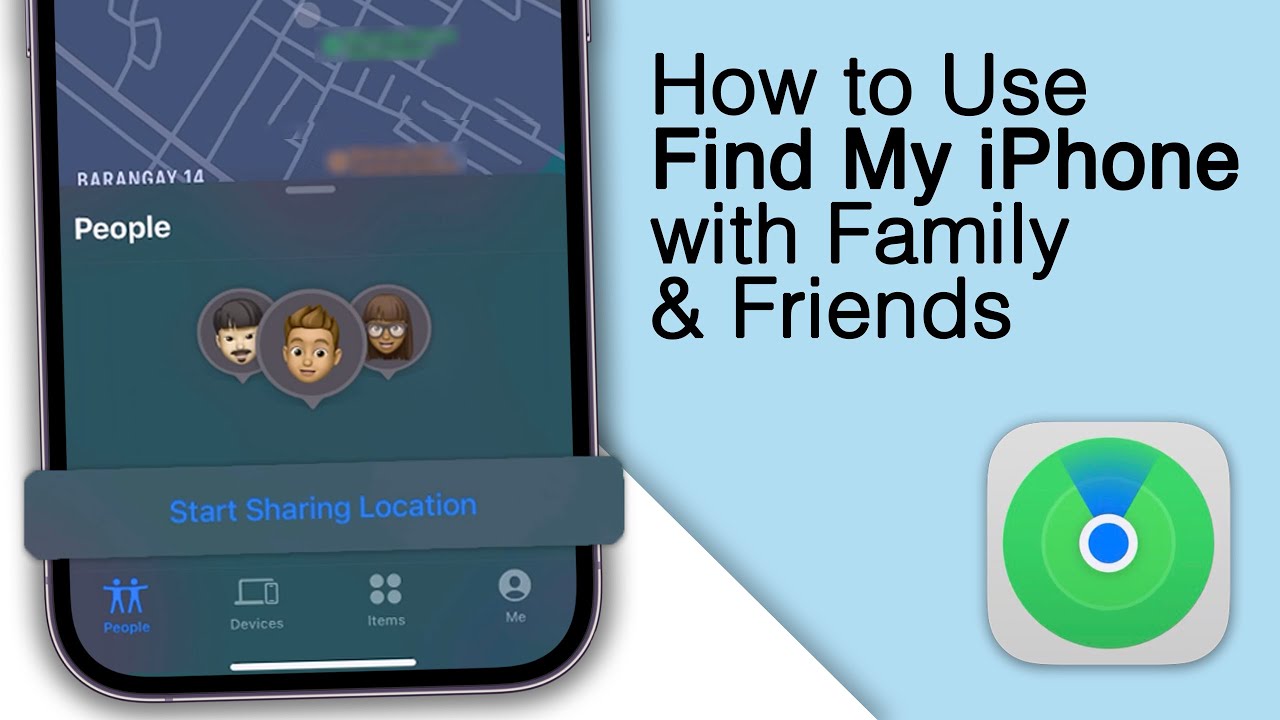
Now that you know the symbols, let’s walk through the practical process. If you want to know how to read find my iphone map effectively during a crisis, follow this workflow.
Step 1: Launch Find My and Select Your Device
How do I start tracking my device?
Answer: Open the Find My app, tap on the “Devices” tab at the bottom, and select the specific device you want to locate from the list.
When you first open the app, you will see a map with all your linked devices. To avoid confusion, tap the Devices tab. This filters the map to focus on specific hardware. If you have multiple devices with similar names, ensure you select the correct one. If you are unsure of the specific model name, you might need to check your Apple ID settings or learn how to find my iphone name to distinguish between them.
Additionally, ensuring your account details are accessible is crucial. If you are locked out, knowing how to find my iphone email address associated with your Apple ID is the first step to regaining access.
Step 2: Interpret the Main Device Icon and Its Color
Is my device currently reachable?
Answer: Look at the icon color; green means it is reachable now, while gray means you are viewing old data.
Once selected, the map zooms in on that device. Immediately check the color.
- If Green: You are seeing live movement. If the car or person moves, the dot moves.
- If Gray: You are looking at a “ghost” location. Do not expect the device to still be there if a long time has passed. This distinction is vital for understanding how to interpret find my iphone location data correctly.
Step 3: Analyze the Blue Location Circle (The Accuracy Zone)
Why is the location area so big?
Answer: A large blue circle means the signal is obstructed or weak, indicating the device is somewhere within that zone, not necessarily at the center pin.
As mentioned, the size of the circle tells you how much trust to put in the pinpoint.
- No Circle: Extremely high accuracy (usually GPS outdoors).
- Huge Circle: Low accuracy (Cellular triangulation or Wi-Fi).
If you are trying to find my iphone map symbols that indicate precision, look for the pulsing blue dot. If the circle is shrinking, the app is honing in on the signal. Wait for it to stabilize before moving.
Step 4: Check the Timestamp and Battery Level for Context
How do I know if the location is current?
Answer: Tap the device name to open the card; it will display the exact time the location was last updated and the approximate battery level.
This is the most overlooked step. Above the device name, you will see text like “Now,” “5 min ago,” or “Yesterday at 8:42 PM.”
- “Now”: You are reading the map in real-time.
- “2 Hours Ago”: The map is showing you history.
Also, check the battery level icon in the corner of the info card. If the battery is red or very low, you have a limited window to act. To prevent this in the future, you might want to read our guide on how to keep find my iphone always on to ensure you have maximum tracking time.
Step 5: Determine the Device’s Status (Online, Offline, or “No Location Found”)
What does “No Location Found” mean?
Answer: It means the device has not sent location data for over 24 hours, is turned off, or has been wiped.
If you see find my iphone no location found, the map will be blank for that device. This is different from “Offline” (which shows the last spot). “No Location Found” means the trail has gone cold.
- Online: GPS/Data is active.
- Offline: Showing cached data.
- No Location Found: No data available.
If you are dealing with a find my iphone offline device, do not panic. The map still retains valuable data about where it was last active.
Step 6: Use Precision Finding and Directions for Pinpoint Location
How do I get to the exact spot?
Answer: Tap the “Directions” button for a route, or use the “Find” button (Precision Finding) if you are close and have a supported iPhone model.
If the map shows the device is miles away, tap the Car icon (Directions). This switches you to Apple Maps for navigation.
However, if you are in the same room or building, the map isn’t enough. You need Precision Finding. This feature uses the U1/U2 Ultra Wideband chip. It turns your phone into a compass that points directly to the lost device with distance indicators (e.g., “5ft to your right”).
This is particularly powerful on newer models. For specific instructions on the latest hardware, check out our guide on find my iphone 14/15/16 pro max.
Step 7: Take Immediate Action: Play Sound, Lost Mode, or Erase
What should I do once I see the location?
Answer: Depending on the distance, choose “Play Sound” to locate it nearby, “Mark As Lost” to lock it, or “Erase This Device” if it is stolen and unrecoverable.
Reading the map is only half the battle. The bottom panel offers three critical actions:
- Play Sound: Essential if the map shows the device is at your house. It forces the device to chirp loudly, even if on silent. Many users ask, can i make my iphone ring to find it if it’s on vibrate? Yes, this feature overrides the mute switch.
- Mark As Lost (Lost Mode): This locks the screen and displays a message.
- Erase This Device: The nuclear option. Only use this if the map shows the device moving away from you (stolen) and you cannot recover it.
For detailed steps on triggering the audio, learn how to set off find my iphone alarm properly.
Mastering Advanced Features for Total Peace of Mind
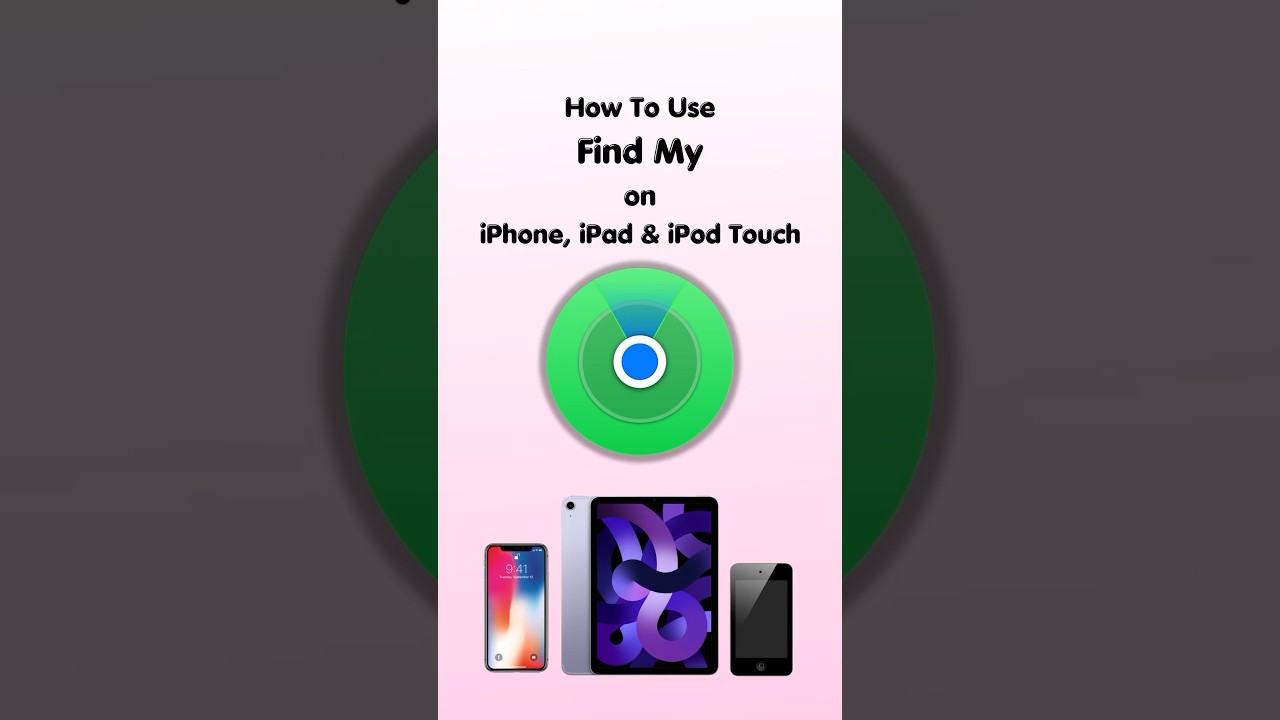
Once you know how to read find my iphone map, you can utilize advanced features to automate the tracking process.
How to Use “Notify When Found” for an Offline Device
If your device is gray (offline), you don’t need to stare at the map for hours. Tap the device and toggle on Notify When Found. As soon as that gray dot turns green (meaning someone turned it on or it connected to Wi-Fi), Apple will send you a notification. This is crucial for offline devices.
This feature is also useful if you are trying to track a family member’s device that has gone dark. You might want to know how to notify someone on find my iphone that you are looking for them, or simply get an alert when they come back online.
Proactive Protection: Setting Up “Notify When Left Behind”
To avoid needing the map in the first place, set up separation alerts. If you leave your device at a coffee shop, your iPhone (or Apple Watch) will ping you the moment you step out of the Bluetooth range/map zone.
The Power of the Find My Network for Offline Devices
Apple’s “Find My Network” is a crowd-sourced system. Even if your iPhone has no Wi-Fi or cellular data, it emits a secure Bluetooth signal. If another stranger’s iPhone passes by, it picks up that signal and updates your map anonymously. This explains why you might see a location update for a device that should be “dead.”
Helping Others: Understanding the “Family Sharing” Map View
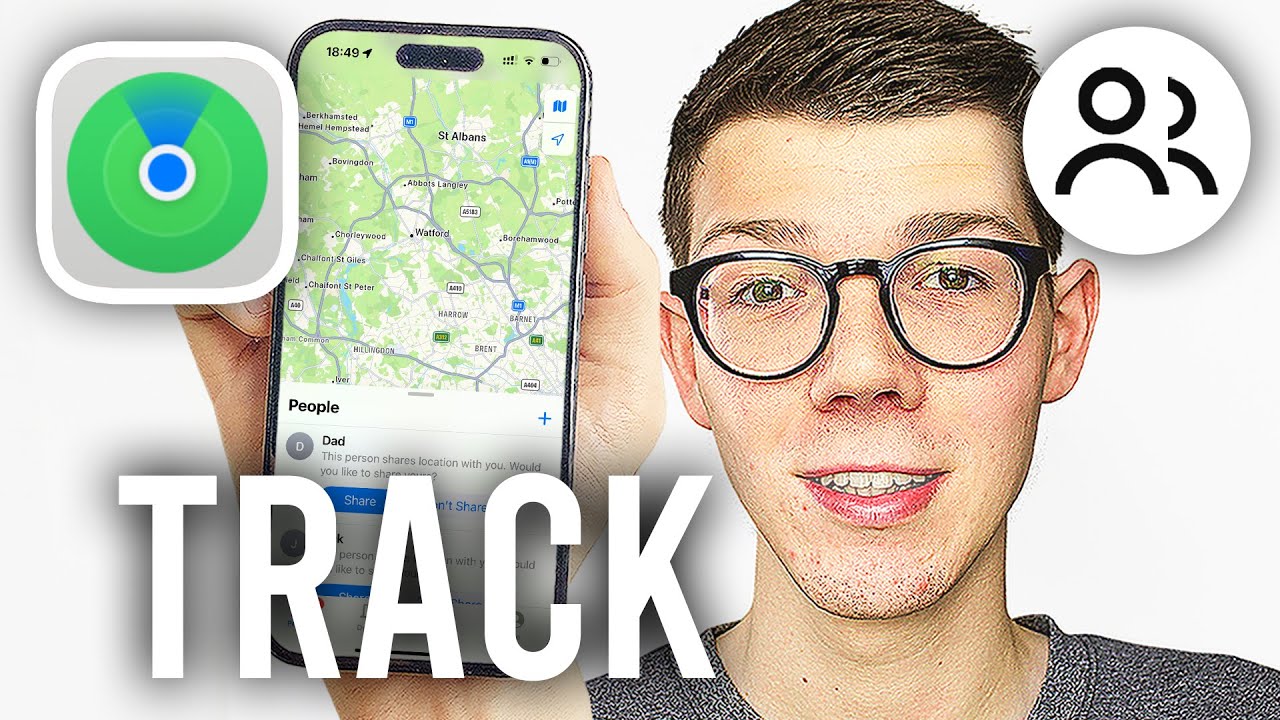
The map isn’t just for your devices. With Family Sharing, you can see the locations of your children or spouse. The icons will appear as their contact photos. To set this up efficiently, you need to understand how to share location on find my iphone.
If you are managing a family group, you might need to know how to request location on find my iphone if a child’s device isn’t showing up. For the most current methods, refer to our update on apple find my how to share location iphone 2025.
Troubleshooting: Why Is Find My iPhone Showing the Wrong Location?
Why does the map show my phone in the wrong place?
Answer: Inaccurate location data is usually caused by poor GPS signal, interference from buildings, or the device relying on old Wi-Fi database information.
Even experts face glitches. If you are asking why is find my iphone showing wrong location, here is the technical reality behind the map.
The Technology Behind the Dot: GPS vs. Wi-Fi vs. Cellular Triangulation
Your iPhone uses three technologies to place that dot on the map:
- GPS: Most accurate (outdoors).
- Wi-Fi: Uses a database of Wi-Fi router locations (good for indoors).
- Cell Towers: Triangulates signal between towers (least accurate, large blue circle).
If your map is wrong, the phone is likely relying on #3 (Cell Towers) because it can’t see GPS satellites or Wi-Fi.
Common Reasons for Inaccurate Location Data
- Old Data: You are looking at a “Gray” icon from hours ago.
- Wi-Fi Drift: The device is connected to a Wi-Fi router that was recently moved (e.g., a router in a moving bus or a relocated device).
- VPNs: Occasionally, a VPN can confuse location services based on IP address, though GPS usually overrides this.
If the location seems stuck, you might need to alert the device to force an update. Knowing how to alert someone’s phone on find my iphone can sometimes “wake up” the location services.
What “No Location Found” Really Means (And Your Next Steps)
When you see “No Location Found,” it means the device has stopped sending data entirely. This happens if:
- The battery has been dead for more than 24 hours.
- The device was manually turned off.
- The SIM card was removed (and no Wi-Fi is available).
In this scenario, check the “Notify When Found” box and wait.
Expert Note: How Physical Obstructions Impact GPS Accuracy
At FindMyiPhone.onl, we’ve seen many cases where users think their device is in a neighbor’s house because the dot is slightly off. Physical obstructions like high-rise buildings (urban canyons), dense forests, or thick concrete basements bounce GPS signals. This “multipath effect” can shift the map location by 50-100 meters. Always trust the blue accuracy circle more than the exact center pin.
Additional Tools and Scenarios
The Find My map is versatile. It’s not just for phones; it’s incredibly useful if you need to find my car iphone. after parking in a crowded lot. If you have smart home devices, you might also wonder about using alexa find my phone iphone as an alternative tracking method when the map isn’t handy.
Furthermore, if you are moving between ecosystems, knowing how to switch find my iphone to mac allows you to track from a desktop, which is often easier when analyzing map details. For those who prefer auditory cues over maps, learning about clap to find my phone iphone apps can provide a backup solution for finding devices locally. And finally, if you are struggling with the alarm features, ensure you know how to set off alarm on find my iphone correctly to avoid delays.
Conclusion
The Find My map is more than just a dot; it’s a detailed story about your device’s whereabouts and status. By learning to interpret its symbols, circles, and timestamps, you’ve gained a powerful skill. You now know how to read find my iphone map not just to see a location, but to understand its accuracy and context, allowing you to take swift, effective action and significantly reduce the stress of a lost device.
Don’t wait until it’s too late. Open the Find My app now to familiarize yourself with your devices’ locations. Share this guide with friends and family to empower them with the same knowledge.
Note: The information in this article is for reference only. For the best advice, please contact us directly for a specific consultation based on your actual needs.

About This Guide
Published by: FindMyiPhone.onl Editorial Team
Last Updated: January 16, 2026
Tested On: iPhone 15 Pro (iOS 17.5.1), iPhone 13 (iOS 17.4)
This tutorial was created through hands-on testing on real devices. All screenshots are from our testing lab. We update guides within 48 hours of iOS releases.
Questions? Contact our team | Meet the team Editorial Team

![7 Steps to Read Your Find My iPhone Map Like a Pro [Guide]](https://findmyiphone.onl/wp-content/uploads/2026/01/clap-to-find-my-phone-iphone-800x450.jpeg)
![7 Steps to Read Your Find My iPhone Map Like a Pro [Guide]](https://findmyiphone.onl/wp-content/uploads/2026/01/alexa-find-my-phone-iphone-800x450.jpeg)
![7 Steps to Read Your Find My iPhone Map Like a Pro [Guide]](https://findmyiphone.onl/wp-content/uploads/2026/01/how-to-share-location-on-find-my-iphone-800x450.jpeg)