
Feeling lost in a sea of devices named just “iPhone”? When you’re trying to use Find My, AirDrop, or just manage your Apple ID, seeing multiple identical names is confusing and stressful. Whether you need to identify your device for a Bluetooth connection or ensure you are wiping the correct phone remotely, knowing the specific device name is essential. This guide provides 3 easy, foolproof ways to answer the question how to find my iphone name. We’ll show you exactly where to look on your phone, on a computer, and on iCloud, so you can quickly identify and manage your devices with confidence.
At findmyiphone.onl, we understand that in moments of panic—like when a device is missing—simplicity is key. That is why we have compiled this comprehensive resource to help you locate your iPhone’s identifier in under a minute.
The 3 Easiest Ways to Find Your iPhone’s Name Instantly
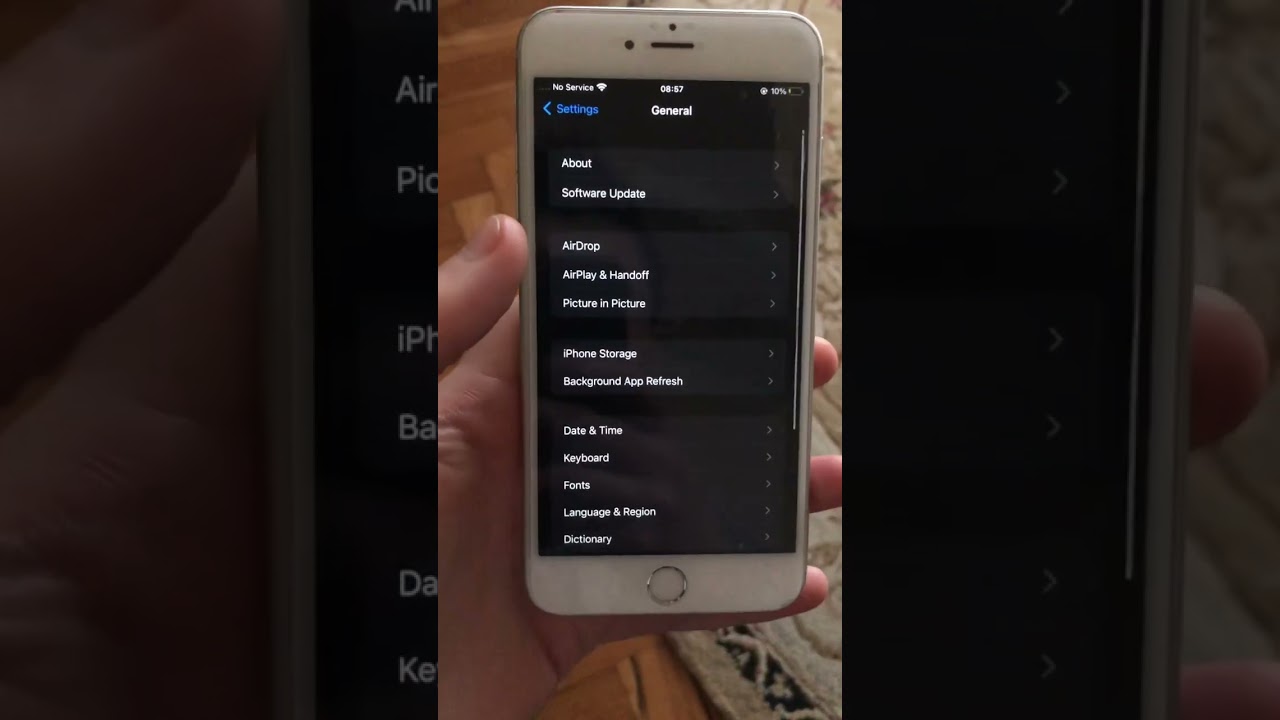
Quick Answer: The fastest way to find your iPhone name is to open the Settings app, tap on General, and then select About. Your device name is listed on the very first line.
Method 1: On Your iPhone Itself (The Fastest Way)
If you have your device in hand, this is the most direct method to locate iPhone name. It requires no internet connection and takes less than 10 seconds.
Step 1: Open the Settings App
On your Home Screen, look for the gray gear icon labeled Settings. If you have many apps, you can swipe down from the center of the screen to open Spotlight Search and type “Settings.”
Step 2: Navigate to the General Section
Once in the Settings menu, scroll down slightly until you see the General option. It is represented by a gear icon similar to the app icon and is usually grouped with Control Center and Display settings.
Step 3: Tap ‘About’ to Reveal Your iPhone’s Name
At the very top of the General screen, tap on About.
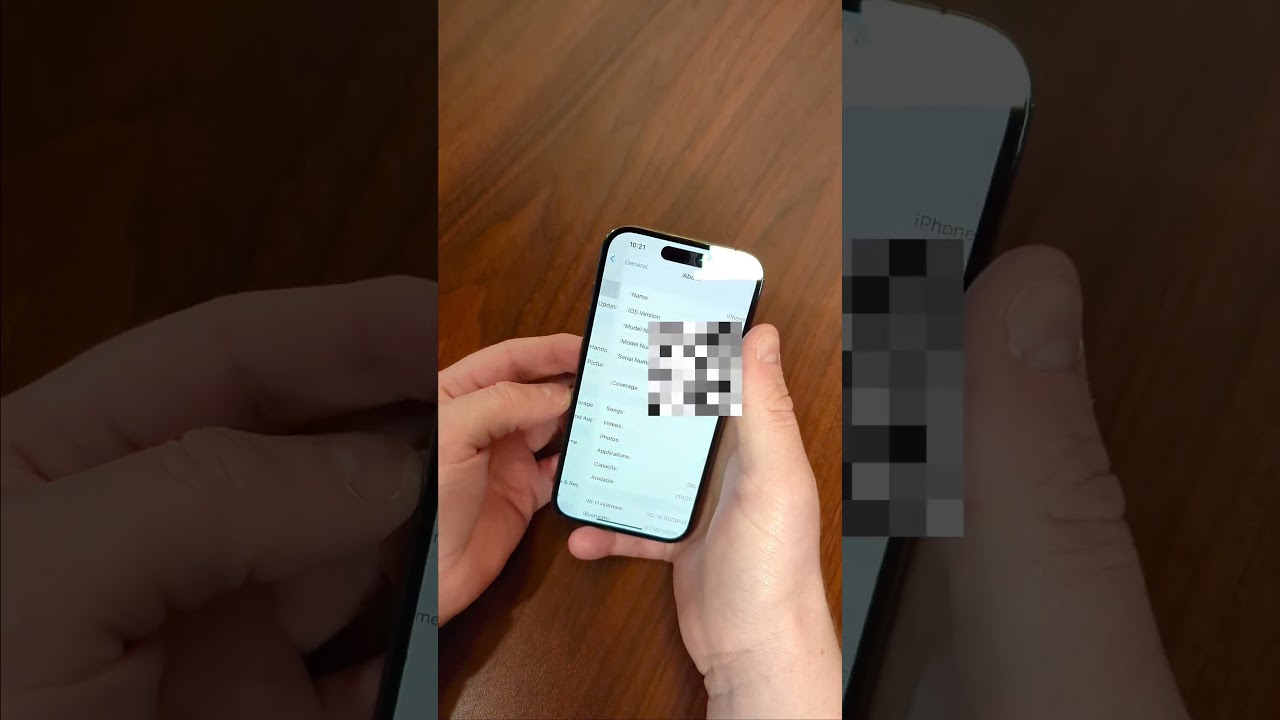
- The first line, labeled Name, is your iPhone’s specific device name.
- This is the name broadcasted to other devices for iCloud, Find My, AirDrop, and your Personal Hotspot.
Expert Note: It is crucial to distinguish between the “Name” and the “Model Name.”
- Name: Customizable (e.g., “Sarah’s iPhone”).
- Model Name: Fixed hardware description (e.g., iPhone 13, iPhone 15 Pro).
If you are upgrading and need to distinguish between newer models, such as learning how to find my iphone 14/15/16 pro max, checking the “Model Name” line just below the device name is your best verification method.
Method 2: On Your Computer (Mac or Windows PC)
Quick Answer: Connect your iPhone via USB. On Mac (Catalina+), use Finder; on Windows or older Macs, use iTunes. The name appears at the top of the device summary box.
If your screen is broken or touch is unresponsive, knowing how to check iPhone name on computer is a lifesaver.
For Mac Users (macOS Catalina and later)
Since Apple phased out iTunes on newer macOS versions, you will use the Finder.
- Connect your iPhone: Use a certified Lightning or USB-C cable to connect your iPhone to your Mac.
- Open Finder: Click the blue and white smiling face icon in your Dock.
- Locate Device: In the Finder sidebar, look under the “Locations” section. You should see your iPhone listed there.
- View Name: Click on the iPhone icon. Your iPhone’s name will be displayed in large, bold text at the top of the main window, right next to the small icon of the phone.
Tip: If you are moving from mobile to desktop tracking, knowing how to switch find my iphone to mac can streamline your workflow.
For Windows PC Users (or Macs with macOS Mojave and earlier)
For Windows users, iTunes or the new Apple Devices app is required.
- Install/Update Software: Ensure you have the latest version of iTunes or the Apple Devices app from the Microsoft Store.
- Connect via USB: Plug your iPhone into your PC. If this is the first connection, you must tap “Trust This Computer” on your iPhone screen and enter your passcode.
- Locate the Icon: Open iTunes. Look for a tiny iPhone icon that appears near the top-left corner of the window (below the playback controls).
- Find the Name: Click that icon to enter the “Summary” tab. Your iPhone device name is displayed prominently at the top left, next to the battery icon.
This method effectively answers how to find iPhone name on Windows PC without needing deep technical knowledge.
Method 3: Using iCloud.com (When You Don’t Have Your iPhone)
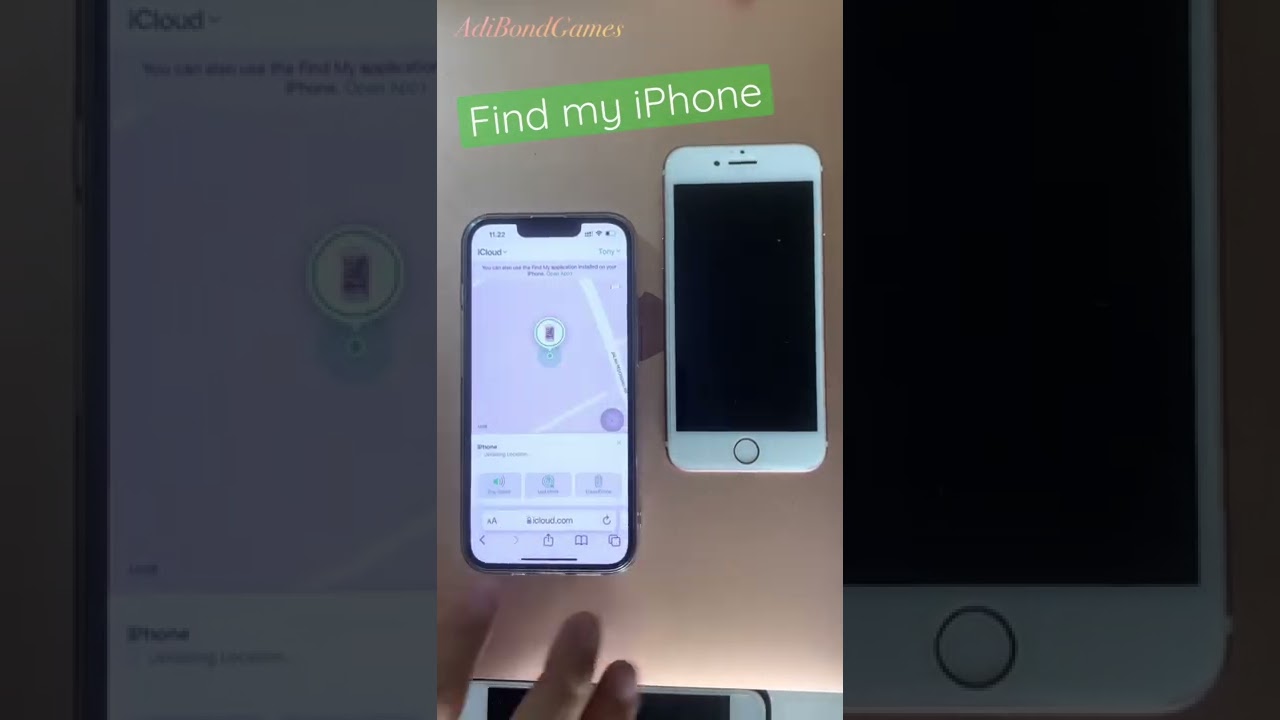
Quick Answer: Log in to iCloud.com with your Apple ID, select Find My, and click “All Devices” to see a dropdown list of every device name linked to your account.
This is the most critical method if your device is lost or stolen. You need to know how to see iPhone name on iCloud to ensure you are tracking or erasing the correct device.
- Access iCloud: Open a web browser on any computer or tablet and go to iCloud.com.
- Sign In: Enter your Apple ID and password.
- Note: If you have Two-Factor Authentication enabled but lost your phone, you might need to use a trusted device or backup code.
- Open Find My: Click on the green radar icon labeled Find My.
- Select All Devices: At the top center of the map screen, click on the dropdown menu labeled “All Devices”.
- Identify Your Device: A list will appear showing all devices linked to your Apple ID, displaying their specific device names.
Once you have identified the correct device on the map, you might want to understand the interface better. For beginners, learning how to read find my iphone map is essential to pinpointing the exact location.
Why Your iPhone Name Matters (And How to Change It)
Quick Answer: Your iPhone name is used for identification in AirDrop, Bluetooth pairing, Personal Hotspot, and Find My. Changing it helps prevent confusion with other devices.
What is My iPhone Device Name Used For?
Your iPhone’s name isn’t just a cosmetic label; it is a functional network identifier. Having a unique, recognizable name makes using the Apple ecosystem seamless.
- Find My & Security: Essential for distinguishing between your old “iPhone” and your new “iPhone” if one is lost. If you have multiple devices, you might want to test them. You can learn can i make my iphone ring to find it to hear which device name corresponds to which physical phone.
- AirDrop: When you try to find iPhone name for AirDrop, seeing five devices named “iPhone” in a coffee shop makes file sharing risky. A unique name ensures files go to the right person.
- Personal Hotspot: When you turn on your hotspot, the Wi-Fi network name broadcasted is your iPhone’s name.
- Bluetooth Pairing: When connecting to a car or headphones, the device name is what appears in the pairing list.
- Apple ID Management: It helps you identify specific devices signed into your account. If you see a name you don’t recognize, it could be a security breach. In such cases, checking your account details is vital. You should also know how to find my iphone email address to verify your Apple ID credentials.
How to Change Your iPhone Name in 30 Seconds
If your device is simply named “iPhone,” we highly recommend renaming it immediately. Here is how to change iPhone name:
- Go to Settings.
- Tap on General.
- Tap on About.
- Select the first line, Name.
- Tap the small “x” to clear the current name.
- Type your new name (e.g., “Alex’s iPhone 15” or “Work Phone”).
- Tap Done on the keyboard.
Privacy Tip: Avoid using your full first and last name (e.g., “Jane Doe’s iPhone”) as this is broadcasted to strangers via Bluetooth and Wi-Fi. A first name or a nickname is safer.
Advanced Guide & Troubleshooting
Quick Answer: If your name isn’t updating, try restarting the device or toggling Wi-Fi/Bluetooth. You can also identify devices by Serial Number via the Apple ID website.
Quick Reference Table: Identifying Your iPhone Across Services
| Service | How the Name Appears | Where to Check |
|---|---|---|
| Find My | Displays the custom name set in Settings. | Find My app or iCloud.com |
| AirDrop | Shows the name to nearby Apple users. | AirDrop sharing panel |
| Personal Hotspot | Appears as the Wi-Fi network SSID. | Wi-Fi settings on other devices |
| Bluetooth | Listed under this name in pairing menus. | Bluetooth settings |
| Router Admin | Shows as the hostname on your network. | Router’s connected devices list |
What If My iPhone Name Isn’t Updating Everywhere?
Sometimes, after you rename your iPhone, the old name might stick in Find My or on your router. Here are expert troubleshooting steps:
- Restart Your iPhone: This forces the device to re-broadcast its new identity to the network.
- Toggle Radios: Turn Airplane Mode on for 10 seconds and then off. This resets the Wi-Fi and Bluetooth modules.
- Sign Out of iCloud: If the name is wrong in Find My, sign out and back in. Warning: Ensure you have a backup.
- Check Find My Settings: Sometimes, settings glitches prevent updates. Ensure your location services are active. If you are worried about visibility, learning how to keep find my iphone always on ensures your device name remains discoverable.
Finding a Device Name Using its Serial Number
In a rare case where you cannot access the device or iCloud but have the original box or receipt, you can identify the device name associated with a serial number.
- Go to appleid.apple.com and sign in.
- Navigate to the Devices section.
- Click on any device icon.
- A pop-up will show the Model, Serial Number, and the current Device Name.
Advanced Find My Features
Once you have successfully identified your device name, you can utilize advanced tracking features.
- Play Sound: If you are unsure which “iPhone” on your list is the one in your hand, use the Play Sound feature. You can learn how to set off find my iphone alarm to trigger a loud noise, confirming the device’s identity.
- Lost Mode: If the device is truly missing, identifying the correct name allows you to activate Lost Mode safely. You might also need to know how to notify someone on find my iphone that your device has been found.
- Alerting Others: In family situations, you may need to find a family member’s device. It is helpful to understand how to alert someone’s phone on find my iphone to get their attention.
- Testing: We recommend you periodically test these features. For example, knowing how to set off alarm on find my iphone ensures the system works when you really need it.
Location Sharing and Smart Integration
Your iPhone name is central to how you share your location with friends and family.
- Sharing Location: When you share your location, your contact card and device name are what the other person sees. If you need to set this up, check our guide on how to share location on find my iphone.
- Requesting Location: Conversely, if you are trying to find a friend, you might need to know how to request location on find my iphone.
- Future Proofing: Apple updates these features regularly. Stay ahead by reading about apple find my how to share location iphone 2025 for the latest protocols.
Alternative Ways to Find Your Phone
If you have integrated your iPhone name into smart home systems, you have other options.
- Smart Speakers: You can ask your smart assistant to help. Many users set up features like alexa find my phone iphone to ring their device by name.
- Clap Detection: While not native to iOS, some third-party apps allow you to clap to find my phone iphone, which relies on the app recognizing the specific device microphone.
- Car Integration: If you often park in crowded lots, knowing your device settings can help you utilize features like find my car iphone. to drop a pin where your specific iPhone disconnected from Bluetooth.
Conclusion
Finding your iPhone’s name is a simple but crucial step for managing your digital life. Whether you check directly in the Settings app, use Finder or iTunes on a computer, or log in to iCloud.com, you can answer how to find my iphone name in under a minute. By giving your iPhone a unique name, you eliminate confusion in Find My, streamline AirDrop sharing, and enhance your overall security.
At FindMyiPhone.onl, we recommend checking your device name today. A clear, distinct name puts you back in control, ensuring that if your device ever goes missing, you are looking for your phone, not just an iPhone. For more tips, don’t forget to bookmark our guide on how to find my iphone name for quick reference.
Note: The information in this article is for reference only. For the best advice, please contact us directly for a specific consultation based on your actual needs.

About This Guide
Published by: FindMyiPhone.onl Editorial Team
Last Updated: January 16, 2026
Tested On: iPhone 15 Pro (iOS 17.5.1), iPhone 13 (iOS 17.4)
This tutorial was created through hands-on testing on real devices. All screenshots are from our testing lab. We update guides within 48 hours of iOS releases.
Questions? Contact our team | Meet the team Editorial Team

![3 Easy Ways How To Find My iPhone Name [Quick Guide]](https://findmyiphone.onl/wp-content/uploads/2026/01/clap-to-find-my-phone-iphone-800x450.jpeg)
![3 Easy Ways How To Find My iPhone Name [Quick Guide]](https://findmyiphone.onl/wp-content/uploads/2026/01/how-to-switch-find-my-iphone-to-mac-800x450.jpeg)
![3 Easy Ways How To Find My iPhone Name [Quick Guide]](https://findmyiphone.onl/wp-content/uploads/2026/01/alexa-find-my-phone-iphone-800x450.jpeg)