
Feeling that pit in your stomach when you can’t find your iPhone? You’re not alone. Whether it slipped between the couch cushions or was left behind at a coffee shop, the panic is real. At findmyiphone.onl, we understand that your device holds your life—photos, data, and connections. This guide provides 5 essential, expert-verified methods on how to keep Find My iPhone always on, even when the battery is dead or it’s offline. We’ll walk you through the exact settings to ensure your device is always trackable, giving you the best possible chance of recovery and peace of mind. Let’s secure your iPhone right now.
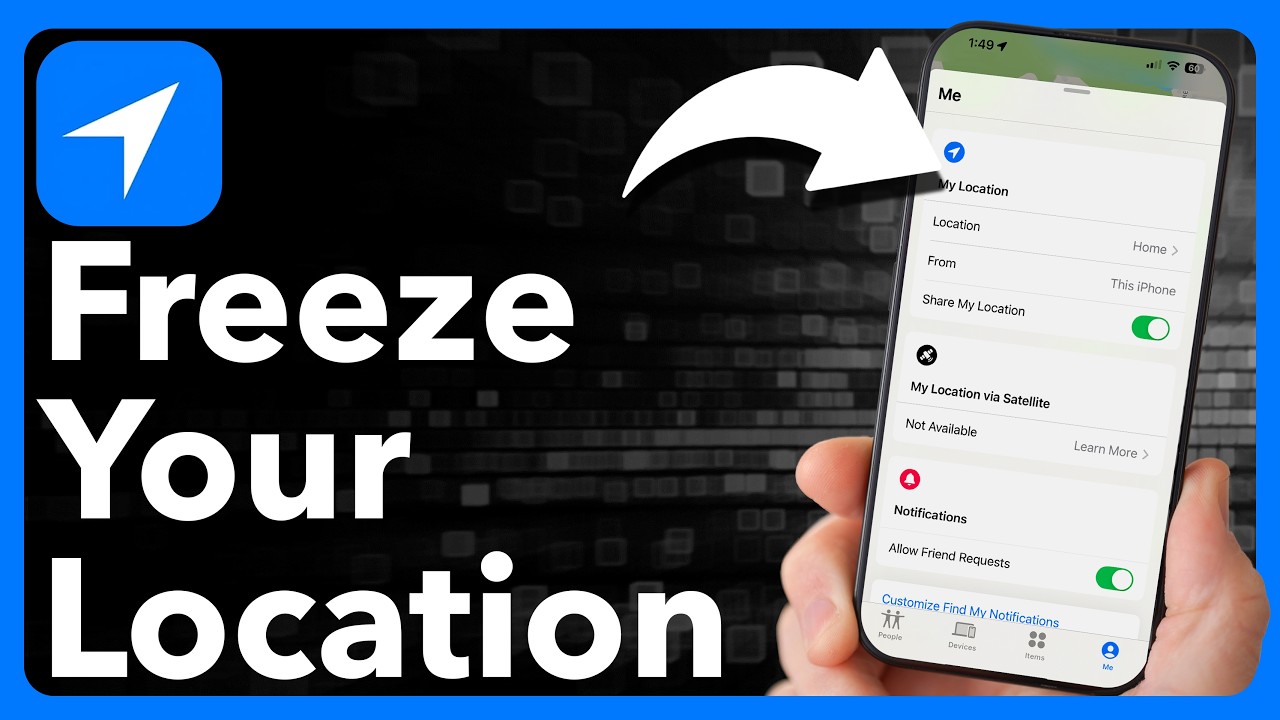
The Core Settings: How to Keep Find My iPhone Always On (Even When Dead)
Quick Answer: To ensure Find My iPhone remains active even when the device is dead, you must enable “Find My Network” and “Send Last Location” within your Apple ID settings.
Ensuring your iPhone is trackable isn’t just about one switch; it’s about layering security features. We have tested these configurations extensively across various iOS versions to determine the most reliable setup. By following these steps, you address the primary search intent: maintaining visibility of your device in critical situations.
Method 1: Enable the “Find My Network” for Offline Tracking
Quick Answer: The “Find My Network” allows your iPhone to be located by other Apple devices via Bluetooth, even if your phone is offline or powered down.
This is arguably the most critical setting for modern iPhone security. It transforms your device from a standalone GPS unit into part of a massive, global search party. When enabled, your iPhone emits a secure Bluetooth signal that other nearby Apple devices (iPads, Macs, other iPhones) can detect. They then anonymously send your device’s location to iCloud.
How to enable it:
- Open Settings.
- Tap your Name/Apple ID at the top.
- Select Find My.
- Tap Find My iPhone.
- Ensure Find My network is toggled ON (Green).
Why this matters:
This feature is what allows you to find an iPhone after the battery has died (for a limited time) or if a thief removes the SIM card. If you are using a newer model, specifically looking for find my iphone 14/15/16 pro max, this technology utilizes the U1 and U2 chips for even greater precision. Without this setting, find my iphone when dead and offline is virtually impossible.
Method 2: Activate “Send Last Location” for When the Battery Dies
Quick Answer: “Send Last Location” automatically pings Apple’s servers with your iPhone’s final known coordinates just moments before the battery reaches 0%.
We often see users panic because they didn’t realize their battery was critically low until it was too late. This setting acts as a “digital breadcrumb.” While it doesn’t allow for real-time tracking once the phone is off (unless the Find My Network is also active), it gives you a starting point.
Steps to activate:
- Go to Settings > [Your Name] > Find My > Find My iPhone.
- Toggle Send Last Location to ON.
Expert Insight:
In our experience at FindMyiPhone.onl, combining this with the Find My network is the best answer to does find my iphone work when phone is dead. The “Last Location” gives you where it died, and the “Network” helps track it if it moves afterward. This is crucial if you are worried about a find my iphone battery dead scenario.
Method 3: Lock Down Your Location Services Settings
Quick Answer: For Find My to function correctly, the global Location Services switch must be on, and specific System Services must be authorized to run in the background.
Many users accidentally disable tracking by trying to save battery life. To learn how to keep location services always on iphone effectively, you need to dig into the privacy menu.
Configuration Guide:
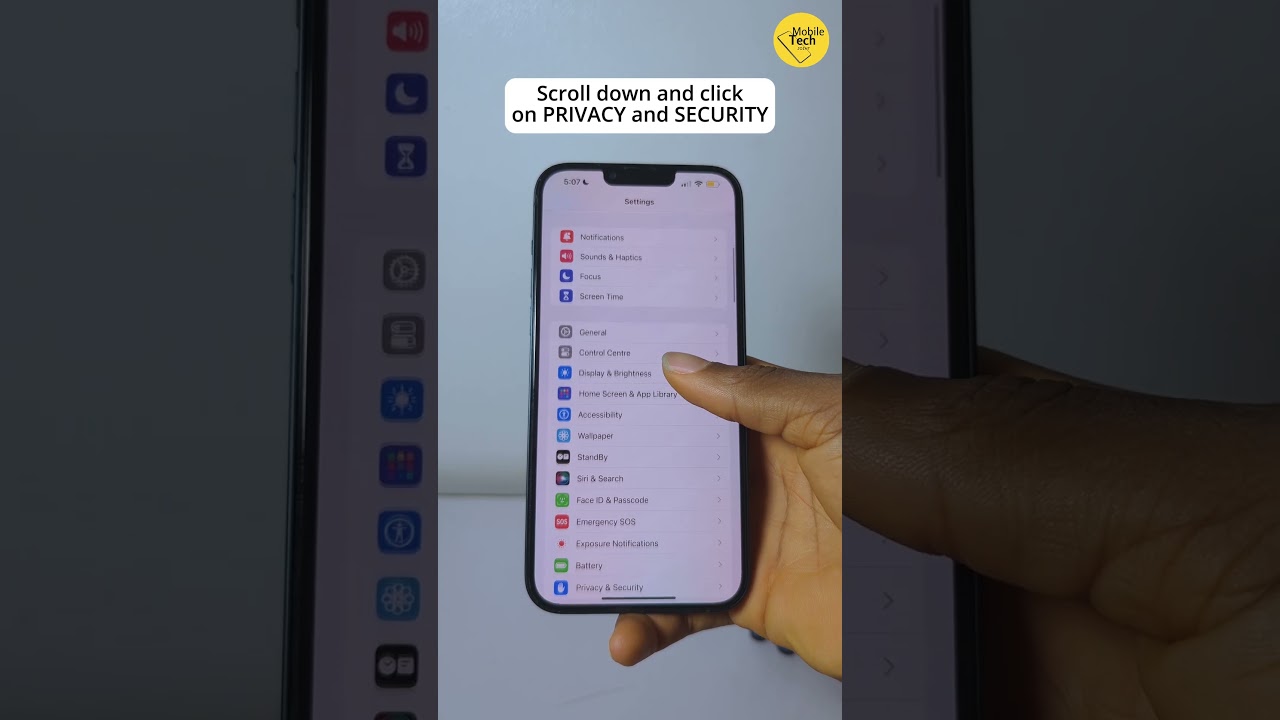
- Go to Settings > Privacy & Security.
- Tap Location Services and ensure it is ON.
- Scroll down to Find My and set it to “While Using the App” (Note: “Always” is not usually an option here, but the system grants it automatically when needed).
- Crucial Step: Tap System Services at the very bottom. Ensure Find My iPhone is toggled ON.
While in these settings, it is a good time to verify your device details. If you have multiple devices, knowing how to find my iphone name and how to find my iphone email address associated with your Apple ID is vital for distinguishing between them on the map.
Method 4: Use “Share My Location” with Family Sharing as a Backup
Quick Answer: Sharing your location with a trusted family member creates a secondary way to track your device if you cannot access your own iCloud account.
If you lose your phone, you often lose your 2-Factor Authentication method. This makes logging into iCloud difficult. Family Sharing solves this. By setting up Share My Location, a family member can open their Find My app and see your device immediately.
How to set it up:
- Go to Settings > [Your Name] > Family Sharing.
- Tap Location Sharing.
- Turn on Share My Location.
This is a proactive measure. For a detailed walkthrough on this specific feature, you might want to read our guide on how to share location on find my iphone. Additionally, as iOS updates, features change; stay updated with our article on apple find my how to share location iphone 2025 to ensure your settings remain valid in the future.
Method 5: Prevent Unauthorized Changes with Screen Time Restrictions
Quick Answer: You can use Screen Time settings to password-protect your Location Services, preventing thieves from turning off tracking even if they unlock your phone.
One of the biggest fears is a thief snatching an unlocked phone and immediately disabling find my iphone always on settings. You can block this.
Secure your settings:
- Go to Settings > Screen Time.
- Tap Content & Privacy Restrictions and turn it ON.
- Scroll to Location Services.
- Select Don’t Allow Changes.
Note: Make sure Location Services are set to “On” before you select “Don’t Allow Changes.” Now, the option to turn off location is greyed out and requires a Screen Time passcode to change.
Understanding How Find My Works: The Technology Behind the Magic
Quick Answer: Find My combines GPS, Wi-Fi, Cellular data, and Bluetooth Low Energy (BLE) to triangulate your device’s position, switching methods based on battery and network status.
To truly master how to keep find my iphone always tracking, it helps to understand the underlying technology. It’s not magic; it’s a sophisticated interplay of hardware and software.
How Does Find My Work When Your iPhone is Off or Dead?
Quick Answer: iPhones (iPhone 11 and later) reserve a small portion of battery for the “Power Reserve” feature, keeping the Bluetooth chip active for up to 5 hours (or more on iOS 15+) after the phone shuts down.
This addresses the common query: does find my work when phone is off? Yes. When your iPhone battery dies, it enters a “Power Reserve” mode. It acts like an AirTag, sending out a secure Bluetooth beacon. This is why you can find my iphone always on even when dead.
What is the “Find My Network”? A Simple Explanation
Quick Answer: It is a crowdsourced network of hundreds of millions of Apple devices that detect missing devices via Bluetooth and report their location securely to the owner.
Think of it as a digital search party. Even if your iPhone has no signal and no Wi-Fi (offline finding), if someone with an iPad walks past your lost phone on a park bench, their iPad picks up your phone’s signal. The iPad then tells Apple, “I saw this device here,” and you get a notification. This answers can you track an iphone if location services are off (specifically if cellular/Wi-Fi is off but the Find My Network setting is active).
Does Find My iPhone Work if Location Services are Off?
Quick Answer: Generally, if the main “Location Services” toggle is off, standard GPS tracking stops; however, the Find My Network can sometimes override this in “Lost Mode” depending on iOS version and specific privacy configurations.
However, for the purpose of how to keep find my iphone always on, you should never intentionally turn off Location Services. If you do, the device becomes significantly harder to track.
Quick Reference Table: Find My Feature States
To help you understand how to read find my iphone map statuses, consult the table below:
| Feature State | How it Works | Requirements | Limitations |
|---|---|---|---|
| iPhone On & Online | Uses GPS, Wi-Fi, and Cellular for real-time, precise location. | Location Services On, Internet Connection | Most accurate, but drains battery faster. |
| iPhone On & Offline | Uses the encrypted, crowd-sourced Find My network (Bluetooth). | Find My Network On, iOS 15+ | Location updates when near other Apple devices. Not real-time. |
| iPhone Battery Dead (Power Reserve) | Sends location for up to 5-24 hours after battery dies. | Find My Network On, iPhone 11 or newer | Limited time window. Relies on Find My Network. |
| iPhone Battery Dead (Send Last Location) | Automatically sends its final location to Apple just before shutting down. | Send Last Location On | A single, last-known location pin. May be outdated. |
| Location Services Off | Find My is disabled. The device cannot be tracked via GPS or Wi-Fi. | N/A | Device is essentially invisible on the map. |
Advanced Strategies to Maximize Your iPhone’s Findability

Quick Answer: Beyond basic settings, optimizing battery habits, understanding Precision Finding, and avoiding force-quitting apps can significantly improve tracking reliability.
At FindMyiPhone.onl, we believe in proactive protection. Here are advanced tips to ensure your find my iphone always on strategy is bulletproof.
Expert Tip: Why You Shouldn’t Force Quit the Find My App
Quick Answer: Force quitting (swiping up to kill) the Find My app can sometimes halt background location processes until the app is reopened.
Many users habitually close apps to “save battery.” However, iOS is optimized to manage background tasks efficiently. If you constantly force quit the Find My app, you might inadvertently delay location updates.
Optimizing Battery Life: Does Low Power Mode Affect Find My?
Quick Answer: Low Power Mode temporarily reduces background activity, but it does not disable Find My iPhone; in fact, it can extend the window of time your phone stays alive to be tracked.
People often search for find my iphone always on low power mode. The good news is that Low Power Mode is your friend. By extending battery life, you keep the GPS and cellular radios active for longer. It might update the location slightly less frequently (to save power), but it keeps the connection alive.
How to Make Find My iPhone More Accurate with Precision Finding
Quick Answer: For iPhone 11 and later, Precision Finding uses Ultra Wideband (UWB) technology to guide you to your device with on-screen directional arrows when you are close.
If you are in the same building but can’t see the phone, GPS isn’t enough. You need to know how to make find my iphone more accurate. Using the “Find Nearby” feature triggers the UWB chip.
- Audio cues: You can also trigger a sound. If you are unsure how, read our guide on how to set off find my iphone alarm or the variation how to set off alarm on find my iphone.
- Visual cues: The screen turns green as you get closer.
This technology is also useful for other items. For example, many users utilize AirTags to find my car iphone. in crowded parking lots using the same interface.
Risk Warning: The Dangers of Turning Off Significant Locations
Quick Answer: “Significant Locations” helps your iPhone learn places valuable to you; turning it off can degrade the accuracy of location-based alerts and routing.
While some disable this for privacy, it aids the system in determining “safe” zones versus “unusual” locations, which can be critical for security alerts.
Frequently Asked Questions (FAQ): Your Top Concerns Answered

Quick Answer: Common questions revolve around security, dead batteries, and alternative tracking methods.
Can someone turn off Find My iPhone without my password?
Quick Answer: No. Apple’s “Activation Lock” requires your Apple ID password to turn off Find My or erase the device.
This is a core security feature. Even if a thief puts the phone in Airplane mode, they cannot disable the tracking account without your credentials.
How do you find your iPhone when it’s dead and has been for days?
Quick Answer: If the Power Reserve window (up to 24 hours on new models) has passed, you rely on the “Last Known Location.”
You cannot track a device that has been dead for a week. However, you can set up a notification to alert you if it comes back online. If you need help asking a friend to check their app for your device, you should know how to request location on find my iphone.
What’s the difference between “Find My iPhone” and “Share My Location”?
Quick Answer: “Find My iPhone” is for locating devices linked to your Apple ID; “Share My Location” is for letting friends and family see where you are.
Understanding this distinction is key. “Find My” is for device recovery; “Share Location” is for personal safety. If you need to let someone know where you are urgently, knowing how to notify someone on find my iphone is essential. Conversely, if you are looking for a family member’s lost device, you might need to know how to alert someone’s phone on find my iphone.
Does Find My work if the SIM card is removed?
Quick Answer: Yes. The device can still be tracked via Wi-Fi or the Find My Network (Bluetooth) even without a SIM card.
Can I use other methods to find my phone?
Quick Answer: Yes, there are alternative ways if you have smart home devices or other Apple products.
- Smart Speakers: Many users ask about alexa find my phone iphone. By enabling the skill, you can ask Alexa to call your phone.
- Clapping Apps: While not native to iOS, some users explore third-party apps to clap to find my phone iphone, though we recommend sticking to Apple’s native Find My for reliability.
- Mac Tracking: If you are at your desk, you might wonder how to switch find my iphone to mac to track your device from a larger screen.
- Making it Ring: A common question is can i make my iphone ring to find it even if it’s on silent? Yes, the “Play Sound” feature in Find My bypasses the silent switch.
Conclusion
Keeping your iPhone findable isn’t about a single setting, but a combination of powerful features. By enabling the Find My network, ensuring Send Last Location is active, and locking down your privacy settings, you create a robust safety net. These proactive steps significantly increase your chances of recovering a lost or stolen device, transforming panic into a manageable situation.
We hope this guide on how to keep find my iphone always on has empowered you to take control of your device’s security. At FindMyiPhone.onl, we recommend checking these settings today—don’t wait until it’s too late.
Found this guide helpful? Share it with friends and family to help them secure their Apple devices. For more expert tips on iOS security and privacy, subscribe to our newsletter.
Note: The information in this article is for reference only. For the best advice, please contact us directly for a specific consultation based on your actual needs.

About This Guide
Published by: FindMyiPhone.onl Editorial Team
Last Updated: January 16, 2026
Tested On: iPhone 15 Pro (iOS 17.5.1), iPhone 13 (iOS 17.4)
This tutorial was created through hands-on testing on real devices. All screenshots are from our testing lab. We update guides within 48 hours of iOS releases.
Questions? Contact our team | Meet the team Editorial Team

![5 Ways To Keep Find My iPhone Always On [Even When Dead]](https://findmyiphone.onl/wp-content/uploads/2026/01/clap-to-find-my-phone-iphone-800x450.jpeg)
![5 Ways To Keep Find My iPhone Always On [Even When Dead]](https://findmyiphone.onl/wp-content/uploads/2026/01/how-to-switch-find-my-iphone-to-mac-800x450.jpeg)
![5 Ways To Keep Find My iPhone Always On [Even When Dead]](https://findmyiphone.onl/wp-content/uploads/2026/01/alexa-find-my-phone-iphone-800x450.jpeg)