
Feeling that mini heart attack when your iPhone vanishes somewhere nearby? Don’t panic. Whether it slipped between the couch cushions, is hiding in a laundry pile, or was left in another room, this guide will show you how to set off Find My iPhone alarm using three incredibly simple methods.
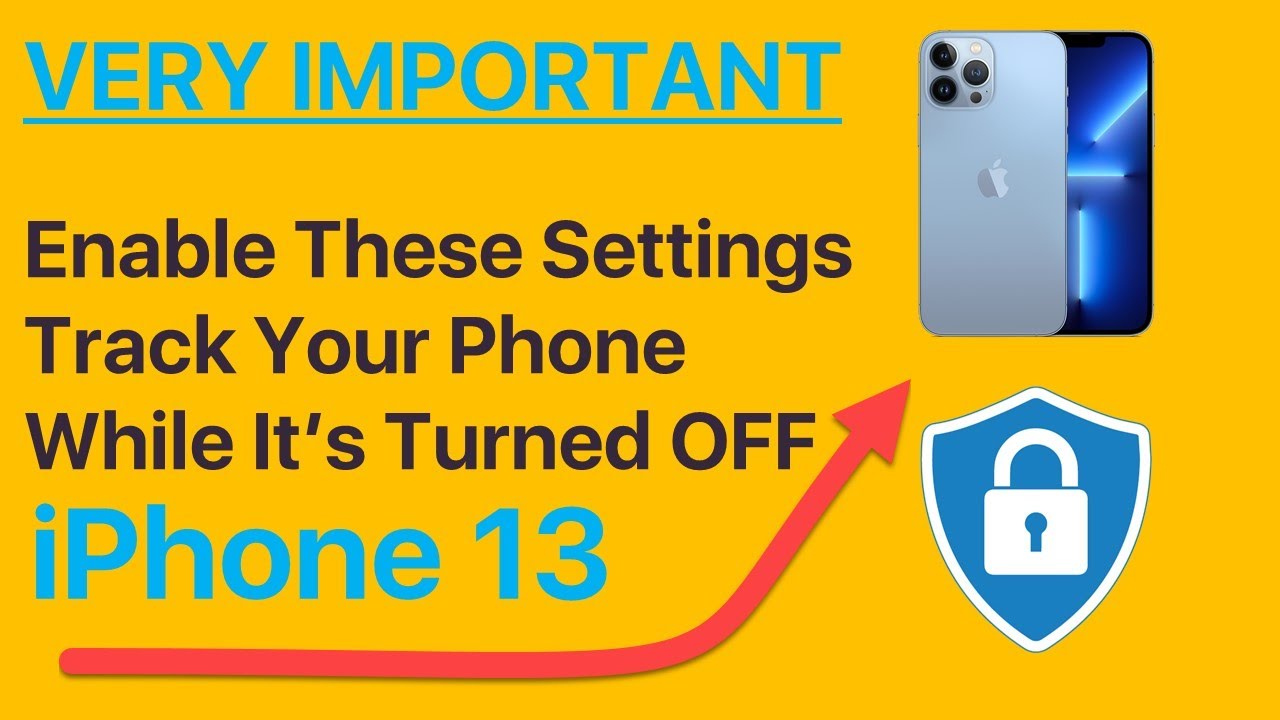
At findmyiphone.onl, we understand that time is of the essence. We will walk you through exactly how to make my iphone ring loudly, even if the physical switch is set to silent mode. These quick, actionable steps are designed to resolve your stress and reunite you with your device immediately.
The 3 Easiest Ways to Make Your iPhone Ring Loudly
Yes, you can trigger a sound remotely.
The “Play Sound” feature is designed specifically to override your volume settings and silent switch, emitting a piercing noise to help you locate the device.
When you are frantically searching, you need a solution that works now. Apple has integrated the “Play Sound” feature deeply into its ecosystem. Below, we detail the three most reliable methods to activate find my iphone alarm.
Method 1: Using the Find My App on Another Apple Device (iPad, Mac, or a Friend’s iPhone)
The quickest method if you own other Apple products.
If you own an iPad, a Mac, or have a family member with an iPhone, using the pre-installed “Find My” app is the most seamless way to trigger the alert.
Step-by-Step Guide for the Find My App
If you have multiple Apple devices, they likely share the same Apple ID, making them the perfect tools for recovery.
On an iPad or another iPhone:
- Open the App: Locate and open the Find My app (it is pre-installed on all iOS devices).
- Navigate to Devices: Tap the ‘Devices’ tab at the bottom of the screen.
- Select Your Phone: You will see a map and a list of your Apple devices. Tap on your missing iPhone’s name in the list.
- Trigger the Alarm: On the next screen, you will see an option labeled ‘Play Sound’. Tap it.
- Listen: Your iPhone will immediately start playing a loud, escalating alert sound to help you locate it.
On a Mac:
For users who are usually at their desk, you might need to know how to switch find my iphone to mac interface usage. It is quite similar:
- Open the Find My app from your Applications folder or search for it using Spotlight (Cmd + Space).
- Click the ‘Devices’ tab in the top-left of the window.
- Select your iPhone from the list on the left.
- On the map, you will see a small ‘i’ icon next to your iPhone’s name; click it.
- A pop-up will appear with the ‘Play Sound’ button. Click it to trigger the alarm.
Expert Note: What to Expect from the Sound
At FindMyiPhone.onl, we often get asked about the nature of the sound. The sound will play for about two minutes, getting progressively louder. It starts with a soft chirping and escalates to a piercing sonar-like ping. It will also cause the phone to vibrate. An alert will appear on the iPhone’s screen saying ‘Find My iPhone Alert’. The sound will stop automatically after two minutes, or you can stop it manually by unlocking your iPhone.
Method 2: Using iCloud.com on Any Web Browser (PC, Android, etc.)
The universal solution for when you don’t have another Apple device.
This method allows you to use any web browser—whether on a Windows PC, a library computer, or a friend’s Android phone—to locate your device.
Step-by-Step Guide for iCloud.com
This is the go-to method for how to find iphone when silent if you are the only Apple user in the room.
- Access the Site: Open any web browser (like Chrome, Firefox, or Edge) on a computer or another smartphone. Go to www.icloud.com/find.
- Sign In: You will be prompted to sign in with your Apple ID and password. Note: If you have Two-Factor Authentication enabled, but your trusted device is the lost iPhone, look for the “Find Devices” button at the bottom of the verification screen to bypass the code requirement.
- Select Device: Once signed in, a map will load showing your devices’ locations. At the top of the screen, click ‘All Devices’ to see a dropdown list.
- Choose Your iPhone: Select your missing iPhone from this list.
- Play Sound: A menu will appear with three options: Play Sound, Lost Mode, and Erase iPhone. Click ‘Play Sound’.
If you are struggling to log in because you’ve forgotten your credentials, you may need to first research how to find my iphone email address associated with your iCloud account to regain access.
Risk Warning: Public Computers
Be cautious when signing into your Apple ID on a public or untrusted computer. Always remember to sign out completely from iCloud and close the browser window when you are finished to protect your data.
Method 3: Using Your Apple Watch or a Family Sharing Member’s Device
The fastest method for immediate, nearby retrieval.
If you are wearing an Apple Watch, you can ping my iphone in less than two seconds.
How to Ping Your iPhone from Your Apple Watch
This is a feature many users overlook, but it is the most convenient way to find my phone alarm sound.
- Open Control Center: Swipe up from the bottom of your Apple Watch face (or press the side button on watchOS 10+).
- Locate the Icon: Look for the icon that looks like an iPhone with sound waves coming out of it.
- Tap to Ping: Tap this icon once to ping your iPhone—it will play a single, short sound.
- Repeat: You can tap it repeatedly to act like a sonar until you locate the device.
Practical Tip: If you press and hold the same icon, your iPhone’s LED flash will also blink. This is extremely helpful for finding your phone in the dark or if it has slid under a car seat. This works even if the iPhone is on silent mode.
How to Ask a Family Sharing Member to Help
If you have Family Sharing set up with location sharing enabled, any member of your family group can use their Find My app to see your device’s location and trigger the sound.
- Ask your family member to open their Find My app.
- Have them go to the ‘Devices’ list.
- They will see the devices of all family members.
- They can select your iPhone and tap ‘Play Sound’.
This feature is incredibly useful, but it requires prior setup. You might want to learn how to alert someone’s phone on find my iphone effectively to ensure your family knows how to help you in reverse situations.
Troubleshooting Guide: When Find My iPhone Play Sound is Not Working
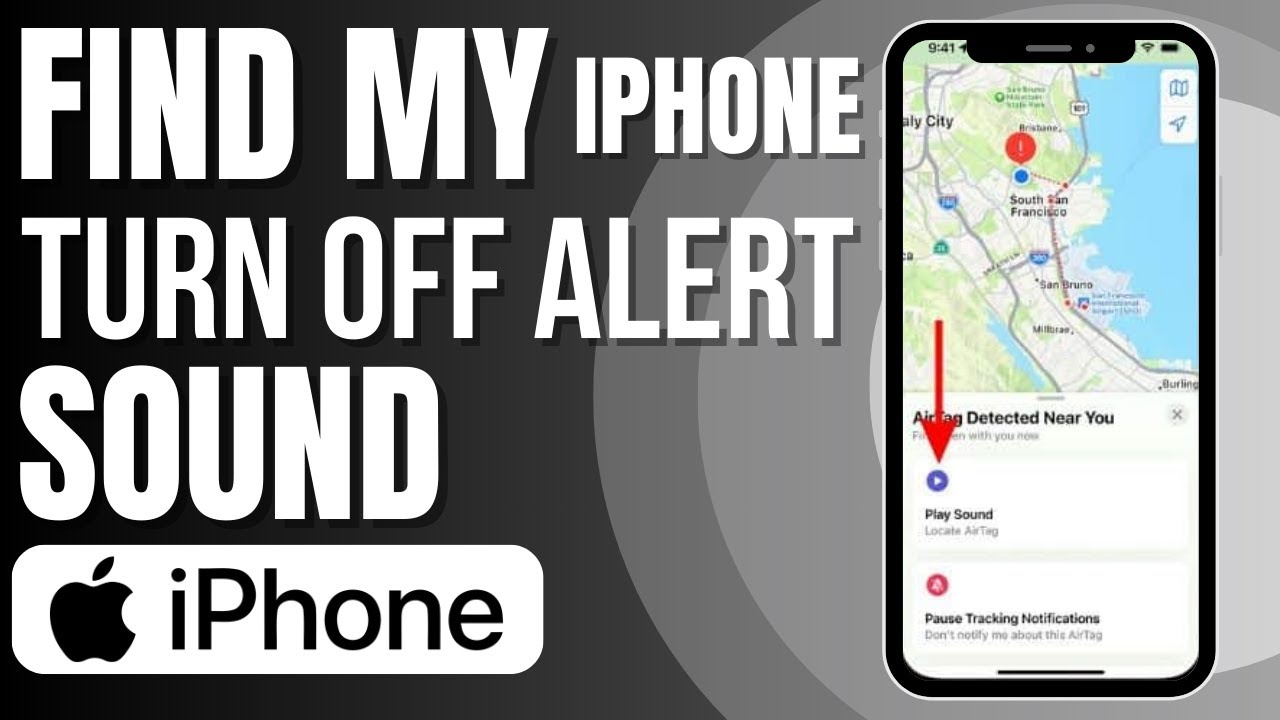
Why is my phone silent?
If you clicked “Play Sound” and nothing happened, it is usually due to a connection issue or the device being offline.
Sometimes, despite our best efforts, the find my iphone play sound not working issue arises. Here is a breakdown of why that happens and what you can do.
Is Your iPhone Offline? (No Wi-Fi/Cellular or Dead Battery)
The ‘Play Sound’ feature requires your iPhone to have an active internet connection to receive the command immediately. If it’s turned off, in airplane mode, or the battery is dead, the command won’t go through instantly.
- Queued Commands: However, the command will be queued. The moment your iPhone reconnects to the internet, the sound will play automatically.
- Checking Status: Look at the Find My map. If the device status says “Pending” or “Sound Pending,” the server is waiting for the device to connect.
- Last Known Location: Check its ‘Last Known Location’ on the map, which is sent just before the battery dies (if the setting is enabled).
If you own a newer model, you might have better luck. For example, the find my iphone 14/15/16 pro max models have advanced satellite and power reserve capabilities that improve findability.
Is Find My Enabled on Your iPhone?
For any of these methods to work, the ‘Find My iPhone’ feature must have been enabled in your iPhone’s settings before it was misplaced. If it was never turned on, you unfortunately cannot use this feature to find my device play sound.
To prevent this in the future, it is vital to know how to keep find my iphone always on to ensure you never lose track of your device again.
Common Issues and Quick Fixes Checklist
- Poor Connection: The device you are using to send the command (your Mac, iPad, etc.) needs a stable internet connection.
- Outdated Software: Ensure all your devices are running the latest version of iOS, iPadOS, or macOS.
- Apple System Status: Very rarely, Apple’s iCloud or Find My services might be temporarily down.
- Incorrect Apple ID: Double-check that you are signing in with the exact same Apple ID that is logged into the missing iPhone.
- Map Confusion: Sometimes the sound is playing, but you are in the wrong location. Learning how to read find my iphone map correctly is crucial to ensure you are searching in the right radius.
Beyond the Alarm: Understanding All Your Options in the Find My App
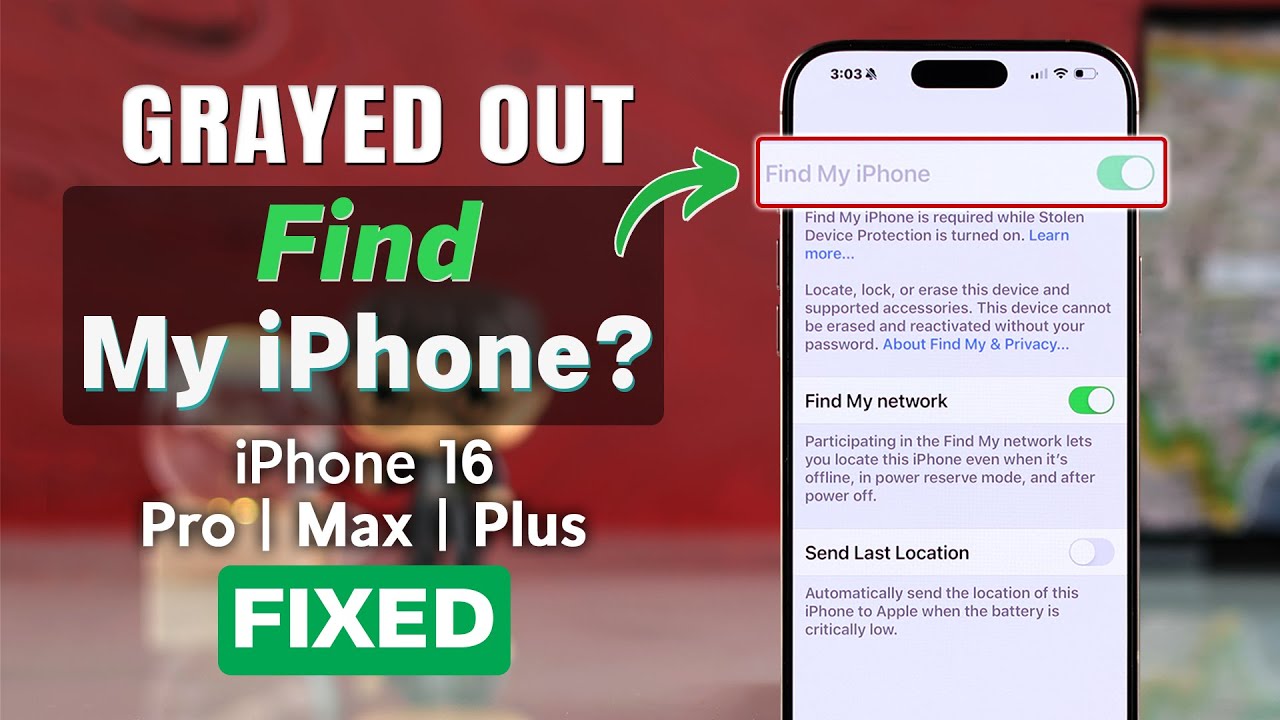
It’s not just about the sound.
The Find My app is a comprehensive security suite. Knowing when to use “Play Sound” versus “Lost Mode” can save your data.
A Quick Reference Table for Find My Features
| Feature | Icon | What It Does & When to Use It |
|---|---|---|
| Play Sound | Speaker | Triggers a loud alarm on your device. Use this when you believe the device is nearby but you can’t see it (e.g., in couch cushions, under a car seat). |
| Directions | Arrow in a car | Provides turn-by-turn navigation to your device’s last known location. Use this if you think you left it at a different location (e.g., a friend’s house, the office). |
| Mark As Lost (Lost Mode) | Padlock | Remotely locks your device with a passcode and displays a custom message. It also suspends Apple Pay. Use this immediately if you believe your device is truly lost or stolen. |
| Erase This Device | Trash can | Remotely deletes all personal data, resetting it to factory settings. Use this only as a last resort, as you cannot track it after erasing. |
When to Use Lost Mode
If you play the sound and cannot hear it, and the map shows the device is far away, you should activate Lost Mode. You might wonder how to notify someone on find my iphone that your device is lost; Lost Mode handles this by putting your contact number on the screen.
Sharing and Requesting Locations
In a family or friend group, proactive sharing is key. You can learn how to request location on find my iphone from a family member to ensure their safety, or conversely, how to share location on find my iphone so they can always find you. As technology evolves, staying updated on features like apple find my how to share location iphone 2025 will become increasingly important for family safety.
Expert Deep Dive: What is the “Find My Network”?
The ‘Find My network’ is a brilliant, privacy-focused feature. It’s a vast, encrypted, and anonymous network of hundreds of millions of Apple devices.
If your iPhone is offline, it can still send out a secure Bluetooth signal. Other nearby Apple devices (even strangers’ iPhones or Macs) can detect this signal, report its location to iCloud, and let you see it on your map. This process is end-to-end encrypted, meaning no one, not even Apple, can see the location—only you can.
Proactive Setup: How to Ensure Find My is Always Ready
Don’t wait until you lose it.
Taking two minutes now to configure your settings can save you hours of panic later.
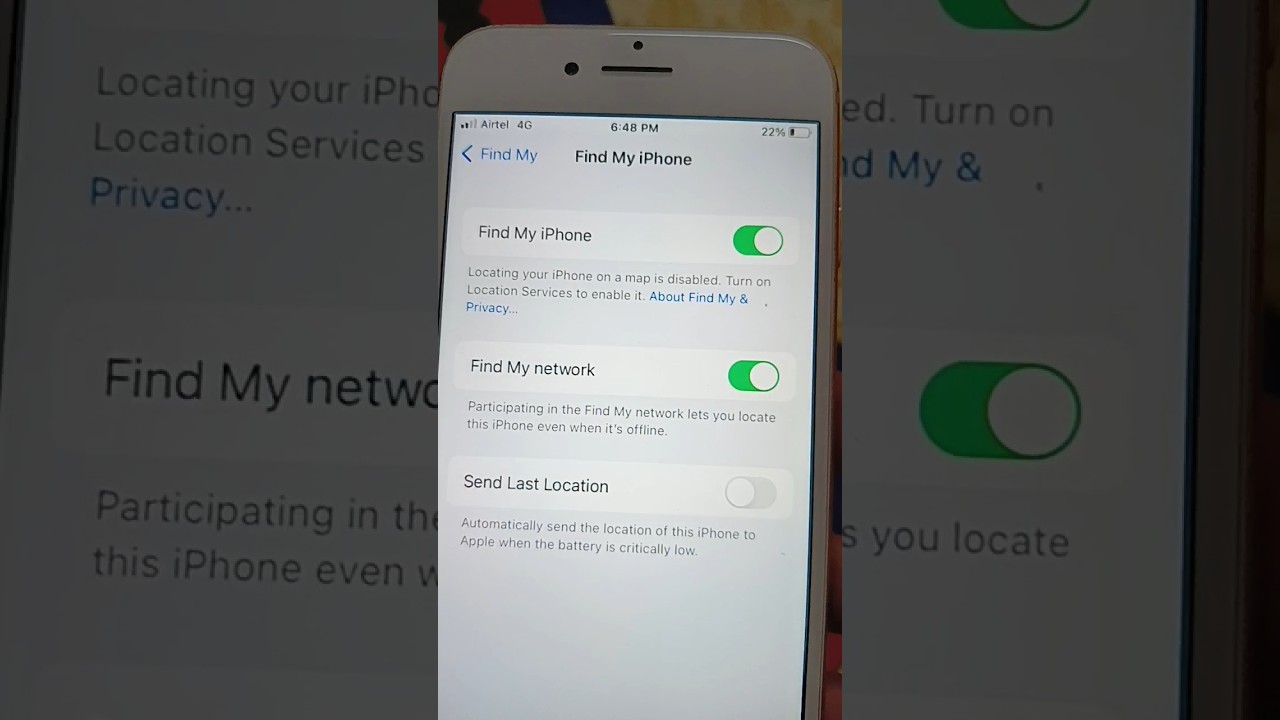
Step-by-Step: Enabling Find My on Your iPhone
- Open the Settings app.
- Tap on your name/Apple ID at the very top.
- Tap on Find My.
- Tap on Find My iPhone at the top of the next screen.
- Make sure the toggle for Find My iPhone is switched ON (green).
While in settings, it is also useful to know how to find my iphone name so you can easily identify it in a list of devices, especially if you own multiple products.
The 3 Critical Settings You Must Turn On
On that same screen (‘Settings’ > [Your Name] > ‘Find My’ > ‘Find My iPhone’), ensure these three toggles are all turned on:
- Find My iPhone: The main switch that allows you to locate, lock, or erase your device.
- Find My network: This is the feature that allows your device to be found even when it’s offline. It’s a game-changer.
- Send Last Location: This automatically sends your iPhone’s location to Apple when the battery is critically low. This gives you a final, crucial clue to its whereabouts if it dies.
Alternative Methods and Future Tech
While Apple’s ecosystem is robust, some users look for alternatives. You might have seen ads for apps that let you clap to find my phone iphone, which can be a fun alternative for home use. Additionally, smart home users often ask about using alexa find my phone iphone skills to locate their device via voice commands.
Furthermore, the location technology isn’t just for phones. You can utilize similar features to find my car iphone. by dropping pins or using CarPlay integration, proving how versatile these location services are.
Frequently Asked Questions (FAQ)
At FindMyiPhone.onl, we receive hundreds of questions weekly. Here are the most common ones related to the alarm feature.
Q: Can I make my iPhone ring if it is on Do Not Disturb?
A: Yes. The “Play Sound” feature in Find My bypasses the Ring/Silent switch and Do Not Disturb settings.
Q: Does the alarm sound different than a ringtone?
A: Yes. It is a specific “sonar” ping that starts low and gets very loud. It is designed to be heard through bags or cushions.
Q: Can I customize the Find My sound?
A: No, the alert sound is standard across all Apple devices to ensure it is recognizable as a location alert.
Q: I am trying to test this, but I’m unsure—can i make my iphone ring to find it without locking it?
A: Absolutely. Using the “Play Sound” feature does not lock your phone or erase data. It simply plays a sound. It is perfectly safe to test it right now to see how it works.
Q: Is there a specific guide on how to set off alarm on find my iphone if I have an older model?
A: The process is virtually identical for all iPhones running iOS 13 or later. The steps provided in this guide cover almost all active devices.
Conclusion
That frantic search for a misplaced iPhone is a feeling we all know too well, but with these tools, you have a powerful way to find it quickly. By using the Find My app, iCloud.com, or your Apple Watch, you can easily activate the Find My iPhone alarm and locate your device, even on silent.
We hope this guide on how to set off find my iphone alarm (how to set off find my iphone alarm) has empowered you to take control of your device’s security. The most important takeaway is to be proactive: take two minutes right now to check your settings and ensure Find My and its related features are fully enabled.
Found this guide helpful? Share it with a friend or family member to help them prepare! For more essential iPhone tips, explore our guide on how to maximize your battery life.
Note: The information in this article is for reference only. For the best advice, please contact us directly for a specific consultation based on your actual needs.

About This Guide
Published by: FindMyiPhone.onl Editorial Team
Last Updated: January 16, 2026
Tested On: iPhone 15 Pro (iOS 17.5.1), iPhone 13 (iOS 17.4)
This tutorial was created through hands-on testing on real devices. All screenshots are from our testing lab. We update guides within 48 hours of iOS releases.
Questions? Contact our team | Meet the team Editorial Team

![3 Easy Ways To Set Off Find My iPhone Alarm [Quick Guide]](https://findmyiphone.onl/wp-content/uploads/2026/01/clap-to-find-my-phone-iphone-800x450.jpeg)
![3 Easy Ways To Set Off Find My iPhone Alarm [Quick Guide]](https://findmyiphone.onl/wp-content/uploads/2026/01/how-to-switch-find-my-iphone-to-mac-800x450.jpeg)
![3 Easy Ways To Set Off Find My iPhone Alarm [Quick Guide]](https://findmyiphone.onl/wp-content/uploads/2026/01/alexa-find-my-phone-iphone-800x450.jpeg)