
Feeling that sinking panic of a forgotten parking spot? We’ve all been there. You walk out of a crowded mall or a massive stadium, and suddenly, every row of cars looks exactly the same. The good news is, your iPhone has powerful, often automatic, features to help. This guide will show you 5 effortless ways to find my car iPhone, starting with the simplest built-in method that works like magic.
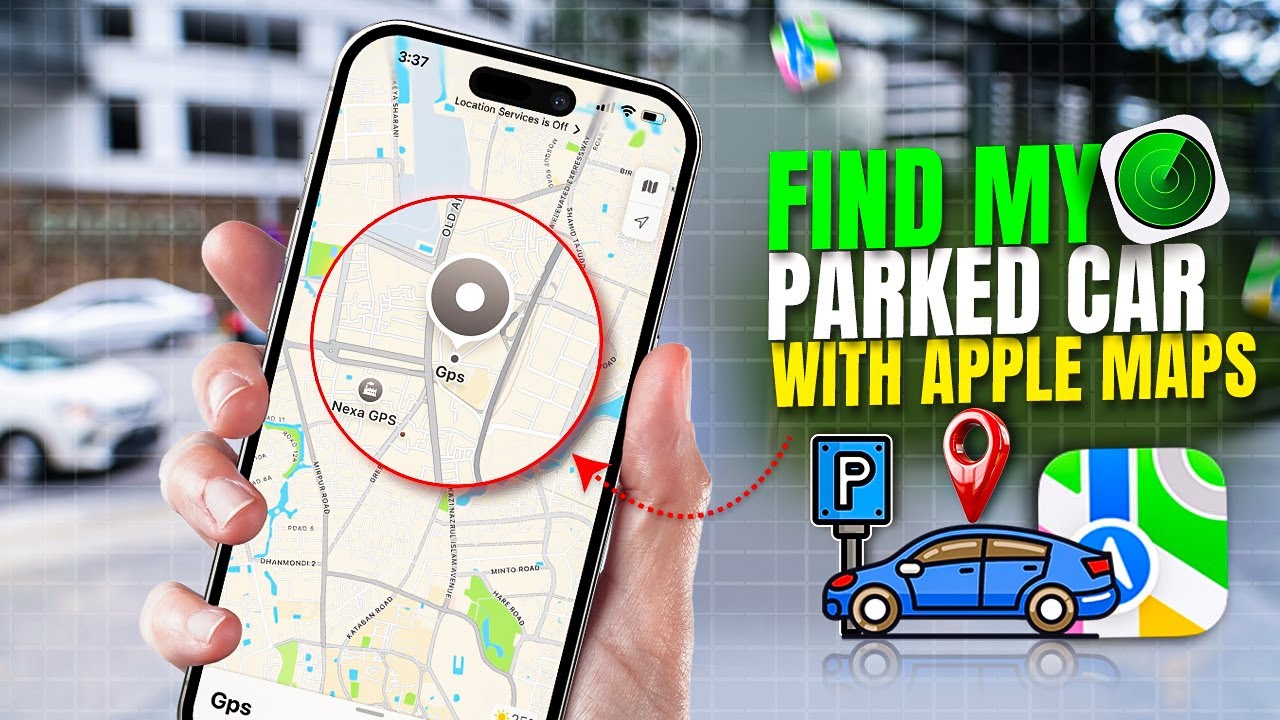
At findmyiphone.onl, we know that losing track of your vehicle is more than just an annoyance—it can be a safety issue and a massive time drain. Whether you are using the latest model or an older device, you’ll get step-by-step instructions, troubleshooting tips, and expert advice to make finding your car completely stress-free.
The #1 Effortless Method: Let Your iPhone Automatically Remember Where You Parked
Quick Answer: The most efficient way to find your car is to enable the “Show Parked Location” feature in Apple Maps. This uses your connection to the car’s Bluetooth or CarPlay to automatically drop a pin the moment you disconnect and exit the vehicle.
For most users, the native solution is the best solution. Apple has integrated a feature specifically designed to solve the “dude, where’s my car?” problem without requiring you to open an app before you leave your vehicle. This passive tracking is a lifesaver for the forgetful.
How It Works: The Tech Behind Automatic Parking Detection
Quick Answer: Your iPhone monitors the Bluetooth or CarPlay connection status. When that connection is severed (meaning you turned off the car), the phone triangulates its current GPS coordinates and marks them as your parking spot.
To understand why this works so well, you need to look at the synergy between hardware and software. It isn’t magic; it is a specific “handshake” protocol.
- Bluetooth Vehicle Connection: Your iPhone must recognize your car’s stereo as a vehicle.
- GPS Triangulation: Once the Bluetooth disconnects, the iPhone grabs a high-accuracy GPS fix.
- Significant Locations: The system learns your habits. It typically won’t mark your home garage as a “parked car” location to avoid clutter, focusing instead on unfamiliar places like malls or city streets.
This seamless integration helps optimize your daily routine, removing the cognitive load of remembering a pillar number or street name.
Step-by-Step Guide to Finding Your Car with Apple Maps
Quick Answer: Open the Apple Maps app, look for the blue “Parked Car” icon or type “Parked Car” in the search bar, and tap “Directions” to get a walking route back to your vehicle.
Once you are ready to return to your vehicle, follow these simple steps to use the Apple Maps parked car feature:
- Open Apple Maps: Launch the native Maps app on your iPhone.
- Look for the Blue Icon: You should see a blue car icon on the map immediately.
- Use the Search Bar: If you don’t see it, tap the search bar and select “Parked Car” from the suggestions.
- Get Directions: Tap the “Directions” button.
- Follow the Route: The app will provide walking directions directly to your car.
If you are using a newer device, the accuracy is incredibly high. For those wondering about device compatibility, specifically regarding precision finding features, you might want to check our guide on find my iphone 14/15/16 pro max to see how newer chips handle location data.
Expert Note: What To Do When Apple Maps Parked Car Location is Not Working
Quick Answer: Ensure “Location Services” and “Significant Locations” are enabled, and verify that your iPhone is paired to your car’s Bluetooth. Sometimes, simply toggling Bluetooth off and on can reset the handshake.
At FindMyiPhone.onl, we frequently receive questions about this feature failing. If you are struggling with Apple Maps parked car location not working, check these common culprits:
- Bluetooth Disconnection: If you manually turn off Bluetooth before turning off the car, the trigger signal is never sent.
- Device Name Confusion: Sometimes the iPhone doesn’t recognize the Bluetooth device as a car. You may need to check how to find my iphone name and ensure your car’s Bluetooth profile is correctly labeled in settings.
- Privacy Settings: If you have strictly locked down your privacy settings, the Maps app may not have permission to access your location in the background.
4 More Reliable Ways to Find Your Parked Car with an iPhone
Quick Answer: Beyond Apple Maps, you can use Siri voice commands, Google Maps manual saving, AirTags for precision tracking, or manually dropping a pin.
While the automatic feature is great, it isn’t foolproof (e.g., if your car doesn’t have Bluetooth). Here are 4 alternative ways to find parked car iPhone users can rely on.
Method 2: Ask Siri to Find Your Car
Quick Answer: Activate Siri and say “Where is my car?” Siri will pull the location data from Apple Maps and display a walking route.
This is the hands-free Siri car locator method. It is perfect when you are carrying heavy shopping bags or just want a quick answer.
- To Park: You can tell Siri, “Hey Siri, remember where I parked.” This forces a manual location save if the automatic Bluetooth trigger fails.
- To Find: Ask, “Hey Siri, take me to my car.”
Can Siri find my parked car without Bluetooth? Yes, but only if you verbally told her to remember the spot when you parked. This voice-activated memory is a great backup. Interestingly, some users confuse this with other voice assistants. While you might use alexa find my phone iphone to locate a lost device at home, for parking, Siri is your integrated go-to assistant.
Method 3: Use Google Maps to Save and Find Your Parking Spot
Quick Answer: Open Google Maps, tap the blue dot representing your current location, and select “Save parking.” To find it, tap the search bar and select “Parking location.”
For users who prefer Google’s ecosystem, Google Maps parking features are robust.
- Open Google Maps immediately after parking.
- Tap the Blue Dot: This shows your current GPS location.
- Select “Save Parking”: A “P” icon will appear on the map.
- Add Notes: You can add photos (level number, pillar color) or a timer (for parking meters).
This is often the best app to find your car iPhone users can download if they want to add context like photos. If you are switching devices or need to access this data elsewhere, knowing how to find my iphone email address associated with your Google Maps account is helpful for syncing.
Method 4: Use an AirTag for Pinpoint Accuracy (The Ultimate Solution)
Quick Answer: Place an Apple AirTag in your glovebox or under a seat. Use the “Find My” app to track the AirTag, and use “Precision Finding” (on iPhone 11 and later) to get on-screen arrows pointing directly to your car.
This is the gold standard for AirTag car tracking. It does not rely on the car’s power or Bluetooth. It relies on the vast “Find My” network.
- Setup: Pair an AirTag and name it “Car”. Leave it in the vehicle.
- Finding: Open the “Find My” app, go to “Items,” and select “Car”.
- Precision Finding: If you are close (e.g., in the garage) but can’t see it, the Ultra Wideband chip will guide you with an arrow and distance meter.
If you are in a dark garage, you might need audio cues. You can learn how to set off find my iphone alarm or specifically trigger the AirTag speaker to chirp, guiding you by ear. Similarly, knowing how to set off alarm on find my iphone systems generally helps in understanding how the sound features work across the Apple ecosystem.
Method 5: Manually Drop a Pin in Apple or Google Maps
Quick Answer: Long-press on your current location on the map until a pin appears (marked “Dropped Pin”). Tap “Share” or “Save” to keep this location fixed.
This is the old-school drop a pin location method. It works on any map app and requires no setup.
- Pros: Works without Bluetooth; works offline if maps are cached.
- Cons: You must remember to do it before you walk away.
If you’ve wandered off and are trying to coordinate a search with a friend, you might ask, “How do I let them know where I am?” You should check out how to share location on find my iphone to send your pin to someone else to help you search.
Which Car Finder Method is Right for You? A Quick Comparison
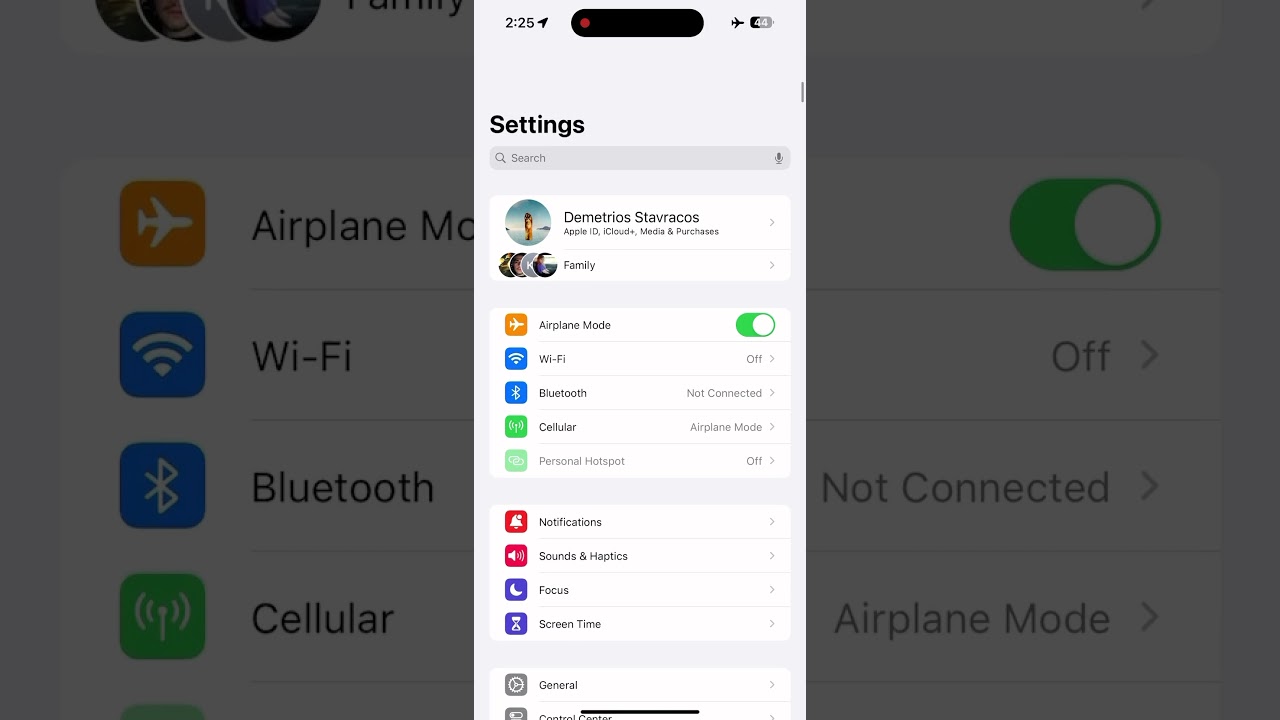
Quick Answer: Use Apple Maps for automatic convenience, Google Maps for adding photos/notes, and AirTag for high-security and precision in complex environments.
To help you decide which vehicle location finder method suits your lifestyle, we’ve broken them down below.
Comparison Table: iPhone Parking Methods at a Glance
| Method | Best For… | Effort Level | Accuracy | Requires Bluetooth? |
|---|---|---|---|---|
| Apple Maps (Auto) | Daily drivers with newer cars | Effortless (Zero clicks) | High | Yes |
| Siri Command | Busy hands/Shopping | Low (Voice command) | High | No |
| Google Maps | Complex garages (needs photos) | Medium (Manual save) | High | No |
| AirTag | Ultimate Solution / Older cars | Low (Set and forget) | Pinpoint (Precision) | No (Uses AirTag) |
| Manual Pin | One-off trips / No data | Medium | Medium | No |
Practical Tips for Tricky Parking Situations (Multi-Level Garages & No Signal)
Quick Answer: In GPS-denied environments like underground bunkers, rely on AirTag (Ultra Wideband) or take a photo of the pillar number. GPS cannot detect altitude (floor level) accurately.
GPS parking has a major weakness: verticality. Your iPhone might know you are at the mall, but not that you are on the 4th floor underground.
- The “Photo” Trick: Always take a photo of the nearest pillar (e.g., “Zone B, Level 3”).
- The AirTag Advantage: AirTags communicate with any passing iPhone, updating the location even if you are miles away.
- Lost the Phone too? If you dropped your phone in the car and can’t find either, you might wonder, can i make my iphone ring to find it? If you have an Apple Watch, you can ping your iPhone to locate the car by the sound of the ringing phone inside.
Essential Settings: How to Set Up Your iPhone to Find Your Car
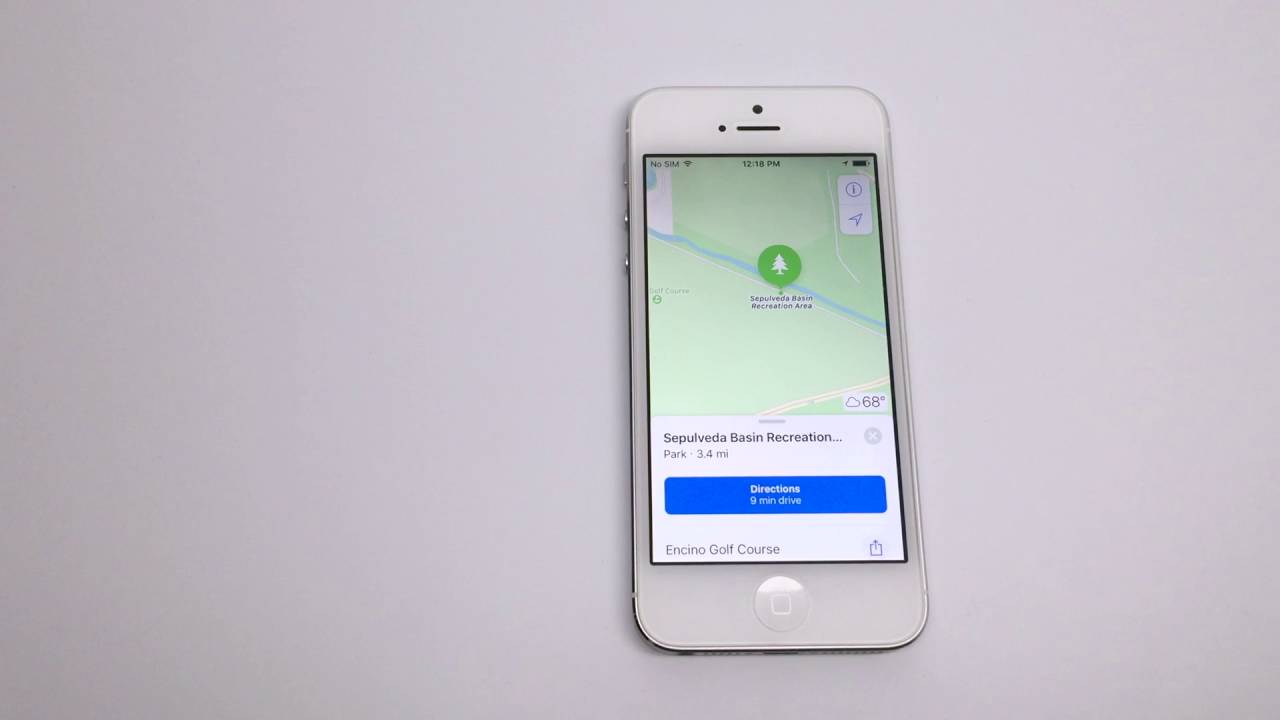
Quick Answer: You must enable “Significant Locations” within System Services and ensure the “Show Parked Location” toggle is green in the Maps settings.
To ensure the find my car iphone features work automatically, verify these settings today.
Step 1: Enable Location Services and Significant Locations
Quick Answer: Go to Settings > Privacy & Security > Location Services > System Services > Significant Locations. Turn this ON.
This setting allows your iPhone to learn your routine, which is crucial for the parking spot memory. Without this, the phone doesn’t “trust” that you have stopped driving. It’s also important to understand how to keep find my iphone always on to ensure these background services aren’t killed by battery saver modes.
Step 2: Connect Your iPhone to Your Car’s Bluetooth or CarPlay
Quick Answer: Go to Settings > Bluetooth and pair with your vehicle. If your car supports CarPlay, plug it in or connect wirelessly.
This establishes the Bluetooth vehicle connection. If you have multiple Apple devices, you might want to know how to switch find my iphone to mac or iPad to manage these connections, but for parking, the iPhone is the primary tracker.
Step 3: Ensure ‘Show Parked Location’ is Turned On in Maps Settings
Quick Answer: Go to Settings > Maps. Scroll down to the “Your Car” section and toggle “Show Parked Location” to ON.
This is the master switch for the iPhone parking reminder.
- Pro Tip: If you share your car with a spouse, you might want to alert them to where you left it. You can learn how to notify someone on find my iphone or specifically how to alert someone’s phone on find my iphone to coordinate car swaps.
Furthermore, as technology evolves, staying updated is key. For the latest on sharing protocols, check our guide on apple find my how to share location iphone 2025.
What if I need to find the car using a friend’s phone?
If your phone is dead inside the car, you can use a friend’s device. You will need to know how to request location on find my iphone if you are part of a Family Sharing group, or simply log into iCloud on their browser. This brings us back to the importance of the map interface; knowing how to read find my iphone map is essential when viewing your location on a strange screen.
Some users ask about third-party apps like “Clap to Find”. While you can use apps that utilize sound, like clap to find my phone iphone, these are generally for finding the phone inside the room, not the car in a lot. Stick to the GPS and Bluetooth methods for vehicles.
Finally, for the ultimate guide on this specific topic, bookmark our dedicated page: find my car iphone.
Conclusion
With your iPhone, you no longer have to worry about forgetting where you parked. From the automatic convenience of Apple Maps to the foolproof accuracy of an AirTag, you have multiple tools at your disposal. By ensuring your settings are correct and knowing these simple methods, you can turn a potentially stressful situation into a minor inconvenience and get on with your day.
Whether you rely on the CarPlay parking assist, the Google Maps parking memory, or simply asking Siri, the technology is there to serve you.
Which method do you rely on to find your car? Share your own tips and experiences in the comments below!
Note: The information in this article is for reference only. For the best advice, please contact us directly for a specific consultation based on your actual needs.

About This Guide
Published by: FindMyiPhone.onl Editorial Team
Last Updated: January 16, 2026
Tested On: iPhone 15 Pro (iOS 17.5.1), iPhone 13 (iOS 17.4)
This tutorial was created through hands-on testing on real devices. All screenshots are from our testing lab. We update guides within 48 hours of iOS releases.
Questions? Contact our team | Meet the team Editorial Team

![5 Ways to Find My Car iPhone [Effortless Parking]](https://findmyiphone.onl/wp-content/uploads/2026/01/clap-to-find-my-phone-iphone-800x450.jpeg)
![5 Ways to Find My Car iPhone [Effortless Parking]](https://findmyiphone.onl/wp-content/uploads/2026/01/how-to-switch-find-my-iphone-to-mac-800x450.jpeg)
![5 Ways to Find My Car iPhone [Effortless Parking]](https://findmyiphone.onl/wp-content/uploads/2026/01/alexa-find-my-phone-iphone-800x450.jpeg)