
Feeling that jolt of panic when your iPhone is missing? You’re not alone. Whether it slipped out of your pocket at a café or was left behind in a taxi, the key is to act fast. At findmyiphone.onl, we understand that every second counts. This guide shows you exactly how to notify someone on find my iphone using three distinct, powerful methods. We will provide clear, step-by-step instructions for sending a message to the finder, setting up automatic location alerts for yourself, and even preventing loss in the first place. Take a deep breath; these tools give you the best chance to recover your device and protect your data.
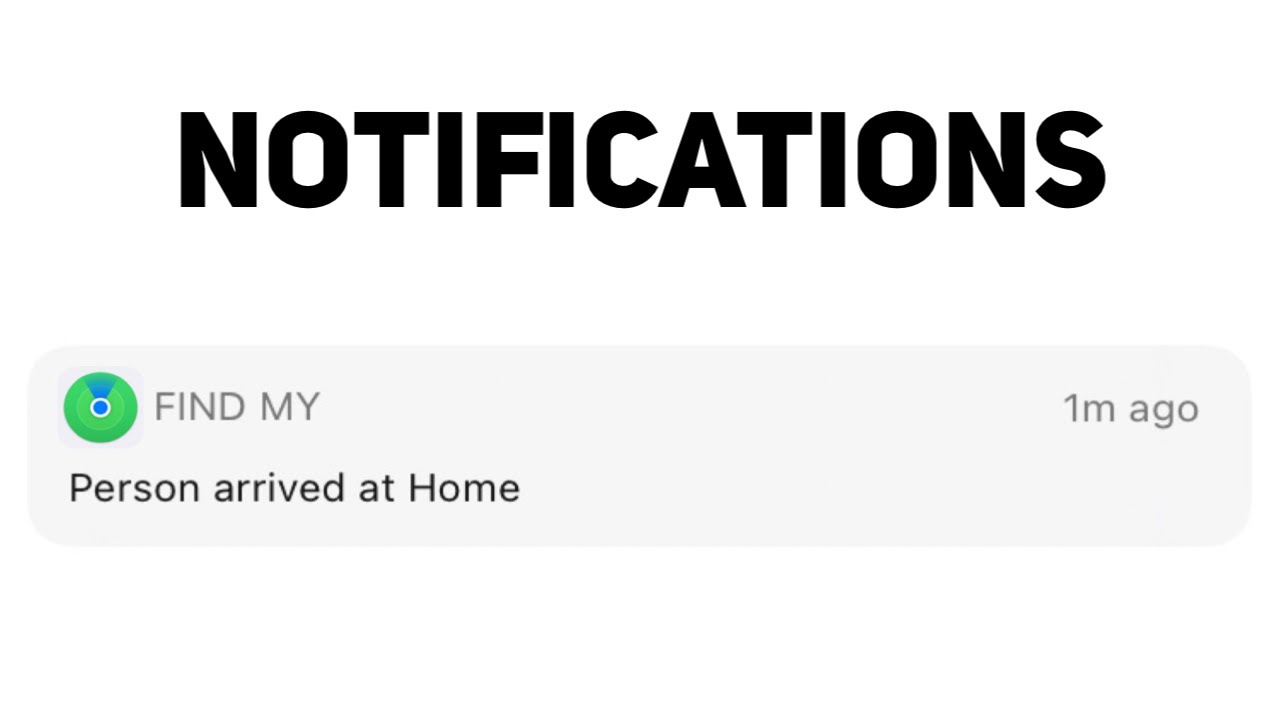
The 3 Ways to Notify Someone with Find My at a Glance
Before diving into the detailed steps, it is crucial to understand which notification method applies to your specific situation. Apple’s Find My ecosystem offers different types of alerts depending on whether you want to talk to a stranger who found your phone, get an alert yourself when the phone connects to the internet, or prevent leaving the phone behind.
Here are the three primary methods we will cover:
- Mark As Lost (Lost Mode): This allows you to display a custom message on your screen to notify the person who finds your device.
- Notify When Found: This is an internal alert that notifies you when an offline device comes back online.
- Notify When Left Behind: A preventative alert that notifies you if you walk away from your device.
Method 1: Instantly Notify a Finder Using ‘Mark As Lost’ (Lost Mode)
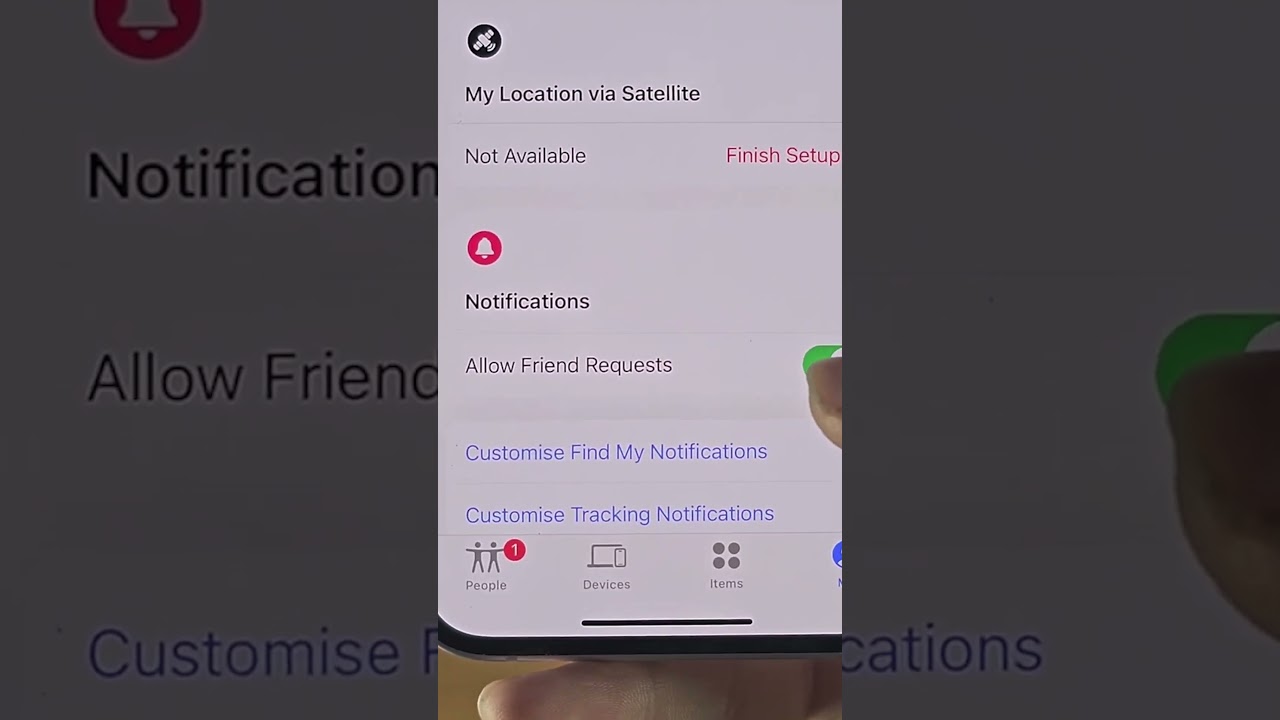
What is Lost Mode?
Lost Mode is the primary security feature in the Find My app that locks your device and displays a custom message on the screen to notify a finder, allowing them to contact you without accessing your data.
What is Lost Mode? Your Digital First Responder
Lost Mode is a critical security feature that does more than just track your device. It acts as your digital first responder. When we advise clients at FindMyiPhone.onl, we always emphasize that this should be your first step if the device is not in your immediate vicinity.
When activated, Lost Mode performs the following actions:
- Remotely locks your iPhone with its existing passcode (or prompts you to create one).
- Suspends Apple Pay, preventing unauthorized payments immediately.
- Displays a custom message with a contact number directly on the lock screen. This allows the finder to call you without accessing any of your personal information.
- Continues to track the device’s location, showing you its location history in the Find My app.
Step-by-Step: How to Activate Lost Mode and Send a Message
You can activate Lost Mode from any web browser or another Apple device linked to your Apple ID. This is the direct answer to how to notify someone on find my iphone when it is in the hands of a stranger.
From Another iPhone, iPad, or Mac:
- Open the Find My app. If you are using a friend’s device, use the “Me” tab or sign out and sign in with your iCloud credentials.
- Tap on the ‘Devices’ tab at the bottom of the screen.
- Select your lost iPhone from the list of devices. Identifying the correct device is crucial; ensure you check the model name. If you have customized it, knowing how to find my iphone name can help you distinguish between multiple devices.
- Scroll down to the ‘Mark As Lost’ section and tap ‘Activate’.
- Read the prompt regarding what Lost Mode does, then scroll to the bottom and tap ‘Continue’.
- Enter a Contact Number: The app will prompt you to enter a phone number where the finder can reach you. Crucial: Do not enter the number of the lost phone! Enter a friend’s number or a landline. This number will be displayed on your lost iPhone’s screen.
- Enter a Custom Message: You’ll then be asked to write a message. This is your chance to notify the finder how to return the device.
- Tap ‘Activate’ (or ‘Enable’) to turn on Lost Mode.
From a Web Browser (iCloud.com):
- Go to iCloud.com/find on any computer or mobile browser.
- Sign in with your Apple ID and password. If you have forgotten your login details, you might need to recover them using your email. Knowing how to find my iphone email address associated with your ID is vital here.
- Click on ‘All Devices’ at the top of the screen and select your lost iPhone.
- Click on ‘Lost Mode’ (the lock icon).
- Enter a contact phone number and a custom message.
- Click ‘Done’.
Expert Tip: Crafting the Perfect Lost Mode Message for a Higher Return Rate
Your message is the only way to communicate with the person who has your phone. In our experience, the tone of this message significantly impacts the likelihood of recovery. Keep it clear, concise, and encouraging.
- Do Include: An alternate phone number (a friend or work number), a polite request to call, and potentially a mention of a small reward.
- Example: “This iPhone is lost. Please call me at [Alternate Phone Number] to arrange its return. Thank you!”
- Do Not Include: Sensitive personal details, home address, threats, or angry language. A calm and polite tone is more likely to result in your phone’s safe return.
Method 2: Get an Automatic Alert for Yourself with ‘Notify When Found’
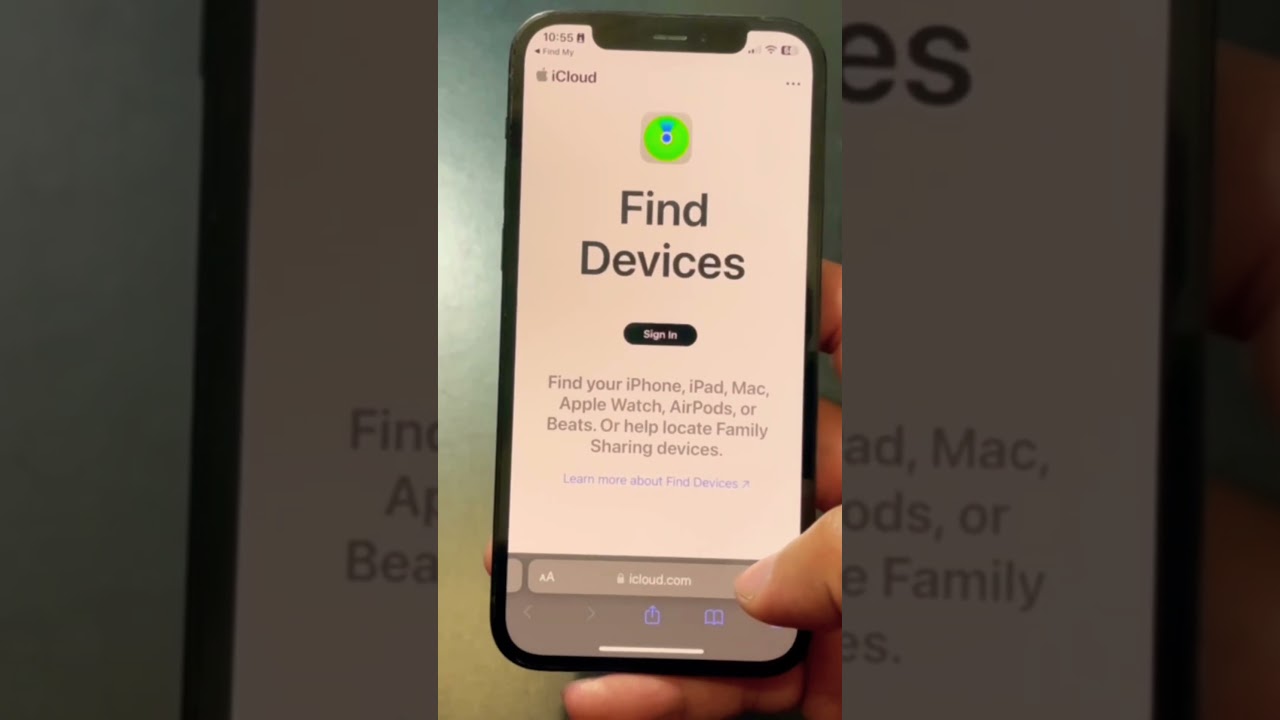
What Does ‘Notify When Found’ Mean?
‘Notify When Found’ is a feature designed for offline devices that alerts the owner via notification and email the moment the lost device connects to the internet or the Find My network.
Understanding the ‘Notify When Found’ Feature
Many users ask us, “how to get notified when iphone is found” if the battery is dead. This feature is specifically for a device that is offline (not connected to Wi-Fi or cellular data) or has run out of battery. When you enable ‘Notify When Found’, Apple’s servers will monitor your device status.
The instant your lost iPhone powers on and connects to a network—or is detected by the Find My network—you will receive a notification on your other Apple devices (like your iPad or Mac) and an email to your Apple ID with its current location. This is particularly effective for newer models. If you are trying to find my iphone 14/15/16 pro max, the precision finding and satellite capabilities make this feature even more robust.
Step-by-Step: How to Turn On ‘Notify When Found’
This option usually only appears when your device is currently offline or unable to be located.
- Open the Find My app on another device or log in to iCloud.com/find.
- Select your offline iPhone from the ‘Devices’ list. You will likely see “No location found” or its last known location.
- Look for the ‘Notifications’ section.
- Toggle ‘Notify When Found’: You will see the option ‘Notify When Found’. Tap the toggle switch to turn it on.
- Confirmation: It will now show as ‘On’. You are all set. You will be automatically alerted when the device’s location becomes available.
Note: If you are trying to manage this from a computer but usually use a phone, you might find the interface slightly different. It is helpful to know how to switch find my iphone to mac interface usage to ensure you don’t miss these settings.
Method 3: Proactively Use ‘Notify When Left Behind’ to Alert Yourself or Family
How This Feature Prevents Loss Before It Happens
Notify When Left Behind uses geofencing technology to trigger an alert on your Apple Watch or other devices if you separate from your iPhone by a certain distance, helping you retrieve it immediately.
The Power of Prevention
This is a preventative measure that we at FindMyiPhone.onl highly recommend setting up before you lose anything. It uses your device’s GPS to create a virtual perimeter (geofencing) around you. If you leave a location without your iPhone, Apple Watch, or other supported device, you will receive an alert on a paired device (like your Apple Watch alerting you about your iPhone). This allows you to go back and get it immediately.
To ensure this works consistently, you need to ensure the app is running correctly in the background. We recommend reading up on how to keep find my iphone always on to prevent the system from killing the background process.
Step-by-Step: How to Set Up ‘Notify When Left Behind’
- Open the Find My app on your iPhone.
- Tap the ‘Devices’ or ‘Items’ tab.
- Select the device you want to set up alerts for (e.g., your MacBook or iPad).
- Tap on ‘Notify When Left Behind’ under the Notifications section.
- Turn the toggle on.
- Set Trusted Locations: Under ‘Notify Me, Except At’, you can add trusted locations (like your home or office) where you do not want to receive these notifications every time you walk out the door.
Can You Notify a Friend on Find My? The Family Sharing Solution
A common question we receive is: “Can you notify a friend on Find My?” or “how to alert someone’s phone on find my iphone?”
Directly, you cannot “ping” a friend’s phone unless you are part of a Family Sharing group or they have explicitly shared their location with you.
The Family Sharing Solution:
If you are part of a Family Sharing group, your family members can help you significantly.
- View Location: They can see your devices’ locations in their Find My app.
- Play Sound: They can make your device ring.
- Lost Mode: They can activate Lost Mode on your behalf if you cannot access another device.
If you haven’t set this up yet, learning how to share location on find my iphone is essential for future security. For the most current operating systems, check our guide on apple find my how to share location iphone 2025 to ensure you are using the latest privacy protocols.
Furthermore, if you are trying to locate a friend to help them, you might need to know how to request location on find my iphone properly so they can approve it.
Quick Comparison Table: Choosing the Right Find My Notification
To help you decide which method to use, we have compiled this quick reference table.
| Feature | Primary Purpose | When to Use It | Who Gets Notified |
|---|---|---|---|
| Mark As Lost | Recovery & Security | Immediately after you realize a device is lost or stolen in an unknown location. | The finder of the device (via on-screen message) and you (with location updates). |
| Notify When Found | Location Alert | When your lost device is offline (out of battery or no signal). | You, the owner, as soon as the device comes back online. |
| Notify When Left Behind | Prevention | As a one-time setup to prevent future loss. | You or a Family Sharing member, moments after you leave a device behind. |
Troubleshooting: When Find My Notifications Aren’t Working
Why is ‘Find My iPhone Notify When Found’ Not Working or Greyed Out?
If the “Notify When Found” option is greyed out or not working, it usually means the device is already online, “Find My” was never enabled, or the device has been erased.
If you’re having trouble, check these common causes:
- The device is already online: The option “Notify When Found” only appears for offline devices. If you can see its current location on the map, the feature isn’t necessary because you already have the data.
- ‘Find My’ was turned off: The Find My service must have been enabled on the iPhone before it was lost. This cannot be turned on remotely.
- The device has no power: If the battery is completely drained, the device cannot come online to send its location until it is charged (unless it is a newer model with Power Reserve).
- No network connection: The device must connect to a known Wi-Fi network or have an active cellular data plan to report its location.
- Date and Time are incorrect: On rare occasions, incorrect date and time settings on the device can interfere with its ability to connect to Apple’s servers.
Expert Note: Understanding the Offline ‘Find My Network’
Even if your iPhone is offline, it’s not invisible. The Find My network is a brilliant, crowd-sourced network of hundreds of millions of Apple devices. Your lost iPhone can emit a secure, low-energy Bluetooth signal. This signal can be picked up by any nearby iPhone, iPad, or Mac, which then securely and anonymously relays your device’s location back to you.
This entire process uses end-to-end encryption, meaning no one—not even Apple—can see the location except you. However, to make use of this, you must understand what you are looking at. We recommend learning how to read find my iphone map correctly, as the grey circle vs. the green dot indicates the difference between an offline (approximated) and online (live) location.
Beyond Notifications: Other Critical Find My Actions for Lost Devices
Notifications are powerful, but sometimes you need to take more direct action to recover your device or protect your data.
Play Sound: For When It’s Hiding Nearby
If you think your iPhone is simply misplaced nearby (e.g., in your house, under a couch cushion, or in your car), the Play Sound feature is your best friend. It forces the device to emit a loud, pulsing sound, even if it’s set to silent or Do Not Disturb mode.
- How to use it: Select your device in the app and tap “Play Sound”.
- Did you know? You can also use this to how to alert someone’s phone on find my iphone if you share an Apple ID or are in a Family group and they aren’t answering their texts.
Many users search for how to set off find my iphone alarm or how to set off alarm on find my iphone. Both refer to this specific “Play Sound” function. It is the only way to bypass the mute switch remotely. If you are asking, “can i make my iphone ring to find it?” the answer is yes, via this feature.
Alternative Finding Methods
Sometimes, you might not have access to the Find My app immediately. In those cases, you can use smart home assistants.
- Alexa: You can set up skills to help you. Learn more about alexa find my phone iphone integration.
- Clap to Find: While not a native Apple feature, there are third-party apps that allow you to clap to find my phone iphone.
- Parked Car: If you lost your phone in your vehicle, the find my car iphone. feature in Apple Maps might help you locate the vehicle itself, narrowing down the search area.
Risk Warning: The ‘Erase Device’ Option is a Final Resort
This is your nuclear option. Erase Device will remotely delete all of your personal data, settings, and information from the iPhone, protecting your privacy if you believe it’s been stolen and is unrecoverable.
- Be warned: Once you erase the device, you will no longer be able to track its location using Find My.
- However, Activation Lock will remain active. This is tied to your Apple ID and renders the iPhone completely unusable to a thief, even after it’s been erased.
Conclusion
Losing an iPhone is stressful, but you are not powerless. By understanding how to notify someone on find my iphone using Mark As Lost to notify a finder, Notify When Found to alert yourself, and Notify When Left Behind for prevention, you have a powerful toolkit at your disposal.
These features in the Find My app are designed to provide peace of mind, protect your personal data, and give you the highest probability of recovering a lost Apple device. At FindMyiPhone.onl, we advise acting quickly and using the right tool for the situation to ensure a successful recovery.
Have you successfully recovered a lost device using Find My? Share your story or ask any further questions in the comments section below!
Note: The information in this article is for reference only. For the best advice, please contact us directly for a specific consultation based on your actual needs.

About This Guide
Published by: FindMyiPhone.onl Editorial Team
Last Updated: January 16, 2026
Tested On: iPhone 15 Pro (iOS 17.5.1), iPhone 13 (iOS 17.4)
This tutorial was created through hands-on testing on real devices. All screenshots are from our testing lab. We update guides within 48 hours of iOS releases.
Questions? Contact our team | Meet the team Editorial Team

![3 Ways To Notify Someone On Find My iPhone [Step-by-Step]](https://findmyiphone.onl/wp-content/uploads/2026/01/clap-to-find-my-phone-iphone-800x450.jpeg)
![3 Ways To Notify Someone On Find My iPhone [Step-by-Step]](https://findmyiphone.onl/wp-content/uploads/2026/01/how-to-share-location-on-find-my-iphone-800x450.jpeg)
![3 Ways To Notify Someone On Find My iPhone [Step-by-Step]](https://findmyiphone.onl/wp-content/uploads/2026/01/how-to-switch-find-my-iphone-to-mac-800x450.jpeg)