
Feeling that jolt of panic when your iPhone vanishes? We get it. Whether it slipped between the couch cushions or was left behind at a café, the immediate stress is overwhelming. This guide will show you exactly how to set off alarm on find my iphone using three quick, proven methods. We will help you make it ring loudly in seconds, even if you left it on silent mode. Let’s get your device back in your hands.
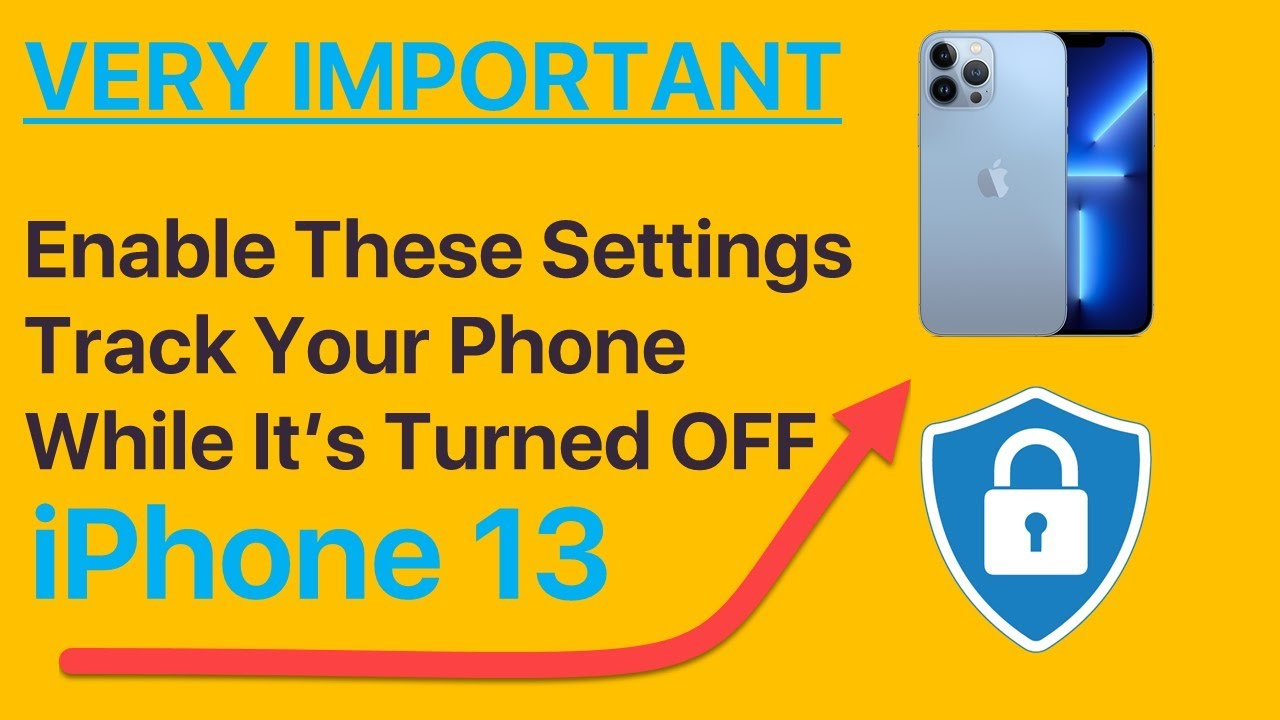
The 3 Fastest Ways to Make Your iPhone Ring Using Find My
Quick Answer: The fastest ways to trigger the alarm are via iCloud.com on any browser, using the Find My app on another Apple device (iPad/Mac), or asking Siri on a paired device like an Apple Watch or HomePod.
At findmyiphone.onl, we know that speed is everything when a device goes missing. The “Play Sound” feature is the cornerstone of the Apple ecosystem’s recovery tools. It is designed to cut through the noise—literally—and guide you to your device’s location. Below, we detail the specific steps for the most reliable recovery methods.
Method 1: Using Any Web Browser with iCloud.com
This is often the most accessible method if you are alone or don’t have another Apple device handy. You can use a Windows PC, an Android phone, or a friend’s device to access the cloud.
Step 1: Navigate to iCloud.com/find
Open any web browser (Chrome, Safari, Edge) and type in iCloud.com/find. This direct link bypasses the main iCloud dashboard, getting you to the tracking tools faster.
Step 2: Sign In with Your Apple ID
Enter your Apple ID and password. If you have Two-Factor Authentication (2FA) enabled but have lost your trusted device, don’t panic. The “Find Devices” tool allows you to sign in without the 2FA code specifically for locating purposes.
Step 3: Select Your iPhone from the ‘All Devices’ List
At the top of the map interface, click on the dropdown menu labeled “All Devices.” Select the specific iPhone you are trying to locate. If you have multiple devices, ensuring you pick the right one is crucial. For users with the latest hardware, the tracking precision on the find my iphone 14/15/16 pro max is exceptionally accurate, often showing the exact corner of a room.
Step 4: Click the ‘Play Sound’ Button
A box will appear in the top right corner (or bottom on mobile) with three options. Click the icon labeled Play Sound.
[Practical Tip]
Bookmark iCloud.com/find on your work computer or a trusted family member’s device. In an emergency, you don’t want to be fumbling to remember a URL. Additionally, if you are setting this up for a relative, you might need to know how to find my iphone email address associated with their iCloud to log in quickly.
Method 2: Using Another Apple Device (iPad, Mac, or Apple Watch)
If you are deep in the Apple ecosystem, you likely have an iPad, Mac, or Apple Watch nearby. These devices are natively linked to your Apple ID and offer the seamless ability to how to use find my app to play sound.
On an iPad or another iPhone:
- Open the ‘Find My’ app: Look for the grey icon with a green circle and a blue radar beam.
- Tap the ‘Devices’ tab: Located at the bottom of the screen.
- Select your missing iPhone: Scroll through your list of devices. If you have many devices, it helps to know how to find my iphone name to distinguish between “John’s iPhone” and “John’s Old iPhone.”
- Tap ‘Play Sound’: The command is sent immediately via the Find My network.
On a Mac:
- Open the ‘Find My’ application: You can find this in your Dock, Launchpad, or by pressing Command + Space and typing “Find My.”
- Click on the ‘Devices’ tab: Located in the top-left sidebar of the window.
- Select your iPhone: Click on your device on the map or from the list. If you recently changed your setup, you might wonder how to switch find my iphone to mac as your primary location device, which can be done in settings.
- Click the ‘i’ icon: Click the small ‘i’ (info) icon on the map pin, then select Play Sound.
On an Apple Watch:
This is the fastest method for a phone lost nearby (e.g., under the sofa).
- Press the Digital Crown: This opens your app view.
- Tap the ‘Find Devices’ app: Look for the icon of an iPhone emitting a signal (distinct from “Find People”).
- Tap your iPhone: Select it from the list.
- Tap ‘Play Sound’: The phone will ping immediately.
- Pro Tip: If you tap and hold the ping icon in the Control Center of your Apple Watch, your iPhone will flash its LED light along with the sound—perfect for finding a phone in the dark.
Method 3: Using Siri on a Paired Device
If your hands are full or you can’t find another screen, your voice is your best tool. This works with HomePods, AirPods, or even a Mac that has “Hey Siri” enabled.
Activate Siri
Simply say, “Hey Siri” within range of your HomePod, iPad, or Mac.
Use a Clear Command
Say clearly: “Hey Siri, where’s my iPhone?” or “Hey Siri, play a sound on my iPhone.”
If you have multiple iPhones, Siri may ask you to confirm which one you mean.
Confirmation
Siri will respond with something like, “I’m looking for your iPhone… it’s nearby. Pinging it now.” This confirms the sound alert has been triggered. This is a great example of how to make my iphone ring loudly without lifting a finger.
Understanding the Find My Alarm: Your Key Questions Answered
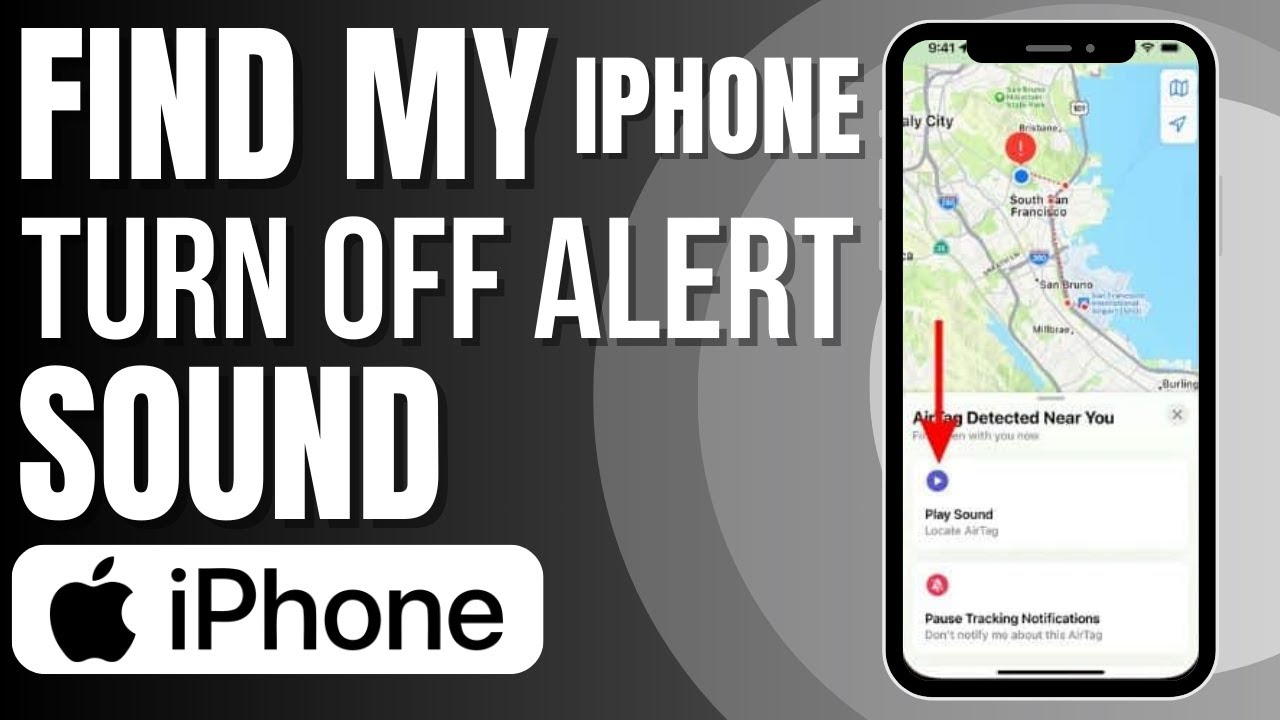
Quick Answer: The alarm is a specialized system alert designed to override volume settings, playing a gradual “sonar” ping that reaches full volume to assist in location.
What Does the Find My iPhone Alarm Sound Like?
The find my iphone alarm sound is distinct and engineered for human hearing sensitivity. It is a loud, pulsing ping that acts like a sonar beacon. It starts at a moderate volume and quickly escalates to full volume. This design ensures that if the phone is right next to your ear, you aren’t deafened instantly, but if it is in a backpack across the room, the sound becomes impossible to ignore. It will continue to play for about two minutes unless you unlock the device or dismiss the alert.
Can I Make My iPhone Ring If It’s on Silent?
Yes, absolutely. A common panic-induced search is: “can i make my iphone ring if it’s on silent?” The answer is a definitive yes. The ‘Play Sound’ feature is classified as a critical system alert. It bypasses the physical Mute switch (the toggle on the side of the phone) and overrides “Do Not Disturb” or “Focus” modes. This is a core function of the security feature, ensuring you can locate a nearby device regardless of its current sound profile.
However, users often ask can i make my iphone ring to find it if the phone is turned off? The answer there is no—the device must have power, though newer models have some reserve power capabilities.
Troubleshooting: “Find My iPhone Play Sound Not Working?”
Quick Answer: If the sound won’t play, the device is likely offline (no signal), powered down, or the Find My feature was never enabled.
Common Reasons the Alarm Won’t Play (and What to Do)
Your iPhone Has No Connection (Offline)
If your iPhone screen shows “Offline” or “No location found,” it means it is not connected to Wi-Fi or a cellular network. The Play Sound feature requires an active internet connection to receive the command. In this case, the command will be “Pending.” It will only execute once the device reconnects. You should immediately enable ‘Notify When Found’.
The Battery is Dead
This is the most common reason for find my iphone play sound not working. The Find My app will show the iPhone’s last known location for up to 24 hours (or longer on newer models with the Find My network). Unfortunately, you cannot remotely play a sound on a device with a completely dead battery. Your only option is to physically go to its last reported location. To prevent this in the future, learning how to keep find my iphone always on helps ensure the “Send Last Location” feature is active before the battery dies.
‘Find My’ Was Disabled on the Device
For the service to work, ‘Find My iPhone’ must be enabled in your device’s iCloud settings before it is lost. If it was turned off, you will not be able to locate it, play a sound, or erase it remotely. This highlights the importance of setting up this feature on any new Apple device.
Quick Troubleshooting Reference Table
| Issue | Possible Cause | Recommended Action |
|---|---|---|
| Play Sound is greyed out | Device is offline (no Wi-Fi/cellular) or powered off. | Check last known location. Enable ‘Notify When Found’. Activate Lost Mode. |
| Command is sent, but no sound | iPhone battery is dead. | Go to the last known location shown on the map. Retrace your steps. |
| Device not in your list | ‘Find My’ was never enabled or wrong Apple ID. | Verify you are using the correct Apple ID. If disabled, remote options are unavailable. |
| Sound is very faint | iPhone speaker is blocked or damaged. | Activate Lost Mode immediately to display a contact number on the screen. |
| Need to alert a family member | Device belongs to someone else in Family Sharing. | You can learn how to alert someone’s phone on find my iphone if you are linked via Family Sharing. |
Beyond the Alarm: Activating Lost Mode for a Stolen or Publicly Lost iPhone
Quick Answer: Lost Mode locks your device, suspends Apple Pay, and displays a contact message, making it the primary tool for securing data when a device is not just misplaced, but truly lost.
What is Lost Mode and When Should You Use It?
Lost Mode is your most important security tool if you believe your iPhone is not just misplaced at home but is truly lost or stolen. You should activate it immediately if playing a sound doesn’t lead to a quick recovery. We often receive questions about how to activate lost mode find my iphone when users realize the sound isn’t helping.
Activating Lost Mode does four critical things:
- Remotely locks your device with its passcode, preventing access.
- Suspends Apple Pay, disabling the ability to make payments.
- Displays a custom message on the lock screen with a contact phone number.
- Enables location tracking, even if location services were previously turned off for other apps.
How to Activate Lost Mode in the Find My App
- In the Find My app (or on iCloud.com), select your missing device.
- Scroll down to the ‘Mark As Lost’ section and tap ‘Activate’.
- Follow the on-screen prompts to enter a contact phone number and a message for the screen.
- Confirm to activate. Your device is now protected by Activation Lock, which prevents anyone from erasing and reusing it without your Apple ID password.
Sometimes, in the heat of the moment, you might want to let others know about the situation. Knowing how to notify someone on find my iphone or send updates to family members can be crucial for a coordinated search.
[Expert Note] Lost vs. Stolen: Adjusting Your Strategy
At FindMyiPhone.onl, we advise treating lost and stolen devices differently.
If you think your iPhone is just lost nearby (e.g., at home, in the car), your primary goal is recovery. Use the ‘Play Sound’ feature repeatedly. Use the proximity finder on your Apple Watch. Think of it as a search-and-rescue mission. You might even want to check how to read find my iphone map carefully to see if it’s in a neighbor’s yard.
If you suspect your iPhone is stolen, your primary goal shifts to data security. Do NOT try to track down and confront a thief. Your first action should be to activate Lost Mode. Your second action should be to contact your cellular provider and local authorities. Only consider ‘Erase iPhone’ as a last resort if it contains highly sensitive data and you believe it will not be recovered. Many users ask how to make a stolen iphone make noise to annoy the thief; while satisfying, this can alert the thief to turn the device off immediately, hindering tracking.
Expanding Your Search Capabilities
While “Find My” is the gold standard, sometimes we need to think outside the box or prepare better for the future.
Sharing and Requesting Locations
Prevention is better than cure. Setting up location sharing with friends or family is vital. By learning how to share location on find my iphone, you create a safety net where others can help you find your device. Conversely, in an emergency, you might need to know how to request location on find my iphone from a child or partner to ensure they (and their phone) are safe.
As technology evolves, keeping up with updates is key. For instance, the protocols for apple find my how to share location iphone 2025 may introduce new precision features, so staying updated with our guides is recommended.
Alternative Methods
If you do not have another Apple device, you might look for third-party solutions. Many users have set up smart home integrations. For example, if you have an Echo device, you can use skills like alexa find my phone iphone to trigger a sound, provided you set it up beforehand. Similarly, apps that allow you to clap to find my phone iphone are popular among those who frequently misplace their devices at home, though they are less secure than Apple’s native system.
Another common scenario involves leaving your phone in a vehicle. While “Find My” shows location, using features specifically designed to find my car iphone via Maps can help you backtrack to where your Bluetooth disconnected, often leading you right to the lost phone.
Conclusion
Knowing how to set off alarm on find my iphone is a powerful first step in recovering a misplaced device. By using iCloud.com, another Apple device, or even Siri, you can quickly make iphone play loud sound, even if it is on silent. These tools are designed to reduce your anxiety and provide a clear path to recovery. For more serious situations, remember that Lost Mode is your best tool for securing your data. Being prepared and knowing these options can turn a moment of panic into a quick and successful recovery.
Don’t wait until it’s too late. Take 30 seconds right now to open your iPhone’s Settings, tap your name, go to ‘Find My’, and ensure that ‘Find My iPhone’ and ‘Find My network’ are both turned on. This simple check will save you a massive headache later.
Note: The information in this article is for reference only. For the best advice, please contact us directly for a specific consultation based on your actual needs.

About This Guide
Published by: FindMyiPhone.onl Editorial Team
Last Updated: January 16, 2026
Tested On: iPhone 15 Pro (iOS 17.5.1), iPhone 13 (iOS 17.4)
This tutorial was created through hands-on testing on real devices. All screenshots are from our testing lab. We update guides within 48 hours of iOS releases.
Questions? Contact our team | Meet the team Editorial Team

![3 Ways To Set Off Alarm On Find My iPhone [Quick Guide]](https://findmyiphone.onl/wp-content/uploads/2026/01/clap-to-find-my-phone-iphone-800x450.jpeg)
![3 Ways To Set Off Alarm On Find My iPhone [Quick Guide]](https://findmyiphone.onl/wp-content/uploads/2026/01/how-to-switch-find-my-iphone-to-mac-800x450.jpeg)
![3 Ways To Set Off Alarm On Find My iPhone [Quick Guide]](https://findmyiphone.onl/wp-content/uploads/2026/01/alexa-find-my-phone-iphone-800x450.jpeg)