
Losing your expensive device is incredibly stressful. Whether you left it at a coffee shop or suspect it was taken from your bag, the panic is real. This guide provides 5 immediate, actionable ways to find my iphone 14/15/16 pro max whether it’s simply lost or has been stolen.
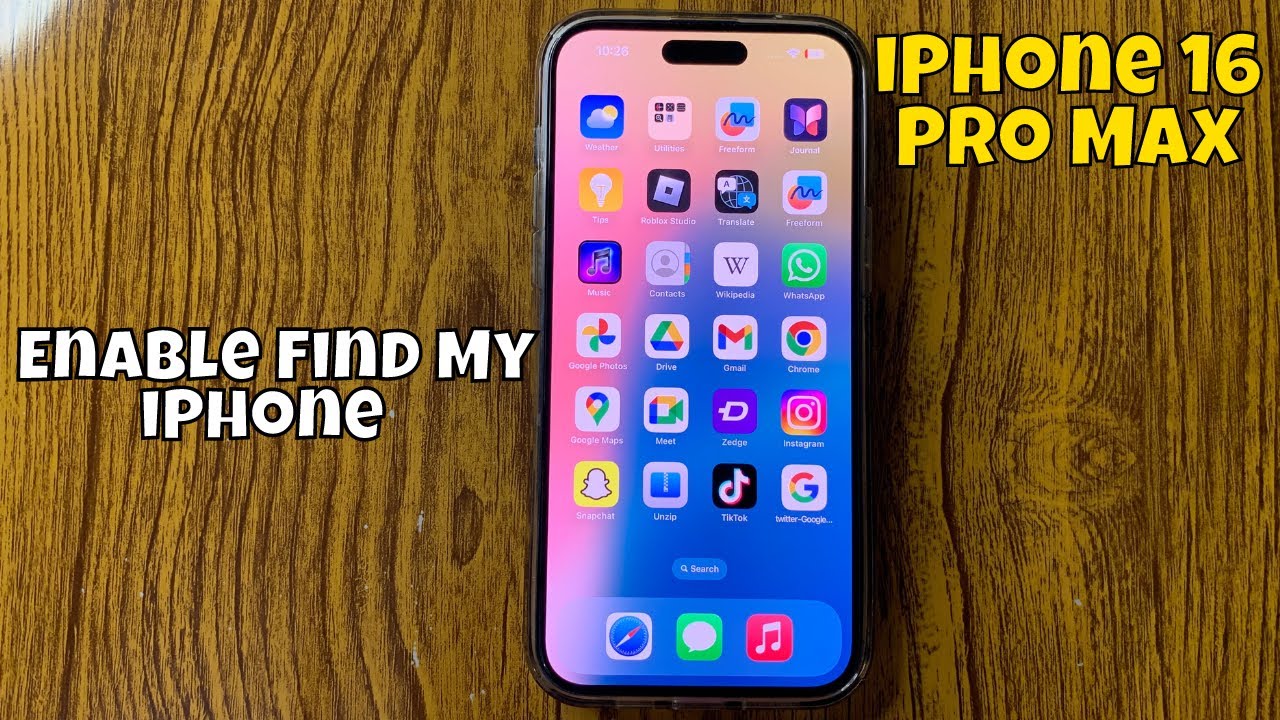
At findmyiphone.onl, we understand that time is of the essence. We will walk you through Apple’s powerful tracking tools step-by-step, explain what to do if the device is offline, and show you how to protect your personal data right now. Follow these expert-verified methods to maximize your chances of recovery.
Method 1: Immediately Locate Your iPhone with the Find My App
Quick Answer: The fastest way to locate your device is using the “Find My” app on another Apple device or via iCloud.com. This utilizes Apple’s global network to pinpoint your phone’s location on a map.
Using Another Apple Device (iPad, Mac, or a Friend’s iPhone)
If you own an iPad, Mac, or Apple Watch, the Find My app is pre-installed. If you don’t have another Apple device, you can use a friend or family member’s iPhone.
- Open the “Find My” app on the secondary device.
- If it’s your device, tap on the Devices tab.
- If using a friend’s iPhone, tap the Me tab and scroll down to select “Help a Friend.” This will open iCloud.com in Safari, allowing you to sign in without linking your account to their phone.
- Select your iPhone 14, 15, or 16 Pro Max from the list.
Expert Tip: If you have multiple devices, it can be confusing. Knowing how to find my iphone name is essential to ensure you are tracking the correct device, especially if you haven’t renamed them from the default “iPhone.”
Step-by-Step Guide to Using Find My
Once you have selected your device, the interface offers several options.
- Play Sound: If the map shows the phone is nearby (e.g., in your house), tap Play Sound. Your iPhone will emit a loud chirping noise, gradually increasing in volume, even if it is on silent mode.
- Directions: Tap Directions to open Apple Maps and get a route to your device’s current location.
Sometimes, you might not remember the specific Apple ID credentials associated with the device. In high-stress moments, people often forget. If you are struggling, you may need a refresher on how to find my iphone email address linked to your iCloud to proceed with login.
Using a Web Browser via iCloud.com
If you don’t have access to another Apple device, any web browser (on a Windows PC, Android phone, or library computer) will work.
- Go to iCloud.com/find.
- Sign in with your Apple ID and password.
- You may be asked for a 2-factor authentication code. Do not panic. Look for the “Find Devices” button at the bottom of the screen; you can use the tracking tool without the 2FA code if your trusted device is the one that is lost.
- Click on All Devices at the top center and select your Pro Max model.
Occasionally, you might prefer to manage this from a computer permanently. Learning how to switch find my iphone to mac can help you set up a dedicated tracking station if you work from a laptop frequently.
Understanding the Find My Map Interface
The map interface provides real-time data, but it can be misinterpreted. The radius of the blue circle indicates location accuracy—the smaller the circle, the more precise the location.
If you are unfamiliar with the visuals, we recommend reading our guide on how to read find my iphone map to understand the difference between “Live” location and “Old” location.
Table: What the Location Symbols and Statuses Mean
| Symbol/Status | Meaning | Action Required |
|---|---|---|
| Green Dot | The iPhone is online and the location is accurate/live. | Go to the location immediately (if safe). |
| Gray Dot | The iPhone is offline. This shows the last known location. | Check the timestamp. It might have moved. |
| Blue Circle | The area where the device is located (approximate). | Use “Play Sound” once you are in the circle. |
| “No Location Found” | The device is off, out of battery, or has no signal for >24h. | Activate “Notify When Found.” |
Method 2: Secure Your Device Immediately with Lost Mode
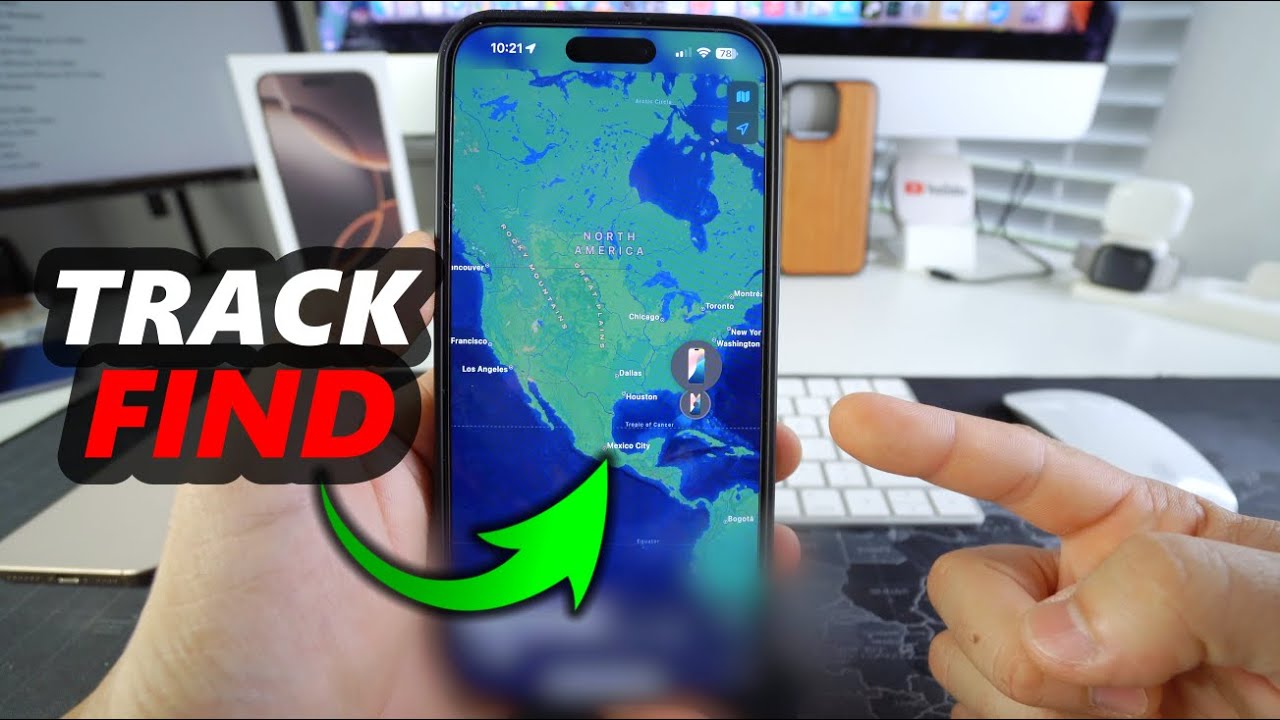
Quick Answer: Lost Mode is a security feature that locks your iPhone, disables Apple Pay, and displays a custom message with a contact number on the screen, making it useless to thieves while keeping it trackable.
What is Lost Mode and Why It’s Your First Line of Defense?
Many users rush to “Erase” their device. Stop. At FindMyiPhone.onl, we advise activating Lost Mode first. Erasing is permanent and stops tracking; Lost Mode keeps tracking active and secures your data.
Lost Mode leverages the Find My network, a crowdsourced network of hundreds of millions of Apple devices that can detect your missing iPhone via Bluetooth even if it’s not connected to Wi-Fi or cellular data. To ensure this works in the future, you should know how to keep find my iphone always on in your settings.
How to Activate “Mark As Lost” Step-by-Step
- In the Find My app or on iCloud.com, select your iPhone 14/15/16 Pro Max.
- Scroll down to Mark As Lost (or “Lost Mode”) and select Activate.
- Create a Passcode: If your phone didn’t have one (unlikely for Pro Max users), you will be asked to create one now.
- Enter Phone Number: Enter a phone number where you can be reached now (e.g., a friend’s phone).
- Enter Message: Type a message like, “Please call me, I have lost this phone. Reward available.”
- Tap Activate.
This immediately alerts the device. If you are testing this feature or find your phone quickly, you might want to know how to alert someone’s phone on find my iphone without causing a full security lockdown, but for a lost device, full Lost Mode is necessary.
Expert Note: The Critical Difference Between Lost Mode and Erasing Your iPhone
- Lost Mode: Locks phone, tracks location, disables Apple Pay, displays message. Reversible.
- Erase iPhone: Wipes all data. Irreversible. You generally cannot track the phone after erasing it (though newer iOS versions on iPhone 15/16 Pro Max may still allow basic location finding after erasure, it is risky).
If you eventually find your phone, you will want to notify family members that the crisis is over. Knowing how to notify someone on find my iphone can help you send status updates to your Family Sharing group.
Method 3: Finding Your iPhone in Special Scenarios (Offline, Dead, or No App)
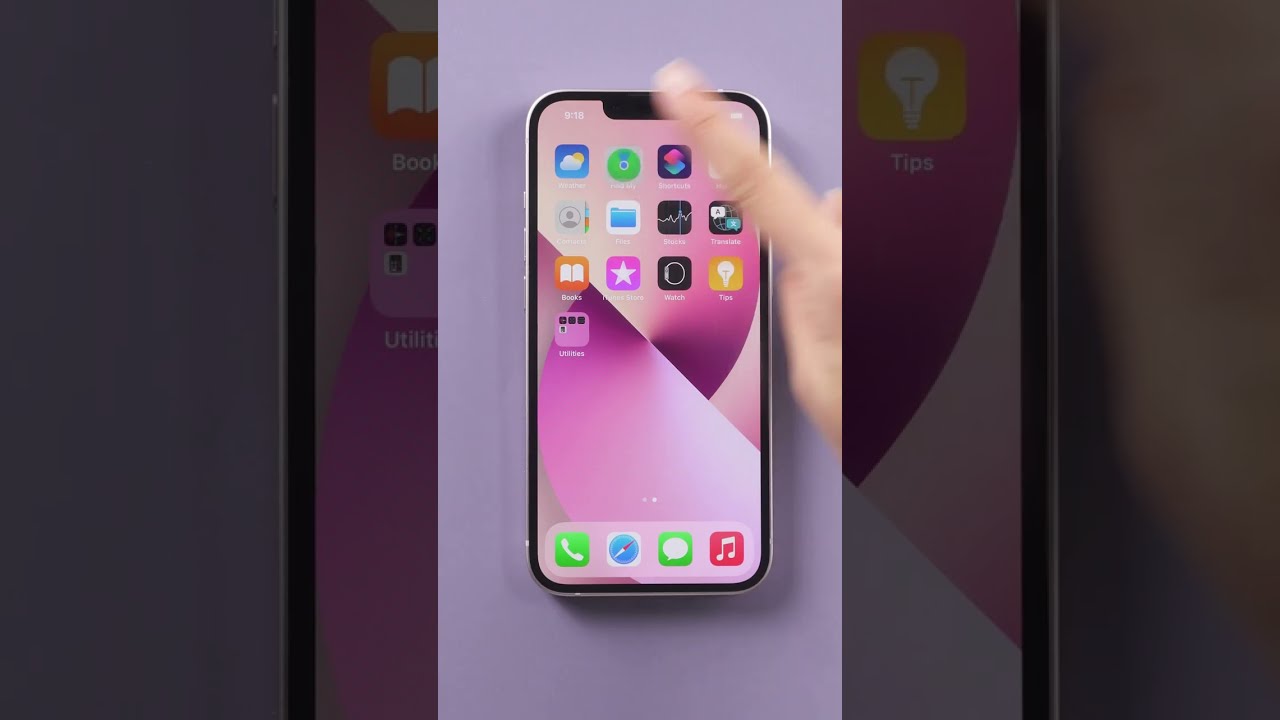
Quick Answer: Yes, iPhone 14, 15, and 16 Pro Max models can be tracked even when powered off or with a dead battery for a limited time, thanks to the “Power Reserve” feature and the U1/U2 Ultra Wideband chip.
Can I track my iPhone 16 Pro Max if it’s off? Yes, Here’s How
A common search query is “can i track my iphone 16 pro max if it’s off”. The answer is a definitive yes, provided you had the “Find My network” enabled before it was lost.
When an iPhone 14/15/16 Pro Max is switched off (or runs out of battery), it enters a “Power Reserve” mode. This keeps the Bluetooth and Ultra Wideband chips active for up to 5 hours (on older iOS) or 24 hours (on iPhone 15/16 models with iOS 18+).
If you are close to the location but can’t see the phone, you might wonder can i make my iphone ring to find it if it’s off? Unfortunately, the “Play Sound” feature requires the phone to wake up and connect to the internet. However, the location tracking will still update on your map.
How the Find My Network Uses Bluetooth to Locate Offline Devices
This is the magic of Apple’s ecosystem. Even if your iPhone 15 Pro Max has no SIM card or is in Airplane mode:
- Your lost iPhone emits a secure Bluetooth signal.
- A stranger walking by with an iPad or iPhone detects this signal silently.
- The stranger’s device sends your iPhone’s location to Apple’s servers.
- You see the updated location in your Find My app.
- The entire process is end-to-end encrypted and anonymous.
What to do if your iPhone 15 Pro Max is dead (Find My when dead)
If your battery hits 0%, you are racing against the clock. Searchers often ask “find my iphone 15 pro max when dead”. You have approximately 24 hours of “Power Reserve” time where the device acts as an AirTag.
- Action: Check the Find My app immediately.
- Status: Look for “Findable After Power Off” under the device name.
- Recovery: If you get close, use Precision Finding (On iPhone 15/16 series) if available, or simply look for the general area.
If you do find it and it has enough charge to turn on, you might accidentally trigger the loud alert. It is helpful to know how to set off find my iphone alarm intentionally, but also how to silence it quickly once retrieved.
How to Locate Lost iPhone 14 Pro Max Using Family Sharing
If you have set up Family Sharing, any member of your “Family” group can track your device from their phone.
- Ask your family member to open their Find My app.
- They should tap on Devices.
- Your iPhone 14 Pro Max will appear in their list.
This is often faster than logging into a computer. If you haven’t set this up yet, we highly recommend learning how to share location on find my iphone so you are prepared for next time.
Furthermore, with the latest iOS updates, the mechanics of sharing have improved. Check out our guide on apple find my how to share location iphone 2025 to ensure your family settings are up to date.
Sometimes, you may want to actively ping the device to see if it’s responsive. You can learn how to set off alarm on find my iphone via a family member’s device to help locate it in a messy room.
Method 4: What To Do If Find My Was Turned Off
Quick Answer: If “Find My” was not enabled before the loss, you cannot track the device using Apple’s services. You must rely on physical retracing, third-party timeline data, and changing passwords immediately.
The Reality of Tracking Without Find My Enabled
Many users search for “find my iphone pro max without find my app”. We must be honest: Apple does not provide a way to track a device by IMEI or serial number if Find My is off. This is a privacy feature.
If you see websites claiming to track your phone via IMEI for a fee, they are scams. Do not pay them.
Practical Steps: Retracing Your Steps and Using Other Location Data
Since you cannot use GPS tracking, you must use deduction.
- Google Maps Timeline: If you had the Google Maps app installed and “Location History” enabled, check your timeline on a computer. It might show the last place your phone pinged Google’s servers.
- Smart Home Devices: Did you leave it at home? If you use Alexa, you might have previously set up a skill. Users often ask about alexa find my phone iphone integration; if you enabled this, ask Alexa to call your phone.
- Third-Party Apps: Did you install an app like Tile or a “Clap to Find” app? While less common on Pro Max models, some users utilize clap to find my phone iphone utilities. Try triggering them if you suspect the phone is nearby.
- CarPlay: Sometimes the phone isn’t lost, just left in the vehicle. Your iPhone can automatically mark where you parked. Check your Apple Maps on another device for find my car iphone. to see if the location pin corresponds to where your car is—your phone might be under the seat.
Risk Warning: Beware of Phishing Scams Pretending to be Apple
If your phone is lost and you receive a text message on your backup number saying: “Your iPhone 14 Pro Max has been found. Click here to view location,” DO NOT CLICK.
Thieves use this tactic to steal your iCloud credentials to unlock the device. Apple never sends text messages asking you to log in. Always go directly to iCloud.com in your browser.
Method 5: Last Resort Actions for a Stolen iPhone
Quick Answer: If you confirm the device is stolen (e.g., tracking shows it moving on a highway or in a suspicious location), do not confront the thief. File a police report, report it to your carrier, and erase the device remotely.
What to do if iPhone 15 Pro Max is stolen: Reporting to Authorities
If your tracking shows the device in a private residence or moving rapidly, what to do if iphone 15 pro max is stolen becomes a safety question.
- Do not go to the location. A phone is replaceable; your life is not.
- Take Screenshots: Capture the map location on the Find My app immediately.
- Contact Police: Provide them with the current location and the device’s IMEI number.
- Contact your Carrier: Report the phone as stolen so they can blacklist the IMEI, preventing it from connecting to cellular networks.
Sometimes, you might need to prove the location to the authorities. You can formally how to request location on find my iphone data or simply show them the live interface on your secondary device.
How to Find and Use Your iPhone’s IMEI Number for the Police Report
You need the Serial Number or IMEI. If you don’t have the phone, find it here:
- Original Box: It is printed on the barcode label.
- Apple ID Page: Go to appleid.apple.com, sign in, and click “Devices.” Click on your iPhone 14/15/16 Pro Max to see the IMEI.
How to Erase iPhone 14 Pro Max Remotely to Protect Your Data
If recovery seems impossible, or you are worried about sensitive banking data, you must wipe the device.
- Open Find My or iCloud.com.
- Select the device.
- Choose Erase This Device.
- Follow the confirmation prompts.
Note: Learning how to erase iphone 14 pro max remotely is a final step. Once erased, you can no longer use “Play Sound.” However, on newer iPhones (15/16), the Activation Lock remains, and you may still see its location depending on iOS version, but assume tracking will stop.
Understanding Activation Lock: Why a Thief Still Can’t Use Your Erased iPhone
Even after you erase the device, Activation Lock (linked to your Apple ID) prevents anyone else from activating the phone. The device becomes a “brick” to the thief. They cannot sell it as a working unit, only for parts.
Never remove the device from your iCloud account. If you click “Remove from Account,” Activation Lock is turned off, and the thief can reset and use your phone.
Conclusion
The most powerful tool for recovery is the Find My network, and your first action should always be to enable Lost Mode to protect your data. While these 5 methods provide a clear path to finding your device, the best strategy is prevention.
Whether you are trying to find my iPhone 14/15/16 Pro Max or simply preparing for the worst, taking a few minutes today to ensure your settings are correct can save you from significant stress and potential data loss tomorrow.
Remember, technology is advanced, but safety comes first. If your device is stolen, use the tracking data to help the police, not to become a vigilante.
Don’t wait until it’s too late. Open your iPhone’s Settings > [Your Name] > Find My and verify that “Find My iPhone,” “Find My network,” and “Send Last Location” are all turned on now.
Note: The information in this article is for reference only. For the best advice, please contact us directly for a specific consultation based on your actual needs.

About This Guide
Published by: FindMyiPhone.onl Editorial Team
Last Updated: January 16, 2026
Tested On: iPhone 15 Pro (iOS 17.5.1), iPhone 13 (iOS 17.4)
This tutorial was created through hands-on testing on real devices. All screenshots are from our testing lab. We update guides within 48 hours of iOS releases.
Questions? Contact our team | Meet the team Editorial Team

![5 Ways To Find My iPhone 14/15/16 Pro Max [Lost Or Stolen]](https://findmyiphone.onl/wp-content/uploads/2026/01/clap-to-find-my-phone-iphone-800x450.jpeg)
![5 Ways To Find My iPhone 14/15/16 Pro Max [Lost Or Stolen]](https://findmyiphone.onl/wp-content/uploads/2026/01/how-to-switch-find-my-iphone-to-mac-800x450.jpeg)
![5 Ways To Find My iPhone 14/15/16 Pro Max [Lost Or Stolen]](https://findmyiphone.onl/wp-content/uploads/2026/01/alexa-find-my-phone-iphone-800x450.jpeg)