
Feeling that jolt of panic when you can’t find your phone? You’re not alone. Whether it slipped between the couch cushions or was left in another room, the silence can be deafening. The good news is, if you’re wondering can I make my iPhone ring to find it, the answer is a resounding yes—even if the mute switch is on or it’s in Do Not Disturb mode.
At findmyiphone.onl, we understand that losing a device is stressful. This guide will walk you through 5 simple, stress-free methods using Apple’s built-in tools to make your misplaced iPhone ring loudly, helping you locate it in seconds.
The Quickest Fix: How to Make Your iPhone Ring When Silent
Yes, you can force a silent iPhone to ring.
Many users fear that if their physical mute switch is toggled to orange (silent) or the volume is turned down, they won’t be able to hear the “ping.” Fortunately, Apple designed the Play Sound feature specifically for this scenario.
Why Your iPhone Rings Even When the Mute Switch is On
Apple’s “Find My” protocol operates with high-level system permissions. When you trigger a sound alert:
- Bypasses Mute: It ignores the physical switch on the side of the phone.
- Overrides Volume: It automatically raises the volume to the maximum level.
- Ignores Focus Modes: It cuts through “Do Not Disturb” or “Sleep” modes.
Expert Note: The ‘Play Sound’ Alert Overrides Silent Mode
In our experience at FindMyiPhone.onl, the sound starts as a soft chirping and gradually gets louder over two minutes. This gradual increase is designed to help you hone in on the location without immediately startling everyone in the room. This is the definitive answer to the question: can i make my iphone ring to find it effectively? Absolutely.
Method 1: Use the Find My App on Another Apple Device (iPad, Mac)

Best for: When you have an iPad, Mac, or another iPhone linked to your Apple ID nearby.
If you own multiple Apple products, this is the most seamless method to make your iPhone ring from another device. The Find My app is pre-installed on all Apple devices and provides the most robust tracking interface.
Step-by-Step Guide to Playing a Sound
- Open the Find My app on your iPad or Mac.
- Tap on the Devices tab at the bottom of the screen.
- Select your lost iPhone from the list. Note: If you have multiple devices, knowing how to find my iphone name ensures you select the correct one.
- Tap Play Sound.
What You’ll See and Hear: A Visual Walkthrough
On the screen, you will see a “Connecting…” status. Once connected, the text will change to “Playing Sound.” Your lost iPhone will immediately begin emitting a piercing sonar-like ping.
Pro Tip: If you are using a desktop and prefer a larger interface, you might want to learn how to switch find my iphone to mac for a better view of the map while triggering the sound. Additionally, if you are trying to locate the newest models, the precision finding features for find my iphone 14/15/16 pro max are even more accurate, guiding you visually to the source of the ring.
Method 2: Use iCloud.com from Any Web Browser (PC, Android, etc.)
Best for: When you don’t have another Apple device and need to make my iPhone ring from a computer or an Android phone.
This is the universal backup plan. You can access iCloud from any device with an internet connection, be it a Windows laptop, a friend’s Android phone, or a smart TV browser.
How to Make Your iPhone Ring From a Computer or Another Phone
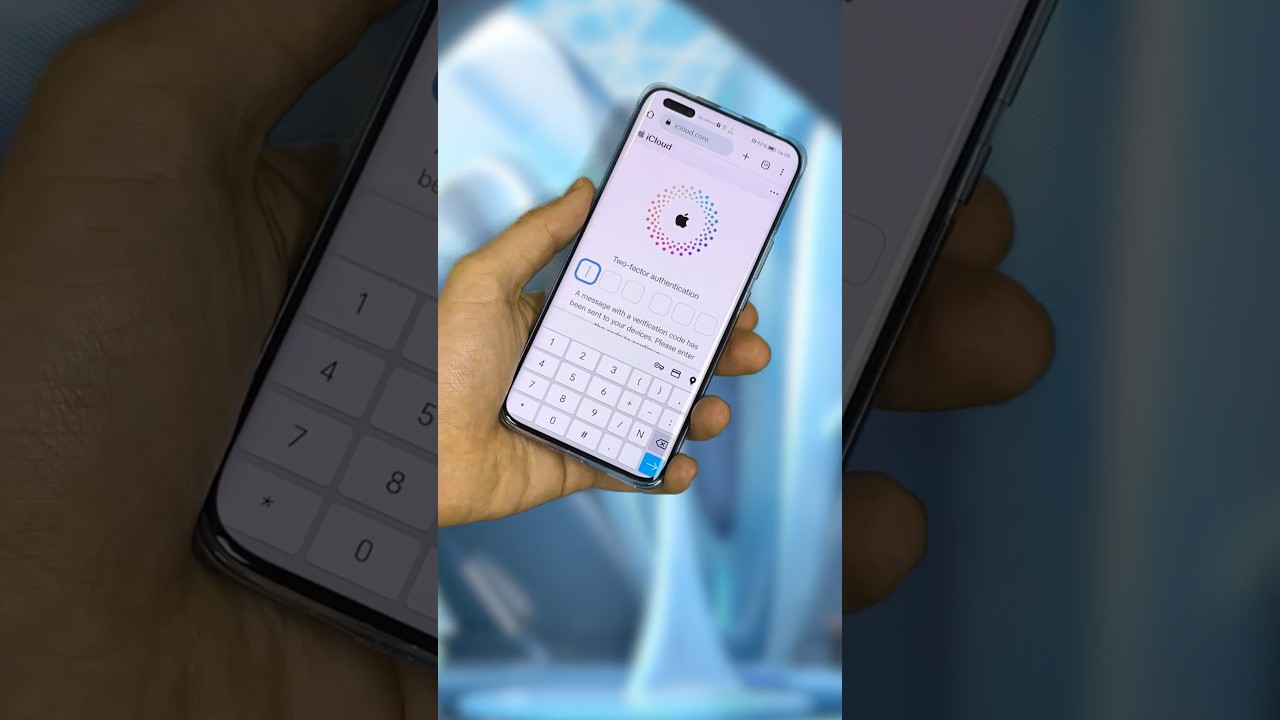
- Open a web browser (Chrome, Safari, Edge) and go to iCloud.com/find.
- Sign in with your Apple ID and password.
- Troubleshooting: If you are panicked and blanking on your login, you may need to quickly recover how to find my iphone email address linked to your account.
- Select your iPhone from the “All Devices” dropdown menu at the top.
- Click the Play Sound icon (it looks like a speaker).
Practical Tip: Two-Factor Authentication Bypass
Here is a critical insight many users miss: You do not need a trusted device for two-factor authentication (2FA) to use the Find My tool. When you log in to iCloud.com/find, Apple allows you to access the tracking features without entering the 6-digit code sent to your (lost) phone. This is a deliberate design choice to help you find an iPhone if muted or lost.
Method 3: Ping Your iPhone Instantly from Your Apple Watch

Best for: When your phone is lost in the house or immediate vicinity (Bluetooth range).
If you wear an Apple Watch, this is the fastest method—literally a flick of the wrist. It is far more reliable than third-party gimmicks like clap to find my phone iphone apps, which often fail in noisy environments.
The Control Center Ping: For When Your Phone is Nearby
- Swipe up from the bottom of your Apple Watch face to open the Control Center. (On watchOS 10+, press the side button).
- Look for the icon that looks like a phone with sound waves coming out of it.
- Tap it once: Your iPhone will emit a loud “ping.”
- Long-press it: Your iPhone will ping AND the LED flash will blink. This is incredibly useful for finding a phone in a dark room or under a car seat.
Using the ‘Find Devices’ App for More Options
If the simple ping doesn’t work (perhaps you are out of Bluetooth range but on the same Wi-Fi), open the Find Devices app on your Watch. It works similarly to the phone app and can trigger a sound over Wi-Fi. This feature is part of the broader ecosystem that also helps you find my car iphone. if you’ve parked and forgotten the location.
Method 4: Just Ask Siri to Find Your iPhone
Best for: Hands-free searching when you have a HomePod, iPad, or Mac nearby.
Can Siri make my iPhone ring? Yes. If you have “Hey Siri” enabled on other devices, you can simply use your voice. This is often faster than logging into a computer.
How to Make Your iPhone Ring Using a HomePod or Another Device
Simply say loud and clear:
“Hey Siri, find my iPhone.”
or
“Hey Siri, play a sound on my iPhone.”
Siri will respond, “I found your iPhone nearby. Pinging it now,” and the device will begin to ring.
What to Say: Exact Siri Commands That Work
While Siri is the native solution, some users try to integrate other smart assistants. If you rely on Amazon’s ecosystem, you might be exploring alexa find my phone iphone skills, but be aware that native Siri commands are always faster and more reliable for Apple devices because they don’t require third-party skills to be pre-configured.
Method 5: Use Family Sharing to Locate a Family Member’s iPhone
Best for: When you can’t access your own accounts, but a family member is nearby.
If you have set up Family Sharing, a designated family member can use their device to find yours. This is often how parents find a child’s device, or partners help each other.
How a Family Member Can Make Your iPhone Ring
- Ask your family member to open the Find My app on their iPhone.
- Have them tap the Devices tab.
- Your iPhone should appear in their list under “Family.”
- They can select your device and tap Play Sound.
Setting Up Family Sharing Before You Need It
To make this work, you must have previously authorized location sharing. You need to know how to share location on find my iphone with your family group. Additionally, knowing how to notify someone on find my iphone when a device is found can save your spouse from unnecessary worry.
For separated couples or complex family dynamics, understanding how to alert someone’s phone on find my iphone regarding separation alerts is also vital. As privacy protocols evolve, keeping up with apple find my how to share location iphone 2025 standards ensures your family stays connected securely.
Troubleshooting: What to Do When ‘Find My iPhone Play Sound’ Is Not Working
Sometimes, you click “Play Sound,” and nothing happens. The screen might say “Sound Pending.” This is frustrating, but usually fixable.
Common Reasons Your iPhone Won’t Ring
- No Network Connection: The phone is offline (no Wi-Fi or Cellular).
- Dead Battery: The phone has powered down.
- Buggy Software: A temporary glitch in the Find My network.
Quick Fixes for a Non-Responsive ‘Play Sound’ Command
If the standard sound fails, you may need to escalate. Knowing how to set off find my iphone alarm effectively involves ensuring the device isn’t just sleeping. Sometimes, putting the device into Lost Mode can wake up the network connection more aggressively than a simple sound request.
If you are struggling with the interface, ensure you understand how to set off alarm on find my iphone—it requires a data pathway to receive the command.
Risk Warning: What “Sound Pending” Means for Your Device
“Sound Pending” means the request is queued. The moment your iPhone reconnects to the internet (even for a second), it will ring. Do not cancel the request. Leave it active so that if the phone is turned on by a thief or connects to known Wi-Fi, it will instantly alert you.
Expert Insights: Offline, No Location, or Dead? What It Means for Finding Your iPhone
At FindMyiPhone.onl, the most common question we get is: How to find an iPhone on silent and dead?
Understanding Your iPhone’s Status in the Find My App
Newer iPhones (iPhone 11 and later) have a “Power Reserve” feature. This allows them to be trackable via the Find My network for up to 24 hours after the battery dies or the phone is turned off.
Comparison Table: iPhone Status and Available Actions
| iPhone Status | Can You Play Sound? | Can You See Location? | Action to Take |
|---|---|---|---|
| Online & Silent | Yes (Immediate) | Yes | Use Play Sound |
| Offline (No Signal) | No (Pending) | Last Known Location | Enable “Notify When Found” |
| Dead Battery (Older Models) | No | Last Known Location | Check Last Location physically |
| Dead/Off (iPhone 11+) | No (Sound won’t play) | Yes (Find My Network) | Use Precision Finding nearby |
How to Find an iPhone That is on Silent and Dead (The Find My Network Explained)
While you cannot make a dead iPhone ring (it has no power to drive the speaker), you can still locate it. The Find My Network uses Bluetooth signals to ping other nearby Apple devices anonymously.
When tracking a dead or offline device, it is crucial to know how to read find my iphone map. A gray dot implies an old location, while a green dot implies it’s live. If the device isn’t showing up in your list correctly, you may need to how to request location on find my iphone via the People tab if you are trying to locate a friend’s dead phone.
Proactive Steps: How to Ensure You Can Always Find Your iPhone
The best time to prepare for a lost phone is now. A few settings changes can mean the difference between lost forever and found in minutes.
Must-Have Settings to Enable Today
- Go to Settings > [Your Name] > Find My.
- Tap Find My iPhone.
- Toggle ON all three switches:
- Find My iPhone
- Find My network (Crucial for offline finding)
- Send Last Location (Automatically saves location before battery dies)
How to Turn On the ‘Find My Network’ and ‘Send Last Location’
Enabling the “Find My network” turns your phone into a beacon that millions of other Apple devices can detect. For maximum security, you should learn how to keep find my iphone always on conceptually, ensuring these settings are never disabled.
Conclusion
Losing your iPhone, even for a moment, is stressful, but Apple provides a powerful and reliable set of tools to help you find it. Whether you use iCloud, an Apple Watch, or a family member’s device, you can make your iPhone ring loud and clear, bypassing silent mode.
The key is preparation. By ensuring your Find My settings are correctly enabled now, you save yourself from future panic and can quickly reunite with your misplaced device.
Don’t wait until it’s too late. Open your iPhone’s Settings right now, tap your name, go to ‘Find My’, and confirm that ‘Find My iPhone’, ‘Find My network’, and ‘Send Last Location’ are all turned on. Your future self will thank you.
Note: The information in this article is for reference only. For the best advice, please contact us directly for a specific consultation based on your actual needs.

About This Guide
Published by: FindMyiPhone.onl Editorial Team
Last Updated: January 16, 2026
Tested On: iPhone 15 Pro (iOS 17.5.1), iPhone 13 (iOS 17.4)
This tutorial was created through hands-on testing on real devices. All screenshots are from our testing lab. We update guides within 48 hours of iOS releases.
Questions? Contact our team | Meet the team Editorial Team

![5 Ways To Make Your iPhone Ring To Find It [Even If Silent]](https://findmyiphone.onl/wp-content/uploads/2026/01/clap-to-find-my-phone-iphone-800x450.jpeg)
![5 Ways To Make Your iPhone Ring To Find It [Even If Silent]](https://findmyiphone.onl/wp-content/uploads/2026/01/how-to-switch-find-my-iphone-to-mac-800x450.jpeg)
![5 Ways To Make Your iPhone Ring To Find It [Even If Silent]](https://findmyiphone.onl/wp-content/uploads/2026/01/alexa-find-my-phone-iphone-800x450.jpeg)