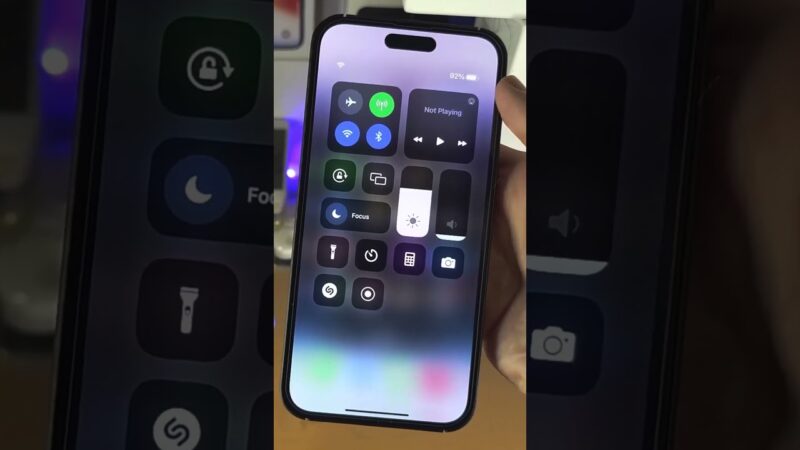
Feeling that jolt of panic when you open the Find My app and see a confusing symbol? You’re not alone.
Losing a device is stressful enough without having to decode a cryptic map. Whether it’s a pulsing blue circle or a static gray screen, every pixel on that map tells a vital story about your device’s status. This guide deciphers all 15+ find my iphone icons, turning confusion into clarity.
At findmyiphone.onl, we understand that every second counts. We’ll explain every color, symbol, and status indicator on the map, so you can quickly understand what’s happening with your lost device and take the right action immediately. Think of this as your emergency legend for locating your Apple gear.
Your Quick Reference Guide: Find My App Icons at a Glance
What do the symbols mean?
Here is a summary of the most critical status indicators you will see immediately upon opening the app.
Below is a quick reference table to help you identify the status of your device in seconds.
| Icon Visual | Color | Meaning | Recommended Action |
|---|---|---|---|
| Solid Circle | Green | Online & Active. The device is connected to the internet and reporting its location. | Use “Play Sound” or “Directions” immediately. |
| Solid Circle | Gray | Offline. The device is off, out of battery, or has no network. | Check the “Last Seen” timestamp. Enable “Notify When Found.” |
| Pulsing Dot | Blue | Current User. This represents you (the device you are holding), not the lost item. | Do not track this dot. Look for your other devices relative to this point. |
| Radar/Fan | Blue/Green | Live Location. The device is moving or being tracked in real-time. | Follow the movement closely; use Precision Finding if close. |
Decoding the Map: What Do the Different Colors Mean on Find My?
Why is my dot green, gray, or blue?
The color of the dot is the primary indicator of your device’s current connectivity and power status.
Understanding the color coding is the first step in successful recovery. Many users ask what do the different colors mean on find my iphone, and the answer lies in the device’s ability to communicate with Apple’s servers.
The Green Dot/Circle: Your Device is Online and Active
What does the green circle mean?
A green dot indicates that your device is powered on, has an active internet connection (Wi-Fi or Cellular), and is broadcasting its location right now.
If you are asking what does the green circle mean on find my iphone, it is the best possible sign. It means the location data is fresh.
- Battery Icon: Often displayed alongside the green dot, showing the current charge level.
- Timestamp: Usually says “Now” or “1 min ago.”
What you can do:
- Play Sound: Since it is online, the sound will trigger immediately.
- Lost Mode: Changes will take effect instantly.
- Erase: The command will execute immediately.
The Gray Dot/Circle: Your Device is Offline
What does the gray icon mean?
A gray icon means the device is not currently communicating with the Find My network.
This is the dreaded find my iphone offline icon. It typically appears when:
- The battery is dead.
- The device has been manually turned off.
- The device is in an area with no cellular or Wi-Fi service.
- The device has been in Airplane mode.
Interpreting the Gray Icon:
- “Old Location”: The map usually shows the last place the device was located before it went offline.
- Timestamp: Pay close attention to this. If it says “2 hours ago,” that is where the phone was, not necessarily where it is.
Action Plan:
- Enable “Notify When Found”: You will get an alert if the device reconnects.
- Enable “Mark as Lost”: This will lock the device the moment it powers back on.
The Blue Dot/Circle: That’s You!
What does the blue circle mean?
The blue dot represents the device you are currently looking at the screen with, not the lost device.
Confusion here is common. Users often ask what does the blue circle mean on find my iphone thinking it is their lost phone.
- Solid Blue Dot: Your exact current location.
- Light Blue Shaded Circle: This represents the margin of error. The smaller the circle, the more accurate your GPS signal is. If the circle is large, your location is approximate.
To fully grasp the map interface, it is helpful to understand what do the symbols mean on find my iphone map regarding GPS accuracy and triangulation.
Identifying Your Gear: Device & Item Specific Symbols
How do I know which device is which?
Apple uses specific icons to represent the physical appearance of the device you are tracking.
Icons for Your Apple Devices
The map doesn’t just show dots; it shows the devices themselves. The apple find my iphone icon has evolved to be highly specific.
- iPhone: Shows the specific model and color (e.g., a black iPhone 14 Pro).
- iPad: Distinguishes between iPad Pro (no button) and standard iPads.
- Mac: Shows the difference between a MacBook (laptop) and an iMac (desktop).
- AirPods:
- Case Icon: Shows the location of the case.
- Individual Bud Icons: If the buds are separated, you may see distinct Left and Right icons.
At FindMyiPhone.onl, we recommend assigning unique names to your devices to avoid confusion if you own multiple products of the same type. For a complete visual breakdown, you can check our guide on find my iphone icons.
Icons for Your “Items”: AirTags and More
What about my keys and wallet?
Items tracked via AirTag or third-party accessories have their own set of symbols.
When tracking non-digital items, understanding the find my iphone symbols meaning. is crucial for quick identification.
- AirTag: A simple circle with the Apple logo or a custom emoji.
- Generic Items: A backpack, keys, bike, or wallet icon, depending on what you selected during setup.
Practical Tip: You can customize the AirTag emoji in the Find My app. Changing the generic “Luggage” icon to a specific emoji (like a 🧸 for a child’s toy) makes recognition instant during a stressful search.
Taking Control: Understanding the Action Icons
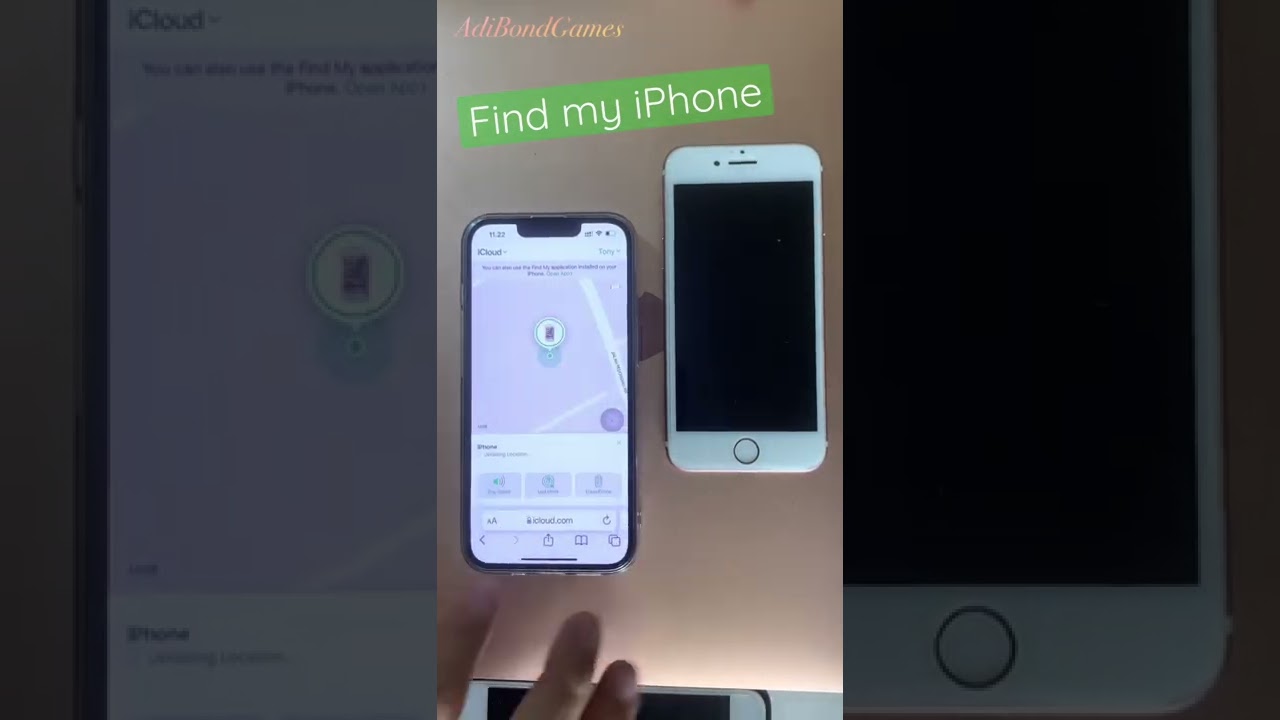
What do the buttons at the bottom do?
Once you select a device, a menu appears with specific action icons.
Play Sound: The First Step for a Nearby Device
Icon: A speaker with sound waves.
This is your best first option. Even if your iPhone is on “Silent” or “Do Not Disturb,” this function forces the device to emit a loud, piercing chirping sound. It is designed to help you find a device hidden under sofa cushions or in a jacket pocket.
Directions: Getting a Route to Your Device
Icon: A car or a turning arrow (similar to the Maps logo).
Tapping this opens Apple Maps and plots a route from your current blue dot location to the device’s last known location. This is essential if the device is left at a restaurant or a friend’s house.
Mark As Lost (Lost Mode): Securing Your Data
Icon: A padlock or a red warning sign.
This is the most critical security feature. When you look at a find my iphone app screenshot, this icon usually sits prominently in the middle.
What Lost Mode Does:
- Locks the screen with a passcode.
- Displays a custom message (e.g., “This phone is lost. Please call me at…”) and a phone number.
- Suspends Apple Pay to prevent unauthorized purchases.
- Enables location tracking effectively, even if location services were disabled.
Erase Device: The Last Resort
Icon: A trash can.
Risk Warning: This is the “nuclear option.” Clicking this will factory reset your device remotely.
- Consequence: You will no longer be able to track the device after it is erased.
- When to use: Only use this if you are certain the device is stolen and you need to protect sensitive data (banking apps, passwords) from being accessed.
Advanced Statuses and Special Indicators

What about the weird symbols and glitches?
Sometimes the app shows specialized icons for precision tracking or indicates a lack of data.
Precision Finding: For When You’re Inches Away
Icon: A large upward-pointing arrow (on-screen interface).
For users with iPhone 11 or later (equipped with the U1 Ultra Wideband chip), finding an AirTag or another iPhone creates a green screen with a large arrow and distance readout (e.g., “4 ft to your right”). This is Precision Finding, designed to locate items hidden from plain sight.
“No Location Found” vs. “Old Location”
Why is the screen blank or the icon dark?
There is a distinct difference between a device that is offline and one that has no location data.
- Old Location (Gray Icon): The device was connected recently, and the server remembers where it was.
- No Location Found: The device has been offline for more than 24 hours, or location services were never enabled.
The “Black and White” Confusion:
In Dark Mode, or on older iOS versions, the “Offline” gray icon can appear almost black. If you are searching for the find my iphone app icon black and white, you are likely seeing an offline device status represented in high contrast.
Sometimes users describe the offline status as a black and white find my icon iphone. This simply signifies that the live color connection (green) is gone. Similarly, a black find my icon iphone indicates the device cannot communicate with the server, and the app is rendering it in a neutral state.
Family Sharing: Tracking Loved Ones’ Devices
Why do I see faces on the map?
If you are part of a Family Sharing group, you will see your family members’ devices.
Instead of a generic phone icon, you might see a circle with their Apple ID profile picture or their initials. This is incredibly helpful for distinguishing between your iPad and your spouse’s iPad. You can see an example of this interface in a typical apple find my app screenshot iphone showing multiple people on one map.
Bonus: The Yellow Star Icon
While less common now, users often wonder what does the yellow star mean on find my iphone. Historically, or within Apple Maps integration, a star indicates a “Favorite” location or a marked landmark. In the context of Find My, ensure you aren’t confusing a “Favorite” location pin with a device status.
Conclusion
From panicked searching to confident finding, understanding the Find My app’s visual language is your greatest asset. Each icon, from the simple green dot to the reassuring lock of Lost Mode, is a tool designed to give you control and peace of mind. By knowing what each symbol means, you can quickly assess the situation and take the best possible action to locate and secure your valuable Apple devices.
At FindMyiPhone.onl, we believe that knowledge is the best security. We hope this legend helps you navigate the app with ease.
Was this guide helpful? Bookmark this page for the next time you need a quick reminder, and share it with friends and family to help them become Find My experts too!
Note: The information in this article is for reference only. For the best advice, please contact us directly for a specific consultation based on your actual needs.

About This Guide
Published by: FindMyiPhone.onl Editorial Team
Last Updated: January 16, 2026
Tested On: iPhone 15 Pro (iOS 17.5.1), iPhone 13 (iOS 17.4)
This tutorial was created through hands-on testing on real devices. All screenshots are from our testing lab. We update guides within 48 hours of iOS releases.
Questions? Contact our team | Meet the team Editorial Team