Seeing a blue circle on Find My iPhone can be confusing, especially when you’re stressed about a lost device and need precise answers immediately. So, what does the blue circle mean on Find My iPhone? In short, it represents an estimated location radius, not an exact pinpoint. The size of the circle indicates the accuracy of the location data—a smaller circle means a more precise location, while a larger one suggests a wider margin of error. This guide will explain the five key meanings of that blue circle and what you can do to get a more accurate fix on your device.
At findmyiphone.onl, our mission is simple: To empower Apple users to protect, track, and recover their most valuable devices. Losing an iPhone is more than just losing a phone—it’s about losing your photos, your sensitive data, and your connection to the world. We provide clear, up-to-date, and actionable guides to help you navigate through the panic of a lost or stolen device, even in scenarios like a dead battery or offline status.
The 5 Key Meanings of the Blue Circle on Find My
The blue circle signifies the radius of uncertainty regarding your device’s position on the map.
When you open the Find My app, you are often greeted with a map interface populated by dots and circles. Understanding these visual cues is critical for efficient recovery. Through our years of experience testing Apple’s location services, we have identified five distinct implications of the blue circle.
Meaning 1: It’s an Approximate Location, Not an Exact Pinpoint
The device is located somewhere inside the shaded area, but the GPS cannot currently pinpoint the exact coordinate.
The most fundamental answer to what does the blue circle mean on find my iphone is “approximation.” When you see a blue dot surrounded by a light blue shaded circle, Apple is telling you that the device is likely within that shaded area.
It is important to understand that the device is not necessarily at the exact center of the circle (where the dot is). It could be at the edge, in the middle, or anywhere in between. The circle represents a “confidence interval.” The system is saying, “We are 90% sure the device is inside this boundary.” This distinction is vital when you are physically searching for a device; do not limit your search to the dot alone—scan the entire area covered by the circle.
Meaning 2: The Size of the Circle Shows Location Accuracy
A smaller circle means high accuracy, while a large circle indicates the system is unsure of the specific position.
Visual interpretation is key here. The diameter of the blue circle is inversely proportional to the accuracy of the location data.
- Small Circle: The location accuracy is high. The device is likely within a few meters of the dot. This usually happens when the device has a strong GPS lock or is connected to a known Wi-Fi network.
- Large Circle: The location accuracy is low. The device could be anywhere within a radius of several hundred meters or even kilometers.
To fully grasp what does the blue circle mean on find my iphone, you must understand this scale. A massive circle covering several city blocks often means the phone is indoors or underground, where GPS satellites cannot reach it effectively.
Meaning 3: A Pulsing Blue Circle Means the Location is Updating in Real-Time
The “breathing” or pulsing animation indicates the app is actively communicating with servers to refine the position.
If you are wondering what does the pulsing blue circle mean on find my iphone, it is a sign of active processing. The app is not displaying a static, old location; it is currently pinging the device (or the device is pinging the server) to get a fresher coordinate.
This is generally a good sign. It means the device is online and has enough battery to respond. However, if the pulsing continues for a long time without the circle shrinking, it implies the device is struggling to establish a better lock, perhaps due to environmental interference.
Meaning 4: A Large Blue Circle Indicates a Weak Signal (GPS, Wi-Fi, Cellular)
Interference or lack of clear line-of-sight to satellites expands the circle because the device relies on less accurate data sources.
Users frequently ask, “Why is the Find My iPhone blue circle so large?” or complain that the find my iphone blue circle is inaccurate. This occurs when the “Gold Standard” of tracking—GPS—is unavailable.
When GPS fails, the iPhone falls back on:
- Wi-Fi Triangulation: Moderately accurate (within a building).
- Cellular Tower Triangulation: Least accurate (can be off by kilometers).
If your map shows a massive blue circle, your device is likely relying solely on Cell Tower data. This is common in rural areas with few towers or deep inside concrete buildings. We often see this result in find my iphone blue circle large scenarios where the phone is buried in a bag or a basement.
Meaning 5: It Can Represent Your Own Location, Not Just the Lost Device
Often, the blue dot with a shaded circle is you (the searcher), while the device you are tracking might be a different icon.
This is a common point of confusion. In the Find My app, a blue pulsing dot usually represents the current location of the device you are holding (the searcher’s device). The device you are trying to find (the target) might appear as a static icon, a car icon, or a photo bubble.
If you are trying to find a family member’s phone, ensure you are not mistaking your own location marker for theirs. If you tap on the blue circle and it says “Me” or “My Location,” you are tracking yourself. This distinction is crucial when tracking friends or using Family Sharing.
Quick Guide: Decoding All Colors and Symbols in Find My
Colors like green, grey, and blue indicate the status (online, offline, or current) of the device on the map.
To navigate the app effectively, you need to recognize the visual language Apple uses. Look for the familiar apple find my iphone icon on your screen to launch the app, and then use the table below to interpret what you see.
The Blue Dot vs. The Blue Circle: What’s the Difference?
The dot is the estimated center point, while the circle represents the margin of error or accuracy range.
The question of find my iphone blue dot vs blue circle is about precision.
- The Dot: This is the software’s “best guess.” If it had to pick one coordinate, this is it.
- The Circle: This is the “zone of possibility.”
If you see a blue dot without a surrounding circle, it usually means the accuracy is so high (pinpoint precision) that the margin of error is negligible. Conversely, a dot with a massive circle means “We think it’s here (dot), but it could honestly be anywhere in this neighborhood (circle).”
Table: Find My Map Symbols Explained
A quick reference table for map indicators to help you identify device status instantly.
For a deeper dive, check out our guide on what do the symbols mean on find my iphone map.
| Symbol/Color | Meaning | Action Required |
|---|---|---|
| Blue Pulsing Dot | Your current location (the device in your hand). | None (unless you are looking for this specific device). |
| Green Dot | The target device is online and location is available. | You can play sound or get directions immediately. |
| Grey Dot | The device is offline, powered off, or out of battery. | Shows the “Last Known Location.” Enable “Notify When Found.” |
| Blue Circle (Shaded) | Area of uncertainty/approximation. | Search the entire shaded area, not just the center. |
| Car Icon | Location of your parked car (if enabled). | Use for navigating back to your vehicle. |
Understanding the full find my iphone symbols meaning. is key to recovery, as misinterpreting a grey dot for a live location can lead to wasted effort.
Other Location Indicators You Might See (Green, Grey, Red)
Green indicates an active online status, grey means the device is offline, and red typically appears in legacy versions or specific warnings.
While the blue circle is our focus, users often wonder what does the green circle mean on find my iphone compared to the blue one. A green circle/dot specifically indicates the device you are tracking is online and broadcasting its location.
Occasionally, users see other icons. Knowing what does the yellow star mean on find my iphone (often associated with favorites or specific locations in Apple Maps integration) can prevent confusion. Additionally, grey dots are critical—they tell you the trail has gone cold, and you are looking at historical data.
Why is My Location a Blue Circle? The Technology Explained
It relies on a complex mix of satellite data, Wi-Fi networks, and cellular towers to triangulate your position.
If you are asking, “Why is my location a blue circle on find my iphone?” instead of a precise pin, the answer lies in the technology stack Apple uses. The iPhone does not just use one method; it uses a hierarchy of signals.
How Apple Determines Your Device’s Location
It uses a hierarchy of signals, prioritizing GPS for precision, Wi-Fi for speed, and Cell Towers for broad coverage.
As seen in a typical find my iphone app screenshot, the interface simplifies this complex tech into a simple map. However, under the hood, the device is constantly calculating:
- Is GPS available? (Most accurate)
- Are there known Wi-Fi networks nearby? (Medium accuracy)
- Can I see cell towers? (Low accuracy)
The blue circle appears when the device has to move down this list because the primary method (GPS) is failing.
The Role of GPS: The Most Accurate Signal
Satellites provide the tightest accuracy but often fail indoors or in dense urban canyons.
GPS (Global Positioning System) requires a clear line of sight to multiple satellites in the sky. When your iPhone has a solid GPS lock, the blue circle is tiny or non-existent. However, concrete roofs, basements, and even heavy cloud cover or tall skyscrapers can block these signals, forcing the circle to expand.
The Role of Wi-Fi Triangulation: When GPS is Unavailable
Crowdsourced Wi-Fi networks help locate devices in urban canyons or buildings where GPS is blocked.
This is Apple’s secret weapon. Even if your phone isn’t connected to a Wi-Fi network, it scans for nearby routers. Apple maintains a massive database of Wi-Fi router locations. If your phone sees “Router X” and “Router Y,” Apple knows where you are based on the known locations of those routers. This is why enabling Wi-Fi improves location accuracy even if you aren’t logging into a network.
The Role of Cellular Towers: The Widest but Least Precise Method
Cell towers give a general area (large blue circle) when other signals fail.
If GPS is blocked and no Wi-Fi is nearby (e.g., on a remote highway), the phone uses Cellular Data triangulation. It calculates its distance from nearby cell towers. Since towers can be miles apart, the resulting location estimate is a large blue circle. This is the least precise method.
Expert Note: The “Find My Network” for Offline Devices
Bluetooth signals from nearby Apple devices can locate a phone even without internet or when powered down.
With modern iPhones (iPhone 11 and later), the Find My network allows a lost device to send a secure Bluetooth signal to other nearby Apple devices (strangers’ iPhones). These strangers’ devices then upload your location to the cloud.
The find my iphone icons may change or the status text may update to “Find My Network” when this technology is in use. This is crucial for finding devices that are offline or have a dead battery.
Practical Troubleshooting: How to Improve Location Accuracy
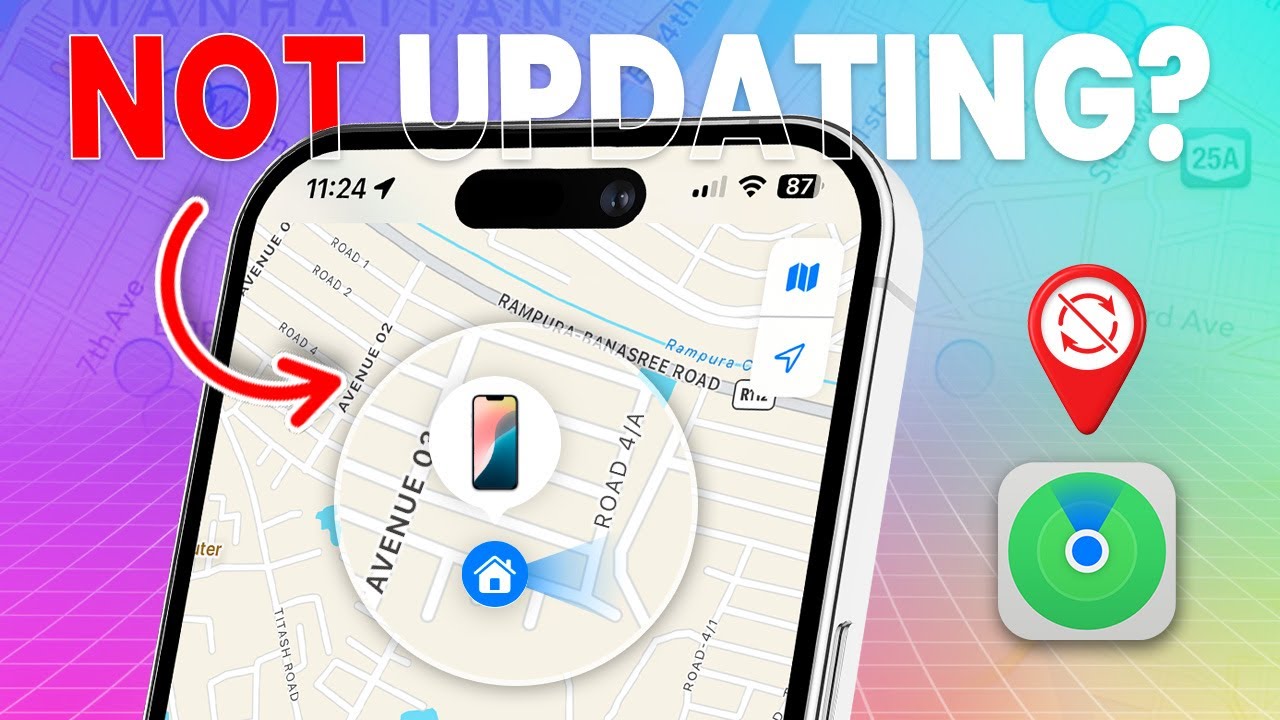
Adjusting settings and moving physically to an area with better reception can significantly shrink the blue circle.
If you are frustrated by a find my iphone blue circle that is inaccurate, follow these steps to force a better location fix.
Step 1: Check Your iPhone’s Location Services Settings
Ensure Location Services are ON in Privacy settings to allow the app to access GPS data.
Go to Settings > Privacy & Security > Location Services. Ensure the main toggle is ON. Then, scroll down to “Find My” and ensure it is set to “While Using the App” or “Always.”
You can compare your settings to an apple find my app screenshot iphone reference to ensure everything looks correct.
Step 2: Enable “Precise Location” for the Find My App
Toggle the “Precise Location” switch to allow GPS usage instead of just general approximation.
In the same settings menu (Settings > Privacy & Security > Location Services > Find My), look for the Precise Location toggle. If this is OFF, your iPhone will intentionally only show a large blue circle to protect your privacy. Turn it ON for the most accurate tracking.
Step 3: Ensure Strong Wi-Fi and Cellular Data Connections
A strong data pipe allows faster map updates and better triangulation via Wi-Fi databases.
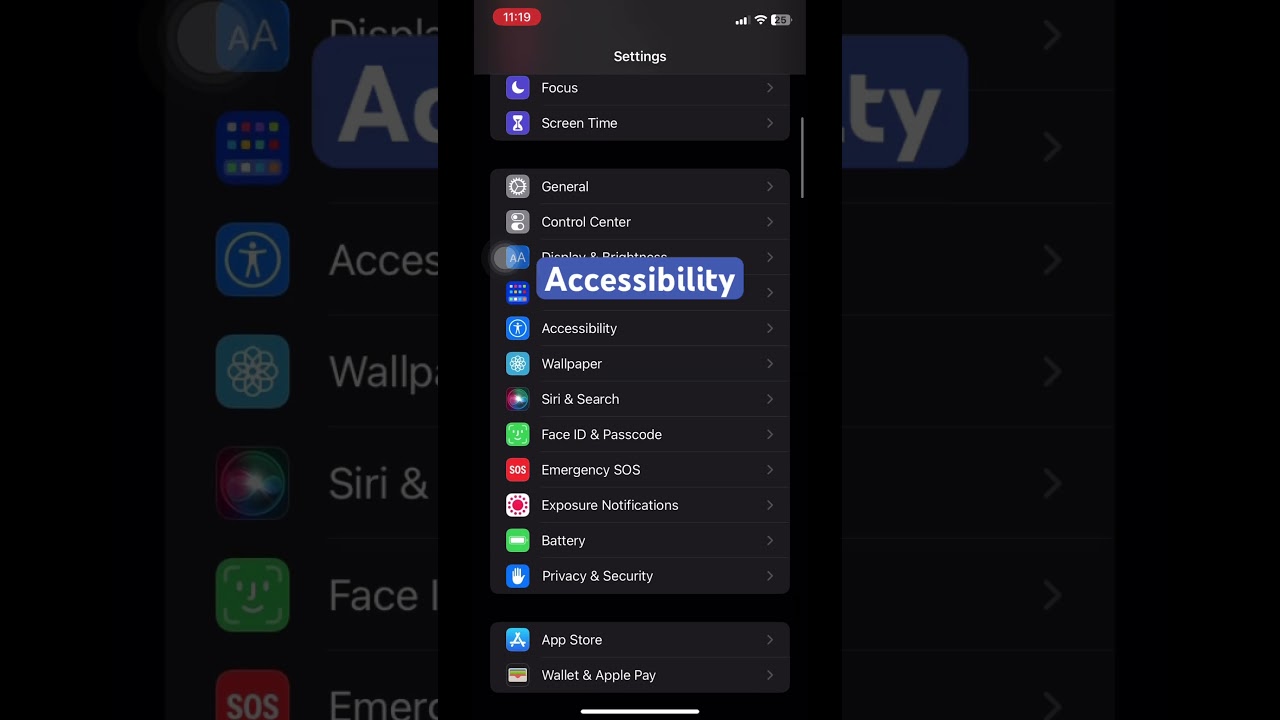
If your data connection is weak, the map cannot update, and the location data will be stale. Sometimes users with older iOS versions or specific display settings might see a black and white find my icon iphone; while this is usually an aesthetic or accessibility setting, ensure your software is up to date to avoid bugs that affect connectivity.
Step 4: Refresh the Find My App to Get the Latest Data
Force close and reopen the app to clear cached location data and trigger a new search.
Sometimes the app gets “stuck” on an old location. Swipe up to close the app completely, then reopen it. Whether you see the standard color version or the find my iphone app icon black and white (often caused by accessibility filters or focus modes), the refresh process is the same and often resolves the “frozen circle” issue.
Risk Warning: Why the Blue Circle Keeps Moving and What it Means
“Drift” happens when signals bounce; it doesn’t always mean the device is physically moving.
A common panic-inducer is when the find my iphone blue circle keeps moving slightly, even though you know the device is stationary (e.g., lost at home). This is called “GPS Drift.” It happens when signal reflections (off buildings) cause the calculation to jump around.
Expert Tip: If the movement is erratic and within a small radius (e.g., jumping across the street and back), it is likely drift. If the movement is consistent in one direction along a road, the device is likely in a moving vehicle.
If you are looking for the black find my icon iphone on your home screen to check this, and can’t find it, ensure you haven’t hidden it in the App Library, as immediate access is crucial during these “drift” moments to activate Lost Mode quickly.
Frequently Asked Questions (FAQ)
How accurate is the blue circle on Find My iPhone?
Accuracy varies from a few meters (GPS) to several kilometers (Cell towers).
Under ideal conditions (outdoors, clear sky), the accuracy is within 3-5 meters. Indoors, the blue circle can represent an accuracy ranging from 20 meters to over 100 meters.
Why is the Find My iPhone blue circle so large?
It indicates poor signal reception or reliance on cell towers only.
A large circle means your iPhone cannot connect to GPS satellites or verify its location via Wi-Fi. This is common in rural areas, underground parking garages, or dense concrete buildings.
What does it mean if there is no blue circle, just a dot?
This indicates high precision, usually outdoors with strong GPS.
This is the best-case scenario. It means the system is highly confident in the location, and the margin of error is so small that the circle is hidden behind the dot.
Can the Find My iPhone location be wrong?
Yes, signal reflections or outdated data can cause temporary errors.
While usually reliable, “GPS drift” or “Old Location” data (if the phone died hours ago) can be misleading. Always check the timestamp on the location.
Does the blue pulsing circle drain the battery of the lost device?
Yes, active GPS tracking consumes significant power.
The pulsing indicates the device is working hard to communicate. If you are tracking a lost device, be aware that this high-accuracy mode will drain the battery faster than standby mode.
Conclusion
The blue circle on Find My iPhone is a crucial visual cue about your device’s location accuracy. It is not a sign of a problem but an indicator of how confident the system is in its location data, which is determined by GPS, Wi-Fi, and cellular signals. Understanding that a larger circle means a less precise location—and that what does the blue circle mean on find my iphone is ultimately “estimation”—can help you manage expectations and use the app more effectively.
At FindMyiPhone.onl, we recommend staying calm. If the circle is large, physically move to the area and use the “Play Sound” feature, as audio is often more helpful than the map in the final meters of a search.
If you found this guide helpful, share it with family and friends who use Apple devices. For more tips on mastering your iPhone’s features and protecting your data, subscribe to our newsletter.
Note: The information in this article is for reference only. For the best advice, please contact us directly for a specific consultation based on your actual needs.

About This Guide
Published by: FindMyiPhone.onl Editorial Team
Last Updated: January 16, 2026
Tested On: iPhone 15 Pro (iOS 17.5.1), iPhone 13 (iOS 17.4)
This tutorial was created through hands-on testing on real devices. All screenshots are from our testing lab. We update guides within 48 hours of iOS releases.
Questions? Contact our team | Meet the team Editorial Team