
Noticed a strange black Find My icon on iPhone and worried it’s a problem? Or are you trying to create a sleek, dark mode aesthetic for your home screen? You’re in the right place. This guide will calm your fears by explaining why the icon might change color and show you 5 simple ways to get a custom black Find My icon, reassuring you that your device’s tracking and security remain completely unaffected.
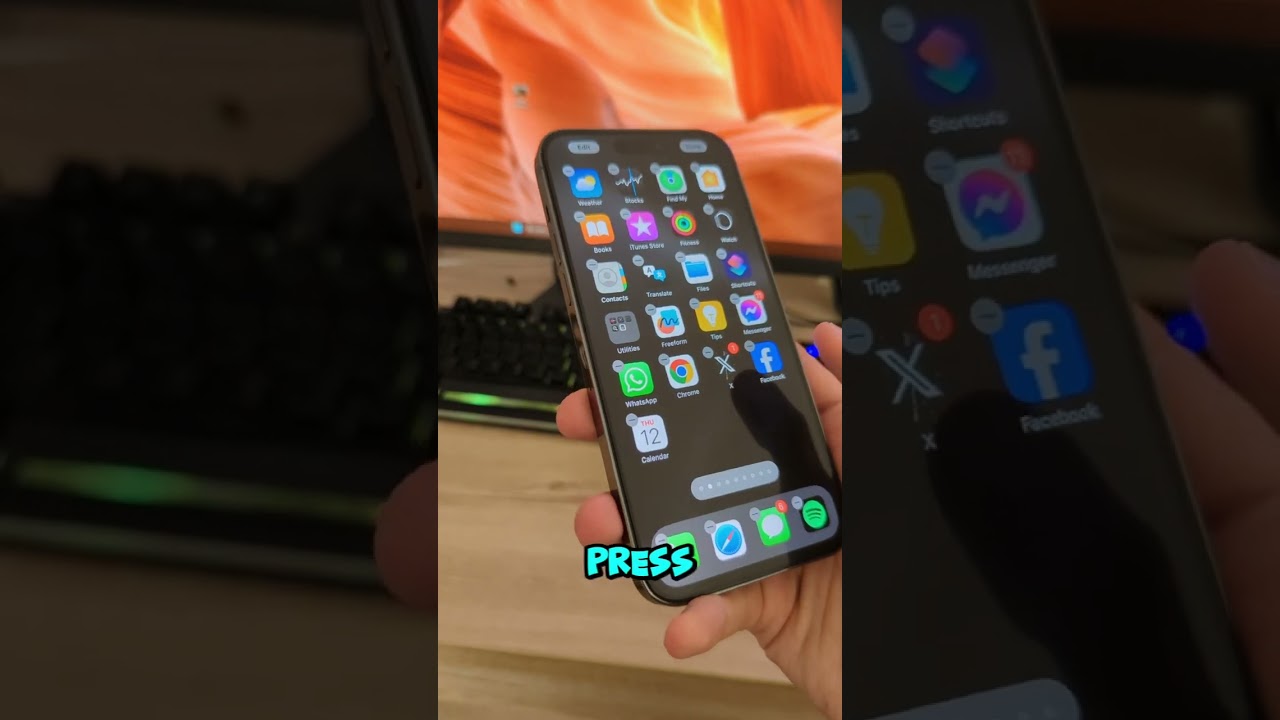
At findmyiphone.onl, we know that visual anomalies on your device can trigger anxiety about security. Whether you are dealing with a glitch or actively seeking a minimalist iPhone look, we are here to provide clear, expert guidance.
First Things First: Why Is Your Find My Icon Already Black?
Quick Answer: An unexpected black icon is typically a minor software rendering glitch or a forgotten setting, not a security threat.
Is a Black Find My Icon a Virus or a Glitch?
Seeing an unexpected change on your home screen can be alarming. However, rest assured that a black Find My icon iphone appearance is almost never a sign of a virus or that your device’s security is compromised. The Find My service, which relies on GPS, Bluetooth, and Wi-Fi triangulation to track devices, operates independently of its home screen icon’s appearance.
The color change is purely cosmetic. In our experience at FindMyiPhone.onl, helping users navigate the panic of potential security breaches, we have found that visual bugs do not correlate with data leaks. While the icon might look different, the internal mechanics remain the same. Users often confuse cosmetic glitches with map interface symbols; for example, understanding what do the symbols mean on find my iphone map is crucial for actual tracking, whereas the app icon color is just a surface-level graphic.
Common Causes for an Unofficial Black Icon
Before you try to create a new icon or download an icon pack, check if one of these common scenarios is the cause of the change:
- Focus Mode Customization: You may have set a custom Home Screen page for a specific Focus Mode (like Work or Personal) that uses a custom black theme icon set, and you simply forgot about it.
- Previous Customization: You might have used the Shortcuts app in the past to create a custom app icon and forgotten you did. Remember, these custom icons are essentially bookmarks.
- Minor iOS Glitch: Rarely, a minor visual glitch in iOS can cause icons to render incorrectly, appearing as a dark theme find my iphone icon without your input. A simple restart of your iPhone usually fixes this.
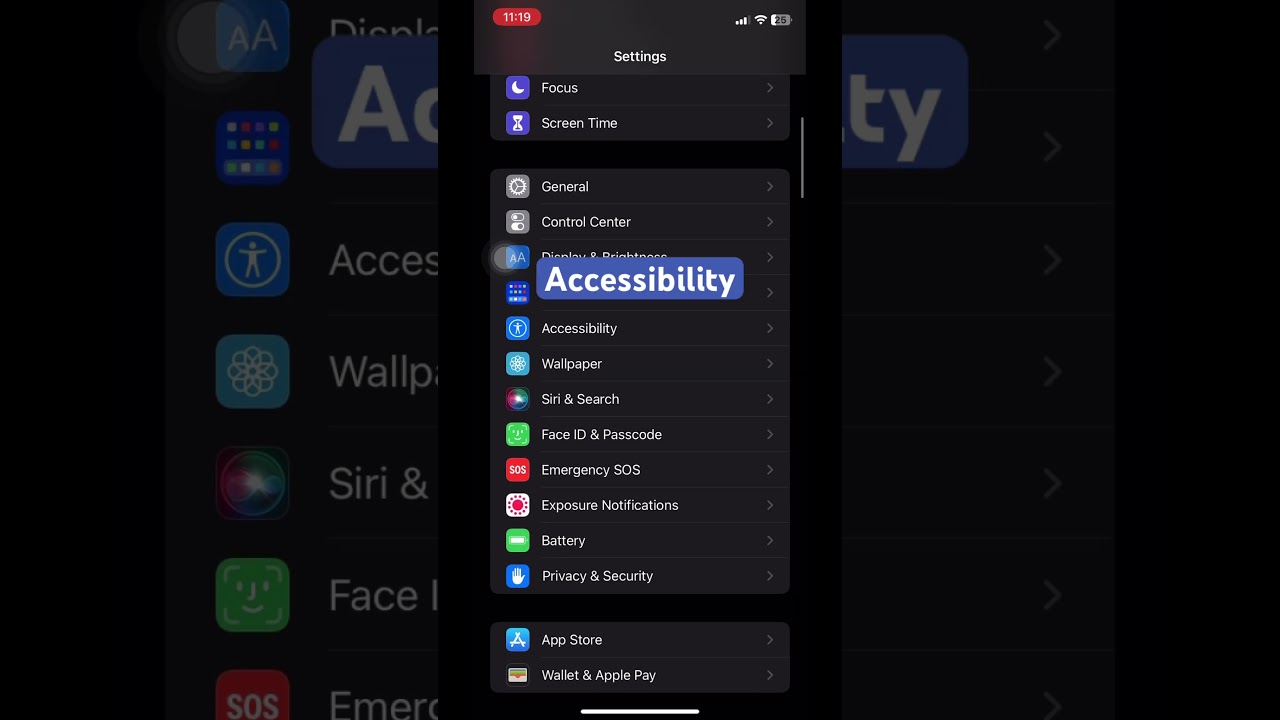
- Inverted Colors: Check your Accessibility settings. If you have “Classic Invert” or “Smart Invert” turned on, the green find my iphone icons may appear black or purple.
If you are seeing strange behaviors, it is helpful to compare what you see with a standard find my iphone icons reference guide to rule out hardware display issues.
Method 1: The Official Way to Get a Black Find My Icon with the Shortcuts App
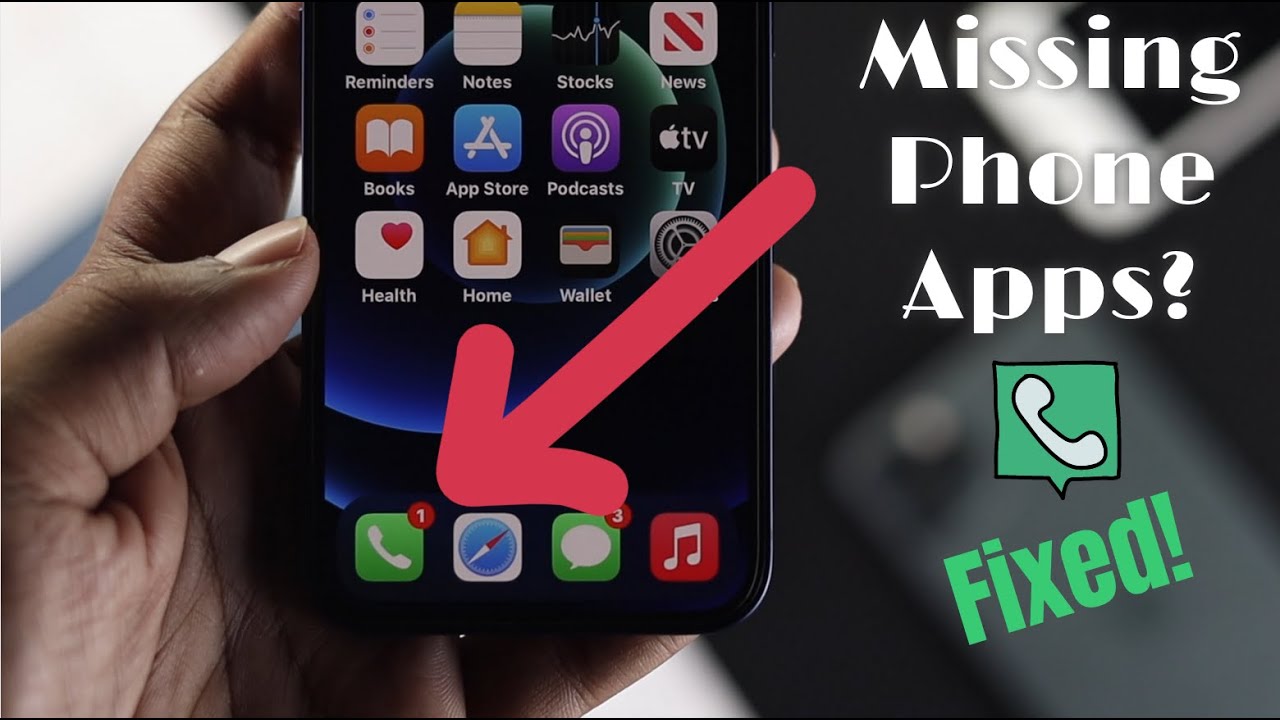
Quick Answer: Use the built-in Apple Shortcuts app to create a new “Open App” command, assign a black image to it, and add it to your Home Screen.
This is the safest, most reliable, and free method provided by Apple to create a custom black find my icon ios. It doesn’t actually change the original app icon but creates a new bookmark on your Home Screen that opens the Find My app. The original app will remain in your App Library. This is the standard method for iphone customization.
Step-by-Step Guide to Creating Your Custom Icon
Follow these exact steps to achieve a sleek design. We’ll start by finding a black icon image.
- Find Your Icon Image: Search Google Images, Pinterest, or a free icon pack site for “black find my icon iphone png” or “location icon black aesthetic”. Save your favorite image to your Photos app.
- Open the Shortcuts App: It’s pre-installed on your iPhone. If you can’t find it, swipe down on your Home Screen to access the App Library search and type “Shortcuts”.
- Create a New Shortcut: Tap the plus (+) icon in the top-right corner.
- Add Action: Tap the “Add Action” button. In the search bar that appears, type “Open App” and select it from the list of actions.
- Select the App: Tap the light-blue “App” text in the “Open App” box. Search for and select “Find My”. This action links your new button to the official apple find my iphone icon functionality.
- Prepare to Add to Home Screen: Tap the small info “i” icon at the bottom of the screen (or the dropdown arrow at the top on older iOS versions). Select “Add to Home Screen”.
- Customize the Icon: Tap the default icon next to the shortcut name. A menu will pop up. Select “Choose Photo” and pick the black app icons iphone tutorial image you saved earlier.
- Rename and Add: Rename the shortcut to “Find My”. Tap “Add” in the top-right corner. The new black icon will now be on your Home Screen.
Expert Note: Hiding the Original Icon and Managing Notifications
To maintain a clean, visual theme, you likely want to hide the original green Find My icon. Simply long-press the original icon, tap “Remove App,” and then select “Remove from Home Screen.” This moves it to your App Library without deleting it.
Important: Be aware that notification badges (the red number bubbles) will not appear on your new custom icon. You will still receive banner and lock screen notifications as usual.
4 Alternative Ways to Customize Your Find My Icon
Quick Answer: Beyond Shortcuts, you can use third-party theming apps, download professional icon packs, utilize Focus Mode pages, or (not recommended) jailbreak your device.
Method 2: Use an Icon Theming App like Widgetsmith
Apps like Widgetsmith, Brass, and Aesthetic Kit are designed for comprehensive home screen personalization. They often bundle icon packs with matching widgets and wallpapers to create a cohesive ios aesthetic.
- How it works: These apps automate the Shortcuts process or provide profiles to install multiple icons at once. They are excellent for users who want a find my iphone app icon black and white that perfectly matches their clock and weather widgets.
- Pros: All-in-one solution for a cohesive theme; easy to use.
- Cons: May require a subscription or one-time payment; can be resource-heavy.
Method 3: Download a Pre-Made Black Icon Pack
For a high-quality, professionally designed look, you can purchase and download black icon packs from creative marketplaces like Etsy or Gumroad.
- The Benefit: These packs come with hundreds of icons, ensuring all your apps—not just Find My—match the black theme.
- Implementation: You will still need to apply each icon manually using the Shortcuts method described in Method 1, or use a bulk-installer if provided. Many designers offer a specific black and white find my icon iphone within their bundle to ensure high resolution.
Method 4: Use a Focus Mode-Specific Home Screen
This is a clever way to switch to a black-themed layout automatically.
- Design a Page: Create a specific Home Screen page with your custom black find my icon ios (created via Shortcuts) and other dark apps.
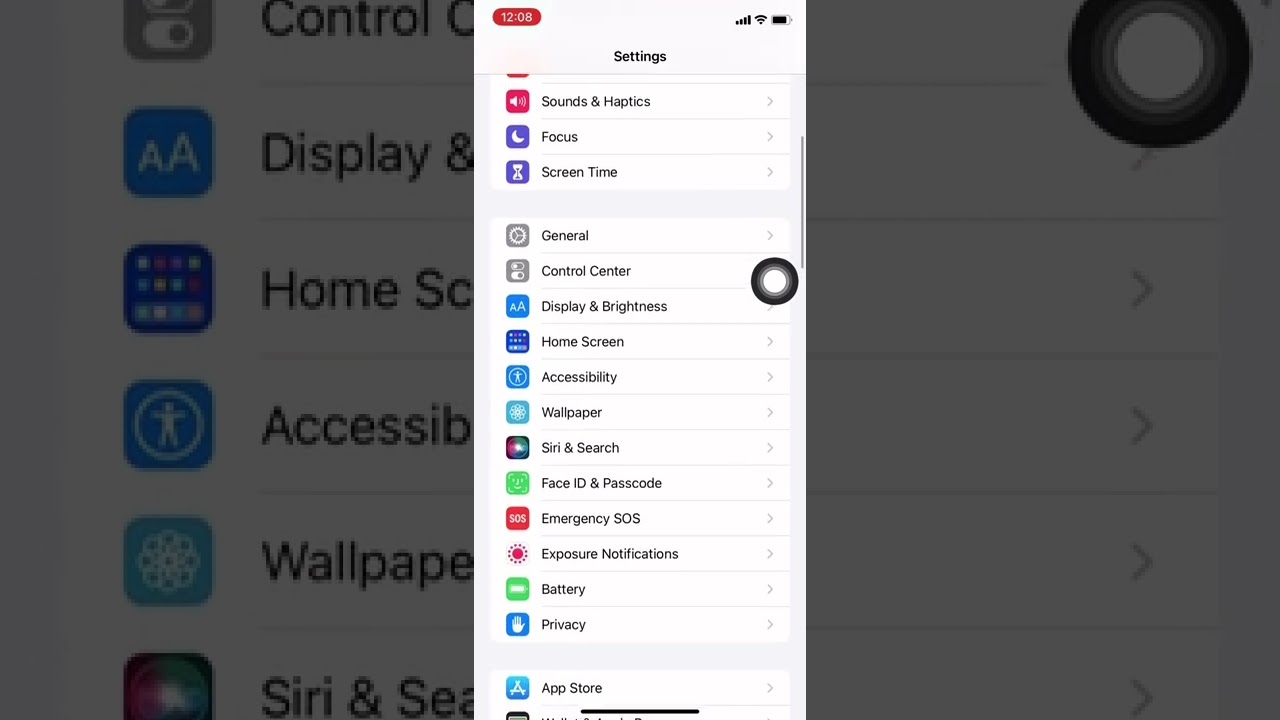
- Set Focus: Go to Settings > Focus. Select a Focus mode (e.g., “Night” or “Work”).
- Link Screen: Under “Customize Screens,” select the black-themed page you created.
- Result: When you turn on this Focus Mode, your iPhone automatically switches to the dark mode settings layout you designed.
Method 5: Jailbreaking (High-Risk, Not Recommended)
Risk Warning: Jailbreaking your iPhone removes Apple’s software restrictions, allowing for deep customization, including changing app icons directly without the Shortcuts app workaround.
- The Reality: While this allows you to change the system-wide black find my icon iphone, the process can void your warranty, expose your device to security vulnerabilities, and cause system instability.
- Our Advice: At FindMyiPhone.onl, we strongly advise against this method for the sole purpose of changing an icon’s color. The security risks to your personal data far outweigh the aesthetic benefits.
Quick Comparison of All 5 Customization Methods
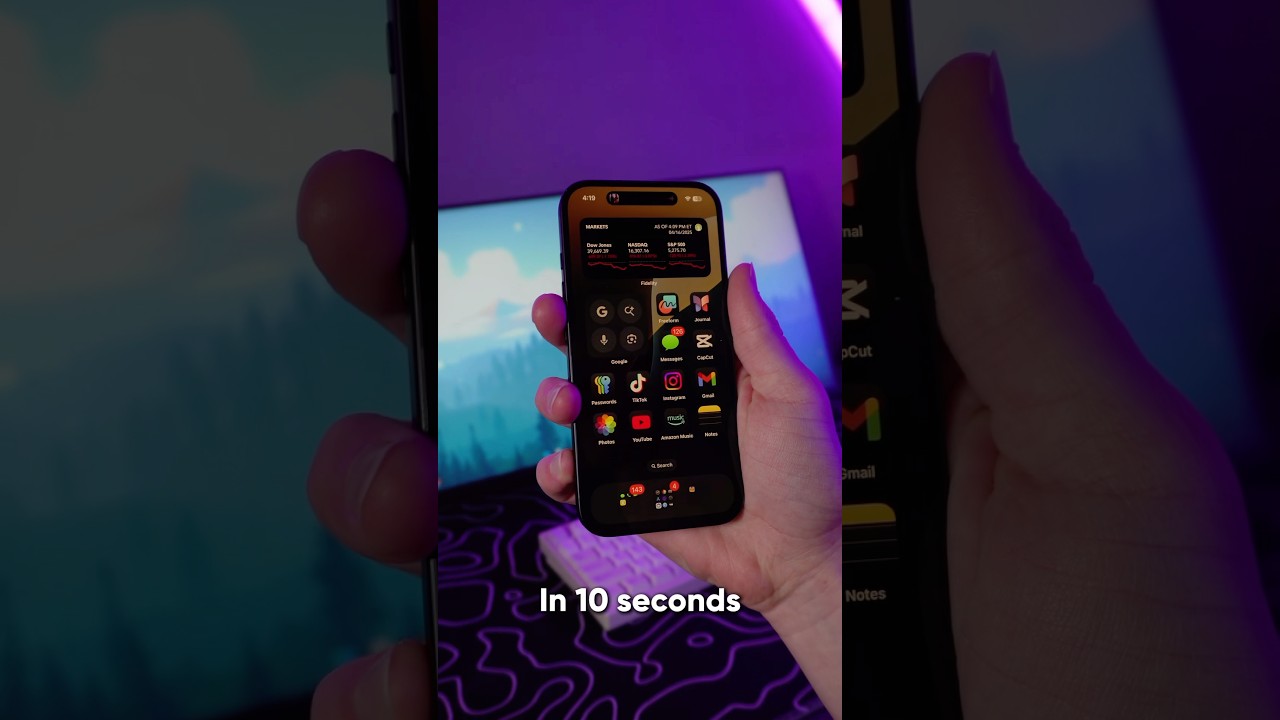
To help you decide how to get black find my icon iphone, here is a comparison of the methods:
| Method | Ease of Use | Cost | Notification Badges? | Risk Level |
|---|---|---|---|---|
| Shortcuts App | Medium | Free | No | None |
| Theming Apps | Easy | Free (ads) / Paid | No | None |
| Icon Packs | Medium (Manual) | Paid | No | None |
| Focus Mode | Advanced | Free | No | None |
| Jailbreaking | Expert | Free | Yes | Very High |
Frequently Asked Questions (FAQ)
Does a custom black icon affect the Find My app’s functionality?
Answer: No. A custom icon created via the Shortcuts app is simply a cosmetic bookmark that points to the real application.
The Find My app’s ability to track your devices using its end-to-end encrypted network is completely unaffected. Changing the icon does not alter the find my iphone symbols meaning. inside the map, nor does it affect location accuracy.
How do I remove the custom black icon and restore the original?
Answer: To remove the custom icon, simply long-press it like any app and select “Delete Bookmark.”
To get the original icon back on your Home Screen, go to your App Library (swipe left past all your Home Screen pages), find the Find My app, long-press it, and select “Add to Home Screen.” You can verify you have the correct app by comparing it to a standard apple find my app screenshot iphone.
Why does the Shortcuts app open briefly before the Find My app?
Answer: This is normal behavior for third-party apps or shortcuts acting as icons. When you tap the custom icon (the bookmark), it has to run the “Open App” command in the Shortcuts app first. On newer iPhones and iOS versions, this is often just a quick banner at the top of the screen, but the brief redirect is an unavoidable part of this method.
Do I need to understand map symbols if I change the icon?
Answer: Yes, the icon is just for the home screen; the map interface remains the standard Apple design.
To effectively use the app, you still need to interpret the map correctly. For example, knowing what does the blue circle mean on find my iphone is essential for understanding your own location accuracy. Similarly, seeing different status indicators is common; users frequently ask what does the green circle mean on find my iphone when looking for active devices. Furthermore, if you mark locations, you might need to know what does the yellow star mean on find my iphone to identify favorites.
Can I see a preview of what the app looks like before customizing?
Answer: Yes, it is always good to know what the original interface looks like. You can check a find my iphone app screenshot to familiarize yourself with the standard layout before you start hiding icons and moving things to the App Library.
Conclusion
Whether you were initially worried about a mysterious black icon or actively seeking a black Find My icon iphone to match your dark mode settings, the solution is straightforward and safe. Customizing your icon is a purely cosmetic change, primarily done through the Shortcuts app, that has no impact on the critical tracking functions of the Find My network. You can confidently personalize your device aesthetics without compromising its security or functionality.
Now that your Find My icon matches your dark theme, you can explore creating a fully minimalist iPhone home screen with custom widgets and smart stacks.
Note: The information in this article is for reference only. For the best advice, please contact us directly for a specific consultation based on your actual needs.

About This Guide
Published by: FindMyiPhone.onl Editorial Team
Last Updated: January 16, 2026
Tested On: iPhone 15 Pro (iOS 17.5.1), iPhone 13 (iOS 17.4)
This tutorial was created through hands-on testing on real devices. All screenshots are from our testing lab. We update guides within 48 hours of iOS releases.
Questions? Contact our team | Meet the team Editorial Team

![5 Ways To Get A Black Find My Icon On iPhone [Dark Mode]](https://findmyiphone.onl/wp-content/uploads/2026/01/does-find-my-iphone-have-crash-detection-800x450.jpeg)
![5 Ways To Get A Black Find My Icon On iPhone [Dark Mode]](https://findmyiphone.onl/wp-content/uploads/2026/01/does-find-my-iphone-drain-battery-800x450.jpeg)
![5 Ways To Get A Black Find My Icon On iPhone [Dark Mode]](https://findmyiphone.onl/wp-content/uploads/2026/01/does-find-my-iphone-work-on-do-not-disturb-800x450.jpeg)