
Seeing a stark black and white Find My icon on your iPhone can be unsettling, especially when you’re worried about a misplaced device and need to act fast. You expect to see the familiar radar circle on a grey background with a green beam, but instead, you are greeted by a monochrome ghost of the app. Rest assured, this is almost always caused by a simple setting, not a critical error with the app or your phone.
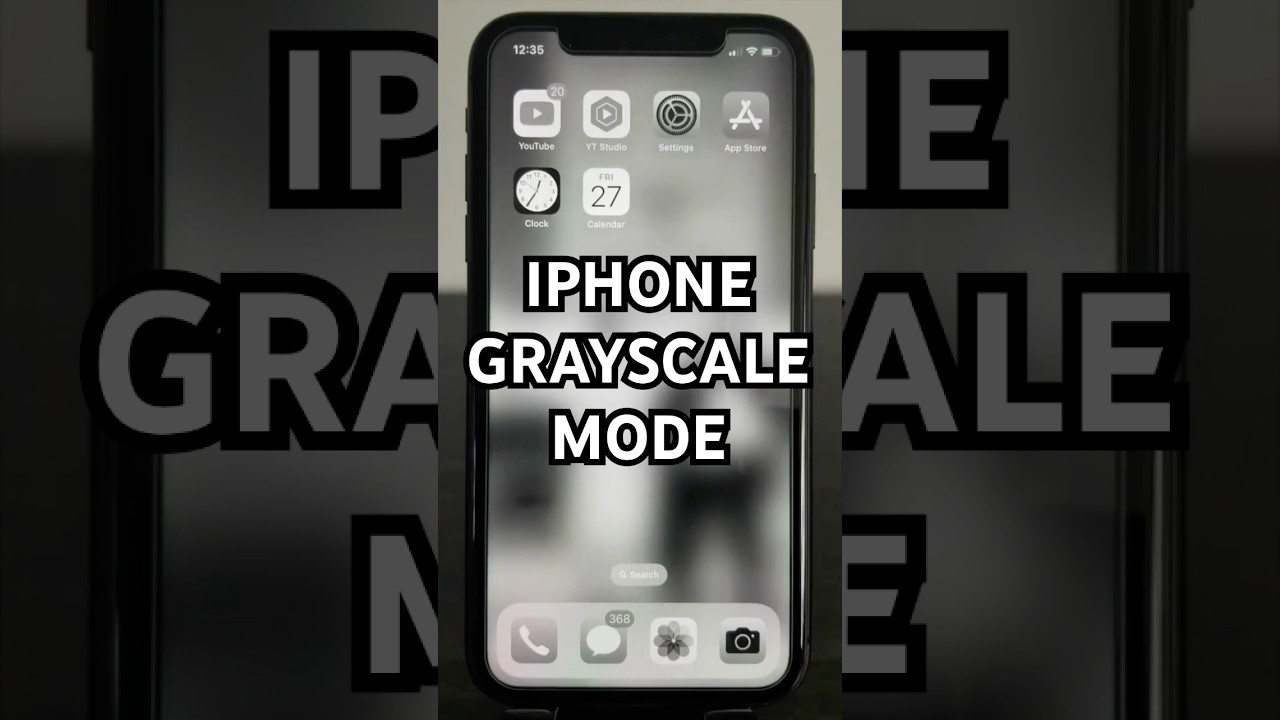
At findmyiphone.onl, we have helped thousands of users troubleshoot these exact visual glitches. This guide provides 5 easy, step-by-step solutions to quickly restore the icon’s color and explain exactly why it happened, so you can fix it in under two minutes.
Why Did Your Find My Icon Turn Black and White? A Quick Diagnosis
The Short Answer: It is usually due to a “Focus Mode” that dims the screen or an “Accessibility” setting like Grayscale or Smart Invert.
Understanding the Cause Before the Fix
Before diving into the solutions, it’s helpful to know why this happens. Your iPhone uses specific display settings to reduce distractions or improve visibility for users with visual impairments. These features can drastically change app icon appearances without warning if triggered accidentally.
The black and white find my icon iphone issue is a side effect of these helpful features, not a sign that the app is broken. It is a visual cue related to either a Focus Mode (designed to stop you from clicking apps) or an Accessibility setting (designed to make reading easier).
Many users panic, thinking their app is disabled. However, if you look closely, the functionality remains. The confusion often stems from users expecting the standard apple find my iphone icon, and when that visual anchor changes, it feels like a system failure.
Quick Cause & Symptom Reference Table
Use this table to quickly identify the likely cause based on what you’re seeing on your screen.
| Symptom | Most Likely Cause | Quick Solution |
|---|---|---|
| Only the Find My icon (and others on a specific page) is black and white. | Focus Mode is active for that Home Screen. | Disable the active Focus Mode via Control Center. |
| All app icons and the entire screen are black and white. | Color Filters (Grayscale) is enabled. | Turn off Color Filters in Accessibility settings. |
| App icons and screen colors look inverted or strange (like a photo negative). | Smart Invert is turned on. | Disable Smart Invert in Accessibility settings. |
| The issue is inconsistent or appeared after dropping the phone. | Minor Software Glitch or potential hardware issue. | Restart the iPhone; if that fails, check for updates. |
5 Ways to Fix the Black and White Find My Icon
Here are the five most effective methods to fix black and white app icons iphone issues, ranked from the most common to the least common causes.
Fix #1: Disable the Active Focus Mode (The Most Common Reason)
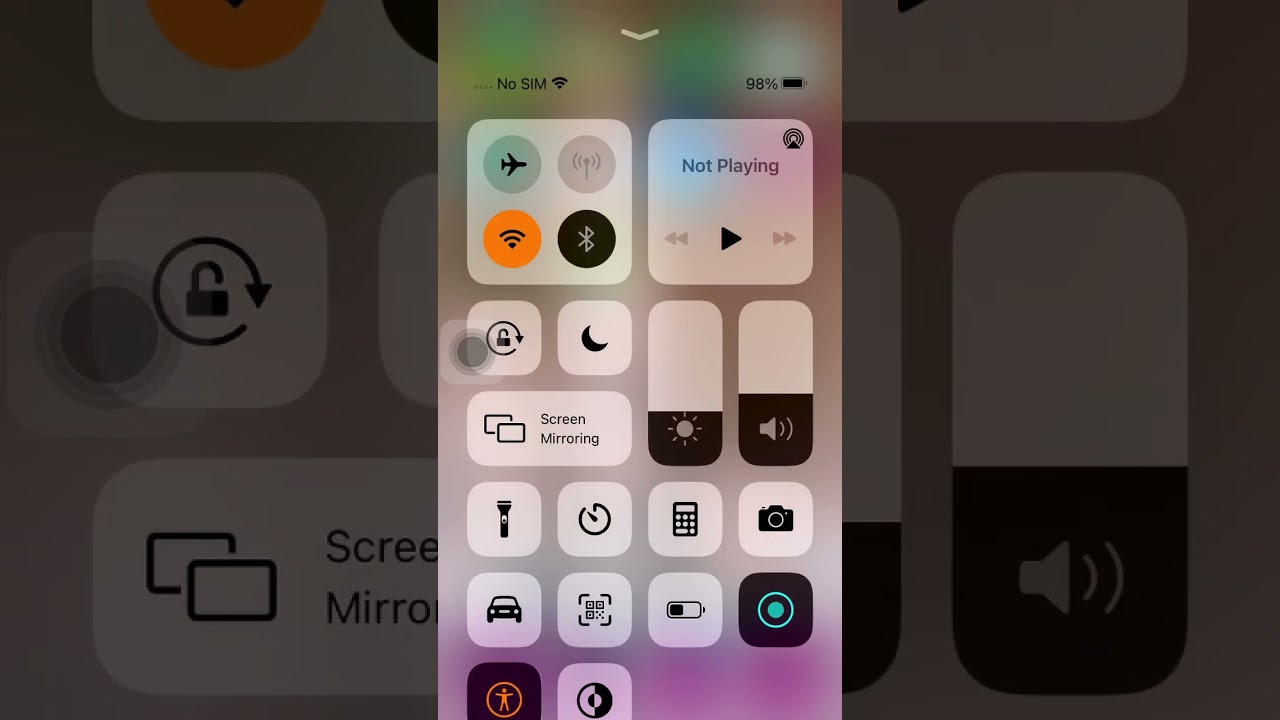
The Short Answer: Swipe down from the top right to open Control Center and tap the highlighted “Focus” button to turn it off.
Focus Modes (like Do Not Disturb, Sleep, or Work) are designed to minimize distractions. One of the ways they do this is by simplifying your Home Screen, which includes making app icons monochrome or “dimmed” to make them less appealing to click. This is the most frequent reason for the Find My app grayscale appearance.
If you are wondering why are my app icons black and white iphone, check your Focus status first.
Step-by-Step Guide:
- Identify the Active Focus: Look at your Lock Screen or the top of your Control Center. You will see an icon and the name of the active Focus, such as Do Not Disturb (crescent moon), Work (briefcase), or Sleep (bed).
- Open Control Center: Swipe down from the top-right corner of your screen (or swipe up from the bottom on iPhones with a Home button).
- Tap the Focus Button: You’ll see a panel with the name of the active Focus highlighted in white or the Focus color. Tap on it to expand the options.
- Turn Off the Focus: Tap the highlighted Focus icon again to deactivate it. The icon will no longer be colored in, and the panel will simply say “Focus.”
- Check Your Home Screen: Return to your Home Screen. The Find My icon and all other app icons should now be back to their full-color versions.
Expert Note: iOS allows you to link a specific Home Screen page to a Focus Mode. When that Focus is active, iOS might show you a custom page where icons appear dimmed. This is a feature, not a bug, intended to keep you focused on the task at hand.
Fix #2: Turn Off Grayscale Color Filters in Accessibility
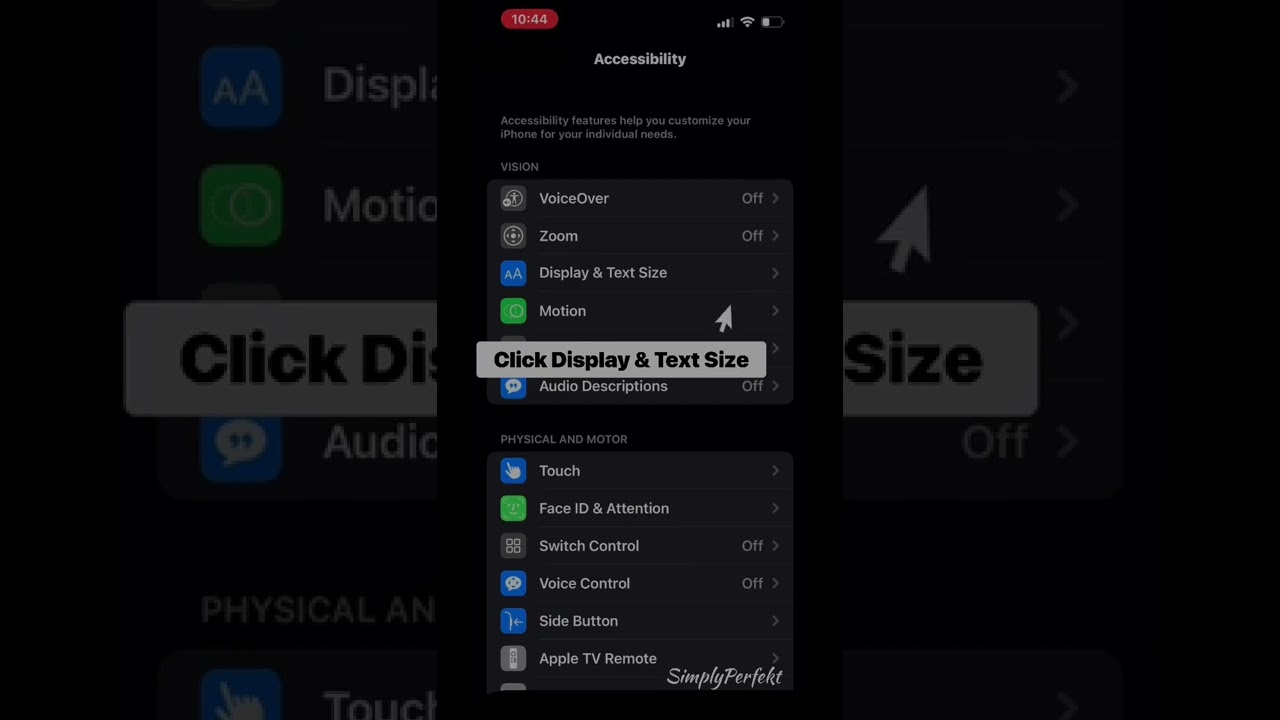
The Short Answer: Go to Settings > Accessibility > Display & Text Size > Color Filters and toggle it OFF.
If your entire iPhone screen is stuck in black and white—meaning your photos, background, and every single app are devoid of color—the cause is likely the Grayscale filter in your Accessibility settings. This feature helps users with color blindness or light sensitivity but is often enabled by accident via a shortcut. This is the primary culprit when users ask how to turn off grayscale on iphone.
Step-by-Step Guide:
- Open the Settings app: This is the gray gear icon on your Home Screen.
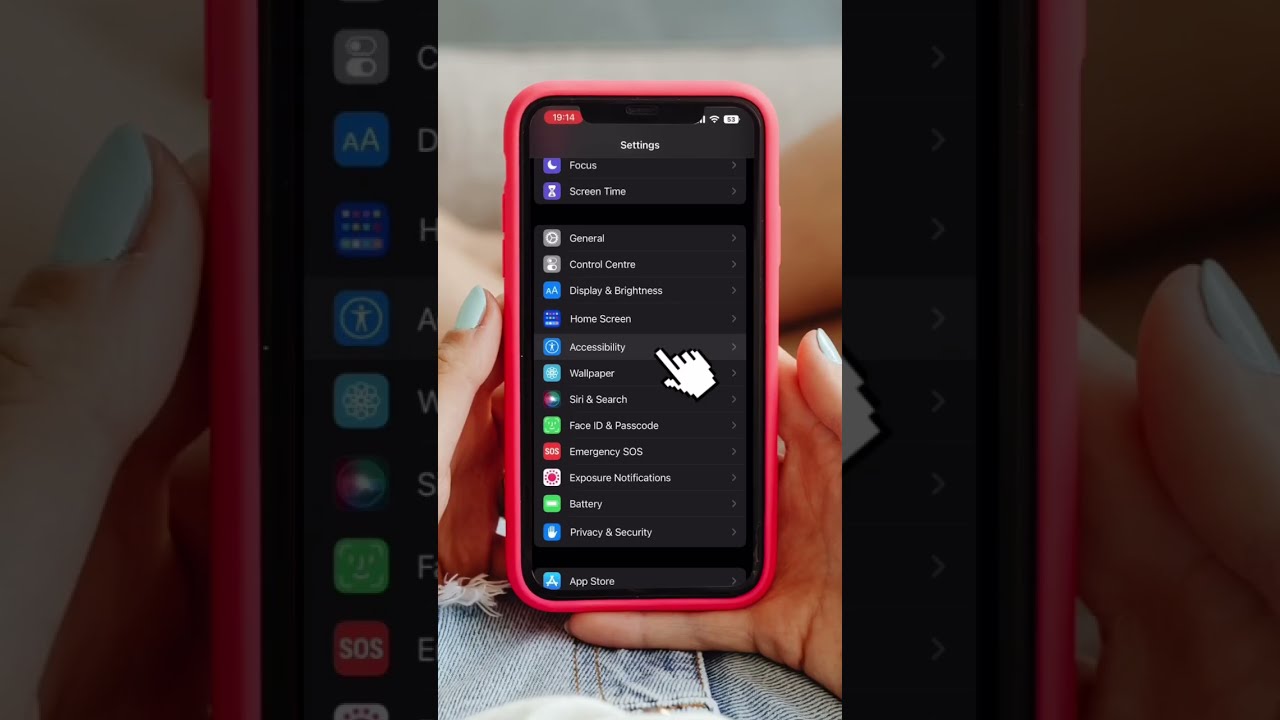
- Navigate to Accessibility: Scroll down a bit and tap on the “Accessibility” tab.
- Go to Display & Text Size: You’ll find this option in the top section labeled “Vision.”
- Tap on Color Filters: Scroll down to find this setting. It will likely say “On” next to it.
- Toggle Off Color Filters: If the switch at the top is green, tap it to turn it off.
You should immediately see the color restore to your iPhone app icons and the entire display. If you want to keep Color Filters on for other reasons but want color back, ensure that “Grayscale” is not the selected option in the list below the toggle.
Why does this happen?
Many users inadvertently activate this setting through the “Accessibility Shortcut,” which allows you to triple-click the side button to toggle features. We will discuss how to disable this shortcut later in the article.
Fix #3: Check for Smart Invert or Classic Invert
The Short Answer: Go to Settings > Accessibility > Display & Text Size and ensure Smart Invert is toggled OFF.
While less common than Grayscale, the “Smart Invert” feature can sometimes cause icons to appear black and white or have strange, inverted colors. This feature is designed to reverse the colors of the display—creating a dark mode effect on websites that don’t support it—to reduce eye strain. However, it can make the find my iphone app icon black and white or give it a ghostly, negative appearance.
Step-by-Step Guide:
- Go to Settings > Accessibility.
- Tap on Display & Text Size.
- Check Smart Invert: Scroll down and look for “Smart Invert” and “Classic Invert.”
- Disable Inversion: Make sure the toggles next to both are turned off (gray, not green). Disabling them will return your screen to its default color scheme.
If you are seeing smart invert black and white icons, this toggle is the culprit. Classic Invert reverses everything (making black white and green purple), while Smart Invert tries to leave images alone but sometimes fails with system icons.
Fix #4: Perform a Simple Restart
The Short Answer: Turn your iPhone completely off and then back on to clear temporary cache glitches.
Never underestimate the power of a restart. Minor software glitches, memory leaks, or visual bugs can sometimes cause display issues, including iphone icons grayed out or stuck in a focused state even when Focus is off. A restart clears the temporary memory and can resolve these fluke problems effectively.
How to Restart:
- For iPhone X, 11, 12, 13, 14, 15 or later: Press and hold the side button and either volume button simultaneously until the “slide to power off” slider appears. Drag the slider to the right. Wait 30 seconds for the device to fully power down, then press and hold the side button to turn it back on.
- For iPhone SE, 8, or earlier: Press and hold the side (or top) button until the power-off slider appears. Drag it to turn off the device.
If you encounter a visual glitch where the icon color doesn’t return after changing settings, a restart is the mandatory next step.
Fix #5: Update Your iOS Software
The Short Answer: Check Settings > General > Software Update for the latest iOS patches.
If none of the above solutions work, the issue could be a rare iOS bug. Apple regularly releases software updates that include bug fixes and performance improvements. Sometimes, a specific version of iOS might have a bug that causes monochrome app icons iphone to persist.
Step-by-Step Guide:
- Back up your iPhone: It’s always wise to back up your data via iCloud or a computer before a major update to protect your information.
- Go to Settings > General > Software Update.
- Download and Install: If an update is available, your iPhone will prompt you to download and install it. Connect to Wi-Fi and a power source to ensure the process goes smoothly.
Keeping your phone updated is the best defense against iphone screen stuck black and white glitches that are system-wide.
Beyond the Icon: Understanding Find My Visuals
Once you have successfully fixed the black find my icon iphone and opened the app, you might be confused by the various symbols and colors inside the map interface. The visual language of the Find My app is crucial for tracking devices accurately.
If you are new to the app, you might expect to see a specific layout. Many users look for a standard apple find my app screenshot iphone online to compare with their own screen to ensure everything is working correctly.
Deciphering the Map Symbols
When tracking a device, color is vital. If you were stuck in Grayscale mode, you would have missed these critical status indicators.
- The Blue Circle: This indicates the location of the device you are currently holding (your iPhone). If you are wondering what does the blue circle mean on find my iphone, it essentially marks “You are here.”
- The Green Circle: This is the positive signal you want to see. It means the device you are tracking is online and its location is current. Understanding what does the green circle mean on find my iphone is key to knowing if your tracking data is real-time.
- The Yellow Star: This symbol is less common but appears on specific devices or accessories. For a detailed breakdown, you should read about what does the yellow star mean on find my iphone.
- Other Map Symbols: The map is full of nuances, from radar waves to grey dots. To fully master tracking, it is helpful to learn what do the symbols mean on find my iphone map.
At FindMyiPhone.onl, we recommend familiarizing yourself with these symbols before you lose a device. A clear understanding of find my iphone symbols meaning. can save you precious minutes during a recovery.
Proactive Tips: How to Prevent Your Icons From Going Black and White
Now that you have fixed the issue, let’s ensure it doesn’t happen again. The black and white find my icon iphone issue is usually recurring if you don’t adjust the triggers.
Customizing Your Focus Mode Home Screens
To prevent a Focus Mode from making your icons monochrome, you can customize its settings to allow for a normal visual experience.
- Go to Settings > Focus.
- Select the Focus mode that was causing the issue (e.g., “Work” or “Sleep”).
- Under “Customize Screens,” tap on the Home Screen preview (the one in the middle).
- Here, you can choose which Home Screen pages to show. Instead of letting iOS dim the screen or suggest a simplified page, select your regular, full-color Home Screen page. This keeps your find my iphone icons colorful even when the Focus is active.
Managing Your Accessibility Shortcut
The “Accessibility Shortcut” is a hidden feature that allows you to triple-click the side button (or Home button) to activate features like Grayscale. This is the #1 reason for accidental monochrome display activation.
- Go to Settings > Accessibility > Accessibility Shortcut (it’s at the very bottom of the menu).
- Here, you can see which features are assigned to the shortcut.
- Uncheck “Color Filters,” “Smart Invert,” and any other display feature you don’t want to activate by accident.
By clearing these checks, you ensure that a clumsy grip on your phone won’t accidentally restore default settings to a black and white mode. This gives you full control and prevents unwanted screen changes.
Visual Comparison: Normal vs. Glitched
It is helpful to know what “normal” looks like. A standard find my iphone app screenshot shows a vibrant interface. If your screen looks dull, check the “Zoom” filters as well.
- Zoom Filters: Go to Settings > Accessibility > Zoom. If Zoom is on, tap “Zoom Filter” and ensure it is set to “None.” Sometimes, a “Grayscale” filter is applied specifically within the Zoom window, causing confusion.
Conclusion
Finding your Find My icon unexpectedly black and white is usually not a cause for alarm. In most cases, it’s a direct result of an enabled Focus Mode or an Accessibility setting like Grayscale or Smart Invert. By following the steps to check your Focus status and Color Filters, you can quickly fix black and white app icons iphone issues and restore your device to its normal, vibrant state.
Understanding these features allows you to use your iPhone’s capabilities—like distraction-free modes—without any unwelcome surprises in the future. Remember, the app still works even if the icon is gray, but restoring the color makes for a much better user experience.
If you are still confused about the various icons and interfaces, taking a moment to look at a gallery of find my iphone icons can help you identify what is standard and what is a glitch.
Was this guide helpful? Share it with a friend who might be facing the same issue! For more iPhone tips and troubleshooting guides, explore our other articles at FindMyiPhone.onl.
Note: The information in this article is for reference only. For the best advice, please contact us directly for a specific consultation based on your actual needs.

About This Guide
Published by: FindMyiPhone.onl Editorial Team
Last Updated: January 16, 2026
Tested On: iPhone 15 Pro (iOS 17.5.1), iPhone 13 (iOS 17.4)
This tutorial was created through hands-on testing on real devices. All screenshots are from our testing lab. We update guides within 48 hours of iOS releases.
Questions? Contact our team | Meet the team Editorial Team

![5 Ways to Fix Black and White Find My Icon on iPhone [Solved]](https://findmyiphone.onl/wp-content/uploads/2026/01/does-find-my-iphone-have-crash-detection-800x450.jpeg)
![5 Ways to Fix Black and White Find My Icon on iPhone [Solved]](https://findmyiphone.onl/wp-content/uploads/2026/01/does-find-my-iphone-drain-battery-800x450.jpeg)
![5 Ways to Fix Black and White Find My Icon on iPhone [Solved]](https://findmyiphone.onl/wp-content/uploads/2026/01/does-find-my-iphone-work-on-do-not-disturb-800x450.jpeg)