
Panicked because you see the find my iphone app icon black and white? Don’t worry, your phone isn’t broken. This is almost always a visual cue caused by an iPhone setting, not a critical error. In this guide, we’ll walk you through 5 simple, step-by-step solutions to restore the icon’s color and explain exactly why it happened, giving you full control over your device’s appearance and peace of mind.

At findmyiphone.onl, we have helped thousands of users navigate the confusion of iOS updates and interface changes. We know that seeing a familiar tool like the “Find My” app lose its color can feel like a warning sign, but rest assured, it is usually a feature designed to help you, not a bug designed to hurt you.
The #1 Reason Your Find My App Icon is Gray (And the Quickest Fix)
Answer: The most common reason for a gray icon is an active Focus Mode (like Sleep or Work) that automatically applies a dimming filter to your Home Screen to reduce distractions.
If you are wondering why is my find my iphone app icon black and white, the culprit is likely a “Focus” profile. Apple introduced Focus modes to help users disconnect, and one of the default behaviors of the “Sleep” or “Reading” focus is to turn the screen or specific pages monochromatic. This isn’t just about the find my iphone icons; it likely affects your entire page or specific folders.
Check Your Active Focus Mode
To confirm this, look at the status bar at the top of your iPhone screen (near the battery or clock).
- Bed Symbol: Indicates “Sleep Focus” is on.
- Car Symbol: Indicates “Driving Focus” is on.
- Person Icon: Indicates “Personal Focus” is on.
If you see any of these symbols, your device is intentionally altering the display to help you concentrate or rest. This includes making the find my app icon gray.
How to Instantly Restore Color via the Control Center
You can revert this change in seconds without digging deep into settings:
- Swipe down from the top-right corner of your screen (or swipe up from the bottom on older iPhones with a Home button) to open the Control Center.
- Locate the Focus button (it will display the name of the active mode, e.g., “Sleep” or “Work”).
- Tap the icon once to turn it off.
- Watch your Home Screen immediately return to full color.
5 Proven Methods to Change the Find My Icon Back to Color
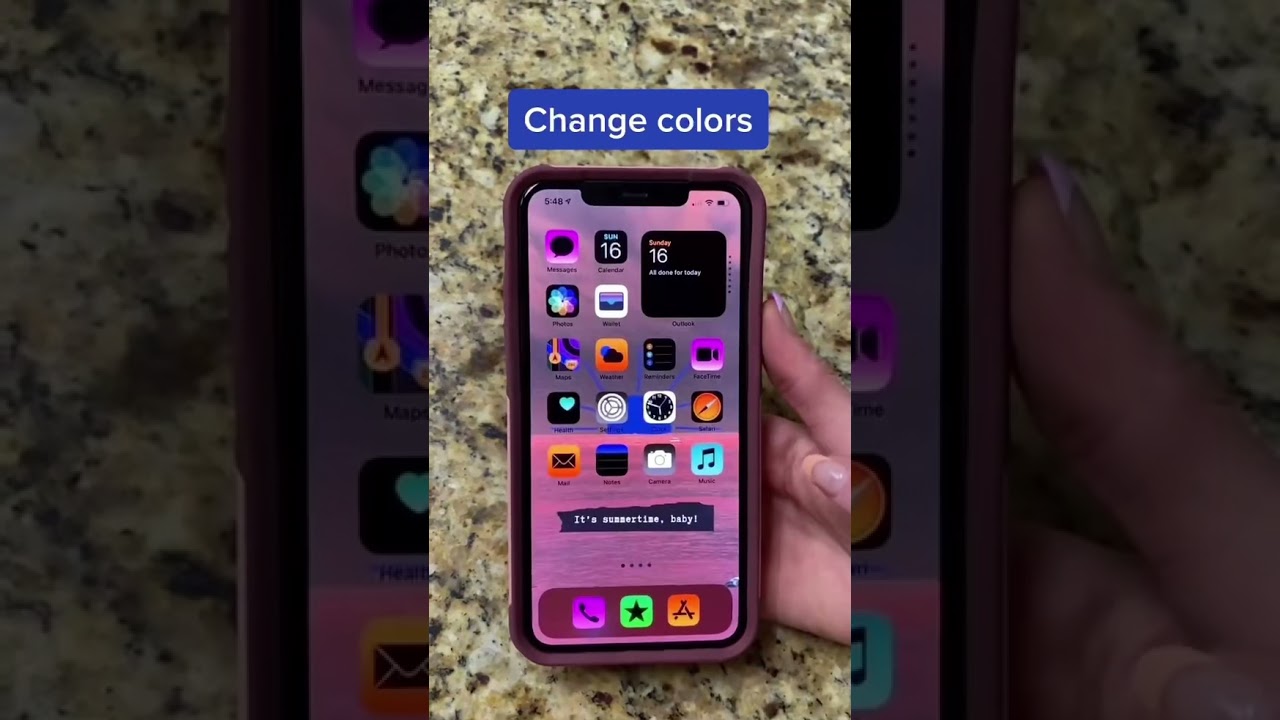
Answer: To fix a persistent black and white icon, you need to check Accessibility settings (Color Filters), Focus Mode customization, Dark Mode preferences, Screen Time limits, or perform a soft reset.
If turning off Focus Mode didn’t work, or if you aren’t in a Focus Mode, you likely have a display setting enabled. Here are the 5 most effective methods on how to change find my iphone icon back to color.
Method 1: Disable Grayscale Color Filters in Accessibility
This is the most frequent cause for users who find their entire screen, or specific apps, stuck in monochrome. Accessibility settings include a “Grayscale” filter designed for users with color blindness or light sensitivity.
Steps to fix:
- Open Settings.
- Scroll down and tap on Accessibility.
- Tap on Display & Text Size.
- Scroll down to Color Filters.
- If the switch is Green (ON) and “Grayscale” is checked, toggle it OFF.
Once disabled, the black and white find my icon iphone issue should disappear immediately.
Method 2: Adjust Your Home Screen Settings within a Focus Profile
Sometimes, you want to keep Focus Mode on (to silence calls) but you don’t want the visual change. You can customize this so your icons stay colorful.
Steps to customize:
- Go to Settings > Focus.
- Select the Focus mode you use most (e.g., Sleep or Do Not Disturb).
- Tap on Options (sometimes listed under “Customize Screens”).
- Look for a setting labeled Sleep Screen or Dim Lock Screen.
- Toggle OFF the option that says “Show Sleep Screen” or “Dim Home Screen.”
By doing this, you resolve the find my iphone app icon black and white issue while maintaining the functionality of your Focus mode.
Method 3: Understand the Difference Between Dark Mode and Grayscale
Answer: Dark Mode changes the background to black but keeps icon colors vibrant; Grayscale removes all color saturation.
Many users confuse Dark Mode with a monochrome display. If your find my app icon monochrome look is paired with a dark background, ensure you haven’t accidentally triggered a “Smart Invert” or “Classic Invert.”
- Dark Mode: Settings > Display & Brightness > Select “Light”.
- Invert Colors: Settings > Accessibility > Display & Text Size > Smart Invert (Ensure this is OFF).
If you are seeing a black find my icon iphone specifically, it might be that the icon itself has a dark variant in iOS 18 (which allows for tinted icons), but checking the Invert settings is a crucial troubleshooting step.
Method 4: Review Screen Time Restrictions
If the icon isn’t just black and white but looks “dimmed” or “darkened” (like it’s behind a shadow), it might be a Screen Time limit.
Why this happens:
When you reach your daily time limit for an app category (like Utilities), iOS grays out the icon and places a small hourglass symbol next to it. This makes the find my iphone icon greyed out and unclickable.
How to fix:
- Go to Settings > Screen Time.
- Tap App Limits.
- Check if “Find My” or “Utilities” has a limit.
- Delete the limit or tap Ignore Limit when you try to open the app.
For visual reference, checking an apple find my app screenshot iphone online can help you distinguish between a “Screen Time gray” (dimmed with hourglass) and a “Grayscale gray” (completely lacking color).
Method 5: Perform a Soft Reset to Clear Minor iOS Glitches
Answer: A soft reset clears temporary cache files that may be causing the UI to render icons incorrectly.
If none of the settings above are the culprit, your device might be experiencing a minor bug where the icon cache hasn’t loaded the color assets. This is common after an iOS update.
How to Soft Reset (iPhone X and later):
- Press and hold the Volume Down and Side Button simultaneously.
- Slide to power off.
- Wait 30 seconds.
- Turn the device back on.
This often resolves the find my iphone icon black and white fix process if it was just a temporary glitch. If you are unsure what the normal interface should look like, comparing your screen to a standard find my iphone app screenshot can confirm if your icons are rendering correctly.
Quick Troubleshooting Table: Find Your Fix in 30 Seconds
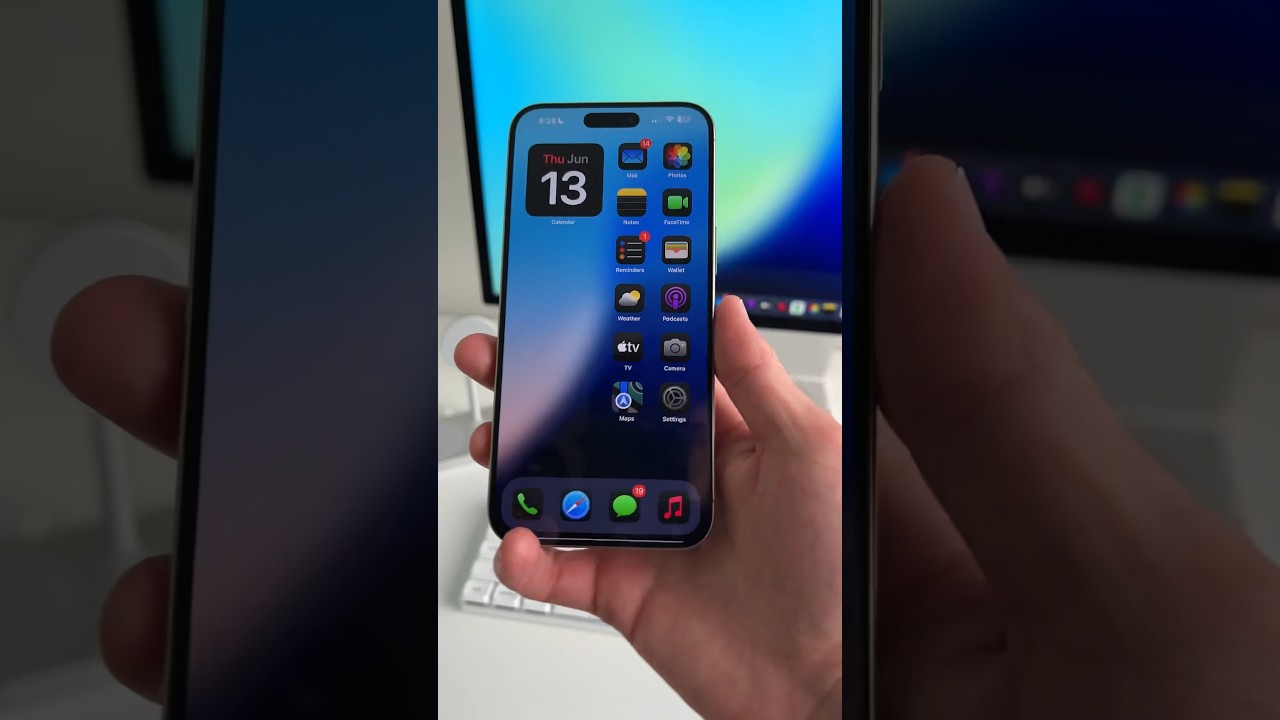
Answer: Use this table to match what you see on your screen with the direct solution path.
| What You See | Most Likely Cause | Quick Fix Path (Settings > …) |
|---|---|---|
| Entire screen is black & white | Accessibility / Color Filters | Accessibility > Display & Text Size > Color Filters > OFF |
| Gray icon with bed/moon symbol in status bar | Focus Mode (Sleep/DND) | Control Center > Tap Focus Icon to OFF |
| Icon is dim/dark with an hourglass | Screen Time Limit | Screen Time > App Limits > Delete Limit |
| Only Find My is gray, other apps are color | App Installation / Update | Long press icon > Remove App > Reinstall from App Store |
| Colors look inverted (Green looks purple, etc.) | Smart Invert | Accessibility > Display & Text Size > Smart Invert > OFF |
Why Did My Find My Icon Change Color? It’s a Feature, Not a Bug
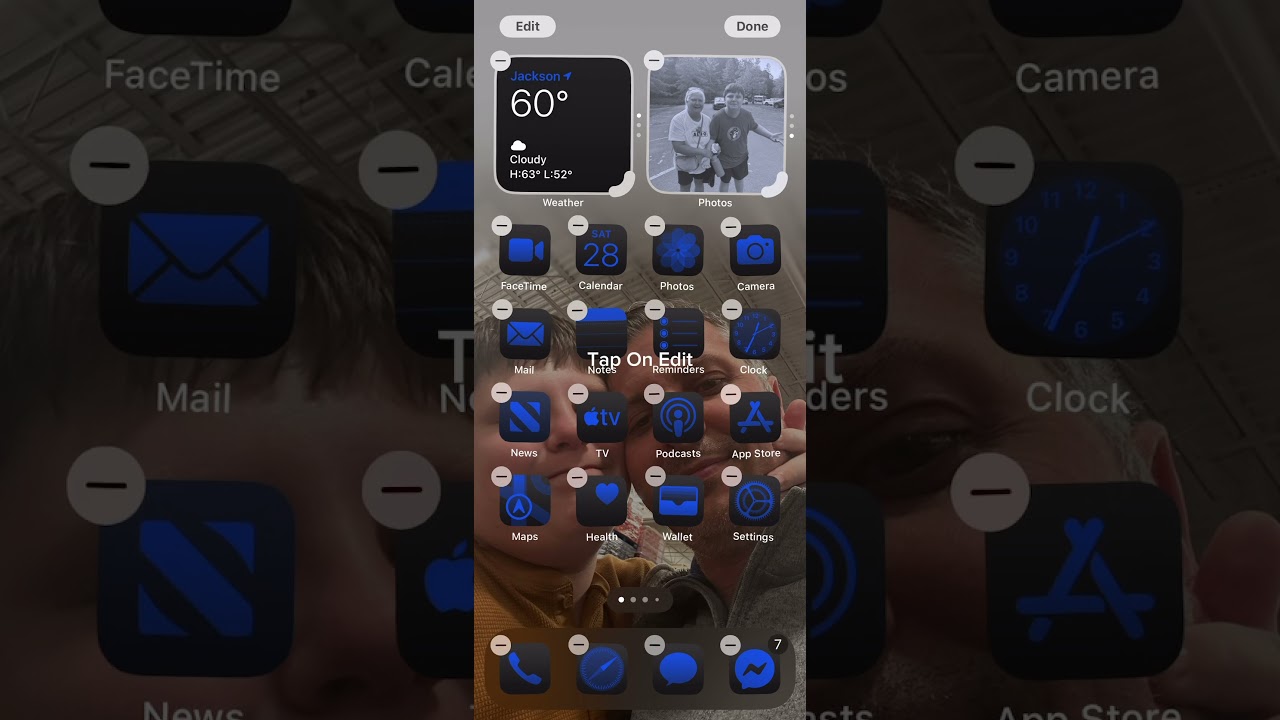
Answer: Apple often uses color changes to signal device status (like Sleep Mode) or to reduce visual stimulation, rather than indicating a software error.
A Deliberate UI Choice by Apple for Visual Cues
The change to a find my app black and white display is rarely random. Apple’s design philosophy relies heavily on visual cues. When you enter a “wind down” period, the operating system removes color to discourage you from using the phone—this is a “digital wellbeing” feature.
If you are asking why is my find my app icon gray, it is likely because your iPhone is trying to help you disconnect. Additionally, accidentally triple-clicking the side button can trigger “Accessibility Shortcuts,” which might instantly toggle Grayscale without you realizing it.
To understand the intended design, it helps to look at the standard apple find my iphone icon, which features a radar circle on a grey background with a green beam (or blue, depending on the version). Any deviation is usually a system filter overlaying that standard design.
From “Find My iPhone” (Green) to “Find My” (Radar): An Icon’s Evolution
It is also worth noting that the icon itself has changed over the years. Long-time users might remember the old radar icon or the “Find Friends” orange icon.
- Old: “Find My iPhone” was a green radar.
- New: “Find My” combines finding devices and friends into one app with a gray/green/blue radar circle.
Sometimes, a find my iphone icon changed color perception is simply due to an iOS update that refreshed the icon’s look. If you are confused about the various symbols within the app itself, checking a guide on find my iphone symbols meaning. can clarify what the new UI elements represent.
Advanced Steps for Persistent Issues
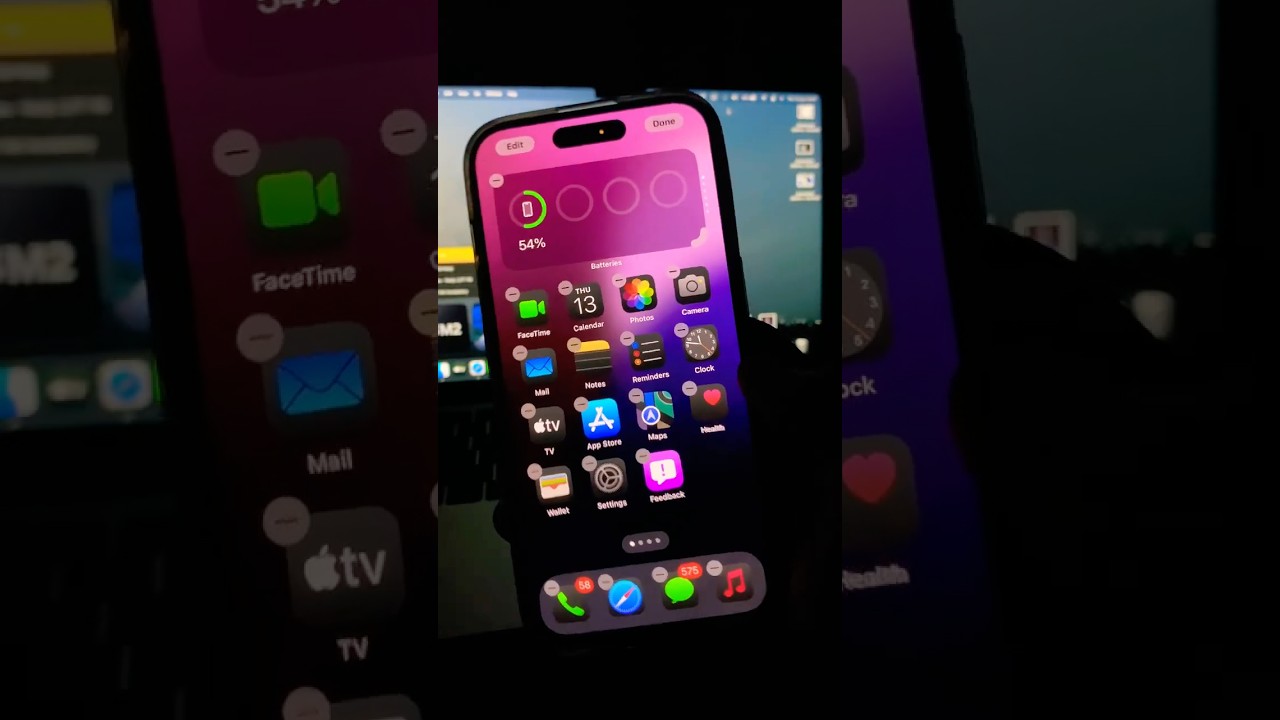
Answer: If basic fixes fail, you may need to reset your Home Screen layout or check for deep system restrictions.
Expert Tip: How to Use Focus Mode Without Making Icons Monochrome
At FindMyiPhone.onl, we recommend using Focus modes, but we know the gray icons are annoying. The best way to manage this is to create a Custom Home Screen page for your Focus mode.
- Create a new Home Screen page that only contains the apps you need (e.g., Phone, Maps, Find My).
- Go to Settings > Focus > [Your Focus].
- Under “Customize Screens,” choose that specific page.
- Ensure “Dim Lock Screen” is off.
This ensures you never have to ask about a find my friends icon black and white issue again, as you control exactly how that page looks. Once you open the app, ensuring you understand the map is crucial. For instance, knowing what do the symbols mean on find my iphone map ensures you can track devices effectively even if the icon was previously glitchy.
Risk Warning: When a Grayed-Out Icon Could Signal a Deeper Problem
In rare cases, a find my iphone icon greyed out that does not have an hourglass and cannot be opened might indicate an app that is “Waiting…” to update or is restricted by a corporate profile (MDM).
- Stuck on Waiting: Check your internet connection. Tap the icon once to pause, then again to resume downloading.
- MDM Restriction: If this is a work phone, your employer may have disabled the app.
If the app opens but shows confusing status indicators, like a blue circle around a location, you need to understand the map data. Many users panic when they see this, asking what does the blue circle mean on find my iphone. It simply indicates the accuracy radius of the location, not an error.
Final Troubleshooting: Reset Home Screen Layout & Check for iOS Updates
If the find my app icon gray persists despite all efforts, perform a Home Screen Layout Reset.
- Go to: Settings > General > Transfer or Reset iPhone > Reset > Reset Home Screen Layout.
- Warning: This destroys all your folders and arranges apps alphabetically.
After resetting, check the app functionality. Does the map load? Do you see your devices? If you see a green circle around a device and don’t know why, you might want to read about what does the green circle mean on find my iphone. Similarly, if you see a star icon and are confused, understanding what does the yellow star mean on find my iphone is key to mastering the app’s “Favorites” feature.
Conclusion
Seeing your find my iphone app icon black and white is usually just your iPhone communicating that a specific mode, like Focus or a display filter, is active. It is rarely a sign of a hardware failure or a corrupted app. By following the 5 methods above—checking Focus Mode, disabling Grayscale, and reviewing Screen Time—you can easily identify the cause and restore the familiar colored icon.
This is a customizable feature designed to help you manage distractions, not a sign of a problem with the app or your device. We hope this guide has helped you reclaim your colorful Home Screen.
Did one of these methods work for you? Share your experience in the comments below! For more tips on mastering your iPhone’s tracking features, check out our complete guide to iOS Accessibility Settings.
Note: The information in this article is for reference only. For the best advice, please contact us directly for a specific consultation based on your actual needs.

About This Guide
Published by: FindMyiPhone.onl Editorial Team
Last Updated: January 16, 2026
Tested On: iPhone 15 Pro (iOS 17.5.1), iPhone 13 (iOS 17.4)
This tutorial was created through hands-on testing on real devices. All screenshots are from our testing lab. We update guides within 48 hours of iOS releases.
Questions? Contact our team | Meet the team Editorial Team

![5 Ways To Fix Find My iPhone App Icon Black And White [Solved]](https://findmyiphone.onl/wp-content/uploads/2026/01/does-find-my-iphone-have-crash-detection-800x450.jpeg)
![5 Ways To Fix Find My iPhone App Icon Black And White [Solved]](https://findmyiphone.onl/wp-content/uploads/2026/01/does-find-my-iphone-drain-battery-800x450.jpeg)
![5 Ways To Fix Find My iPhone App Icon Black And White [Solved]](https://findmyiphone.onl/wp-content/uploads/2026/01/does-find-my-iphone-work-on-do-not-disturb-800x450.jpeg)