
Panicked because you can’t find your iPhone? Take a deep breath. This guide provides a visual walkthrough with real find my iphone app screenshot examples to help you locate your device fast. We will show you exactly what to press, what the map icons mean, and how to use every feature with confidence.
At findmyiphone.onl, we understand the sinking feeling of a lost device. Consider this your step-by-step emergency plan for a lost or stolen iPhone in 2024. Whether your battery is dead or the device is offline, we are here to guide you through the recovery process.
Your First 3 Steps: How to Find Your iPhone Right Now
Immediate Action: The moment you realize your phone is missing, act quickly using any available internet-connected device to access the Find My network.
Method 1: Using Another Apple Device (iPad, Mac, or a friend’s iPhone)
If you have an iPad, a Mac, or a friend with an iPhone, you can use the pre-installed “Find My” app to locate your device immediately.
The Interface:
When you open the app on another Apple device, navigate to the “Devices” tab at the bottom. You will see a list of every Apple product linked to your Apple ID. By selecting your missing iPhone, the map will zoom in on its last known location.
In our experience, this is the most reliable method because the app interface is native and updates faster than the web version. A typical find my iphone from another device screenshots view will show your device list on the left (or bottom) and the map taking up the rest of the screen.
Steps:
- Open the Find My app on the secondary device.
- Tap the Devices tab.
- Select your lost iPhone from the list.
- Swipe up on the handle to see options like Play Sound or Directions.
Method 2: Using a Web Browser via iCloud.com
Don’t have another Apple device handy? No problem. You can access the Find My interface from any web browser on a Windows PC, Android phone, or public library computer.
The Interface:
Go to iCloud.com/find and sign in with your Apple ID and password. The interface is clean and focuses entirely on the map. Unlike the app, you don’t need two-factor authentication to access the “Find Devices” section—Apple allows this exception specifically for emergencies.
This find my iphone guide 2024 emphasizes that the web view is slightly more simplified than the app but retains all critical functions. You will see green dots representing your devices on a map.
Steps:
- Navigate to iCloud.com/find.
- Log in with your Apple ID.
- Click on All Devices at the top of the screen.
- Select the missing iPhone to view its specific menu.
Method 3: Using a Family Member’s Device
If you have previously set up Family Sharing, any member of your group can help you locate your device from their own Find My app without needing your password.
The Interface:
On your family member’s iPhone, they simply need to open their Find My app and tap on the “People” tab or the “Devices” tab (depending on iOS version). They will see your device listed under your name.
Looking at find my iphone family sharing screenshots, you will notice that family devices appear just like their own devices. This is often the fastest route if you are with a spouse or parent when the loss occurs.
Steps:
- Ask your family member to open Find My.
- Have them tap on Devices.
- Scroll down to find your name and your specific device.
- Tap it to see the location and access tracking options.
Mastering the Find My App: A Visual Guide to Key Features
Once you see your device on the map, you have several options. Let’s break down what each button does, using clear descriptions so you know what to expect. This is the core of your recovery toolkit.
Feature 1: Locating Your iPhone on the Map
The first thing you will see is the geographical location of your iPhone, represented by an icon on a map interface.
Understanding the Map:
A standard find my iphone map view screenshot is filled with symbols that indicate the status of your device. It is crucial to interpret these correctly to avoid wasting time. For example, knowing the difference between a “live” location and an “old” location can determine whether you rush to the spot or not.
To help you decode the map quickly:
- Green Dot: Your iPhone is online, and its location is current.
- Gray Dot: Your iPhone is offline (turned off or no internet). The map shows its last known location.
- Blue Circle: This pulsing circle represents your current location (the device you are holding).
- Battery Icon: Located in the device detail card, this shows the remaining battery life of the lost device.
Deep Dive into Symbols:
The map can be confusing. For a deep dive, check out find my iphone icons to understand every nuance. For instance, users often ask what does the blue circle mean on find my iphone versus what does the green circle mean on find my iphone. The blue circle indicates you, while the green dot indicates the target device.
Additionally, if you see a star icon, here is what does the yellow star mean on find my iphone (usually indicating a “Favorite” location). For a full breakdown, read our guide on what do the symbols mean on find my iphone map and general find my iphone symbols meaning..
Feature 2: Using “Play Sound” to Find it Nearby
If the map shows your iPhone is nearby—perhaps in your house or office—but you can’t see it, the “Play Sound” feature is your best friend.
How It Works:
When you view a find my iphone play sound screenshot, you will see a button usually labeled with a speaker icon. Tapping this forces the iPhone to emit a piercing, chirping sound that gradually gets louder.
Expert Note: This sound plays even if your iPhone is on Silent or Do Not Disturb mode. It also causes the phone to vibrate. This is incredibly effective for finding devices slipped under couch cushions, left in coat pockets, or buried in laundry piles.
Feature 3: Securing Your Device with “Lost Mode”
This is the most critical step if you think your iPhone is truly lost or stolen, as it secures your personal data immediately.
The Interface:
Activating this feature changes the status of your phone. A how to track iphone lost mode screenshot typically shows a menu where you can enter a contact number and a message.
What Lost Mode Does:
- Locks the Screen: It remotely locks your iPhone with your passcode.
- Displays Message: It displays a custom message on the lock screen (e.g., “This iPhone is lost. Please call me”).
- Disables Payments: It suspends Apple Pay to prevent unauthorized purchases.
- Enables Tracking: It turns on location services remotely, even if you had them turned off.
Context on Sharing:
While in Lost Mode, you might wonder about how to share location find my app features. Lost Mode allows the device to broadcast its location to you, but it restricts others from accessing the device’s data.
Expert Advice: Keep your message simple. “This iPhone is lost. Please call me at [Number].” Avoid putting your home address or offering large cash rewards, which can sometimes attract scammers.
Advanced Options & The Ultimate Safety Net
Beyond the basics, Find My offers powerful features for more extreme situations and for finding devices that are offline. Understanding these will give you complete peace of mind.
Feature 4: “Erase iPhone” as a Last Resort
If you are certain you will not get your iPhone back, or if it contains highly sensitive data, you can protect yourself by erasing it remotely.
The Consequence:
Looking at a find my iphone erase data screenshot, you will usually see a red warning prompt. Choosing this option initiates a factory reset.
Risk Warning: This is permanent. Once erased, you can no longer track the device unless it is running iOS 15 or later and has the Find My network enabled. However, the Activation Lock remains active. This means even though the phone is empty, a thief cannot use it without your Apple ID and password. It essentially becomes a “brick” to them.
Feature 5: How “Offline Finding” & the Find My Network Works
What if your iPhone’s battery is dead or it is not connected to Wi-Fi/cellular? The Find My network can still help you locate it.
The Technology:
A find my iphone offline finding screenshot might look similar to the standard map, but it relies on a massive mesh network. The Find My network uses secure, low-energy Bluetooth signals from hundreds of millions of nearby Apple devices (strangers’ iPhones, iPads, Macs) to detect your missing device.
How It Works:
If your lost iPhone is offline but has battery reserve (or is a newer model that supports power reserve for up to 5 hours after shutdown), it sends out a silent Bluetooth signal. A passing stranger’s iPhone picks up this signal and anonymously uploads the location to Apple’s servers, which then updates your map. This process is end-to-end encrypted; neither the stranger nor Apple knows the identity of the device or owner.
Quick Reference: Choosing the Right Find My Action
To help you decide quickly in a stressful moment, use this table to match your situation with the correct action.
| Situation | Recommended Action | What It Does (Visual Cue) |
|---|---|---|
| Lost at home/office | Play Sound | Your iPhone will start chiming loudly. |
| Lost in a public place | Lost Mode | Locks screen, displays your message. |
| Stolen or lost for good | Erase iPhone | Wipes all data for security. |
| iPhone is offline | Enable “Notify When Found” | You’ll get a notification if it comes online. |
| Need to find a family member’s device | Use Family Sharing | Select their name from the “People” or “Devices” tab. |
Before You Lose It: The 2-Minute Setup Guide for Find My
The Find My app only works if it is enabled before your device goes missing. Take two minutes right now to check these settings.
Step-by-Step: How to Enable Find My
Visualizing the Icon:
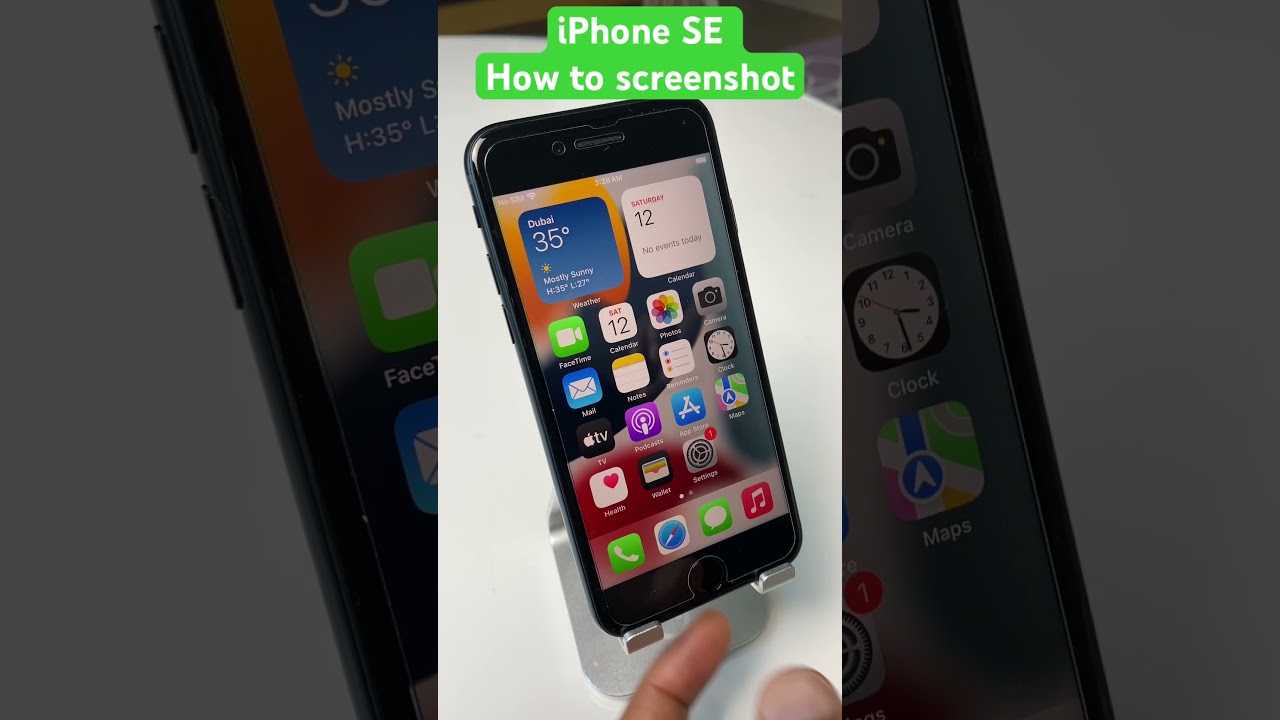
First, locate the app. Look for the apple find my iphone icon on your home screen. It typically looks like a green radar circle on a grey background.
Some users customize their aesthetics. You might be looking for a find my iphone app icon black and white if you have a custom theme, or specifically a black find my icon iphone. Regardless if it is a black and white find my icon iphone or the standard colorful radar, the function is identical.
Setup Instructions:
We provide a simple find my iphone setup guide here:
- Go to Settings > [Your Name].
- Tap Find My.
- Tap Find My iPhone.
- Screenshot Check: Ensure Find My iPhone is toggled ON (Green).
- Crucially, ensure Find My network is toggled ON. This enables the offline finding capability described above.
- Ensure Send Last Location is ON. This automatically sends Apple the device’s location right before the battery dies.
Troubleshooting: When Find My Isn’t Working
Seeing “No Location Found” or other errors can be frustrating. Here are the most common reasons and how to fix them, addressing the find my iphone app not working troubleshooting queries we receive.
Common Problem: “Offline” or “No Location Found”
If you are staring at a blank map, consider these factors:
- Dead Battery: If the device has been dead for days, the location won’t update. Enable “Notify When Found.”
- No Signal: If the device is in a subway or basement with no GPS/Wi-Fi, the location will update once it reconnects.
- Feature Disabled: If Find My was never turned on, you cannot track it.
- Visual Check: If you need a specific visual reference to confirm you are in the right place, look for an apple find my app screenshot iphone online to compare with your screen. We have a dedicated find my iphone app screenshot gallery to help you navigate errors.
Practical Tip: What to do if your iPhone is Stolen
Safety First: Do not try to retrieve a stolen iPhone yourself.
If you track your phone to a strange house or a public area and suspect theft, do not confront the thief. Your safety is more important than a phone.
- Enable Lost Mode immediately.
- Report to Police: Provide them with the device’s location and serial number. You can find the serial number on the original box, your receipt, or by checking your Apple ID device list online.
- Contact Carrier: Call your mobile carrier to disable the SIM card to prevent calls/texts.
Conclusion
Losing an iPhone is stressful, but the Find My app is an incredibly powerful and free tool that gives you control. By understanding its features through these visual guides and ensuring it is set up correctly beforehand, you have the best possible chance of recovering your device. It turns a potential disaster into a manageable problem, offering peace of mind through technology.
At FindMyiPhone.onl, we believe that preparation is key. We hope this guide helps you navigate the find my iphone features visual guide with ease.
Don’t wait. Open your iPhone Settings now, go to Find My, and confirm that “Find My iPhone,” “Find My network,” and “Send Last Location” are all turned on. It is the best 30-second investment you can make for your device’s security.
Note: The information in this article is for reference only. For the best advice, please contact us directly for a specific consultation based on your actual needs.

About This Guide
Published by: FindMyiPhone.onl Editorial Team
Last Updated: January 16, 2026
Tested On: iPhone 15 Pro (iOS 17.5.1), iPhone 13 (iOS 17.4)
This tutorial was created through hands-on testing on real devices. All screenshots are from our testing lab. We update guides within 48 hours of iOS releases.
Questions? Contact our team | Meet the team Editorial Team

![5 Ways To Find My iPhone: App Screenshots & Guide [2026]](https://findmyiphone.onl/wp-content/uploads/2026/01/does-find-my-iphone-have-crash-detection-800x450.jpeg)
![5 Ways To Find My iPhone: App Screenshots & Guide [2026]](https://findmyiphone.onl/wp-content/uploads/2026/01/does-find-my-iphone-drain-battery-800x450.jpeg)
![5 Ways To Find My iPhone: App Screenshots & Guide [2026]](https://findmyiphone.onl/wp-content/uploads/2026/01/does-find-my-iphone-work-on-do-not-disturb-800x450.jpeg)