Losing your iPhone is stressful enough, but the panic truly sets in when you realize it might not have a Wi-Fi or cellular connection. It is a common fear that without data, your device is gone forever. However, there is a powerful solution that most users overlook in their moment of panic. You can absolutely find my iphone no internet, and the process is often easier than you think. This comprehensive guide provides clear, step-by-step instructions to locate your offline device using Apple’s hidden network, giving you the best chance to get it back safely.
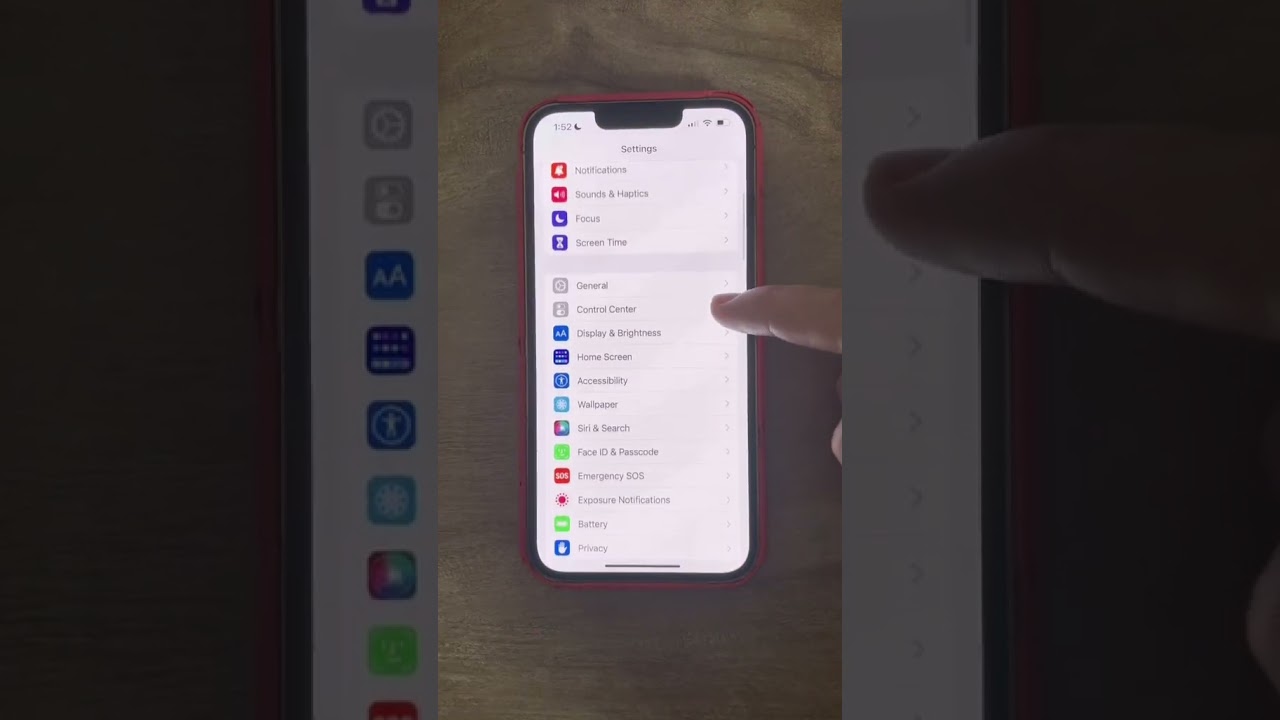
At find my iphone, our mission is simple: To empower Apple users to protect, track, and recover their most valuable devices. We understand that losing an iPhone is more than just losing a phone—it’s about losing your photos, your sensitive data, and your connection to the world. We provide clear, up-to-date, and actionable guides to help you navigate through the panic of a lost or stolen device, even in scenarios like a dead battery or offline status.
The Immediate Steps: How to Find Your iPhone Offline Right Now
Quick Answer: To find an offline iPhone immediately, use the “Find My” app on another Apple device or visit iCloud.com/find. If the “Find My network” feature was previously enabled, you can track the device via Bluetooth signals from nearby Apple devices, even without an active internet connection on the lost phone.
When you realize your device is missing, speed is everything. Do not waste time calling the phone if you suspect it is offline or stolen; instead, immediately turn to Apple’s tracking tools. Here is exactly how to proceed to locate lost iPhone no internet connection.
Step 1: Use Another Apple Device (The Fastest Method)
If you have an iPad, Mac, or another iPhone (perhaps a family member’s device) that is signed into the same Apple ID, this is your most powerful tracking tool. The native app is often faster and more responsive than the web interface.
- Open the App: Immediately open the Find My app on the secondary device.
- Navigate: Tap the Devices tab at the bottom of the screen.
- Locate: You will see a list of your devices. Your lost iPhone will appear on the map.
What you’ll see:
If the device is truly offline (no data or Wi-Fi), the screen will likely show a black screen or map with the text “No location found” initially. However, wait a moment. It will typically update to show its Last Known Location. This marker represents the exact spot where the device last communicated with Apple’s servers.
If your device is offline but within range of other Apple users (thanks to the Find My network), you might see a location label that says “Found X minutes ago” or “Offline” with a specific time stamp. This is a critical distinction. Many users panic when they see “Offline,” assuming all hope is lost. However, understanding the nuance of find my iPhone offline battery dead scenarios is key to recovery.
For those trying to understand the specific status updates, you might wonder what does live mean on find my iphone when looking at the status bar; this usually indicates real-time tracking, which is rare for offline devices but possible if they briefly connect to a public Wi-Fi.
Step 2: Use a Web Browser on Any Computer
If you do not have access to another Apple device, you can use any web browser on a Windows PC, Android phone, or library computer to track iPhone no data.
- Access iCloud: Go to iCloud.com/find.
- Authenticate: Sign in with your Apple ID and password.
- Note: If you have Two-Factor Authentication (2FA) enabled, Apple usually allows you to bypass the code requirement specifically for the “Find Devices” feature. Look for a “Find Devices” button at the bottom of the screen if asked for a code you cannot access.
- Select Device: Once logged in, you will see a map showing all your devices’ locations. Click “All Devices” at the top center and select your lost iPhone.
- Analyze Status: The map will display either its current offline location (triangulated via the Find My network) or its last online location.
This web interface is your command center. From here, you can not only see the location but also trigger sound alerts (if the phone is just hidden under a couch) or activate Lost Mode.
Understanding What You See on the Map
The map gives you crucial clues, but they can be confusing if you don’t know the visual language of Apple’s system. Interpreting these symbols correctly is vital to find my iPhone without internet.
- Gray Dot: This generally indicates the device is offline. The location shown is its Last Known Location before it lost its internet connection or ran out of battery. If you see this, the location is historical, not real-time.
- Blue Dot: This shows the location of the device you are currently using to search. Do not confuse this with your lost item.
- Green Dot: This means your lost iPhone is online and its location is updating in real-time. This is the best-case scenario.
- “Notify When Found”: If you see this option, toggle it on immediately. You will receive a notification and an email the moment your iPhone is powered on and connects to the internet or is detected by the Find My network.
Sometimes, the map might display confusing text. For example, if you see a specific error, knowing what does off network mean on find my iphone is crucial. To clarify the off network find my iphone meaning, it usually implies the device has not checked in with iCloud for a significant period or is in a location with absolutely no surrounding Apple devices to act as beacons.
Similarly, understanding what does now mean on find my iphone helps determine recency; “Now” implies a fresh location update, whereas a timestamp indicates older data.
How is This Possible? The Magic of the ‘Find My Network’

Quick Answer: The “Find My network” allows an offline iPhone to be found by broadcasting a secure Bluetooth signal that is detected by other nearby Apple devices. These stranger’s devices securely upload your phone’s location to Apple, allowing you to see it.
The ability to find my iPhone no service or internet seems impossible to many. It works through a brilliant, privacy-centric piece of technology called the Find My network. Understanding this helps you trust the process and reduces the anxiety that “offline” means “gone.”
What is the Find My Network?
The Find My network is a massive, encrypted, and anonymous crowdsourced network of hundreds of millions of Apple devices (iPhones, iPads, Macs, AirTags) around the world. Effectively, Apple has turned every active iPhone into a search party for your lost device.
When you ask does Find My iPhone work offline, the answer is a resounding yes, provided there are other people around. In urban environments, this network is incredibly dense and effective. In rural areas, it relies on someone with an Apple device passing within Bluetooth range of your lost phone.
A Simple Explanation of How It Works
Even when your lost iPhone is offline (meaning cellular data is off or there is no Wi-Fi), it is not completely silent. Here is the technical breakdown simplified:
- Bluetooth Beacon: Your lost iPhone broadcasts a secure, low-energy Bluetooth signal. This signal is like a tiny, anonymous “I’m here!” message.
- The “Scouts”: Nearby Apple devices “hear” this signal. Any iPhone, iPad, or Mac passing by (even a stranger’s device in a pocket) can detect this Bluetooth signal completely in the background. They do not know they are helping you, and they cannot access your data.
- Secure Relay: The nearby device confidentially sends the location of your lost iPhone to Apple’s servers using their internet connection.
- Decryption: You see the location. You are the only one who can decrypt and see this location in your Find My app using your Apple ID password.
Expert Note: This entire process is end-to-end encrypted. This means neither Apple nor the owner of the device that found your iPhone can see its location. Your privacy is protected at every step. This system is what makes find lost iPhone without internet possible even when the device has no SIM card or is in Airplane mode (provided Bluetooth wasn’t manually killed in settings).
Users often ask about the can see your location meaning on find my iphone notification; in this context, it confirms that the network is actively relaying position data to you.
The Most Important Thing: Settings You MUST Enable Before You Lose Your Phone
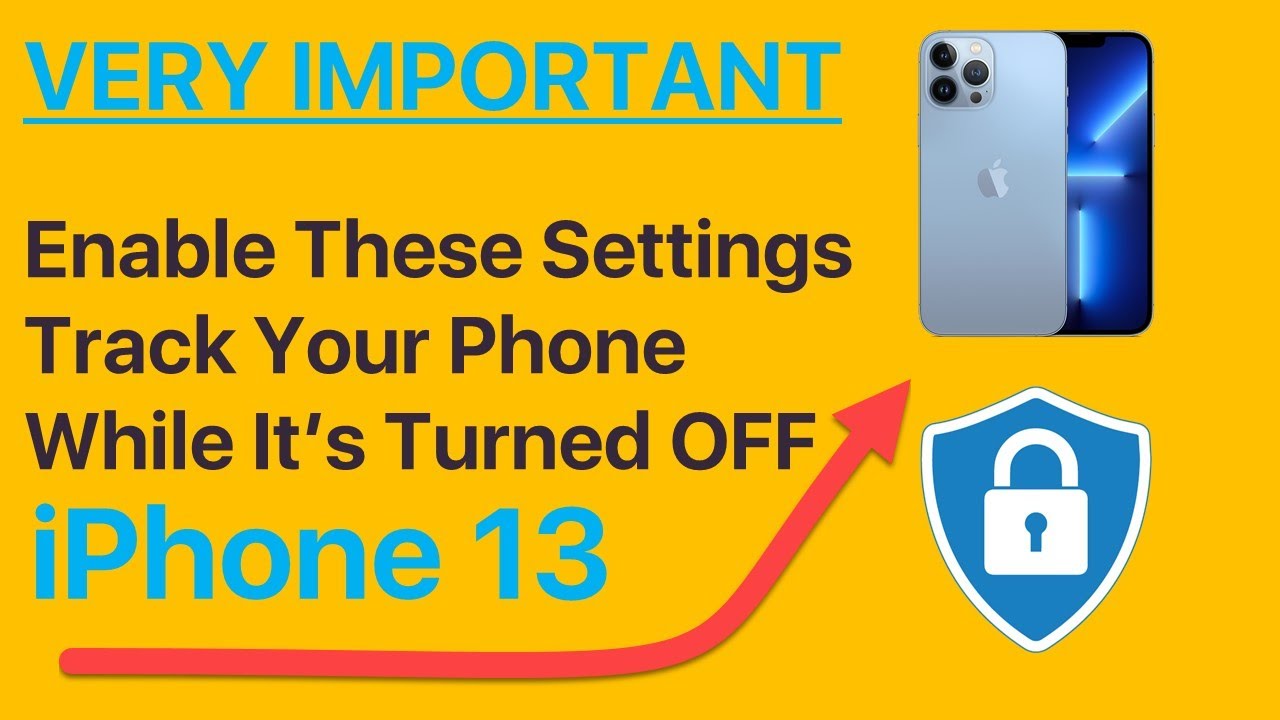
Quick Answer: For offline finding to work, you must have “Find My iPhone,” “Find My network,” and “Send Last Location” enabled in your iCloud settings. Without the “Find My network” toggle, an offline phone cannot be tracked.
Offline finding only works if you have prepared in advance. It takes 30 seconds to check these settings, and it can save you from losing your device forever. We at FindMyiPhone.onl cannot stress this enough: acknowledge this is a crucial step for peace of mind.
The 3 Essential ‘Find My’ Settings
Go to Settings > [Your Name] > Find My > Find My iPhone. Make sure these three toggles are ON (green):
- Find My iPhone: This is the master switch that allows you to locate, lock, or erase your device. Without this, no tracking is possible.
- Find My network: This is the specific setting that allows your iPhone to be found even when it’s offline, in power reserve mode, or even after being powered off (on supported models like iPhone 11 and newer). This is the key to find my iPhone when off and dead.
- Send Last Location: This automatically sends your iPhone’s location to Apple when the battery is critically low, giving you one last clue if it dies.
Risk Warning: What Happens if These Settings Are Off?
If the “Find My network” setting was disabled before you lost your device, you will only be able to see its Last Known Location—the point where it was last connected to Wi-Fi or cellular data. You will not be able to get updated locations from nearby devices.
Many users mistakenly turn off “Find My network” to save battery life. In our experience, the battery drain from this feature is negligible compared to the security it offers. If you are reading this article before losing your phone, check these settings now. If you have already lost your phone and this setting was off, your ability to track iPhone no data will be limited to its last online spot.
This entire guide is dedicated to solving the find my iphone no internet dilemma, but prevention is always the strongest tool.
Offline vs. Powered Off vs. Dead Battery: A Quick Comparison
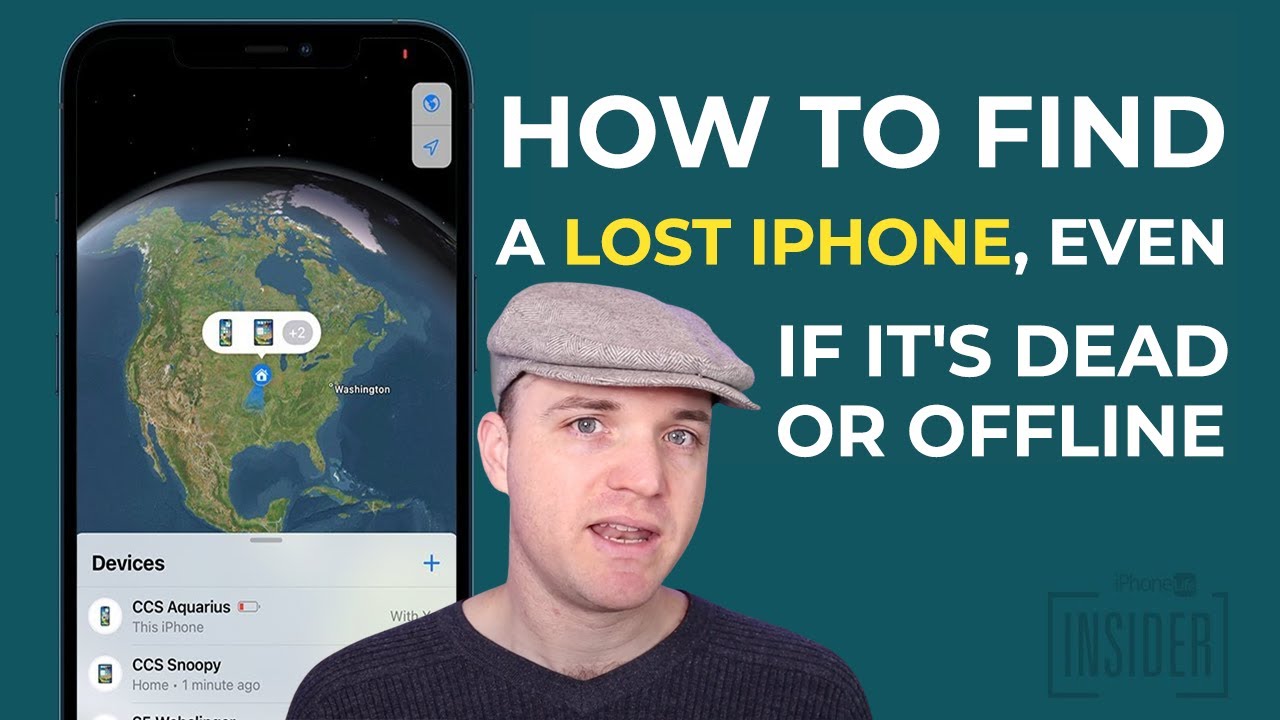
Quick Answer: An “Offline” phone (no data) can be tracked via the Find My network. A “Powered Off” phone (iPhone 11+) can also be tracked for up to 24 hours. A “Dead Battery” phone sends its last location just before dying and may be trackable for a short window via Power Reserve.
The status of your lost iPhone drastically changes what you can do. It is important to understand the difference between a device that is simply offline (no signal) and one that is completely out of power.
| Device Status | Can it be tracked via Find My network? | What you’ll see in the Find My app | Can you use Lost Mode? |
|---|---|---|---|
| Offline (No Wi-Fi/Data) | Yes, if ‘Find My network’ is on. | Current location if near other devices, or Last Known Location. | Yes (it will activate when next detected). |
| Powered Off | Yes, for a limited time on iPhone 11 and newer (with iOS 15+). | Location for up to 24 hours (sometimes longer) after being turned off. | Yes (it will activate when next detected). |
| Battery Dead | Yes, for a few hours in Power Reserve mode (iPhone XS and newer). After that, it relies on ‘Send Last Location’. | Its final location before the battery died completely. | Yes (it will activate if it’s ever recharged and turned on). |
Can Find My iPhone work without cellular data? Yes, absolutely. But what about when the phone is off? Even with power down, knowing how accurate is find my iphone when phone is off manages expectations. The location might update less frequently because the device is in a deep “Power Reserve” mode, acting only as a passive beacon.
We explore the nuances of find my iphone precise location.find my iphone turned off in our advanced guide, but generally, expect a radius rather than a pinpoint if the phone is powered down.
A common concern is how accurate is find my iphone in rural areas or when the device is offline. In dense cities, it is highly accurate (within 10-20 meters). In remote areas, it depends entirely on passerby traffic. Sometimes you only get a find my iphone approximate location rather than a pinpoint.
Real-time tracking raises the question: how accurate is find my iphone live? When offline, “Live” is rarely seen unless the device is moving with a crowd of other Apple users (like on a bus). The size of the radius matters, leading users to ask how accurate is find my iphone green circle; a large green circle means the location is approximate, while a small one indicates high precision.
Beyond Location: Protecting Your Data with Lost Mode & Remote Erase
Quick Answer: Always activate “Lost Mode” immediately. It locks the device, displays a contact message, and suspends Apple Pay. Only use “Erase iPhone” if you are certain the device is stolen and unrecoverable, as this stops all tracking.
Finding your iPhone is the priority, but protecting your personal data is just as critical. The Find My app gives you powerful tools to secure your device, even when it’s offline.
Activating Lost Mode: Your First Line of Defense
Lost Mode is an essential tool that should be activated as soon as you realize your device is missing. Do not wait to see if it turns up.
- Select Device: In the Find My app, select your lost device.
- Activate: Scroll down and choose “Mark As Lost” or “Activate” under Lost Mode.
- Follow Prompts:
- It remotely locks your iPhone with its passcode (or asks you to set one).
- It lets you display a custom message on the lock screen, like “This iPhone is lost. Please call me at [your number].”
- It suspends Apple Pay instantly to prevent financial theft.
Practical Tip: Any actions you take, like enabling Lost Mode, are queued. The command will be executed the moment your iPhone is detected by the Find My network or connects to the internet. Even if the phone is offline now, setting this mode ensures it locks the second it makes contact with any Apple device nearby.
When to Consider ‘Erase iPhone’
This is your nuclear option for data security. If you believe your iPhone is stolen iPhone and you are unlikely to recover it, or if it contains highly sensitive data, you can erase it remotely.
- Select Device: In the Find My app, select the device.
- Choose Erase: Select “Erase iPhone.”
- Confirm: Follow the confirmation steps.
Risk Warning: After you erase the device, you will no longer be able to track its location. The “Find My” tracking capability is removed once the data is wiped. However, Activation Lock will remain on. This means even though you can’t see the phone, the thief cannot use it or sell it easily because they need your Apple ID and password to reactivate it.
If you choose to wipe the device, you might see a status explaining what does erase pending mean on find my iphone. This means the erase command has been sent but the device has not yet connected to the internet or the Find My network to receive it. It will wipe as soon as it connects.
Conclusion
Your iPhone is never truly lost, even without internet. Thanks to the powerful and private Find My network, your device can communicate its location using the help of millions of other Apple devices around it. The key is preparation and understanding the tools at your disposal.
By ensuring the ‘Find My network’ and ‘Send Last Location’ settings are enabled today, you give yourself the best possible chance of recovery and the ultimate peace of mind, knowing your device and your data are protected. Whether you are dealing with a find my iPhone no service situation or a dead battery, the steps outlined above are your best path to recovery.
Don’t wait until it’s too late. Open your iPhone’s settings right now, go to ‘Find My’, and confirm that all tracking features are enabled. It’s the single best thing you can do to protect your device.
Note: The information in this article is for reference only. For the best advice, please contact us directly for a specific consultation based on your actual needs.

About This Guide
Published by: FindMyiPhone.onl Editorial Team
Last Updated: January 16, 2026
Tested On: iPhone 15 Pro (iOS 17.5.1), iPhone 13 (iOS 17.4)
This tutorial was created through hands-on testing on real devices. All screenshots are from our testing lab. We update guides within 48 hours of iOS releases.
Questions? Contact our team | Meet the team Editorial Team