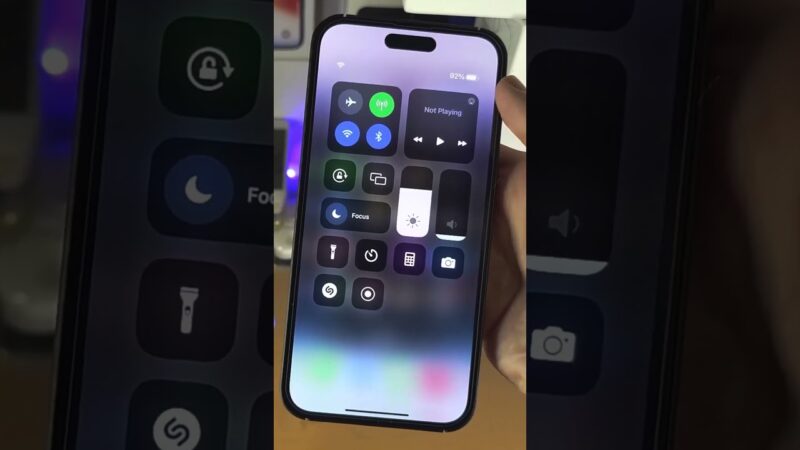
Feeling that jolt of panic when your iPhone is missing? You’re not alone.
Whether it slipped between the couch cushions or was left behind at a coffee shop, the sinking feeling is universal. At find my iphone, we understand that in these moments, every second counts. This guide is your lifeline. We will demystify what find my iphone precise location truly means, showing you how to unlock its full potential to recover your device.
Forget confusing tech jargon; we provide clear, step-by-step instructions to enable pinpoint accuracy, troubleshoot common issues like “location unavailable,” and use advanced features like Precision Finding to guide you directly to your lost device.
The Truth About Find My Location Accuracy: What “Precise” Really Means
Answer: “Precise Location” on Find My refers to the specific permission setting that allows the app to use exact GPS coordinates and Ultra Wideband data, rather than a general approximate radius, to pinpoint a device.
Many users assume that “Find My” always knows exactly where their phone is. However, accuracy varies significantly based on settings and hardware. To understand how accurate is find my iphone location, you must distinguish between the two types of tracking technologies Apple employs.
What Does Precise Location Mean on Find My? The Two Types of Accuracy
Answer: Precise location means the app has permission to use specific coordinate data (GPS/UWB) to locate you within a few feet, whereas “approximate” only identifies the general neighborhood or city.
When you open the Find My app, you are viewing data aggregated from multiple sources. Understanding the difference between a “Standard” fix and “Precision Finding” is key to managing your expectations and strategy during a search.
Type 1: The Standard Location Circle (GPS, Wi-Fi, Cellular)
Answer: The standard location is represented by a blue or green circle on the map, indicating an estimated area where the device is located, with accuracy ranging from 10 to several hundred meters.
On your screen, you see a blue or green circle around your device’s icon on the map. This is the standard location. It represents an estimated area, not an exact spot. The size of the circle indicates the accuracy—a smaller circle means a more confident location fix.
This method uses a combination of three technologies:
- GPS: Most accurate outdoors with a clear line of sight to the sky.
- Wi-Fi Triangulation: Extremely effective in urban areas. It maps known Wi-Fi networks (SSIDs) to determine location, even without connecting to them.
- Cellular Tower Data: The least accurate method, used when GPS and Wi-Fi are unavailable, often providing a radius of several kilometers.
If you are seeing a large circle, you might be dealing with find my iphone approximate location data, which is useful for getting to the general vicinity but not for finding a phone hidden under a car seat. For more details on interpreting these map visuals, you can read our guide on find my iphone approximate location.
Furthermore, the color of the circle matters. If you are wondering how accurate is find my iphone green circle, it generally indicates a live, active connection with good accuracy. For a deep dive into what the colors signify, check out how accurate is find my iphone green circle.
Type 2: Precision Finding (Ultra Wideband Technology)
Answer: Precision Finding is an advanced feature on iPhone 11 and later that uses the U1/U2 Ultra Wideband chip to provide directional arrows and exact distance (in feet or inches) to a nearby device.
For newer iPhones (iPhone 11 and later), you might see an option for “Find Nearby.” This is Precision Finding. Instead of a map, your screen transforms into a compass, showing an arrow and the exact distance to your device (e.g., “15 feet to your right”).
This ultra-accurate feature works like a personal radar, using the U1 or U2 chip in your iPhone to communicate with the lost device over a short range. It is the gold standard for find my device accuracy, allowing you to locate a device wedged between sofa cushions or in a specific coat pocket.
Find My Accuracy Comparison: A Quick Reference Guide
To help you understand the capabilities of your device, we have compiled this comparison table:
| Feature | Technology Used | Typical Accuracy | Best For | Requirements |
|---|---|---|---|---|
| Standard Location | GPS, Wi-Fi, Cellular | 15 ft to 1500 ft (5m to 500m) | Locating a device on a map in a general area (e.g., a building or neighborhood). | Any device with Find My enabled, Location Services On. |
| Precision Finding | Ultra Wideband (UWB) & Bluetooth | Within a few inches/centimeters | Finding a misplaced device in the same room or a very close, known area. | iPhone 11 or newer; both devices must have UWB chips. |
Your Step-by-Step Guide to Enabling and Using Precise Location
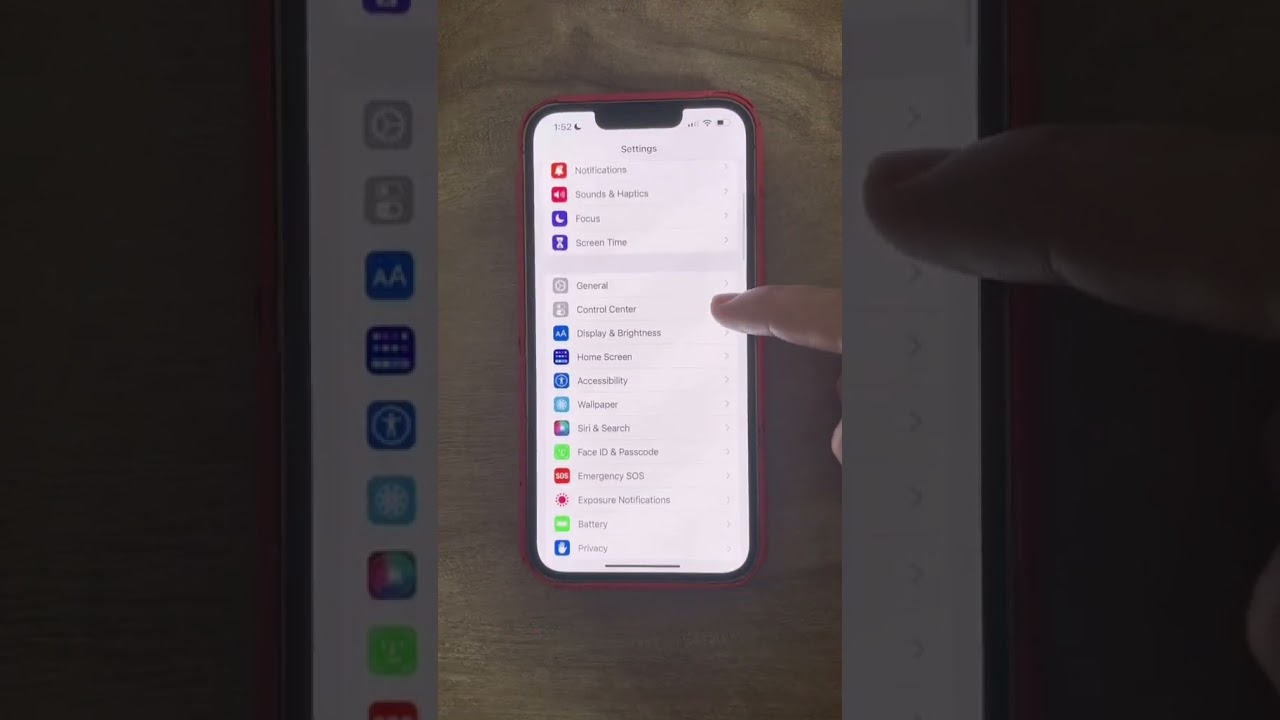
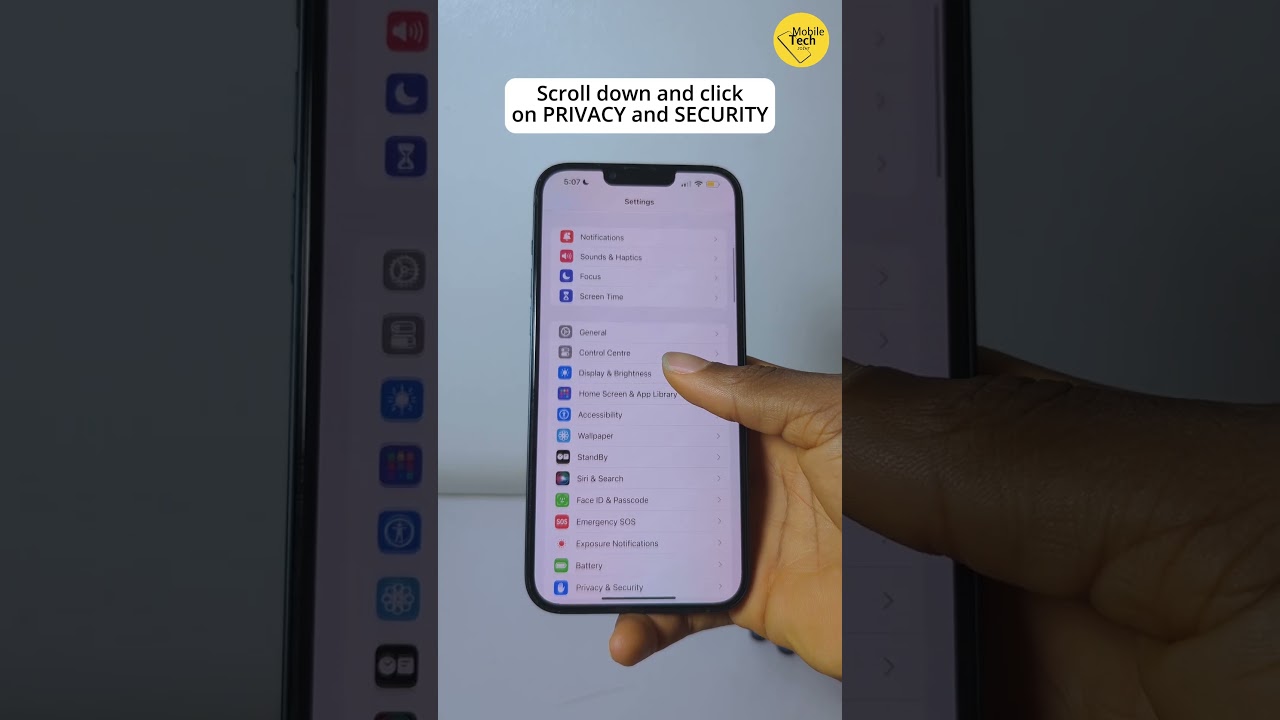
Answer: To enable precise location, navigate to Settings > Privacy & Security > Location Services > Find My, and toggle the “Precise Location” switch to ON (green).
Many users face the issue of find my iphone not showing precise location simply because the feature was inadvertently disabled during setup. At FindMyiPhone.onl, we recommend verifying these settings before you lose your device.
The 5-Minute Setup: How to Enable Precise Location for Find My
Before you can use it, you need to ensure the settings are correct. Follow these simple steps to learn how to enable precise location for find my:
- Go to Settings on your iPhone.
- Tap on Privacy & Security.
- Select Location Services (make sure the main toggle is ON).
- Scroll down and tap on the Find My app.
- Ensure “While Using the App” is selected.
- Crucially, toggle Precise Location to ON (green).
[Expert Note]: For best results, also go back to Location Services, scroll to the bottom, tap System Services, and ensure Find My iPhone is toggled on here as well. This allows the system to use location even when the app isn’t open.
If you are setting up a new device, understanding how to set up find my iphone correctly from day one is your best defense against loss.
How to Use Precision Finding to Track a Lost iPhone’s Exact Location
Answer: Open the Find My app, select your device, tap “Find Nearby,” and follow the on-screen arrow and haptic feedback to locate the device.
If you are trying to track lost iphone exact location and your iPhone is compatible (11 or newer) and nearby:
- Open the Find My app on another Apple device (or use iCloud.com for standard map tracking).
- Tap on the Devices tab and select your lost iPhone.
- If you are close enough (usually within 30 feet), you will see a button that says Find Nearby. Tap it.
- Your screen will change to a green interface. Start walking slowly.
- An arrow will appear, pointing you in the correct direction.
- The screen will display the distance, which will count down as you get closer. Your phone will also vibrate (haptic feedback) as you approach, guiding you visually and physically.
This feature answers the common need for how to use precision finding effectively. It turns a stressful search into a game of “hot and cold.”
How to Get Precise Location on Find My Friends (Family Sharing)
Answer: To see a friend’s precise location, they must share their location with you via the Find My app and have “Precise Location” enabled in their own privacy settings.
The process is nearly identical to finding a device, but privacy permissions are paramount. If you are wondering how to get precise location on find my friends, the person you want to find must have:
- Shared their location with you indefinitely or for a set time.
- Enabled Precise Location for the Find My app in their own Privacy & Security settings.
When you view their location in the People tab of the Find My app, the accuracy will depend entirely on their device’s settings and environment. If they have disabled this setting, you will only see a general radius, and you may encounter a find my friend precise location issue where the dot jumps around.
Troubleshooting: Why Is Find My iPhone Not Precise or Unavailable?
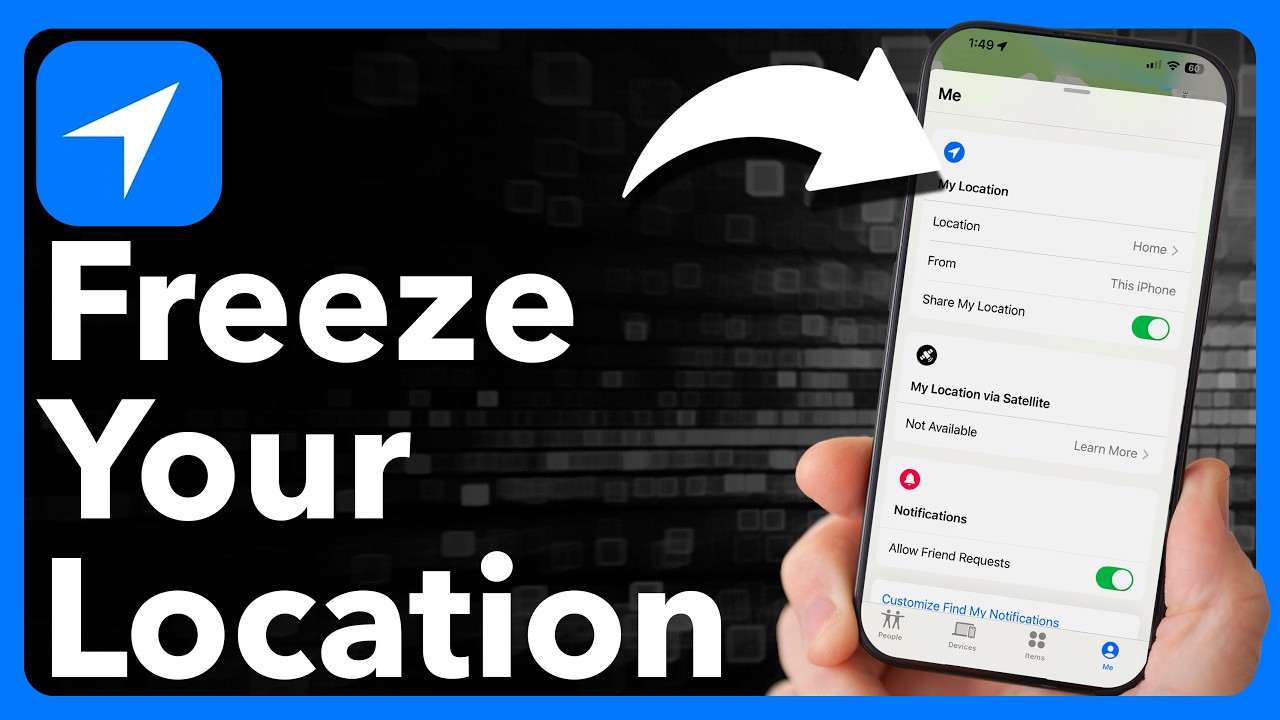
Answer: “Precise Location Unavailable” typically occurs due to signal interference, the device being too far away for UWB connection, outdated iOS, or the setting being disabled on the target device.
There is nothing more frustrating than seeing the error message find my iphone precise location unavailable. Through our experience supporting users, we have identified the most common causes.
Decoding the “Precise Location Unavailable” Error
If you see this message, it usually means one of the following:
- You’re too far away: Precision Finding only works at close range (roughly 60 feet or 20 meters). Move closer to the device’s last known location on the map first.
- Device Incompatibility: You are trying to find an older iPhone (iPhone XS or earlier) or another device that does not have an Ultra Wideband chip.
- Settings are Off: The “Precise Location” toggle is disabled on the lost device.
- Poor Signal: The device is in a location with weak GPS, Wi-Fi, and cellular signals, preventing even a standard location fix. If you suspect connectivity issues, read our guide on find my iphone no internet.
- Interference: Thick walls or heavy metal objects can block the UWB and Bluetooth signals needed for Precision Finding.
Sometimes, users encounter specific error scenarios. For example, you might be searching for specific fixes like find my iphone precise location.find my iphone turned off, which refers to complex situations where the phone is both powered down and settings are misconfigured.
7 Actionable Tips to Improve Find My iPhone Accuracy
Answer: To improve accuracy, enable Wi-Fi and Bluetooth, ensure a clear view of the sky, update iOS, and restart the app to refresh the GPS data.
If the location circle is too large or seems wrong, and you are asking how to make find my iphone more accurate, try these steps:
- Enable Wi-Fi and Bluetooth: Even if not connected to a network, having Wi-Fi on allows the iPhone to scan for nearby routers (Wi-Fi triangulation), drastically improving accuracy indoors.
- Ensure a Clear View of the Sky: GPS works best with an unobstructed line of sight to satellites. Tall buildings can cause “multipath” errors.
- Update iOS: Apple regularly improves location services with software updates.
- Check Location Services: Double-check that all the settings mentioned in the setup section are enabled.
- Allow Time to Update: When you first open the app, the location may be stale. Give it 30-60 seconds to get a fresh, more accurate fix.
- Restart the Lost Device (If Possible): A simple restart can sometimes resolve software glitches affecting location services.
- Check Your Network Connection: A strong Wi-Fi or cellular data connection allows the device to upload its location faster and more reliably.
For a comprehensive breakdown of accuracy factors, we recommend reading how accurate is find my iphone.
What if the iPhone is Off or Offline?
Answer: The “Find My Network” allows an offline or dead iPhone (iPhone 11+) to be tracked by sending out a secure Bluetooth signal that is picked up and relayed by other nearby Apple devices.
This is one of the most common questions we receive: does find my iphone work if phone is off? Thanks to the Find My network, the answer is often yes.
Here’s how it works: even when your iPhone is off or has a dead battery (on newer models), it enters a low-power state and periodically sends out a secure Bluetooth signal. This signal is picked up by any nearby Apple device (iPhones, iPads, Macs), which then securely and anonymously relays the location back to you.
However, users often wonder about the reliability in this state. To understand the nuances, check out how accurate is find my iphone when phone is off.
This feature also raises questions about settings. Can i find my iphone if location services are off? Generally, if the main Location Services toggle is off, you cannot track it. However, if you enabled the “Find My Network” feature specifically, some tracking capabilities remain.
You might see status messages like “Off Network.” To understand what this implies for your search, read what does off network mean on find my iphone. If you are confused by the terminology, our definition guide on off network find my iphone meaning will clarify the situation.
Beyond the Basics: Understanding Limitations and Privacy
Answer: Find My iPhone balances precision with privacy; it generally does not store location history and notifies users if they are being tracked by unknown devices.
While find my iphone precise location is powerful, it has limitations designed to protect user privacy.
Can Find My iPhone Show an Exact Street Address?
Answer: Find My shows an estimated address based on GPS coordinates, but the map pin is always more accurate than the written address.
Users frequently ask: can find my iphone show exact address? Yes, but with a caveat. Find My gets GPS coordinates and then uses Apple Maps to translate those coordinates into a street address.
In a dense city, it can be incredibly accurate. In a suburban or rural area, it might give the address for a large property or the nearest main road. Think of the address as a very strong clue, but trust the pin on the map more. If you see a message about visibility, you might want to understand can see your location meaning on find my iphone.
Find My Location History: Does Apple Keep a Record?
Answer: No, Find My does not show a breadcrumb trail of history; it only displays the real-time or last known location of the device.
Unlike some competitor services, find my iphone location history is not a feature accessible to the user for tracking past movements of a lost device. It is designed to show you only the most recent location it has reported.
However, you may see different status labels regarding the timing of the location.
- Live: This means the device is moving and reporting in real-time. For a full explanation, read what does live mean on find my iphone.
- Now: This indicates the location was just updated. Learn more at what does now mean on find my iphone.
If you are tracking a moving device, you might wonder about the latency. We have a specific analysis on how accurate is find my iphone live to help you understand the delay.
[Risk Warning] Security and Privacy: Can Someone Know You Are Tracking Them?
Answer: When tracking your own devices, no notification is sent; however, anti-stalking features will alert users if an unknown AirTag or accessory is moving with them.
It’s important to understand the distinction between tracking devices and people.
- Your Devices: You can track your own devices linked to your Apple ID without any notification being sent. They are your property.
- AirTags: If an unknown AirTag is moving with you, Apple will notify you to prevent malicious tracking.
- Remote Wipe: If you decide the device is unrecoverable, you may choose to erase it. You might encounter the status “Erase Pending.” To understand what this means and when the data is actually gone, read what does erase pending mean on find my iphone.
Conclusion
Mastering the find my iphone precise location feature transforms a moment of panic into a manageable task. The key is understanding the difference between the general location circle and the pinpoint accuracy of Precision Finding. By ensuring your settings are correctly configured and knowing how to troubleshoot common issues like why is find my iphone not precise, you leverage a powerful network designed to reunite you with your valuable devices.
At FindMyiPhone.onl, our mission is to empower you with this knowledge. While no technology is perfect, Apple’s Find My system gives you the best possible chance of a successful recovery.
Don’t wait until it’s too late. Take 60 seconds right now to open your iPhone’s settings, verify that Precise Location is enabled for Find My, and share your location with a trusted family member. A minute of preparation today can save you hours of stress tomorrow.
Note: The information in this article is for reference only. For the best advice, please contact us directly for a specific consultation based on your actual needs.

About This Guide
Published by: FindMyiPhone.onl Editorial Team
Last Updated: January 16, 2026
Tested On: iPhone 15 Pro (iOS 17.5.1), iPhone 13 (iOS 17.4)
This tutorial was created through hands-on testing on real devices. All screenshots are from our testing lab. We update guides within 48 hours of iOS releases.
Questions? Contact our team | Meet the team Editorial Team