Verifying your device’s Unique Device Identifier (UDID) is a common, yet often misunderstood, requirement for app development and beta testing. If you need to answer the question of how to find my iphone udid, it is important to understand what this identifier is and the official, safe methods to retrieve it. Unlike the Serial Number or IMEI, this identifier is not visible in your iPhone’s settings for security reasons. This guide provides a clear, fact-based explanation of what a UDID is, what it verifies, and the exact steps to locate it using Apple’s official tools.
The Quick Answer: How to Get Your iPhone’s UDID
Yes, you can find your UDID, but it requires connecting your iPhone to a computer (Mac or Windows).
The UDID is a unique 40-character hexadecimal string that Apple uses to associate a specific device with a developer account for testing purposes. It serves as a permanent, immutable hardware signature.
For security and privacy, Apple does not allow you to see the UDID directly on the iPhone itself in the standard Settings menu. To retrieve it safely, you must interface with the device via a wired connection or a specialized configuration profile.
The Official Methods for Finding Your UDID
At findmyiphone, we always recommend using official Apple software to retrieve sensitive device information. This ensures accuracy and protects your device from potential security risks associated with third-party web tools.
On a Mac (macOS Catalina 10.15 and later) using Finder
If you are using a modern Mac running macOS Catalina, Big Sur, Monterey, Ventura, or Sonoma, iTunes has been replaced by Finder for device management.
Steps to retrieve the UDID via Finder:
- Connect your iPhone: Use a USB or USB-C Lightning cable to connect your device to your Mac.
- Unlock your device: If prompted, unlock your iPhone and tap “Trust This Computer.”
- Open Finder: Click the Finder icon in your dock.
- Locate your device: In the Finder sidebar, look under the “Locations” section and click on your iPhone’s name.
- Find the Info Header: Look at the top of the window where your device name and storage capacity are displayed. You will see a line showing the battery level and device type (e.g., “iPhone 14 Pro” or “iPhone 13”).
- Reveal the UDID: Click on the text that says the device model (e.g., “iPhone 13”). The text will cycle through different identifiers.
- First click: Shows Serial Number.
- Second click: Shows UDID, EID, and IMEI.
- Copy the UDID: Right-click (or Control-click) on the UDID string and select “Copy UDID.”
This is the most reliable method for those asking how to find udid on mac.
On a PC (or Mac with macOS Mojave 10.14 and earlier) using iTunes
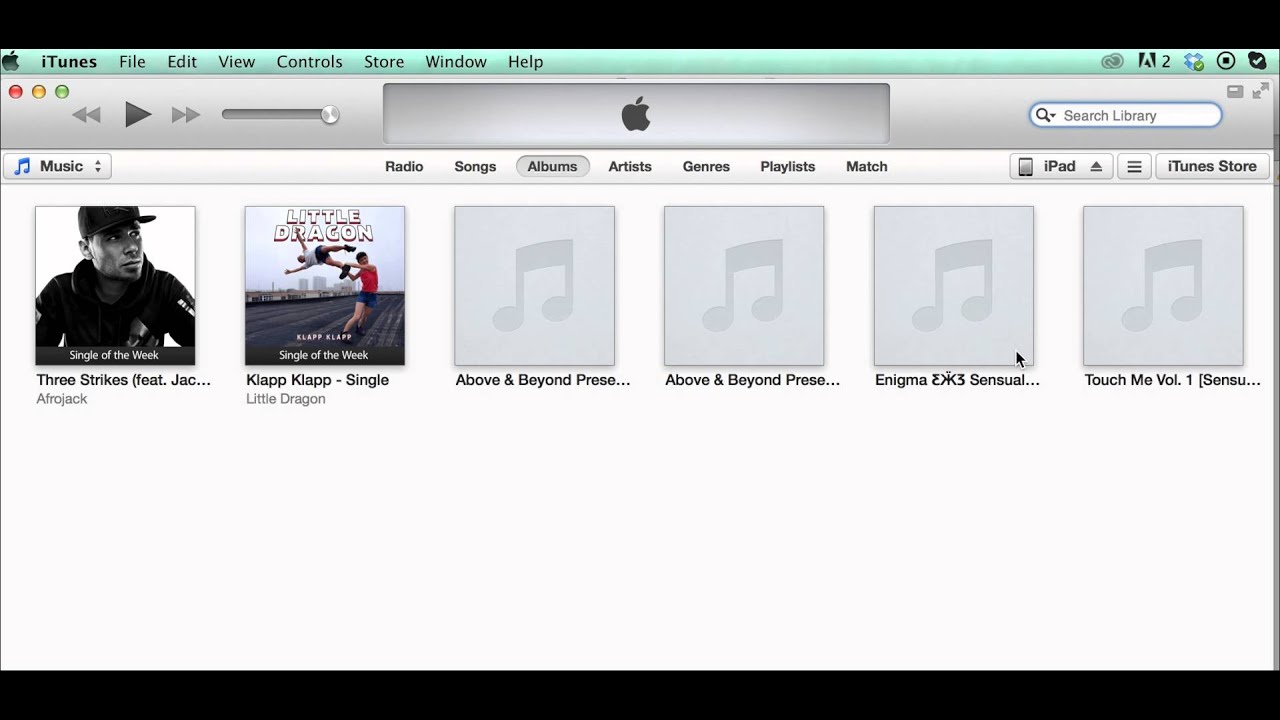
For Windows users or those on older macOS versions, iTunes remains the primary tool for device management.
Steps to retrieve the UDID via iTunes:
- Launch iTunes: Open the application on your computer.
- Connect your iPhone: Plug your device into the computer.
- Select your Device: Click the small iPhone icon that appears in the top-left corner of the iTunes window.
- Go to Summary: Click on the “Summary” tab in the left sidebar.
- Locate the Serial Number: In the main window, you will see your phone number and Serial Number.
- Reveal the UDID: Click directly on the “Serial Number” text. Just like in Finder, this field is interactive. It will cycle to display the UDID (Unique Device Identifier).
- Copy the Identifier: You can now copy this long string of characters (usually 40 characters for older devices, or 24 characters with a hyphen for newer devices like iPhone XS and later).
This method answers the common query of how to find udid on windows effectively.
The “No Computer” Method: Using a Configuration Profile
We understand that you may not always have access to a computer. Users often search for find udid without computer or how to get udid from iphone directly. While possible, this method requires caution.
How this method works by installing a temporary profile:
To get the UDID without a computer, you must install a “Mobile Configuration Profile” from a website. This profile queries the device for its identity and reports it back to the website.
- Navigate to a trusted UDID finder website (e.g., a specific beta profile provider you are already working with).
- Tap the button to “Get UDID.”
- Allow the website to download a configuration profile.
- Go to Settings > General > VPN & Device Management (or “Profile Downloaded”).
- Install the temporary profile.
- The device will redirect you back to the website, displaying your UDID.
Security Warning: Only use this method with links from fully trusted sources like a known developer or company. Installing a profile gives a third party access to query your device information. Never install profiles from unknown “free check” sites that look suspicious.
What a UDID Check Actually Verifies
It is critical to distinguish between what a UDID is used for and what other identifiers do. At FindMyiPhone.onl, we frequently see confusion between UDID, IMEI, and Serial Numbers.
What a UDID Confirms
- ✓ A specific, unique hardware device for registration: The UDID is primarily used to whitelist a specific device within the Apple Developer Program. This allows the device to run code that hasn’t been signed for the general public (App Store).
- ✓ Beta Program Eligibility: It confirms that this specific physical unit is authorized to install a specific beta profile or ad-hoc application.
What a UDID Does NOT Confirm
- ✗ It does not confirm ownership: Having a UDID does not prove you own the phone.
- ✗ It does not check iCloud status: A UDID check will not tell you if the device is locked. To verify that status, you should check if find my iphone is on.
- ✗ It does not locate the device: You cannot track a lost phone using a UDID.
UDID vs. IMEI vs. Serial Number: Understanding the Difference
To clarify the technical landscape, here is how the identifiers differ:
| Feature | UDID (Unique Device Identifier) | IMEI (International Mobile Equipment Identity) | Serial Number |
|---|---|---|---|
| Primary Use | Software Development & Beta Testing | Cellular Network Identification | Warranty & Apple Support |
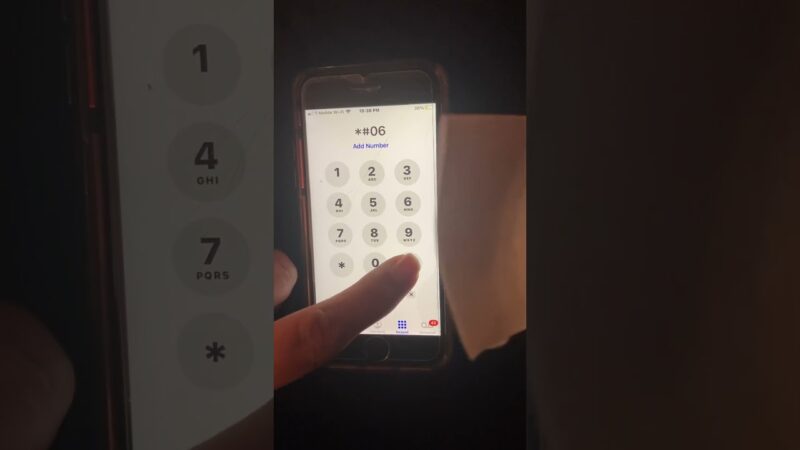
| Visibility | Hidden (Requires Computer/Profile) | Visible in Settings & Dialing *#06# | Visible in Settings & on Box |
| Changeable? | No (Permanent Hardware ID) | No (Permanent Hardware ID) | No |
| Used for Tracking? | No | Yes (by Police/Carriers) | No |
| Used for Unlock? | No | Yes (Carrier Unlock) | No |
Detailed Breakdown:
- UDID: Strictly for how to get udid for app development and internal Apple provisioning.
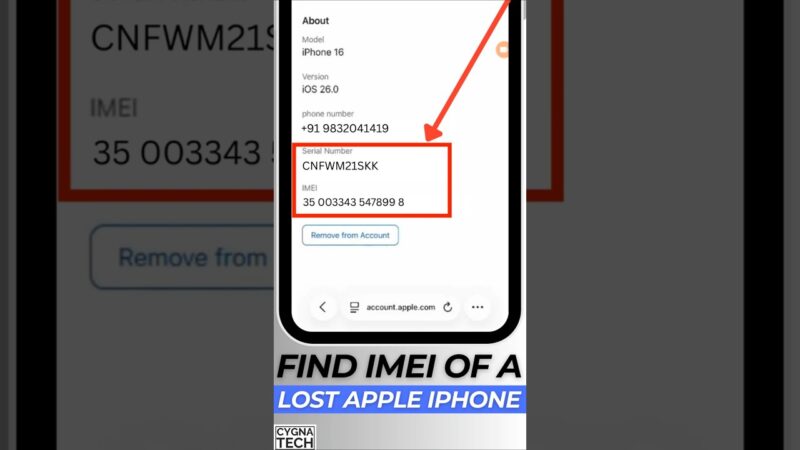
- IMEI: This is the fingerprint of your device on the cellular network. If your device is lost, you would use this number. While UDID is for devs, users often ask how to find my iphone by imei for tracking or reporting theft.
- Serial Number: Used for warranty checks. For standard support, you usually need to find my iphone imei/serial number.
Why Do You Need to Find a UDID?
The search intent for check iphone udid is almost exclusively technical. Regular users rarely need this code unless they are participating in a specific program.
Primary Use Case: App Development and Testing
If you are a developer or working with one, you need to register the device on the Apple Developer Account. This process creates a “Provisioning Profile” that includes the UDID. Without this, an iPhone will refuse to install an app that isn’t from the App Store. This is the core answer to how to get udid for app development.
Secondary Use Case: Installing Beta Software
Enrolling your device in a closed beta program (e.g., testing a new version of iOS before public release) often requires UDID registration. If you are looking for a udid finder iphone tool, it is likely because a beta portal is asking for this string to whitelist your device for an Over-The-Air (OTA) update.
Other Use Case: Enterprise App Deployment
Large companies use enterprise apps to distribute custom, in-house applications to employee devices. These applications are not listed on the App Store. To ensure these apps only run on company-owned devices, the IT department uses mobile provisioning files that validate the device’s UDID.
What Finding Your UDID Is NOT
At FindMyiPhone.onl, we aim to prevent scams and misunderstandings. Many users search for identifiers hoping to unlock features or find lost phones.
It is NOT a method to track a lost or stolen iPhone
The UDID has no geographical tracking capabilities. It is a static identifier. It does not communicate with Apple’s “Find My” servers for location data.
It is NOT a tool to bypass iCloud Activation Lock
There is a persistent myth that having your UDID can help you “hack” or bypass the Activation Lock on a used iPhone. This is false. UDID cannot bypass security. If you are stuck, learn about find my iphone activation lock to understand the actual mechanisms involved.
It is NOT a way to check if a device is hacked or compromised
The UDID is just a serial string; it does not contain diagnostic data about the system’s health. It does not confirm if the find my iphone on icloud status clean..
It is NOT a substitute for the IMEI when reporting a device as stolen
If you are reporting a theft to your carrier, they will ask for the IMEI, not the UDID. You can also check if find my iphone is on using imei to see the current activation status of a device using that specific identifier.
Risks and Important Warnings
While finding the UDID is generally safe, the method you use matters.
Be Cautious with Third-Party UDID Finder Services
As mentioned regarding the “No Computer” method, many websites offer to find your UDID instantly.
- The Risk: To get the ID, you must install a profile. A malicious profile could potentially change your APN settings, redirect web traffic, or install a root certificate that allows traffic interception.
- Our Advice: Always use Finder or iTunes if possible. If you must use a web tool, ensure it is from the specific developer you are working with.
Who Should You Share Your UDID With?
Only provide your UDID to developers or companies you explicitly trust. While the UDID itself doesn’t expose personal data (like photos or messages), it is a key that allows a developer to install software on your device that hasn’t been vetted by Apple’s App Store review process.
Confusion with Other Network Identifiers
Sometimes, advanced users confuse the UDID with network addresses.
- If you need to filter devices on a Wi-Fi network, you do not need the UDID; you need to know how to find my iphone mac address.
- If you are troubleshooting network connectivity, you might need to know how to find my iphone ip address.
These are distinct from the unique device identifier used for provisioning.
Detailed Troubleshooting: When You Can’t Find the UDID
Sometimes, even when following the steps for how to find my iphone udid, things don’t go smoothly. Here is a troubleshooting guide based on our experience.
Device Not Showing in Finder or iTunes
- Check the Cable: Faulty cables are the #1 cause of connection issues. Ensure you are using an MFi-certified cable.
- Trust the Computer: If you accidentally tapped “Don’t Trust” on the iPhone pop-up, you must reset your Location & Privacy settings (Settings > General > Transfer or Reset iPhone > Reset > Reset Location & Privacy) to get the prompt again.
- Update Software: Ensure your macOS or iTunes version is up to date. Older versions of iTunes may not recognize newer iPhone models (like iPhone 14 or 15).
“Copy UDID” Option Missing
If you cannot right-click to copy:
- Mac: Ensure you are clicking exactly on the text string (Serial Number/UDID). Try clicking it once to cycle through the options before right-clicking.
- Windows: In some older iTunes versions, you can press
Ctrl + Cwhile the UDID is displayed to copy it, even if a context menu doesn’t appear.
Frequently Asked Questions (FAQ)
Q: Can I find my UDID if my iPhone is locked or disabled?
A: Yes, usually. If the device can still enter “Recovery Mode” and be recognized by iTunes or Finder, you can click on the Serial Number field in the recovery screen to reveal the UDID. However, users often wonder is find my iphone on by default in these scenarios, as that determines if the device is Activation Locked.
Q: Does the UDID change if I reset my iPhone?
A: No. The UDID is a permanent hardware identifier. It survives factory resets, iOS updates, and restores. It is tied to the physical logic board of the device.
Q: Is the UDID the same as the UUID?
A: No. A UUID (Universally Unique Identifier) is a standard software identifier that can be generated for apps. Apple limits developers from seeing the permanent UDID within apps for privacy, so apps often generate a temporary UUID to identify a user. The UDID we are discussing here is the hardware-level ID used for device registration.
Conclusion
Finding your iPhone’s UDID is a straightforward process when using Apple’s official software, Finder on a Mac or iTunes on a PC. Whether you are searching for how to find my iphone udid for app development, beta testing, or enterprise deployment, the safest route is always a wired connection to a trusted computer.
Remember that this identifier is distinct from your IMEI or Serial Number and serves a very specific purpose: Device Identification for software provisioning. It is not a tool for recovery or security bypassing. Always exercise caution if using third-party services to retrieve it and only share it with trusted parties.
At FindMyiPhone.onl, we are committed to helping you understand your device’s status and technical details safely. If you are ever unsure about the safety of a verification method, stick to the official steps outlined above.
To safely find your UDID, connect your iPhone to your computer and follow the steps for Finder or iTunes outlined above. Avoid untrusted websites offering instant UDID checks. For official developer purposes, refer to Apple’s Developer portal for guidance on device registration.
Note: The information in this article is for reference only. For the best advice, please contact us directly for a specific consultation based on your actual needs.

About This Guide
Published by: FindMyiPhone.onl Editorial Team
Last Updated: January 16, 2026
Tested On: iPhone 15 Pro (iOS 17.5.1), iPhone 13 (iOS 17.4)
This tutorial was created through hands-on testing on real devices. All screenshots are from our testing lab. We update guides within 48 hours of iOS releases.
Questions? Contact our team | Meet the team Editorial Team