Wondering how to check if Find My iPhone is on? This verification is crucial for confirming a device’s security and Activation Lock status, especially before buying a used phone or after selling an iPhone. This guide provides the definitive answer, explaining what can and cannot be checked directly from official sources, what the results mean for your device’s safety, and how to avoid common scams. At findmyiphone, we will give you clear, fact-based answers to verify your device’s status and protect your digital life.
The Quick Answer & Core Verification Methods
TL;DR: Can You Check if Find My is On?
Yes, but definitively only if you have physical access to the device or the Apple ID credentials.
There is no longer a public, official Apple tool that allows you to enter a serial number to check this status remotely without logging in. However, understanding is find my iphone on by default helps users realize that unless manually disabled, this critical security feature is likely active on modern iOS devices.
Method 1: On the Device Itself (If You Have Physical Access)
The most reliable verification method is checking the Settings menu directly on the iPhone.
If you hold the device in your hand, verifying the status is straightforward and takes seconds. This is the primary method we recommend for anyone purchasing a used device in person.
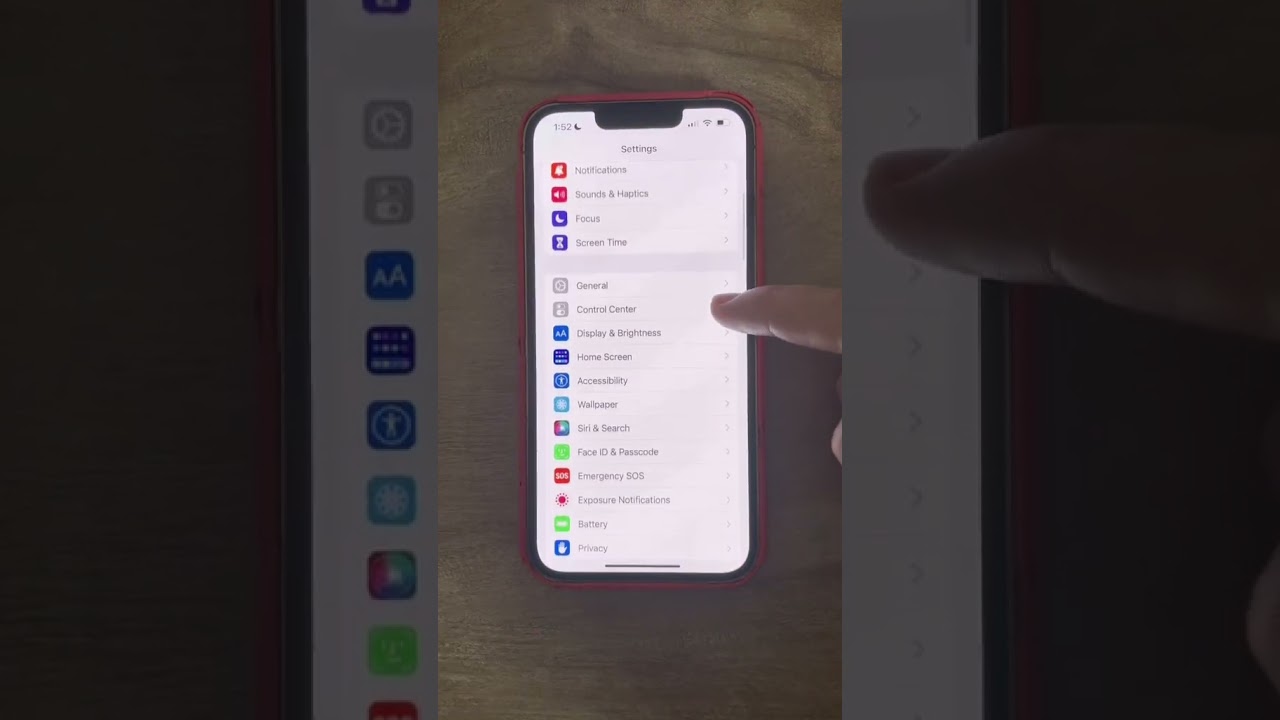
- Open Settings: Unlock the iPhone and tap on the “Settings” app.
- Tap Your Name: Click on the Apple ID banner at the very top of the list.
- Select “Find My”: Look for the “Find My” icon and tap it.
- Verify the Status: Look at the text next to “Find My iPhone”. It should say “On”.
Expert Note: Inside this menu, ensure that “Find My network” is also enabled. This feature allows the device to be located even if it is offline or powered down, utilizing the vast network of other Apple devices nearby. If you are troubleshooting why is find my iphone not working, this specific toggle is often the culprit.
Method 2: Remotely via iCloud.com (If You Own the Device)
You can confirm the feature is active by seeing if the device appears on the iCloud map.
If you do not have the phone in your hand—perhaps it is lost or you left it at work—you can check its status via a browser. This method confirms not only that the setting is on, but that the device is communicating with Apple’s servers.
- Visit iCloud: Go to iCloud.com/find via any web browser.
- Log In: Enter your Apple ID and password.
- Check the Device List: Click on “All Devices” at the top of the screen.
- Analyze the Result:
- If the device appears in the list: Find My iPhone is ON.
- If the device does not appear: Find My iPhone is likely OFF, or the device has been removed from the account.
This is the standard procedure for how to check find my iphone status remotely. It is the only way to confirm the operational status of the feature without holding the phone.
Method 3: For a Family Member’s Device (Using Family Sharing)
Family organizers can verify the status of linked devices directly from their own iPhone.
If you utilize Family Sharing, you do not need the other person’s password to see if their location features are active. This is essential for parents wanting to check find my iphone family sharing settings.
- Open the “Find My” app on your (the organizer’s) device.
- Tap on the “Devices” tab.
- Look for the family member’s device name.
- If you see a location (or “No Location Found” but the device is listed), the feature is ON.
- If the device says “Location Not Shared” or is missing, the feature may be disabled or sharing permissions are revoked.
What This Status Check Actually Means for Your Security
The Connection Between “Find My” and “Activation Lock”
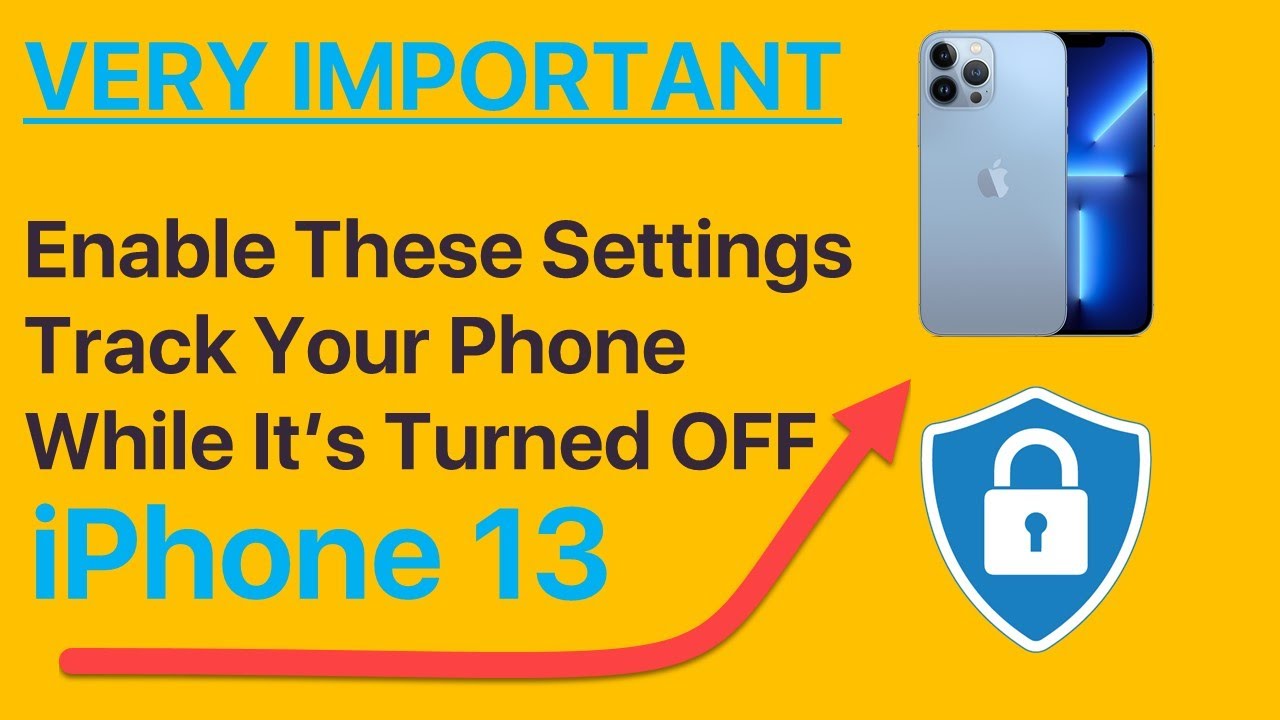
If “Find My iPhone” is ON, then “Activation Lock” is automatically ON.
This is the most critical concept to understand. Activation Lock is the security feature that prevents anyone else from using your iPhone if it is lost or stolen. It ties the device’s hardware identifier to your Apple ID. When you search for find my iphone activation lock, you are essentially asking about the theft-deterrent system that renders a stolen iPhone useless to thieves.
- For Sellers: You cannot sell the device until you turn this off.
- For Buyers: You cannot use the device if the previous owner left this on.
What You CAN Verify vs. What You CANNOT Verify
Understanding the limitations of verification tools prevents false hope and scams.
At FindMyiPhone.onl, we often see users confused about what data is accessible. Here is a breakdown of what is technically possible:
| Feature | Can You Check It? | Notes |
|---|---|---|
| Is Find My Enabled? | YES | Via Settings or iCloud login. |
| Activation Lock Status | YES | By attempting to activate the device. |
| Real-time Location | YES | Only if you are the owner or Family member. |
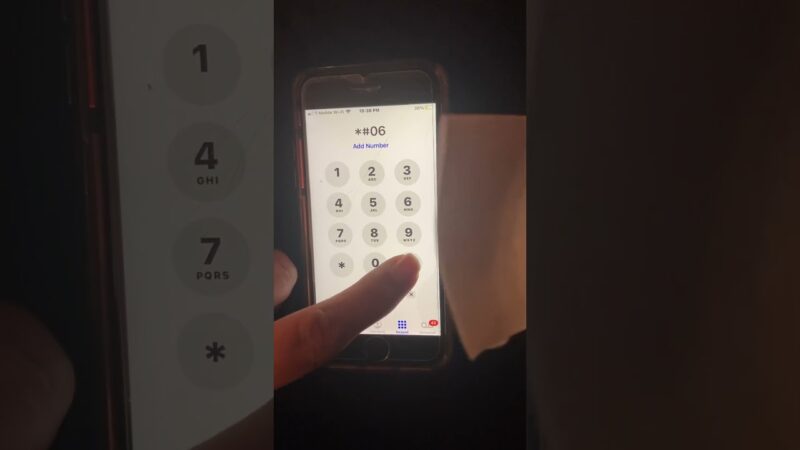
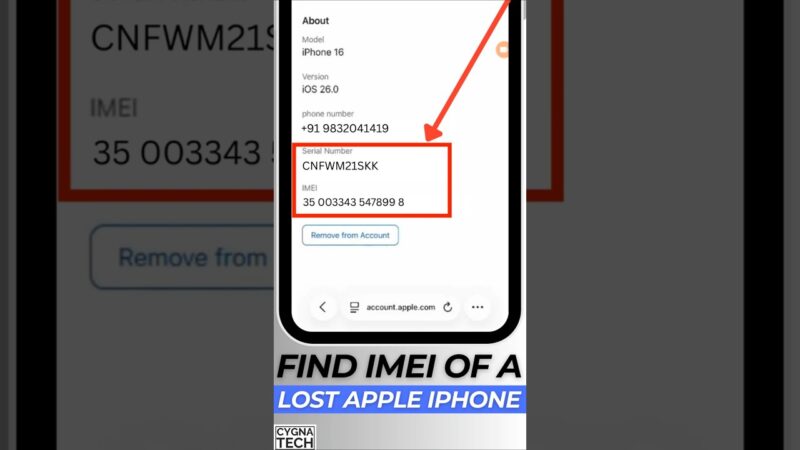
| Location via IMEI | NO | check if find my iphone is on using imei is not possible for the public. |
| Previous Owner’s Name | NO | Apple protects this privacy strictly. |
| Bypass Possibility | NO | There is no check to see if a lock can be “bypassed.” |
Clarifying Common Misunderstandings About Find My Status
“Find My iPhone is On” does not necessarily mean the device is currently online.
A common query we receive is how to know if find my iphone is on when the battery is dead.
- Status ON: Means the permission and security lock are active.
- Device Online: Means the phone has an internet connection (Wi-Fi or Cellular) or is connecting to the Find My network via Bluetooth.
You can have “Find My iPhone” turned ON (securing the device) even if the phone is currently displayed as “Offline” on the map. The security lock remains active regardless of the connection status.
Common Reasons for Checking the Find My Status
Scenario 1: Buying or Selling a Used iPhone
Verifying this status is the single most important step in the second-hand market.
When purchasing a used device, you are looking for a “Clean” status. This means the device is not reported lost and is not linked to another account. Buyers often look for confirmation that the find my iphone on icloud status clean. to ensure they aren’t buying a paperweight.
- Buyer’s Goal: Confirm status is OFF (so you can set it up).
- Seller’s Goal: Confirm status is OFF (so the buyer doesn’t return it).
Scenario 2: Confirming Security After a Device is Lost or Stolen
You check the status to ensure your data is protected and recovery is possible.
If your device goes missing, your immediate panic often leads to searching check if find my device is on. You need to know if:
- You can track it via GPS.
- You can engage “Lost Mode” to display a contact message.
- You can remotely erase the device if recovery fails.
If the status was never enabled, these remote security features are impossible to use.
Scenario 3: Performing a Routine Security Audit on Your Devices
Proactive users check to ensure an update or repair hasn’t disabled the feature.
Sometimes, after a major iOS update or a repair shop visit, settings can revert or be toggled inadvertently. Checking your find my iphone settings is a good digital hygiene practice. We recommend doing this:
- After every major iOS update.
- After getting a phone back from a repair service.
- When lending a device to a child or employee.
Scenario 4: Managing a Family Member’s Device Security
Ensuring the safety of children or elderly relatives requires active monitoring.
For parents, the question isn’t just “is it on,” but “is it working correctly?” You might need to troubleshoot why is find my iphone not working on a child’s phone if they have accidentally disabled location services or signed out of iCloud. Regular verification ensures that in an emergency, the family member can be located.
What This Verification Check Is NOT: Debunking Myths
This Is NOT a Method to Track a Device via IMEI or Serial Number
You cannot type an IMEI into a website and see a dot on a map.
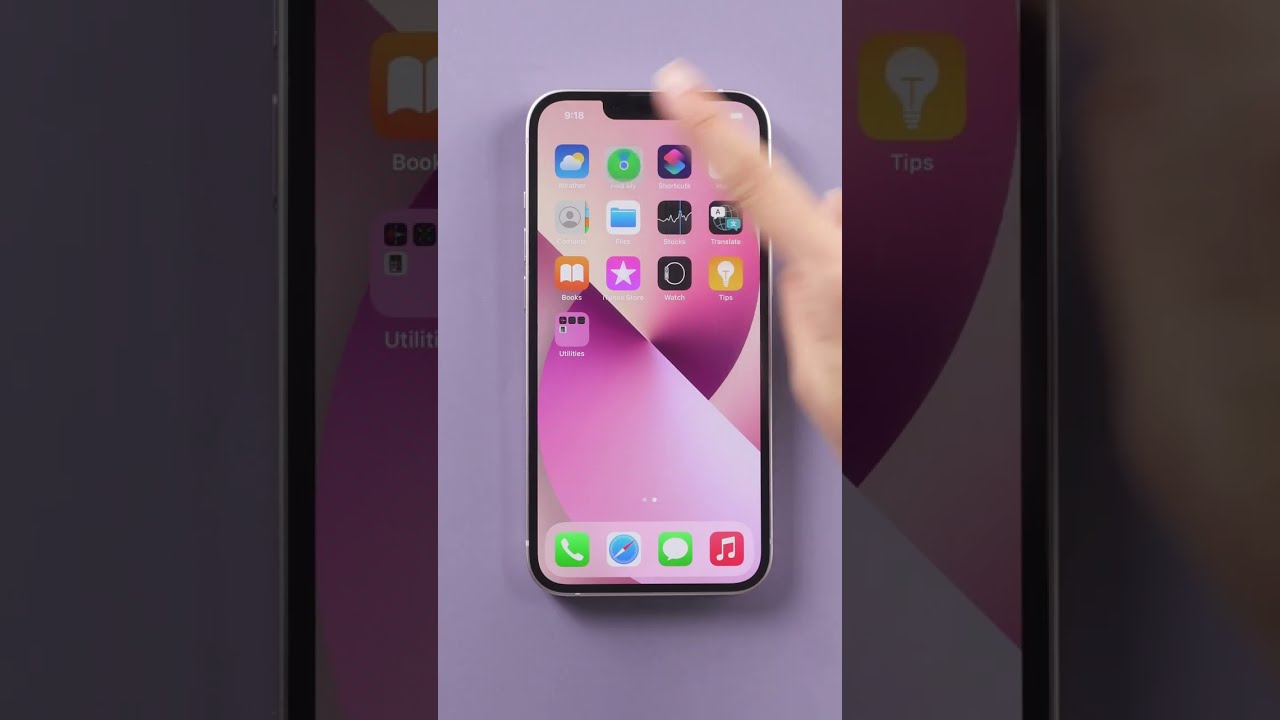
This is the most dangerous myth in the ecosystem. Many users desperately search for how to find my iphone by imei, hoping for a miracle tracking solution.
- Fact: Only mobile network operators and law enforcement (with a warrant) can track via IMEI.
- Fact: Apple does not provide a public tool to locate devices using the serial number or IMEI.
- Fact: Any website claiming to do this for a fee is likely a scam.
This Is NOT a Technique to Bypass an Apple ID or Activation Lock
Knowing the status does not give you the power to change it.
Checking the status is passive. It informs you of the lock state. It does not provide a “backdoor” to turn it off. If you find a device where the status is ON, and you don’t have the password, there is no magic software that fixes this. Legitimate verification is distinct from illegal “bypassing” attempts.
This Is NOT a Guarantee of Device Recovery
A status of “ON” gives you a chance, not a promise.
Even if you confirm that is find my iphone enabled, recovery depends on external factors:
- Does the device have battery?
- Is it capable of connecting to the Find My network?
- Is it in a location that is safe to approach?
We always advise users that while “Find My” is a powerful tool, physical recovery should involve law enforcement if the device was stolen.
This Is NOT Proof That a Device Has Been Hacked or Compromised
Find My status is unrelated to malware or network intrusion.
Some users worry that if their location is being shared, they are hacked. However, legitimate location sharing is a feature, not a bug. Furthermore, checking Find My status does not reveal technical network identifiers like the UDID or IP address, which are used for different technical diagnostics.
- For advanced diagnostics, users might ask how to find my iphone udid, but this is for app development, not security status.
- Similarly, knowing how to find my iphone ip address helps with network filtering but doesn’t tell you if “Find My” is secure.
- Network administrators might need to know how to find my iphone mac address for Wi-Fi whitelisting, but again, this is separate from the “Find My” Activation Lock status.
Risks & Warnings: Avoiding Scams and Misinformation
The Primary Risk: Used-Device Scams and Hidden Activation Locks
Scammers often sell devices that are “Activation Locked” to an unsuspecting buyer.
A common trick is to show a screenshot of the device “unlocked” or to manipulate the software temporarily so it looks functional. However, if the find my iphone activation lock is still active on Apple’s servers, the moment you reset that phone, it will lock you out.
- Warning: Never buy an iPhone that is stuck on the “Hello” screen asking for an unknown Apple ID.
- Warning: Always insist on erasing the device (Settings > General > Transfer or Reset iPhone > Erase All Content and Settings) in front of the seller. If it asks for their password, Find My is still ON.
Warning: Fake “Find My” Status Checkers & IMEI “Unlock” Services
The internet is full of predatory sites preying on desperate users.
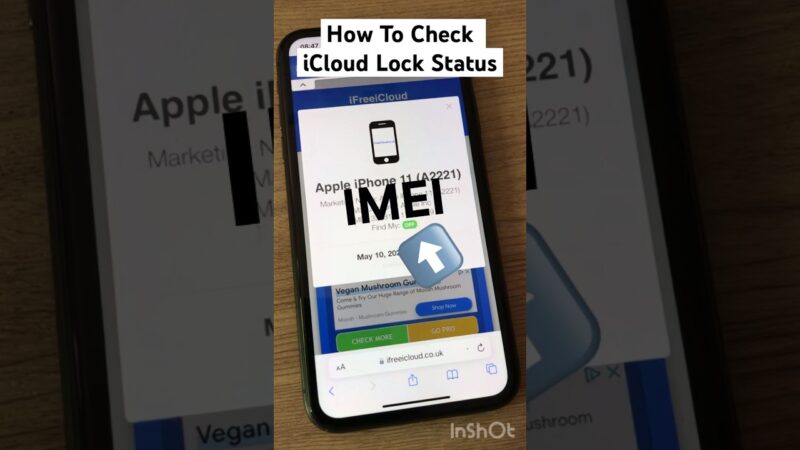
When you search for find my iphone imei/serial number checkers, you will find hundreds of sites.
- The Scam: They ask for a small fee (e.g., $1 or $20) to tell you where your phone is.
- The Reality: They cannot access Apple’s encrypted location data. They take your money and provide generic or false information.
- Advice: Stick to iCloud.com and official Apple Support channels.
The Myth of Using IMEI for Anything Other Than Identification
IMEI is useful for checking blacklists, not location.
While you cannot track location, you can use the IMEI to check if a phone has been reported as stolen to the carrier (Blacklist Check). This is different from the Find My status.
- Find My Status: Controlled by Apple (iCloud Lock).
- Blacklist Status: Controlled by Carriers (Network Block).
A phone can have Find My OFF but be Blacklisted by a carrier for non-payment. Both checks are vital when buying used.
Your Clear Next Steps Based on the Verification Result
If Find My is ON and You’re Selling the Device
You must disable it to release ownership.
If your check confirms the feature is active, you need to know how to turn off find my iphone properly.
- Go to Settings > [Your Name] > Find My.
- Toggle “Find My iPhone” to OFF.
- Enter your Apple ID password when prompted.
- Once disabled, you can safely factory reset the device.
If Find My is ON and You’re Buying the Device
Do not hand over cash until the seller disables it.
If you are inspecting a device and check if find my iphone is on returns a “Yes,” stop. Ask the seller to remove it. If they “forgot” their password or say they will “do it later,” walk away. This is the hallmark of a stolen device.
If Find My is OFF and You Own the Device
You are currently unprotected—enable it immediately.
If you discover your security is disabled, you need to know what to do if find my iphone is off.
- Go to Settings.
- Tap your name.
- Tap Find My.
- Tap Find My iPhone and toggle it ON.
This is the core of how to set up find my iphone for maximum security.
If You Cannot Verify the Status of a Used Device
If the seller refuses to let you check, assume the device is locked.
Uncertainty is your enemy. If a seller provides an IMEI but refuses to send a video of them signing out of iCloud, or if they refuse to meet in person to let you inspect the find my iphone settings, do not proceed. The risk of buying a “brick” is too high.
Conclusion
Verifying if Find My iPhone is on is a direct check of its Activation Lock status and overall security. The only reliable methods involve using the device itself or the owner’s iCloud account. There is no official public tool to check this status with an IMEI or serial number. Understanding this distinction is the key to protecting yourself when buying a used device and securing the Apple products you already own.
At FindMyiPhone.onl, we urge you to prioritize this simple check. Whether you are validating a second-hand purchase or performing a security audit on your own phone, knowing the status of “Find My” is the first line of defense against data loss and device theft.
To ensure your device is secure right now, go to Settings > [Your Name] > Find My and confirm it is enabled. If you are purchasing a used iPhone, always insist the seller erases the device in your presence to prove it is not Activation Locked.
Note: The information in this article is for reference only. For the best advice, please contact us directly for a specific consultation based on your actual needs.

About This Guide
Published by: FindMyiPhone.onl Editorial Team
Last Updated: January 16, 2026
Tested On: iPhone 15 Pro (iOS 17.5.1), iPhone 13 (iOS 17.4)
This tutorial was created through hands-on testing on real devices. All screenshots are from our testing lab. We update guides within 48 hours of iOS releases.
Questions? Contact our team | Meet the team Editorial Team