Skip to content
How to Find iPhone
  • Home
  • Guides
    • Icons & Interface
    • Status & Accuracy
    • System & Comparison
  • How To
    • Tracking & Alerts
  • Check
    • Status & IMEI Lookup
  • Fix
    • Location & Sync Issues
How to Find iPhone

How to Find Your iPhone - Complete Guide

Lost your device? Learn how to locate, track, and recover your iPhone in minutes using Apple's Find My feature. Step-by-step guides for all scenarios.

🔗 Open Find My Now 📖 Quick Start Guide

4 Steps to Find Your iPhone

The quickest way to locate your device using Find My. Follow these essential steps if your iPhone is lost or missing.

1

Go to iCloud.com/find

Open Find My in your web browser on any device. Sign in with your Apple ID and password.

2

Select Your iPhone

Choose your missing iPhone from the devices list. You'll see its current status: Live, Now, or Offline.

3

Take Action

Play a sound, enable Lost Mode to lock the device, or get precise location information. Do NOT remove the device from your account.

4

Get Alerts & Updates

Enable "Notify When Found" to receive alerts when your iPhone comes back online or connects to a network.

Panicked because you can’t find your device? This guide is your immediate solution. We’ll show you exactly how to use find my iphone to see its location on a map, make it play a sound, or secure your personal data right now. The fastest method is using a web browser on any computer or another phone. Follow these urgent steps to locate, lock, or erase your lost iPhone and regain peace of mind.

find my iphone

At FindMyiPhone.onl, we understand that every second counts when your device is missing. Whether it slipped between the couch cushions or was left in a taxi, the anxiety is real. Our mission is to empower you with clear, actionable steps to recover your property using the robust tools Apple provides.

Table of Contents

Toggle
  • The Fastest Way to Find Your iPhone: A Step-by-Step Guide for Immediate Action
    • Method 1: Using Any Computer or Web Browser (The Universal Method)
    • Method 2: Using a Friend’s or Family Member’s iPhone or iPad
  • You’ve Located Your iPhone on the Map: What Are Your 3 Critical Options?
    • Option 1: Play Sound – For When You Think It’s Nearby
    • Option 2: Lost Mode – Your Most Important First Step
    • Option 3: Erase iPhone – The Last Resort for Protecting Your Data
    • Quick Reference Table: Choosing the Right Action
  • Troubleshooting: What to Do If Your iPhone Is Offline or Not Showing a Location
    • Scenario 1: The iPhone’s Battery is Dead or It’s Turned Off
    • Scenario 2: Find My iPhone Was Never Enabled
    • Scenario 3: The iPhone is Offline (Not Connected to Wi-Fi or Cellular)
  • Be Prepared: How to Set Up Find My Correctly on Your Devices
    • A Simple 3-Step Setup Guide
    • Expert Tip: Why You Must Enable “Find My Network” and “Send Last Location”
  • Special Protocol for a Stolen iPhone
    • Do Not Attempt to Recover It Yourself
    • Essential Reporting Steps
  • Conclusion

The Fastest Way to Find Your iPhone: A Step-by-Step Guide for Immediate Action

How do I find my iPhone quickly?
The fastest way is to log into iCloud.com/find or use the Find My app on a friend’s Apple device to pinpoint its location immediately. Once you’ve located it, learn more about how to read the Find My iPhone map and understanding approximate location accuracy.

When you realize your phone is gone, your heart rate spikes. You need a solution that works now. You do not need to be a tech wizard to track lost iPhone devices; you just need access to the internet. There are two primary methods to access the Find My iPhone interface, and both are equally effective depending on what hardware you have available.

Method 1: Using Any Computer or Web Browser (The Universal Method)

Can I find my iPhone from a computer?
Yes, you can access the full Find My dashboard from any web browser on a Windows PC, Mac, or Android device by visiting iCloud.com. For specific instructions on Android devices, check our guide on how to find your iPhone from Android.

This is often the most accessible method for users who are at work or home. You do not need another Apple product to do this; a Windows laptop or a library computer works perfectly.

Step-by-Step Guide:

  1. Open a Web Browser: Immediately open Chrome, Safari, Firefox, or Edge on any available computer or smartphone.
  2. Navigate to the URL: Type in iCloud.com/find. This is a direct link to the tracking tool, bypassing the main iCloud dashboard to save you time.
  3. Log In: You will see a clean, simple login screen. Enter your Apple ID (usually your email address) and password.
    • Expert Note: If you have Two-Factor Authentication (2FA) enabled, you might worry about needing a code sent to your lost phone. However, the “Find Devices” section of iCloud often allows you to bypass the 2FA code specifically for locating a device. Look for a “Find Devices” button at the bottom of the screen if prompted for a code you cannot access. If you’re experiencing issues, see our troubleshooting guide on Find My iPhone verification failed.
  4. Select Your Device: Once logged in, the main interface will load a map (Apple Maps). At the top of the screen, click on “All Devices.”
  5. Locate: Select the specific iPhone you are looking for from the dropdown list. You can also learn how to identify your iPhone name for future reference.
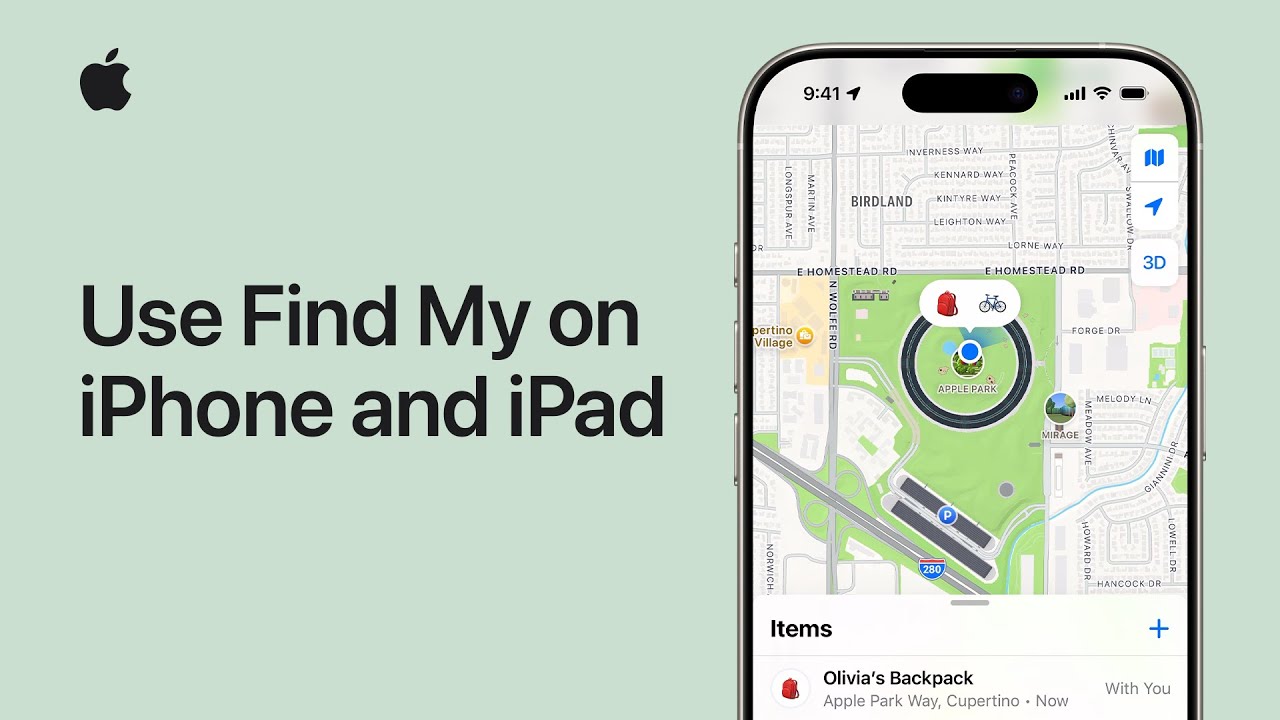
  6. View Status: The map will zoom in on the device’s last known location. You will see a dot indicating where it is, along with the battery level and how long ago the location was updated.

Using Find My iPhone from computer browsers is reliable because it gives you a large screen to view the map, making it easier to identify street names and nearby landmarks. Understanding Find My iPhone accuracy will help you manage your expectations during recovery.

Method 2: Using a Friend’s or Family Member’s iPhone or iPad

How do I find my iPhone from another phone?
You can use the “Help a Friend” feature within the Find My app on any other iPhone or iPad to log in as a guest and track your device.

If you are out and about without a computer, borrowing a friend’s phone is your best bet. However, you should not ask them to sign out of their iCloud account in their settings. That is a time-consuming process that risks their data. Instead, use the dedicated guest feature.

How to use Find My app on another device:

  1. Open the App: Ask your friend to open the “Find My” app on their iPhone or iPad. It is a grey icon with a green radar circle. If you’re curious about the various icons and symbols, learn what the different Find My iPhone icons mean.
  2. Access the “Me” Tab: Tap on the “Me” tab located at the bottom right corner of the screen.
  3. Select “Help a Friend”: Scroll down to the bottom of the “Me” page. You will see small blue text that says “Help a Friend.” Tap this.
  4. Log In Securely: This action opens a separate browser window pointing to iCloud.com. Enter your Apple ID and password here.
    • Privacy Assurance: Because this opens a browser session, your credentials are not saved on your friend’s device. Once you are done and close the window, your account is logged out, ensuring your security.
  5. Track: You will now see the same map interface as described in Method 1.

This method effectively answers how to find my iPhone when you don’t have your own hardware. It leverages the ubiquity of Apple devices to create a safety net for you. For more details, see our guide on finding your iPhone from different devices.

You’ve Located Your iPhone on the Map: What Are Your 3 Critical Options?

You've Located Your iPhone on the Map: What Are Your 3 Critical Options?

What can I do once I see my iPhone on the map?
You have three primary actions: Play Sound (for nearby recovery), Lost Mode (to secure and track), and Erase iPhone (to delete data permanently).

Once the map populates with that green dot, relief washes over you—but you aren’t done yet. Depending on where the device is, you need to choose the right course of action. The Find My iPhone interface presents you with three distinct buttons. Understanding the nuance of each is vital for both recovery and data protection.

Option 1: Play Sound – For When You Think It’s Nearby

How do I find my iPhone if it’s silent?
The “Play Sound” feature forces the iPhone to emit a loud, piercing pinging noise even if the physical switch is set to silent or Do Not Disturb is on. If you’re wondering whether Find My iPhone works with Do Not Disturb enabled, the answer is yes – this feature overrides those settings.

This feature is best used when the map indicates the device is at your current location—your house, your office, or inside your car. We have all experienced the “couch cushion” panic.

  • How it works: When you click “Play Sound,” your iPhone will vibrate and play a sound that starts softly and gradually gets louder for two minutes. Check out how to set off the Find My iPhone alarm for more details.
  • Why it helps: It cuts through the noise. Even if your phone is buried under a pile of laundry or slipped behind a car seat, the high-pitched frequency is designed to be audible.
  • Cancellation: The sound stops immediately once you find the device and unlock it.

Option 2: Lost Mode – Your Most Important First Step

How do I put iPhone in Lost Mode?
Select “Lost Mode” or “Mark As Lost” in the Find My interface, create a passcode if needed, and enter a contact number to lock down your device immediately.

If the map shows your phone is at a restaurant, a park, or moving on a highway, you must activate Lost Mode immediately. This is the most critical feature for securing your device while you attempt retrieval. If your device was stolen, follow our special stolen device protocol in addition to activating Lost Mode.

What Lost Mode does:

  • Locks the Screen: It remotely locks your iPhone with your existing passcode. If you didn’t have a passcode set (which is rare), it asks you to create one instantly.
  • Custom Message: It allows you to display a custom message on the Lock Screen. For example: “This iPhone is lost. Please call me at [Your Friend’s Number]. Reward offered.”
  • Suspends Payments: It immediately suspends Apple Pay. Your credit and debit cards stored in Wallet are disabled on that device, protecting your finances.
  • Enables Tracking: It enables location services remotely, even if you had them turned off. It begins tracking the device’s movements over time, providing a location history on the map. Learn more about Find My iPhone live location accuracy.

How to activate it:

  1. Select your device on the map.
  2. Click “Mark As Lost” or “Lost Mode.”
  3. Follow the onscreen prompts to enter a phone number where you can be reached.
  4. Type a short, polite message.
  5. Click “Activate.”

At FindMyiPhone.onl, we recommend activating this mode the moment you realize the phone is not in your immediate vicinity. It is reversible, so there is no downside to turning it on.

Option 3: Erase iPhone – The Last Resort for Protecting Your Data

How do I erase iPhone remotely?
Select “Erase iPhone” in the Find My tool to permanently wipe all content and settings, ensuring your data cannot be accessed by thieves. Understanding erase pending status and what it means is important before you proceed.

This is the “nuclear option.” You should only use this if you are certain the device is stolen and unrecoverable, or if the device contains highly sensitive data that absolutely cannot be compromised.

Risk Warning:

  • Permanent Data Loss: Clicking this will delete everything—photos, messages, apps, and files. If you haven’t backed up to iCloud or a computer, this data is gone forever.
  • Tracking Stops: Once the device is erased, you can no longer use Find My iPhone to locate it. The map will stop updating.
  • Activation Lock Remains: Crucially, even after erasing, Activation Lock remains active. This means the thief cannot set up the phone as a new device without your Apple ID and password. Learn more about Find My iPhone Activation Lock for protection. It renders the device useless to them, preserving the security of your hardware even if the data is gone.

Quick Reference Table: Choosing the Right Action

To help you decide quickly in a stressful moment, refer to this table:

Symbol/Color What It Looks Like Meaning What You Should Do
Small, solid green dot. Device is online; location is real-time. Track immediately; use “Play Sound.”
Large transparent circle around dot. Approximate location (low accuracy). Go to the general area; look for the dot.
Small, solid gray dot. Device is offline (dead/no signal). Go to last known spot; enable “Notify When Found.”
Blue dot with pulsing halo. Your current location. Use as a guide to walk toward the green dot.
Small image of iPhone/iPad. Specific device type. Identifies which device is at that location.

Troubleshooting: What to Do If Your iPhone Is Offline or Not Showing a Location

Troubleshooting: What to Do If Your iPhone Is Offline or Not Showing a Location

Can I find my iPhone if it is offline or dead?
Yes, the “Find My Network” can locate offline devices using Bluetooth signals from other Apple devices, and “Send Last Location” saves the spot where the battery died. Learn more about how Find My iPhone works without cellular service.

One of the most terrifying messages to see is “Offline” or “No Location Found.” However, thanks to Apple’s advanced technology, this is not necessarily a dead end. Users often ask, “find my iphone if dead—is it possible?” The answer is increasingly “yes,” depending on your device model and iOS version.

Scenario 1: The iPhone’s Battery is Dead or It’s Turned Off

If your battery has drained completely, real-time tracking via GPS and cellular data stops. However, you still have options.

  • Send Last Location: If you enabled this feature (as recommended in our setup guide below), the iPhone automatically sent its location to Apple right before the battery hit 0%. You will see this static location on the map, giving you a starting point for your search. Understand what it means when Find My iPhone doesn’t show the last location.
  • Notify When Found: On the Find My interface, check the box for “Notify When Found.” The moment someone plugs in your phone and it turns on, Apple will send you an email and a notification on your other devices with its new location.
  • iPhone 11 and Later: If you have a newer model (iPhone 11, 12, 13, 14, 15 or newer) running iOS 15 or later, the device utilizes a “Power Reserve” mode. This allows the device to be discoverable by the Find My network for up to 24 hours (or even longer on newer models) after the battery has technically died or the phone has been powered down. For detailed info, see Find My iPhone accuracy when the phone is off.

Scenario 2: Find My iPhone Was Never Enabled

Can I find my iPhone without the app enabled?
No, if “Find My iPhone” was not turned on before the loss, you cannot track it. You must secure your accounts immediately. Use our guide to check if Find My iPhone is already enabled on your device.

We must be direct and empathetic here: if you did not turn on “Find My” in your iCloud settings before the device was lost, you cannot use the service to locate lost iPhone. There is no workaround for this.

Immediate Alternative Steps:

  1. Change Apple ID Password: This prevents anyone from accessing your iCloud data.
  2. Change Other Passwords: Email, banking, and social media passwords should be updated immediately.
  3. Report to Carrier: Call your wireless provider to suspend service so calls and texts cannot be made. Ask about finding your IMEI and serial number for the report.
  4. Report to Police: File a report for the lost item.

Scenario 3: The iPhone is Offline (Not Connected to Wi-Fi or Cellular)

How does find my iPhone offline work?
It uses the “Find My network,” a crowd-sourced mesh of millions of Apple devices that detect Bluetooth signals from your missing phone and report its location securely. Get the details about whether Find My iPhone uses GPS and Bluetooth technology.

This is the power of the Apple ecosystem. Even if your iPhone has no SIM card or is not connected to Wi-Fi, it emits a secure Bluetooth beacon.

  • The Crowd-Sourced Network: When another Apple user (with an iPad, iPhone, or Mac) walks past your lost device, their device picks up the signal.
  • Privacy First: Their device sends the location of your phone to Apple’s servers. This happens anonymously and in the background. The person walking by doesn’t know they are helping you, and Apple doesn’t know who they are.
  • End-to-End Encryption: The location data is encrypted so that only you can see it. Not even Apple can see the location.

This feature answers the question “can i find my iphone if location is off?” effectively. As long as the Bluetooth radio is active (which it usually is), the Find My network can help you find my iphone offline. For more context, understand what off-network means on Find My iPhone.

Be Prepared: How to Set Up Find My Correctly on Your Devices

Be Prepared: How to Set Up Find My Correctly on Your Devices

How do I set up Find My iPhone properly?
Go to Settings > [Your Name] > Find My, toggle on “Find My iPhone,” and enable “Find My Network” and “Send Last Location” for maximum protection.

If you are reading this on a replacement device or just want to be prepared, setting this up correctly is the best insurance policy you can have. Many users think simply flipping the main switch is enough, but to truly track lost iPhone in difficult scenarios, you need to go deeper.

A Simple 3-Step Setup Guide

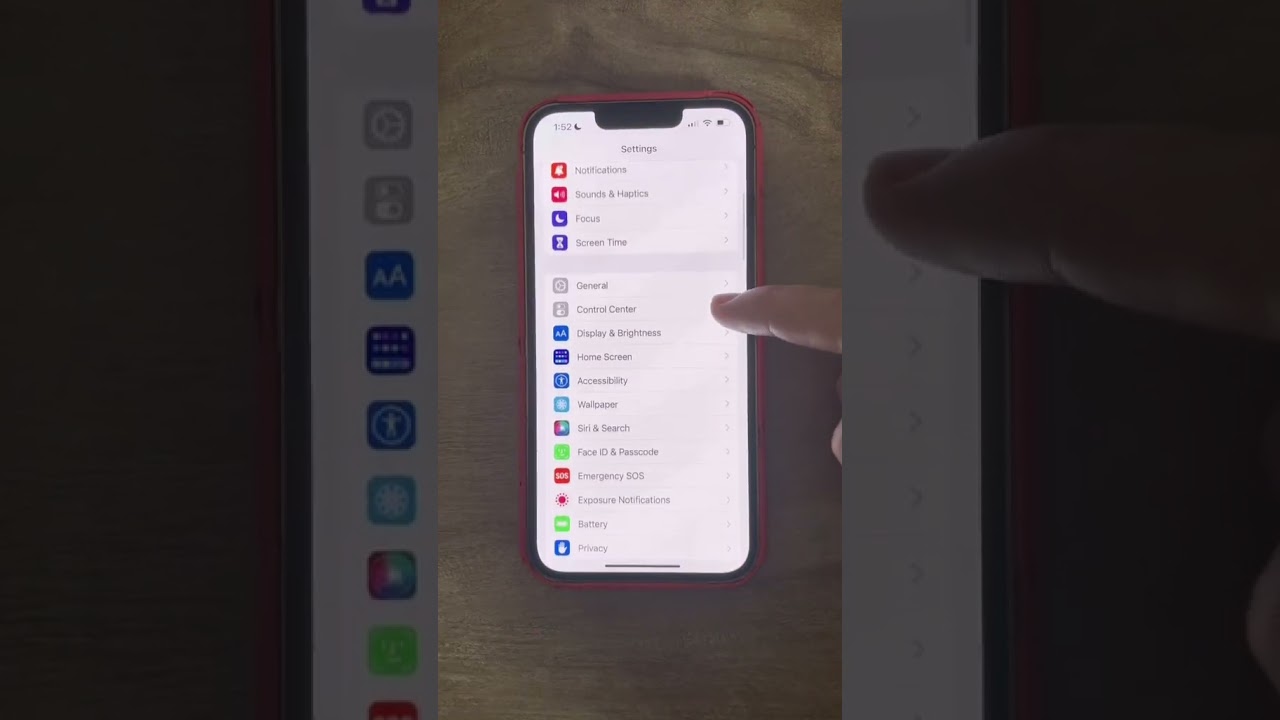
  1. Open Settings: Tap the grey gear icon on your Home Screen.
  2. Tap Your Name: Click your Apple ID banner at the very top of the menu.
  3. Tap “Find My”: Select this option (green radar icon).
  4. Tap “Find My iPhone”: Ensure the main toggle at the top is Green (On). Learn how to keep Find My iPhone always on for constant protection.

Expert Tip: Why You Must Enable “Find My Network” and “Send Last Location”

Once you are in the “Find My iPhone” menu, you will see two additional toggles below the main one. At FindMyiPhone.onl, we urge you to turn both of these ON.

  • Find My Network: This enables the offline finding capability described above. Without this, your phone is invisible if it disconnects from the internet. This is crucial for locating a stolen device that may have had its SIM card removed. Check our comparison of Life360 vs Find My iPhone to see how it stacks up against alternatives.
  • Send Last Location: This is your safety net. If your battery drains to critical levels, this feature forces the phone to ping Apple with its GPS coordinates one last time. This “death rattle” signal is often the difference between finding a phone lost in the snow and losing it until spring. Interested in other concerns? See if Find My iPhone drains your battery.

By enabling these, you ensure you can find my iphone without app intervention at the moment of loss; the system works passively to protect you.

Special Protocol for a Stolen iPhone

Special Protocol for a Stolen iPhone

What should I do if my iPhone is stolen?
Mark it as lost immediately, file a police report, and contact your carrier. Never attempt to retrieve a stolen device yourself. Follow our detailed guide on what to do when your iPhone is stolen for step-by-step instructions.

Discovering your phone has been stolen is a violation of your privacy and security. If you track the device to a strange house or a public area that feels unsafe, you must suppress the urge to play hero.

Do Not Attempt to Recover It Yourself

Safety Warning: Your life is worth more than a phone. We have seen too many stories of people confronting thieves, leading to dangerous confrontations. If the map leads you to a private residence or a suspicious location, do not go there.

Essential Reporting Steps

Instead of confronting the thief, follow this checklist to locate stolen iphone legally and safely:

  1. Lock It Down: Activate Lost Mode immediately to secure your personal information.
  2. File a Police Report: Go to your local police station. Provide them with the device’s serial number and IMEI (you can find this on the original box or your Apple ID account page). Show them the current location on the Find My app. Learn how to find your iPhone by IMEI.
  3. Contact Your Carrier: Call your mobile provider to report the device stolen. They can blacklist the IMEI, preventing the thief from using the phone on any cellular network, effectively turning the hardware into a brick.
  4. Erase Data: If it becomes clear the police cannot recover it promptly, use the Erase iPhone command to wipe your personal life off the device. Check if other apps like Find My iPhone offer additional protection layers.

Conclusion

Losing your iPhone is incredibly stressful, but Apple provides powerful tools to help you manage the situation. By using the find my iphone features through the app or iCloud website, you can quickly locate your device, protect your information with Lost Mode, or erase data as a last resort. The most important actions are to stay calm, act quickly, and use these features to secure your digital life.

Whether you are trying to find my iphone from another phone, dealing with a dead battery, or worried about a stolen device, the ecosystem is designed to assist you. Remember, preparing ahead by properly setting up Find My is the best defense. For troubleshooting common issues, visit our troubleshooting guides or check how-to tutorials for additional help.

Haven’t set up Find My on your devices yet? Take two minutes right now to go into your iPhone’s settings and ensure “Find My Network” and “Send Last Location” are enabled. It’s the best insurance you can have for your device.


Note: The information in this article is for reference only. For more information and resources, visit our about us page or contact us for personalized assistance.

Frequently Asked Questions

Yes! Modern iPhones with iOS 15+ can be located even when powered off using the Find My network.

No. Find My is extremely efficient, typically using less than 1% battery per day.

Yes. Simply visit iCloud.com/find on any web browser and sign in with your Apple ID.

Find My still works via Wi-Fi or the Find My network, SIM card is not required.

GPS drift or weak signals can cause inaccuracy. Location improves as the device updates.

Accuracy depends on connection type. Live status is most accurate, offline shows last known location.

<
Does Find My iPhone Have Crash Detection? Unpacking Safety Features
Guides

Does Find My iPhone Have Crash Detection? Unpacking Safety Features

Does Find My iPhone have crash detection? No, they are separate systems. Learn how Crash…

Jan 03, 2026 13 min read
The Truth: Does Find My iPhone Drain Battery & How to Optimize
Guides

The Truth: Does Find My iPhone Drain Battery & How to Optimize

Worried about power consumption? We reveal the truth: **does Find My iPhone drain battery**? Discover…
Jan 03, 2026 11 min read
Does Find My iPhone Use GPS? How Location Tracking Works
Guides

Does Find My iPhone Use GPS? How Location Tracking Works

Feeling panic over a lost device? Discover the answer to "does Find My iPhone use…
Jan 03, 2026 13 min read
Does Find My iPhone Work Internationally? Essential Tips for Travelers
Guides

Does Find My iPhone Work Internationally? Essential Tips for Travelers

Traveling soon? Discover the answer to "does find my iphone work internationally," how to track…
Jan 03, 2026 13 min read
Does Find My iPhone Work on Do Not Disturb? Get the Answer!
Guides

Does Find My iPhone Work on Do Not Disturb? Get the Answer!

Does Find My iPhone work on Do Not Disturb? Yes! Learn how the Play Sound…
Jan 03, 2026 12 min read
Does Find My iPhone Work in China: A Full Guide for Expats & Tourists
Guides

Does Find My iPhone Work in China: A Full Guide for Expats & Tourists

Planning a trip? **Does Find My iPhone work in China**? Yes, but with limits. Discover…
Jan 03, 2026 11 min read
Find My iPhone: Does It Work When There Is No Service? A Deep Dive
Guides

Find My iPhone: Does It Work When There Is No Service? A Deep Dive

Does Find My iPhone work when there is no service? Yes. Discover how the Find…
Jan 03, 2026 13 min read
Is Find My iPhone Down? Current Service Status & Troubleshooting Guide
Guides

Is Find My iPhone Down? Current Service Status & Troubleshooting Guide

Is Find My iPhone down? Check the real-time Apple server status here. If servers are…
Jan 03, 2026 11 min read
Does Find My iPhone Use Data? Understanding Its Network Needs
Guides

Does Find My iPhone Use Data? Understanding Its Network Needs

Panicked about a lost device and wondering **does find my iphone use data**? We explain…

Jan 03, 2026 10 min read
⚠️ Disclaimer: This guide is for informational purposes
about Apple’s Find My feature. We are not affiliated with Apple Inc.
For official support, visit support.apple.com
  • Privacy Policy
  • Terms of Service (ToS)
  • Contact Us
  • About FindMyiPhone.onl
Copyright © 2026 How to Find iPhone - Powered by .
Offcanvas
  • Home
  • Guides
    • Icons & Interface
    • Status & Accuracy
    • System & Comparison
  • How To
    • Tracking & Alerts
  • Check
    • Status & IMEI Lookup
  • Fix
    • Location & Sync Issues